How to Enable Advanced Graphics in Defender Application Guard


Advanced graphics in Microsoft Defender Application Guard (a security tool that opens untrusted websites inside an isolated container to protect your PC from malware) turns on hardware acceleration to make web pages load faster and videos run smoother.
Switching on this feature gives you better visual performance on heavy sites on Windows 10 and Windows 11 Pro or Enterprise editions without weakening your system security. You can set this up using PowerShell or the Local Group Policy Editor.
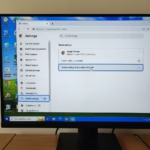
Open Windows Security, navigate to App & browser control, then Isolated browsing, and click Change Application Guard settings. Toggle the Advanced graphics switch to On. Restart your computer to apply the changes.
Method 1Using Windows Security Settings
Turning on advanced graphics Application Guard via Windows Security lets you improve how the browser displays graphics without editing system files. Open Windows Security from your taskbar , go to App & browser control, and find the Isolation area to switch on advanced graphics. Make sure you sign in with an administrator account before you start.
First, ensure Microsoft Defender Application Guard is installed and enabled for the Microsoft Edge browser. Check out this guide if you haven’t done it yet: How to install and enable Microsoft Defender Application Guard for Edge browser.
Open the Windows Security app to access advanced graphics settings. Search for "Windows Security" in your Start menu and click the search result. This app manages various security features for your computer.
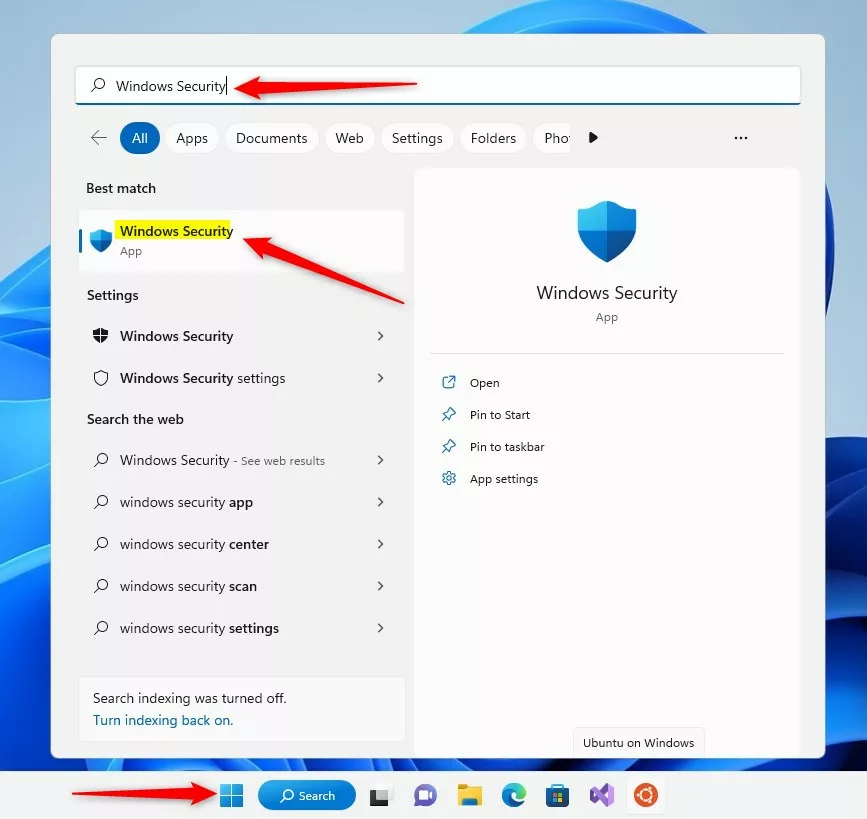
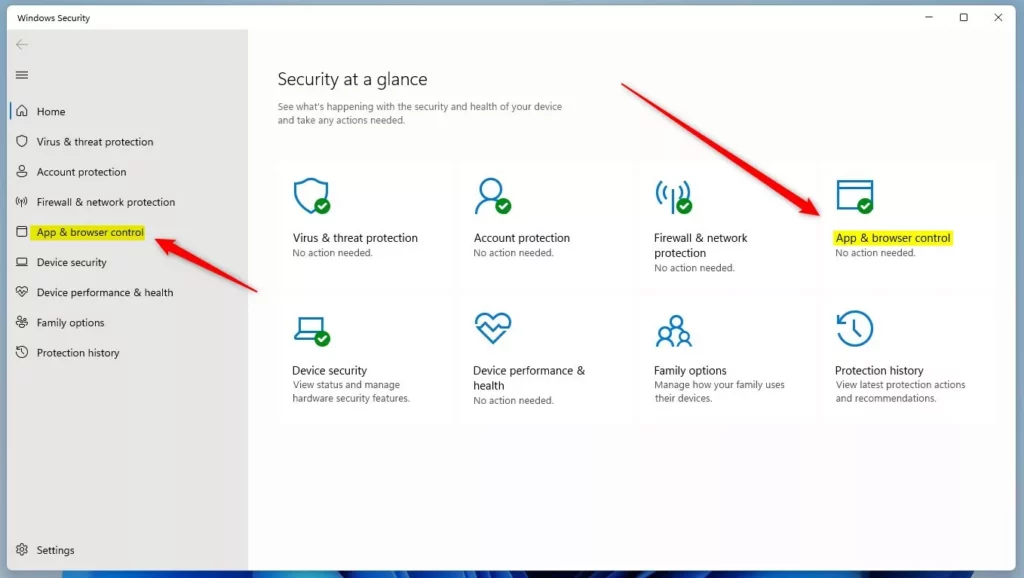
2. Click on the App & browser control section.
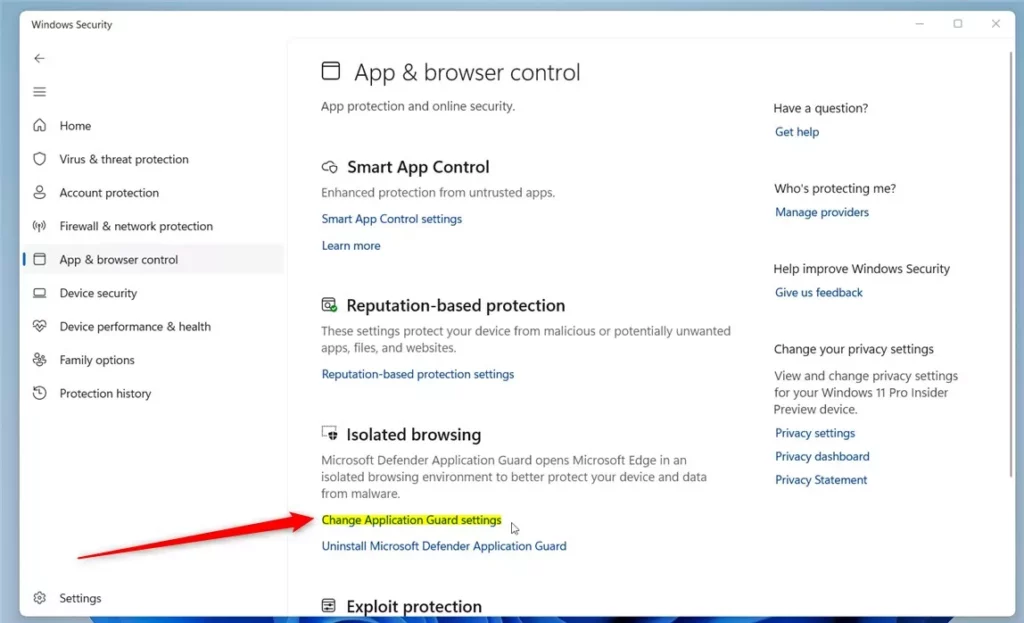
3. Under the Isolated browsing area, click the link that says Change Application Guard settings.
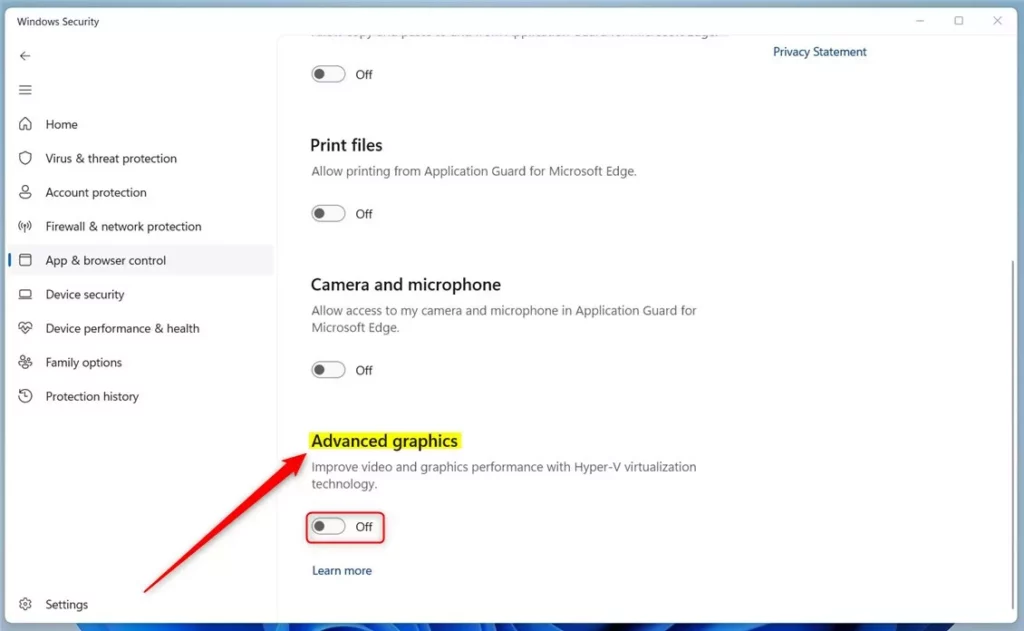
The Advanced graphics section controls how Defender Application Guard displays visual elements. To turn on advanced graphics, toggle the switch to On. To turn off advanced graphics, toggle the switch to Off. Turning on advanced graphics can improve the clarity of graphics within the protected browser session.
5. Restart your computer so the settings can take effect.
Method 2Using the Registry Editor
Enabling advanced graphics Application Guard using the Registry Editor requires you to add a specific DWORD value in HKEY_LOCAL_MACHINE\SOFTWARE\Microsoft\AppHV詳細は\Client. Mistakes in the registry can cause serious system problems, so follow these steps carefully. Open Registry Editor from the Start menu, go to the correct path, and create the required key to turn on the feature.
If you prefer not to use the settings menu, you can use the Windows Registry. Open the Windows Registry and go to the following path:
HKEY_LOCAL_MACHINE\SOFTWARE\Microsoft\Hvsi
If the Hvsi folder isn't visible, right-click the Microsoft folder, select New, then Key, and name it Hvsi.
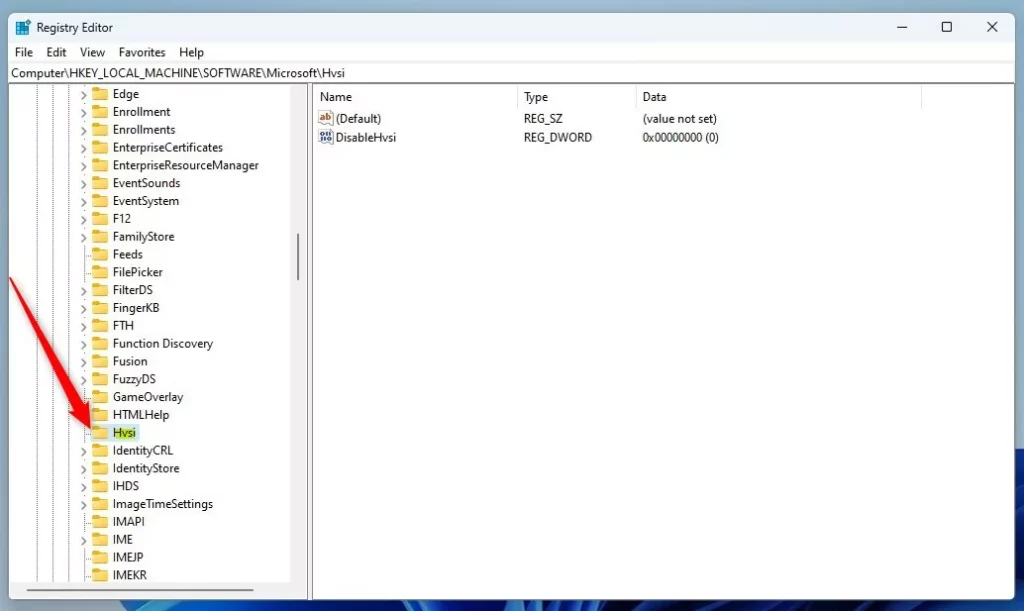
- Right-click in the empty space on the right side of the Hvsi folder.
- Select New, then choose DWORD (32-bit) Value.
- Name this new value
EnableVirtualGPU.
4. Double-click EnableVirtualGPU and set its Value data to 1 to turn Advanced graphics on, or to 0 to turn them off.
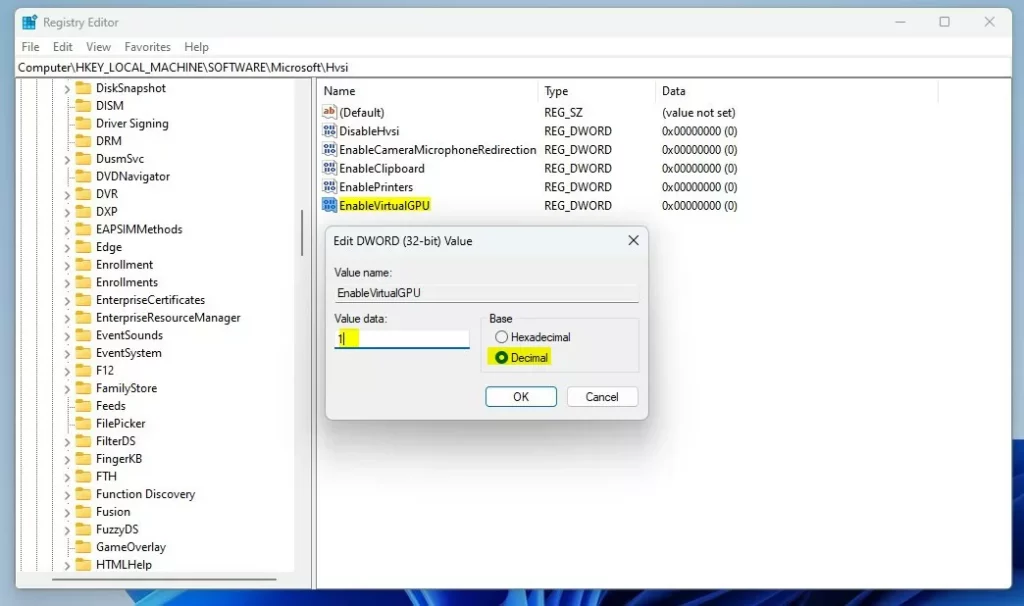
5. Restart your computer for the settings to take effect.
Once finished, you can open an isolated browser window by pressing CTRL + SHIFT + Q or by selecting New Application Guard window from the Edge browser menu.
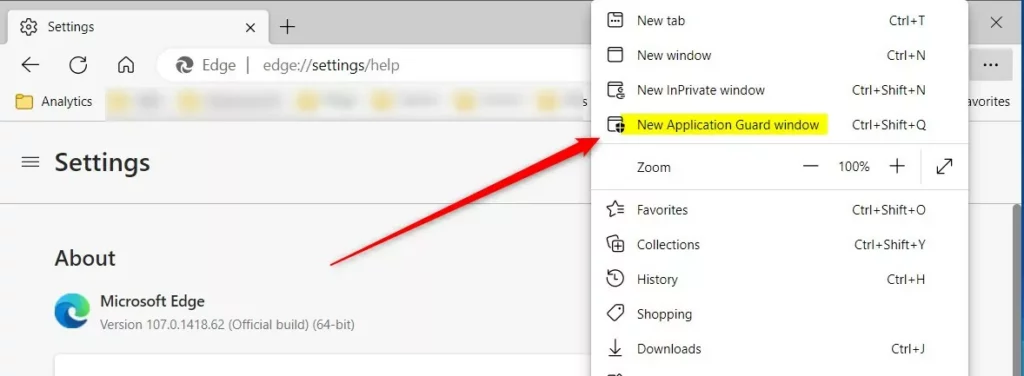
For more details, visit this reference: Microsoft.com
Summary
Advanced graphics make your isolated browsing experience faster and more visually smooth. You can turn on this feature through the Windows Security app or the Registry Editor. Always restart your computer after changing these settings so the advanced graphics can take effect.
What does Microsoft Defender Application Guard do?
For Microsoft Office, Application Guard helps prevent untrusted Word, PowerPoint, and Excel files from accessing trusted resources. Application Guard opens untrusted files in an isolated Hyper-V-enabled container. The isolated Hyper-V container is separate from the host operating system.
Which apps does Application Guard work with?
Designed for Windows 10/11 and Microsoft Edge, Application Guard uses a hardware isolation approach. This approach lets untrusted site navigation launch inside a container. Hardware isolation helps enterprises safeguard their corporate network and data in case users visit a site that is compromised or is malicious.
Is Microsoft Defender application guard missing 🪟 Windows 11?
This decision was made to streamline our security offerings and focus on more advanced protective measures. As of Windows 11, version 24H2, released in October 2024, MDAG is no longer available. Consequently, the corresponding browser extensions and associated Windows Store apps were removed after May 2024.
Was this guide helpful?

About the Author
Richard
Tech Writer, IT Professional
Richard, a writer for Geek Rewind, is a tech enthusiast who loves breaking down complex IT topics into simple, easy-to-understand ideas. With years of hands-on experience in system administration and enterprise IT operations, he’s developed a knack for offering practical tips and solutions. Richard aims to make technology more accessible and actionable. He's deeply committed to the Geek Rewind community, always ready to answer questions and engage in discussions.

No comments yet — be the first to share your thoughts!