How to Delete Windows.old Folder in Windows 11


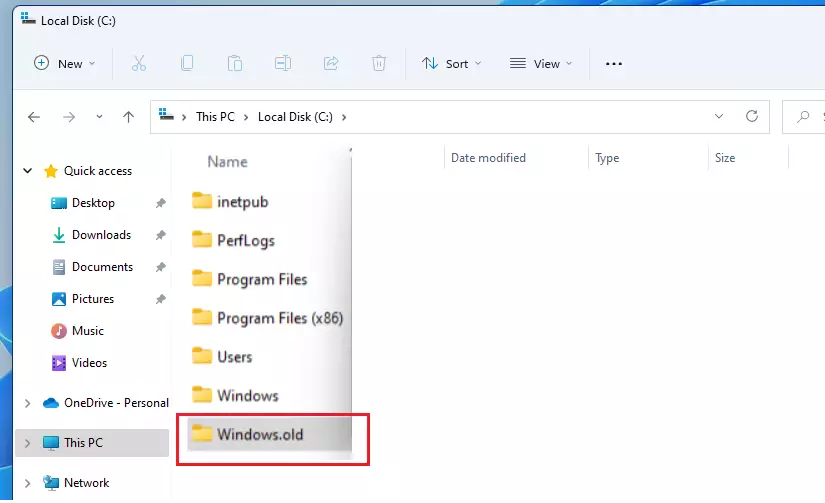
The Windows.old folder stores your old operating system files after a major upgrade so you can roll back within 10 days, but it often wastes over 20 gigabytes of disk space on your C: drive.
Windows automatically deletes this folder after 10 days, but you can remove it manually right now to reclaim your drive space using built-in Windows tools.
Use Disk Cleanup by searching for it, clicking “Cleanup system files,” checking “Previous Windows installation(s),” and clicking OK. Alternatively, use Command Prompt with administrator privileges and type `rd /s /q 📁C:\
Why delete the Windows.old folder?
The Windows.old folder stores files from your previous Windows version after an upgrade, but it can take up a lot of space, often 10GB to 30GB.
What happens when done?
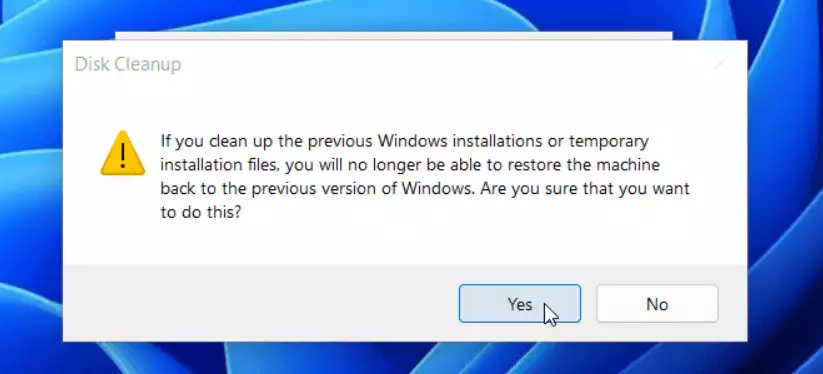
Deleting the Windows.old folder frees up tens of gigabytes of storage space on your hard drive. Once you delete Windows.old, you permanently lose the ability to roll back to your previous operating system build through the normal settings menu. You should only remove this directory when you are completely certain your current Windows 11 installation works properly and you do not need any old system files.
How to use Disk Cleanup (Recommended)
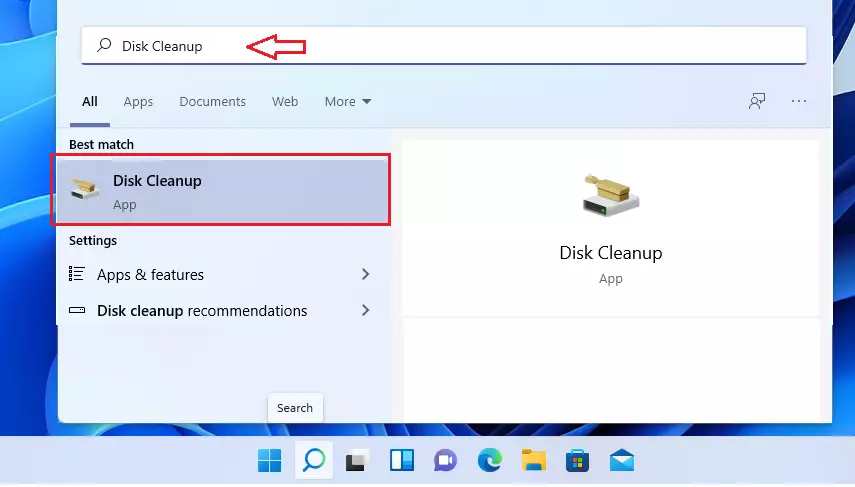
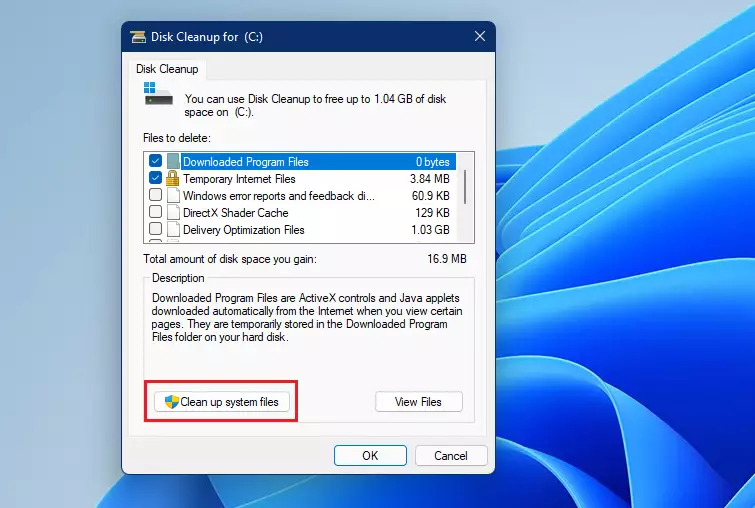
Disk Cleanup (a built-in tool that removes temporary and unneeded files) is the safest way to delete the Windows.old folder because Windows handles the permission checks and system file removal for you. You just need to open the tool, click the button to scan system files, check the box for previous Windows installations, and let the program clear out the extra data automatically without causing system errors.
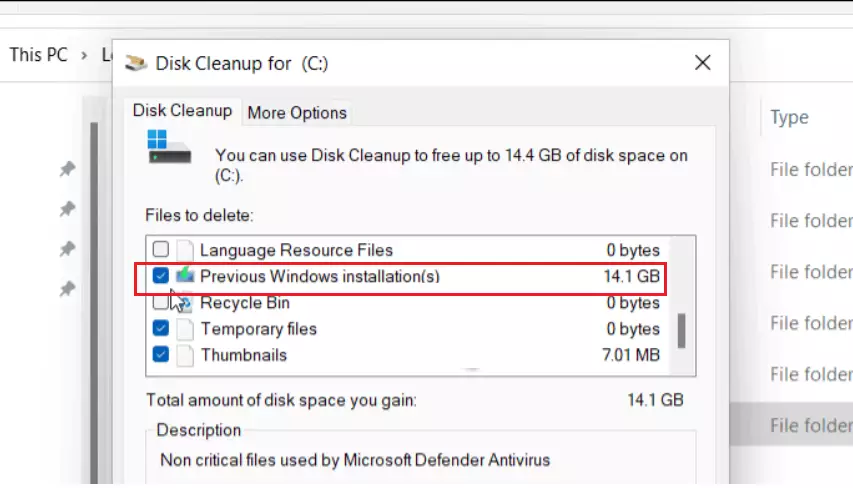
- Click the Start button and search for Disk Cleanup.
- Select the app from the list.
- Click the Cleanup System Files button. (Requires administrator privileges).
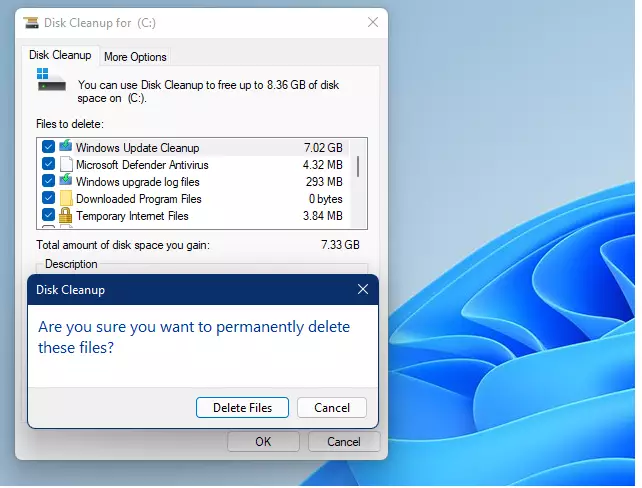
- The tool will scan your drive. This might take a few minutes.
- Look for Previous Windows installation(s) in the list.
- Check the box and click OK.
How to use Command Prompt for stubborn files
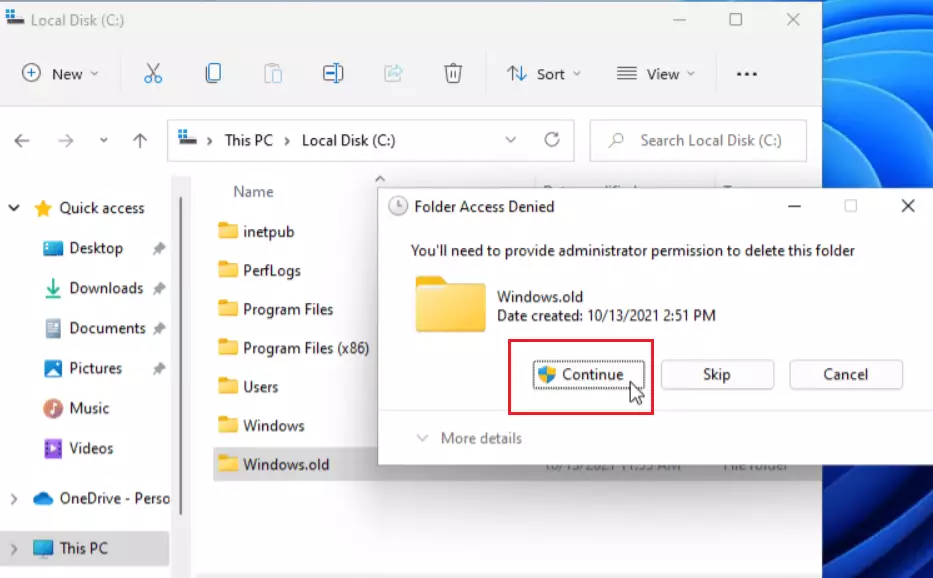
Command Prompt (a text-based tool used to run advanced instructions) forces your computer to delete the Windows.old folder when standard methods fail due to locked permissions. You can bypass normal file locks by opening the command window with administrator rights and running a specific removal command that strips away protection attributes and erases the entire directory at once.
- Search for cmd in the Start menu.
- Right-click it and select Run as administrator.
- Type the following command and press Enter: ⚠️WarningThe "rd /s /q C:\Windows.old" command instructs Windows to delete the Windows.old folder.
This command removes the folder and all its contents without needing your confirmation, making the process quick.
Automating cleanup with Storage Sense
Let Windows handle this automatically. Go to Settings System Storage Storage Sense (a feature that automatically frees up disk space). Turn it on, and Windows will delete temporary files and old installation folders when storage runs low.
Troubleshooting: What if it still won't delete?
System File Checker (a diagnostic tool that finds and replaces broken system files) fixes underlying operating system errors that often prevent you from getting rid of the Windows.old folder. When stubborn files refuse to disappear, running this scan repairs corrupted Windows components so your system finally lets you clear away the leftover upgrade data for good.
sfc /scannow
to repair any system file issues that might be preventing the deletion. For more details, visit the official Microsoft Support page.
Summary
The Windows.old folder holds files from your previous Windows version, and you can delete it to free up storage space if you don't plan to revert.Is it safe to delete Windows.old?
Yes, it is safe to delete the Windows.old folder if you are satisfied with your current Windows 11 installation. It contains temporary system files from your previous OS. Deleting it removes the ability to roll back your system to the older version using built-in Windows tools.




No comments yet — be the first to share your thoughts!