How to Configure Widgets Notifications on the Taskbar in Windows 11

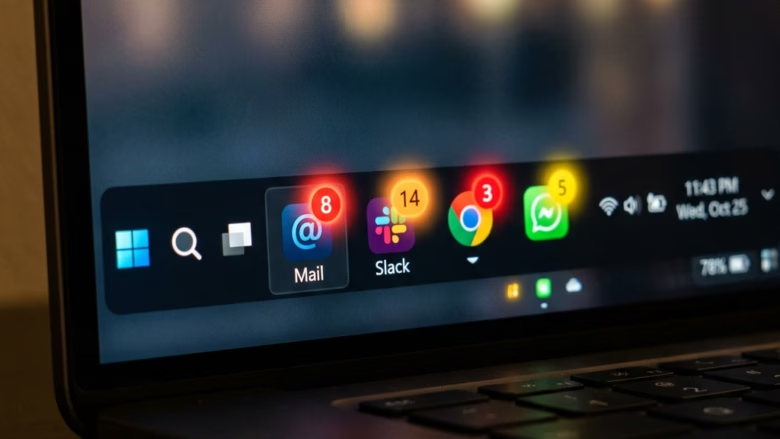
Widgets notifications in Windows 11 show live weather updates, news alerts, and calendar reminders on the Widgets icon on your taskbar. Red or blue badges and short banners let you see fresh information at a glance without opening the full Widgets panel.
On a default install, the Widgets icon sits at the left end of the taskbar. If you have set the taskbar alignment to left, it sits next to the Start button instead. You can turn these alerts on or off from the Widgets board itself, and the steps below cover that route. Doing so helps you decide what is allowed to interrupt you and keeps the taskbar clean.
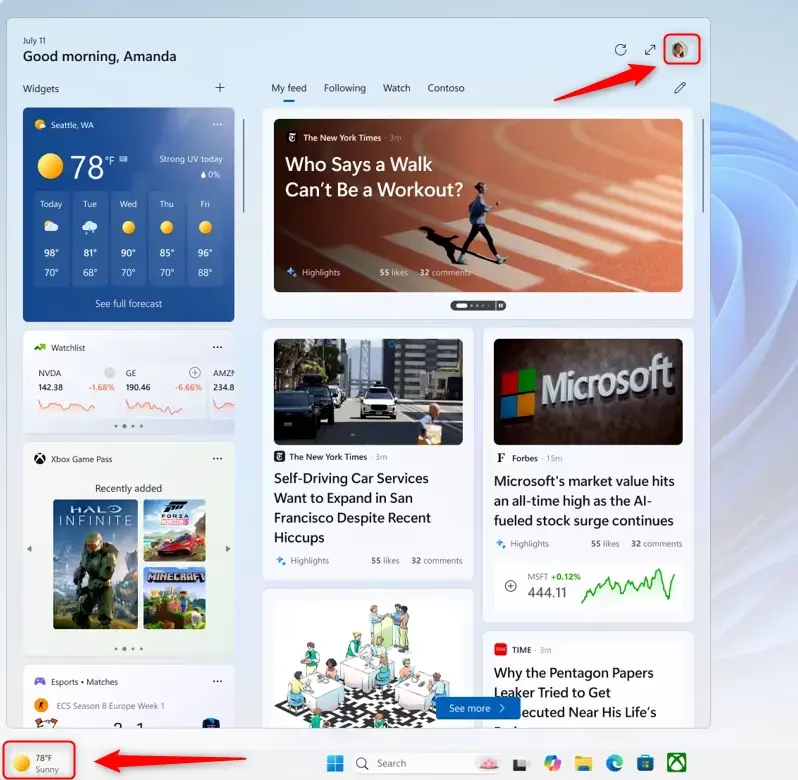
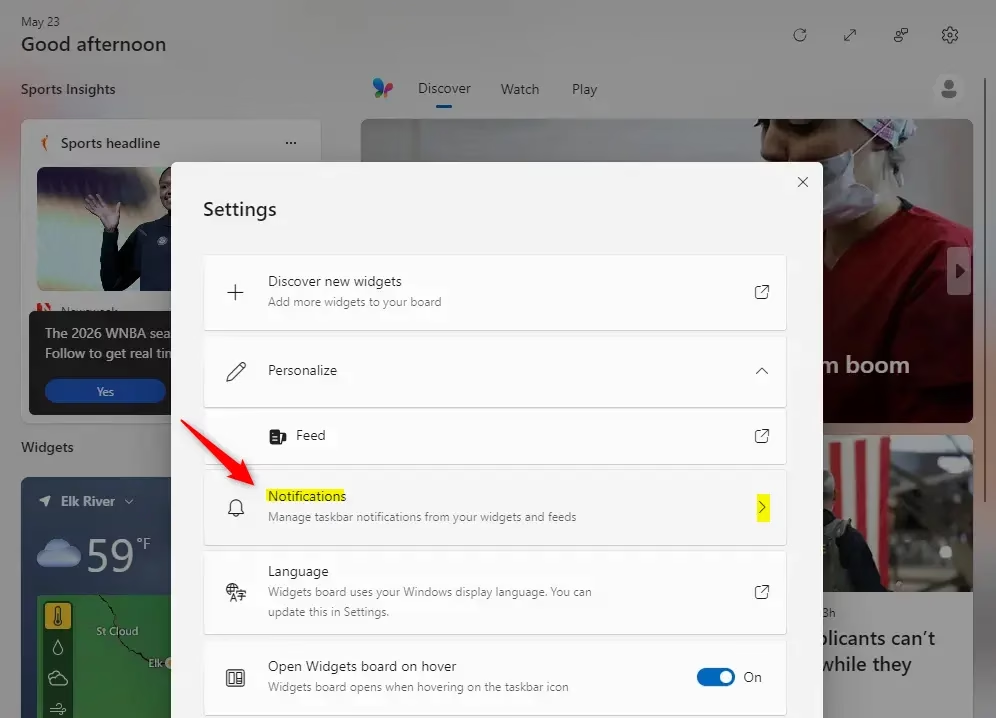
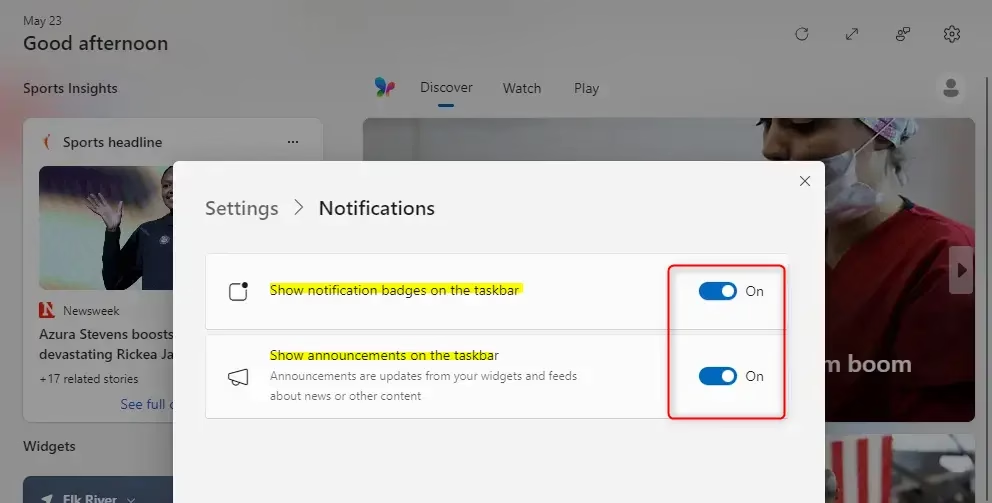
Click the Widgets icon on the taskbar or press Win+W, then click your profile picture or the gear icon at the top right. In the Notifications section, toggle Show notification badges on the taskbar and Show announcements on the taskbar to your preference. Changes take effect immediately.
Rotating Announcements
Taskbar announcements are short messages that rotate on the Widgets icon when something important happens, such as big news or a sports update. They replace the usual weather display for a few moments, then the icon returns to normal.
Badges
Notification badges are small red or blue dots on the Widgets icon. They tell you about weather changes, sports scores, or breaking news. You can spot an update without opening the Widgets panel, and you only need to open the board when you want the details.
Step-by-Step: Setting Up Taskbar Notifications for Widgets
Follow these steps to control what shows up on your taskbar. The settings apply to your own account, and they take effect straight away. You don’t need to restart.
- Open the Widgets board. Click the Widgets icon on the taskbar, which usually looks like a weather or news icon. You can also press Win+W. The Widgets board slides in from the left side of the screen.
- Look for your profile picture or the gear icon at the top right of the board. Click it. The Widgets settings page opens.
- Find the Notifications section in the settings and click it if it is collapsed. The notification options appear below it.
- Find Show notification badges on the taskbar. Switch it to On if you want the red or blue dots to appear next to the Widgets button. They show up right away. Switch it to Off if you don’t want the dots.
- Find Show announcements on the taskbar. Leave it On if you want the quick, rotating alerts to appear. Switch it Off if you prefer the taskbar to keep its normal display.
- Close the settings page. Check the Widgets icon on the taskbar to confirm that it behaves the way you chose.
Open Settings Personalization Taskbar and check the Widgets toggle under taskbar items. Also keep in mind that a work or school account may limit what the Widgets board shows. If a toggle is missing or greyed out, the cause may be a policy set by your organization or an out-of-date Windows build. Run Windows Update first. To undo any change, go back to the same screen and flip the toggle again.
Summary
Managing your Windows 11 widget notifications lets you control which alerts appear throughout the day. Turning off badges and announcements you don’t need keeps the taskbar clean and cuts down on distractions while you work. Take a minute to adjust these settings to match your routine, and keep only the updates you care about.
Try the settings out. Turn each option on and off for a day or two and see what suits you. You can change them back at any time.
Have a question about this guide?
Answered by AI from this guide. Good questions may be added to this page — please don't include personal details.
Did this guide fix your problem?

About the Author
Richard
Tech Writer, IT Professional
Richard is a writer at Geek Rewind who turns complex IT tasks into clear, step-by-step guides. He draws on years of hands-on experience in system administration and enterprise IT operations, focusing on Windows, Linux and WordPress: the problems people actually run into, and the fixes that work. His server and WordPress guides come from systems he runs himself. Richard builds and maintains the platform behind Geek Rewind, from its Ubuntu servers and Nginx configuration to its custom WordPress plugins. Many new tutorials start with readers' questions, and he's always glad to answer them in the comments.
No comments yet — be the first to share your thoughts!