How to Auto Clear Edge Browsing Data in Windows 11


- 14 steps
- Needs administrator rights
- Includes a restart or sign-out
Automatic clearing in Microsoft Edge on Windows 11 deletes the browsing data you choose each time you close the browser. You decide which data types go: history, cookies, cached files, saved passwords and more. You don’t have to clean them up by hand.
You can turn this on in a few steps in the Edge settings. Keeping it active helps protect your personal data from other people who share your PC and limits how much websites can track you between sessions. Only the data types you switch on are deleted, so nothing is removed that you did not pick.
Open Edge Settings, go to Privacy, search, and services, and enable the toggles for desired data types under “Choose what to clear every time you close the browser.” This will automatically delete selected browsing data when you exit the application.
How to Auto-Clear Browsing Data in Microsoft Edge
The simplest way to auto clear Edge browsing data is from the Edge settings. This works on Windows 11 Home and Pro, and it applies only to the Edge profile you are signed in to. If you use several profiles, repeat the steps in each one. Cookies, history and cache are cleared automatically after every session.
- Open Microsoft Edge.
- Click the three dots (…) in the upper right corner. This opens the menu.
- Select Settings from the menu. The Settings page opens in a new tab.

micrsoft edge browser more option and settings - On the left side, click Privacy, search, and services. If the left pane is hidden because the window is narrow, click the menu icon at the top left of the Settings page, or widen the window. The privacy options now appear on the right.
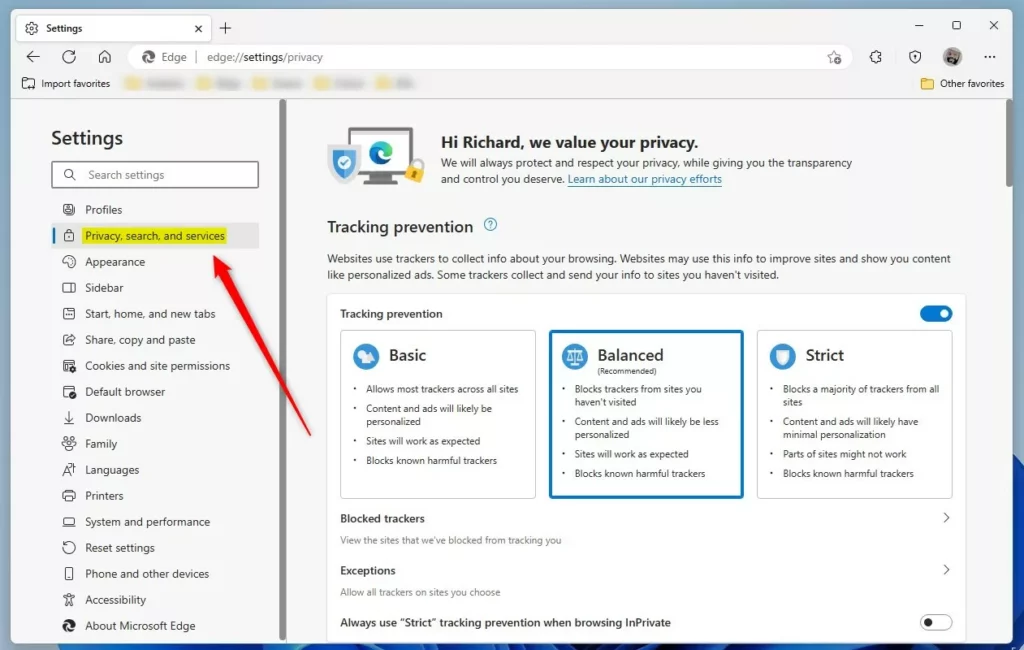
microsoft edge browser privacy search and services page - Scroll down to the Clear browsing data section. Find the entry that says “Choose what to clear every time you close the browser.” Click it to open the list of data types.
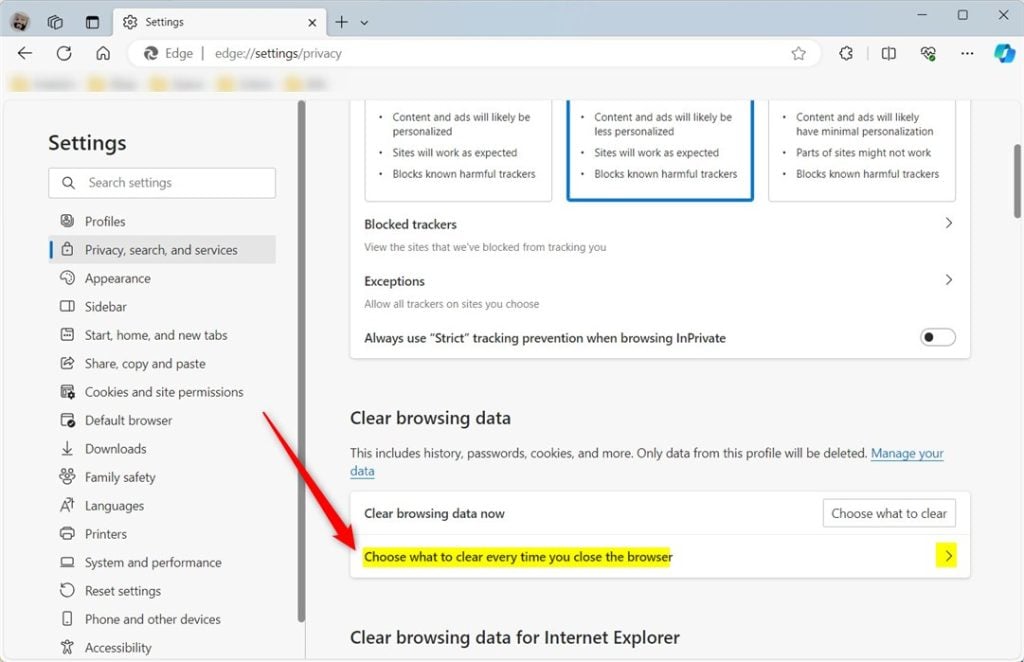
Microsoft Edge choose what to clear every time you close the browser - Turn on the toggle switch next to each type of data you want to delete. For example, turn on the switches for browsing history, cookies, and cached files. Each switch turns blue when it is on. All of them are off by default.
Think before you enable cookies. Clearing them signs you out of every website each time you close Edge. Saved passwords and autofill data are also on the list. Turn those on only if you really want them wiped on every exit.
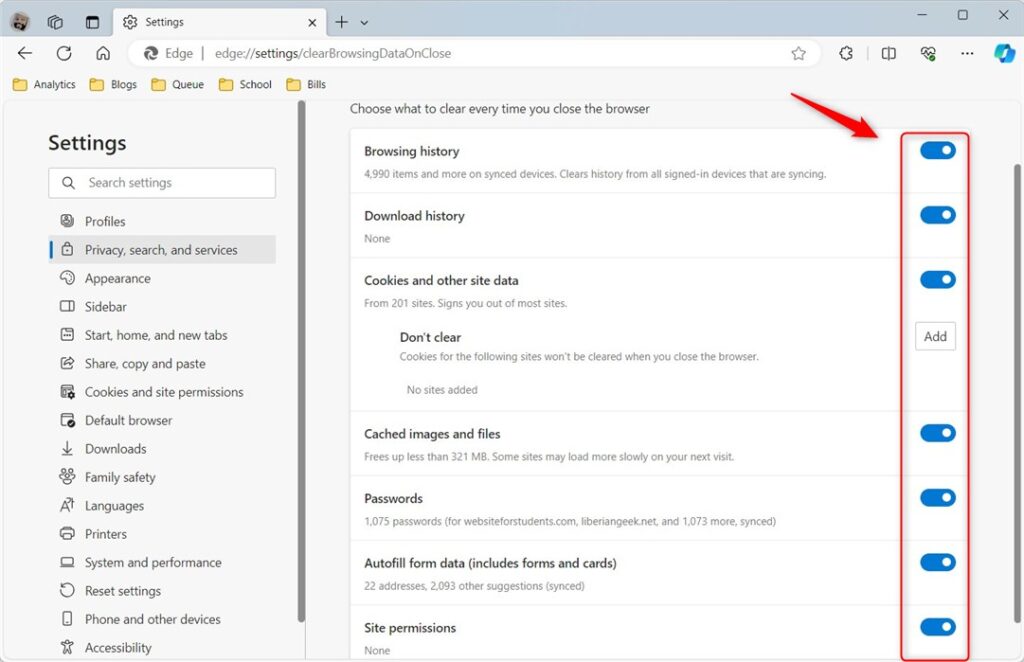
Microsoft Edge choose what to clear every time you close the browser options - Close the Settings tab. You’re done! Edge saves each toggle as soon as you change it, and you do not need to restart anything.
What Happens Next? Every time you close Microsoft Edge, it will automatically delete all the data types you selected. You won’t see any messages or notifications. It just happens in the background.
Edge only clears the data once the browser has fully closed, meaning every Edge window is gone. If Edge keeps running in the background, the clean-up may not happen when you expect it to. Check Settings System and performance and look at the option that lets Edge keep running background extensions and apps after it is closed. To undo the setup, return to the same list and switch the toggles off.
Clear Browsing Data for All Users Using Registry Editor
The Windows Registry lets an administrator set a policy that clears Edge browsing data for every user account on the computer at once. The same privacy rule then applies to all profiles, so browsing history and cookies disappear whenever anyone closes the browser. It works on both Home and Pro editions, because Edge reads these policy values from the registry.
⚠️ Admin privileges required for this section. Editing the registry can break things if you change the wrong value. Before you start, create a restore point or export the key you are about to change, using File Export in Registry Editor.
- Open the Registry Editor. Press the Win and type “regedit,” then press Enter. If a User Account Control prompt appears, click Yes. Windows Registry Editor
- Navigate to this location. You can paste it into the address bar at the top of Registry Editor, or expand the folders in the left pane.
If the Edge key does not exist, right-click its parent key, choose New Key, and name it Edge. The folders you need then appear in the left pane.Computer\HKEY_LOCAL_MACHINE\SOFTWARE\Policies\Microsoft\Edge - Look for ClearBrowsingDataOnExit in the right panel. If it is there, double-click it to open it. If it is missing, skip ahead to the step about creating it.
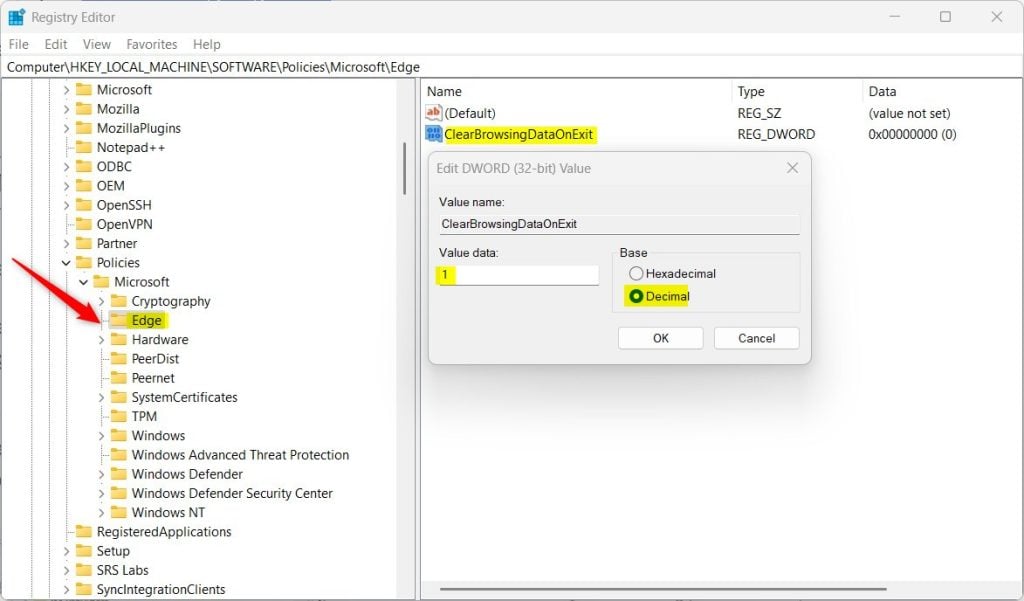
Microsoft Edge choose what to clear every time you close the browser registry editor - Change the Value data field to 1. This tells Edge to clear all browsing data when it closes for every user.
- Click OK to save the change. The value now shows 0x00000001 (1) in the right panel.
- If you don’t see ClearBrowsingDataOnExit, right-click in the empty space in the right panel and select New DWORD (32-bit) Value. Name it ClearBrowsingDataOnExit. Then double-click it, set the value to 1, and click OK.
- Restart your computer to apply the changes. After the restart, Edge may show “Managed by your organization” in its menu and settings. That is normal when a policy is set, and some options in Settings may be locked.
Want to Turn It Off? Delete the ClearBrowsingDataOnExit item to restore the default behavior. To do that, right-click it in Registry Editor, choose Delete, and confirm. Restart the computer, or at least close and reopen Edge. Edge will stop clearing data automatically, and you can again use the settings from the first method.
Summary
Automatically clearing your Edge browsing data regularly helps protect your privacy, frees up storage space, and can even improve your browser's speed and security.
Have a question about this guide?
Answered by AI from this guide. Good questions may be added to this page — please don't include personal details.
Did this guide fix your problem?

About the Author
Richard
Tech Writer, IT Professional
Richard is a writer at Geek Rewind who turns complex IT tasks into clear, step-by-step guides. He draws on years of hands-on experience in system administration and enterprise IT operations, focusing on Windows, Linux and WordPress: the problems people actually run into, and the fixes that work. His server and WordPress guides come from systems he runs himself. Richard builds and maintains the platform behind Geek Rewind, from its Ubuntu servers and Nginx configuration to its custom WordPress plugins. Many new tutorials start with readers' questions, and he's always glad to answer them in the comments.
[…] window. You do not need to sign in to any accounts to use it. When you use Guest mode, your browsing history, cookies, or other site information will not be saved. Everything is wiped clean as soon as you […]
[…] How to Auto Clear Edge Browsing Data in Windows 11 […]