How to Check Device Performance in Windows 11

Task Manager is a built-in Windows 11 tool that shows live stats for your processor, memory, and disk, so you can see which programs slow down your PC. Press Ctrl+Shift+Esc to open it instantly and spot power-hungry apps in seconds. If you open it and see only a short list of apps, click More details at the bottom of the window to get the full view with the Performance tab.
Performance Monitor is an advanced tool included in Windows 11. It tracks detailed system counters and resource use over time, which helps you catch tricky hardware problems that Task Manager ’s live view can miss. Use these tools whenever your computer feels slow. Start with Task Manager for a quick look, and move to Performance Monitor when you need to see what happens over minutes or hours.
Press Ctrl+Shift+Esc to open Task Manager and see live CPU, memory, and disk stats that show which apps slow your PC. For a full health report, open Windows Security, click Device performance & health, and review storage, software, battery, and update status.
Why check your device health?
Catching problems early prevents crashes and data loss. Regular checks uncover low storage, failing batteries, or outdated software before a minor hiccup turns into a major headache. A slow PC is often a warning sign, such as a drive that is nearly full or an app that eats memory, and the cause is usually easy to fix once you can see it.
What happens when done?
After you run a Windows 11 performance check, a health report appears. Green checkmarks mean that area is in good shape. Yellow marks mean something needs your attention, such as a pending update. You do not need to act on every yellow mark at once. Start with the ones that affect storage and updates, because those have the biggest effect on speed and security.
Using the Windows Security App
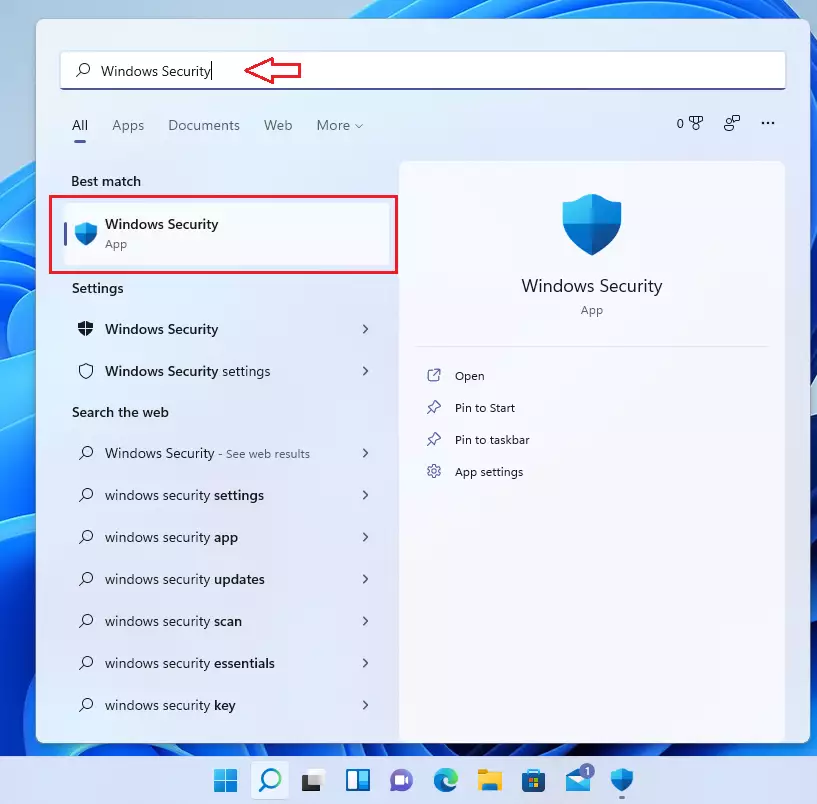
The quickest way to see your overall device health is the built-in Windows Security app. It checks storage space, driver and update status, and battery life, and you do not need to install anything extra. To open it, click Start, type Windows Security, and click the app in the results. The Windows Security window should open on a home page with a tile for each protection area.
From the home page, open the Device performance & health page. The steps below walk you through it. The page name is the same on current Windows 11 builds, though the layout can differ slightly between versions.
- In the search box on your taskbar, type Windows Security.
- Select Windows Security from the search results.
Some of the fixes suggested in the performance report might require administrator rights. If a fix asks for permission, a User Account Control prompt appears. On a work or school PC, you may need to ask your IT team to approve the change. On a personal PC, sign in with an administrator account to continue.
- Inside the Windows Security app, click on Device performance & health.
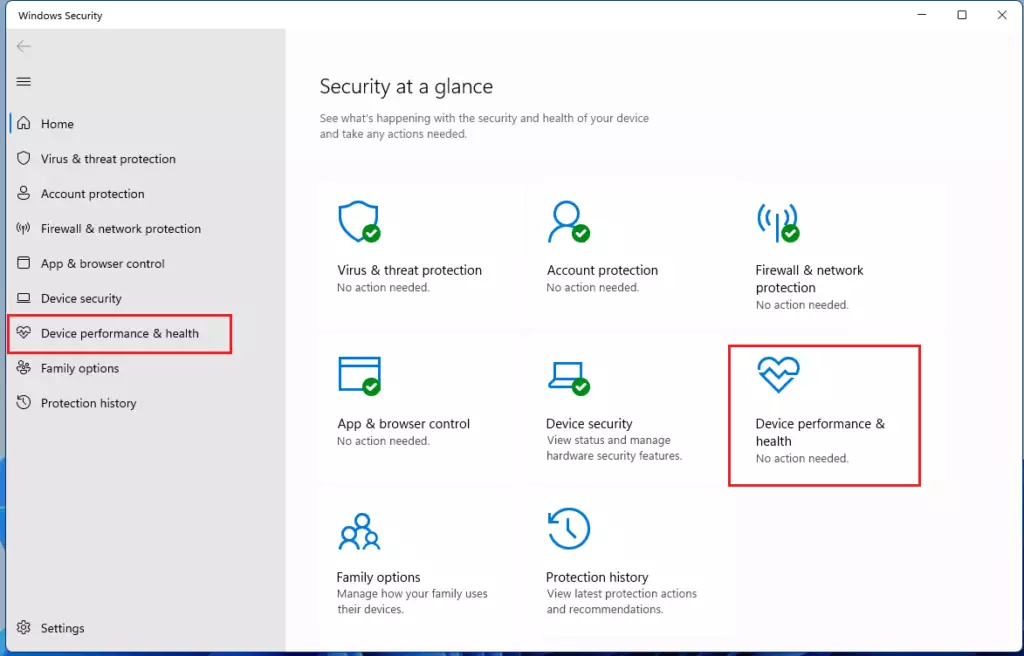
The report covers these main areas. A yellow mark next to any of them tells you where to look first:
- Storage capacity: Checks if you are running out of disk space.
- Apps and software: Alerts you if programs are failing or need updates.
- Battery life: Shows if apps are draining your battery too quickly.
- Windows Time service: Ensures your clock is set correctly for system processes.
Using the PC Health Check App
You can also use the PC Health Check app from Microsoft to see your computer's key specifications and find out whether it meets the hardware requirements for Windows 11. This free tool shows your processor, memory, and storage capacity in one dashboard. Some PCs already have it installed, so type PC Health Check in the Start menu first. If it does not appear, download it from the Microsoft website.
- Download the app from Microsoft's official website and run the installer. This takes only moments.
- Open PC Health Check from the Start menu once the installation finishes.
- Click the Check Now button. The app should show whether your PC meets the requirements, along with your results.
After installation, the utility gives a full rundown of your device specifications, including processor, RAM, and storage amount, and it verifies compatibility with the newest Windows updates. If a check fails, the app usually tells you which requirement is not met, so you know whether the cause is something you can change or a hardware limit.
Troubleshooting Performance Issues
If a Windows 11 performance check reveals trouble spots, two quick fixes get things running smoothly again. The first is clearing temporary files with Disk Cleanup, a utility for freeing up disk space. The second is disabling unneeded startup programs in Task Manager, under its Startup apps page. Disabling a startup program does not uninstall it. It only stops the program launching at sign-in, and you can turn it back on from the same page. Restart your PC afterward so the change takes effect, and check Task Manager again to see whether performance has improved.
Hardware Diagnostics
On a laptop, you can also run a battery capacity report. It shows battery health and usage history, including how much charge the battery can hold now compared with when it was new. A large gap between the two is a common reason a laptop feels like it is dying fast. Windows saves the report as a file you open in your browser.
Summary
Regularly checking your Windows 11 device performance and health keeps your PC fast and secure. Make it a habit to review updates and storage, for example once a month. A few minutes of checking is much cheaper than fixing a crash after the fact.
Is the PC Health Check app free?
The PC Health Check app is completely free to download and use from Microsoft's official website. It helps verify if hardware meets Windows 11 system requirements and provides basic diagnostics for device health and performance status.
How do I fix performance issues found by Windows Security?
Clicking this button lets Windows fix the problem automatically. For storage issues, manually deleting large files or moving data to an external drive frees up space.
Did this guide fix your problem?

About the Author
Richard
Tech Writer, IT Professional
Richard is a writer at Geek Rewind who turns complex IT tasks into clear, step-by-step guides. He draws on years of hands-on experience in system administration and enterprise IT operations, focusing on Windows, Linux and WordPress: the problems people actually run into, and the fixes that work. His server and WordPress guides come from systems he runs himself. Richard builds and maintains the platform behind Geek Rewind, from its Ubuntu servers and Nginx configuration to its custom WordPress plugins. Many new tutorials start with readers' questions, and he's always glad to answer them in the comments.
No comments yet — be the first to share your thoughts!