How to Change Windows Terminal Launch Mode in Windows 11


Windows Terminal launch mode controls how the application window appears the moment you open it in Windows 11. You can set the app to start in a standard window, a maximized window, or full screen.
This setting helps you tailor the interface for tasks that need extra space, such as running complex command line scripts or managing multiple tabs.
Open Windows Terminal settings, navigate to the Startup section, and select your desired Launch mode from the dropdown menu. Options include Default, Maximized, Full screen, Focus, and Maximized focus. Save your changes to apply the new launch behavior.
What happens when done?
Changing how the Windows Terminal app starts ensures it always opens exactly as you like it, whether that’s a specific size or a particular view.
How to change the Windows Terminal launch mode
To change the Windows Terminal launch mode so the app opens as a full screen, maximized, or focused window, open the app settings by clicking the down arrow at the top of the window and choosing Settings. Scroll down to the Startup section on the main settings page, find the Launch behavior setting, and pick your preferred window size from the list before saving your changes.
- Open the Terminal app by clicking the Start button, typing “Terminal,” and selecting the app from the list.
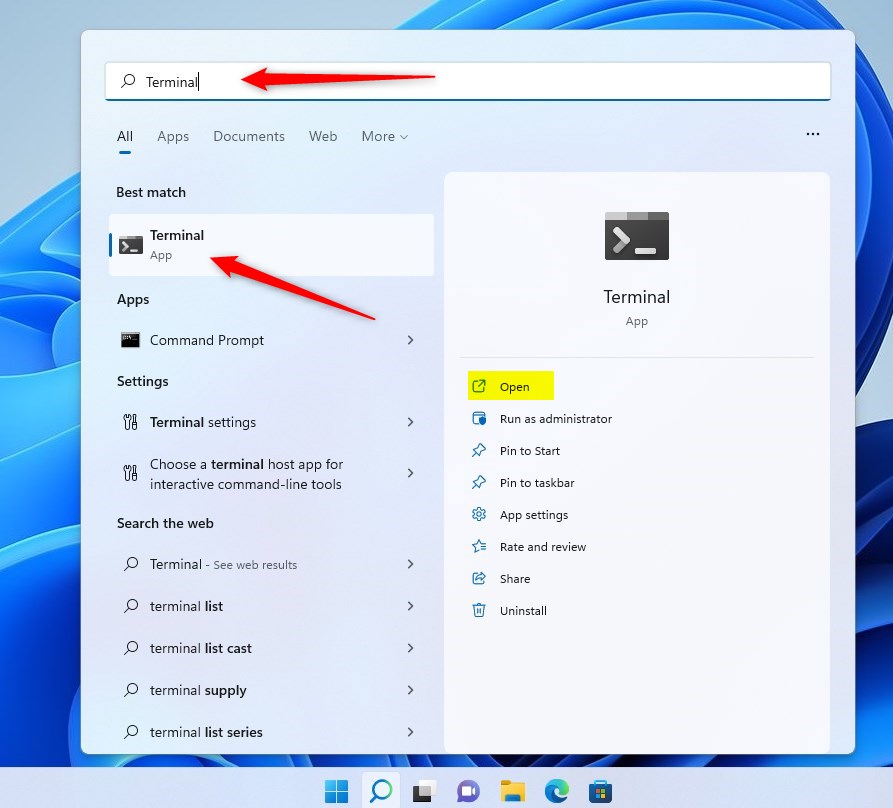
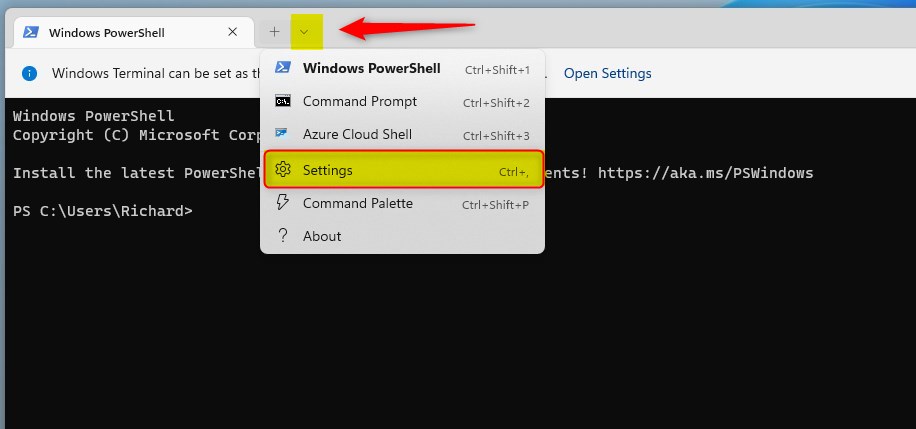
- Once the app is open, click the down arrow at the top of the window. Select Settings from the menu. You can also press Ctrl + , (the comma key) on your keyboard to open this screen.
- Look for the Startup section. Find the Launch mode setting and choose your favorite option from the list:
- Default: Opens in the standard window size.
- Maximized: Opens as a full-size window.
- Full screen: Opens covering your entire screen.
- Focus: Opens in a normal window but hides the tabs and title bar.
- Maximized focus: Opens as a full-size window with the tabs and title bar hidden.
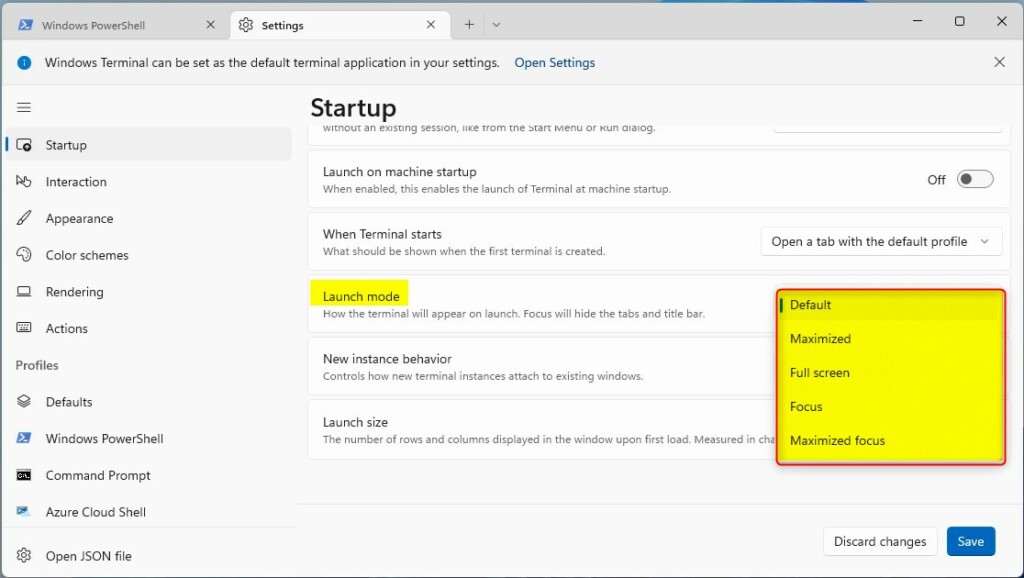
- Click the Save button to apply your changes.
Understanding JSON Configuration
Windows Terminal stores your preferences in a plain-text configuration file named `settings.json`. Storing these preferences in `settings.json` allows you to customize Windows Terminal’s behavior, such as changing its launch mode to open automatically when you start your computer.
Launch Position, Size, and Behavior
Beyond the launch mode, you can also tell Windows Terminal exactly where to appear on your screen and how large it should be.
Summary
Getting your Windows Terminal launch mode correct helps you work more efficiently by setting up your workspace perfectly every time.
How do I reset Windows Terminal settings to default?
To reset, open the Settings menu, click on the Defaults tab, and look for the option to restore settings. Alternatively, you can delete the settings.json file located in %LOCALAPPDATA%\Packages\Microsoft.WindowsTerminal_8wekyb3d8bbwe\LocalState. The app will recreate a fresh default file upon the next launch.
Can I set different launch modes for different profiles?
Yes, you can customize individual profiles within the settings.json file. By defining specific settings within the 'profiles' section, you can ensure a particular profile, such as one for a development environment, always launches maximized while others stay in the default window mode.
What is the difference between 'maximized' and 'fullscreen' launch modes?
Maximized mode opens the window to fill your desktop area while keeping the taskbar and window borders visible. Fullscreen mode removes all window decorations, including the title bar and taskbar, allowing the terminal to occupy every single pixel of your display for a completely immersive experience.
Was this guide helpful?

About the Author
Richard
Tech Writer, IT Professional
Richard, a writer for Geek Rewind, is a tech enthusiast who loves breaking down complex IT topics into simple, easy-to-understand ideas. With years of hands-on experience in system administration and enterprise IT operations, he’s developed a knack for offering practical tips and solutions. Richard aims to make technology more accessible and actionable. He's deeply committed to the Geek Rewind community, always ready to answer questions and engage in discussions.


[…] open the Windows Terminal app, and use the PowerShell tab as […]
[…] open the Windows Terminal app and select either Windows PowerShell or Command Prompt […]
[…] open Windows Terminal and select either Windows PowerShell or Command Prompt […]
[…] Read more about how to open Windows Terminal with PowerShell. […]