How to Change the Text Cursor Color in Windows 11

Changing the text cursor color in Windows 11 replaces the default blinking typing pointer with a high-contrast shade that stands out against busy backgrounds. Windows 11 includes 5 bright preset colors and a custom color picker to help you track your place across web browsers and word processors.
Finding where you type takes extra effort if your eyesight is poor or if you work inside bright documents all day. Picking a bright shade like neon green or hot pink helps you spot the cursor instantly without straining your eyes.
The setting lives in the Settings app, so you don’t need admin rights, a restart, or any extra software. It works the same on Windows 11 Home and Pro. Note that the color applies to the text cursor indicator, the colored marker Windows draws on the cursor. That indicator is part of the Text cursor page in recent Windows 11 versions, so if you don’t see these options, run Windows Update first.
Open Settings , go to Accessibility Text cursor, and click a color under Recommended colors to change your text cursor. The new color applies immediately without restarting.
Why Change the Text Cursor Color?
- Make the cursor easier to see on your screen, especially on large monitors or high-resolution displays where it looks thin.
- Help if you have trouble spotting the blinking line while typing. A thin black cursor on a white page is easy to lose, and a colored one is much harder to miss.
- Useful for people with vision problems or dyslexia, who may need a stronger visual cue to keep their place in a line of text.
- Choose a color you like better or one that stands out more. It’s a personal preference, and you can change it again at any time.
How to Change the Text Cursor Color in 🪟 Windows 11
You can change the text cursor color in Windows 11 by opening the Settings app, going to the Accessibility menu, and picking a bright new color from the text cursor options so you can spot your typing place easily.
The whole job takes about a minute. The change applies immediately, so you can leave a text editor open in the background and watch the cursor update as you click colors.
- Open Settings : Click the Start button and select Settings. Or press Win+I on your keyboard to open Settings quickly. The Settings window opens with a list of categories down the left side.
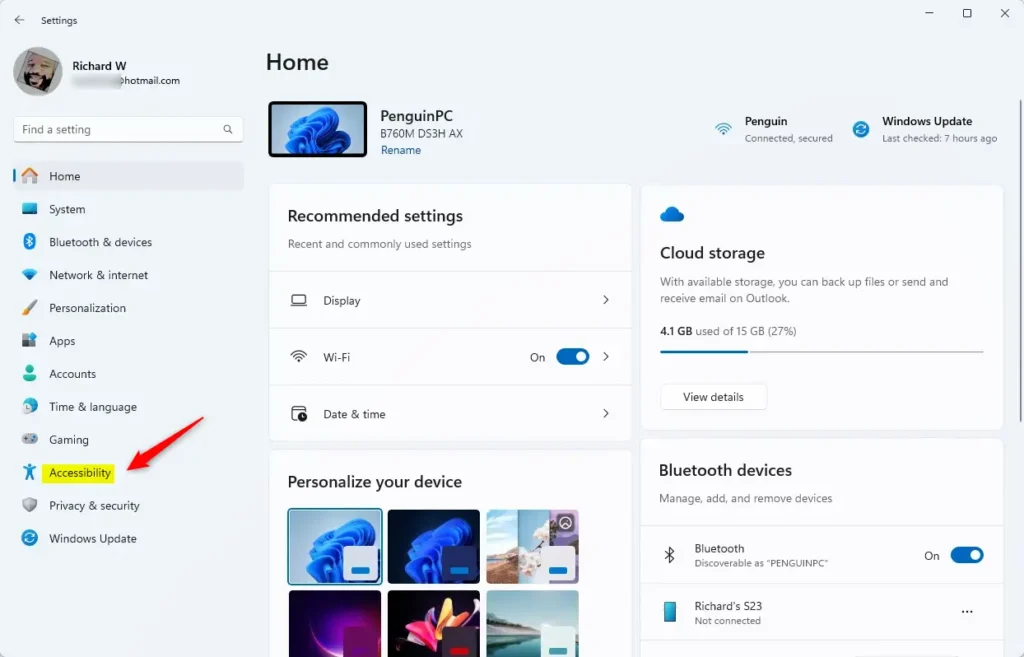
- Go to Accessibility: In the Settings window, click Accessibility on the left side menu. The right side now shows the accessibility options, grouped under headings such as Vision, Hearing and Interaction.
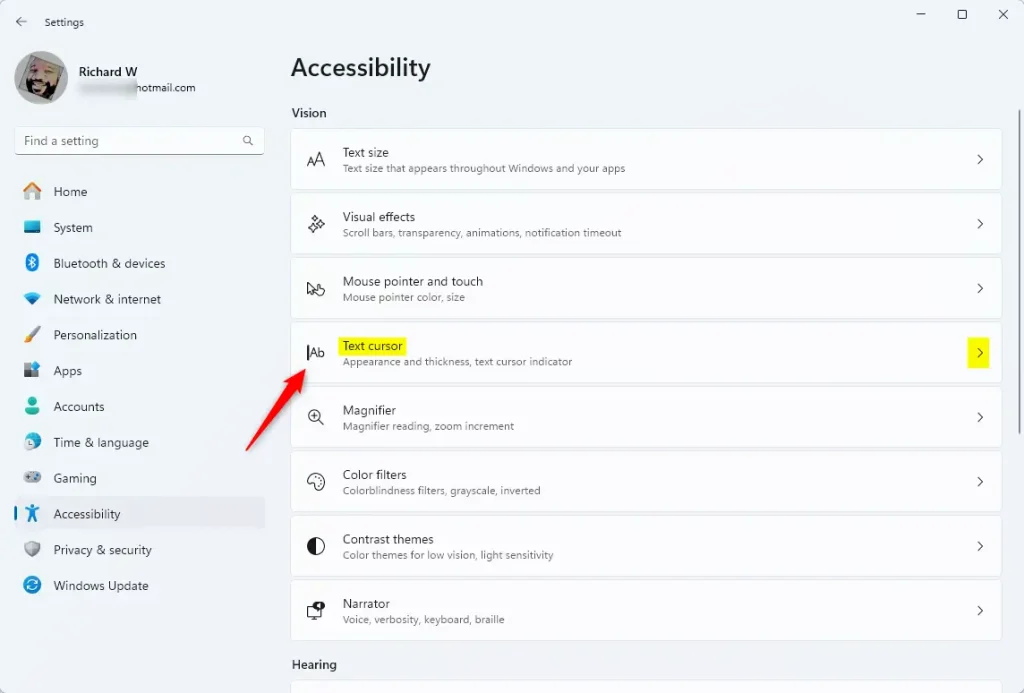
Accessibility button in Windows 11 Settings - Select Text Cursor: On the right side, find and click on the Text cursor option. It’s listed under the Vision group. A new page opens with the cursor indicator, its size, its color and its thickness. If the Text cursor indicator switch is off, turn it on, because the color choices apply to that indicator.
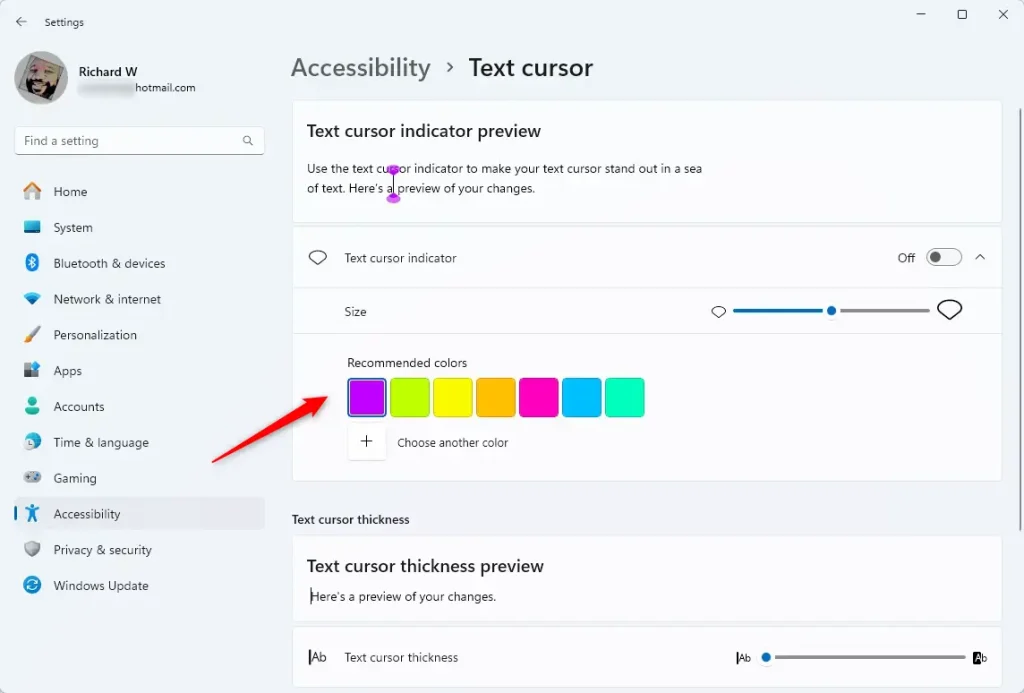
Text Cursor settings in Windows 11 - Pick a Color: Under Recommended colors, click any color to instantly change the text cursor color. Open Notepad or any text box and click inside it to check how the new color looks. Click a different swatch if it’s not right.
Recommended text cursor colors in Windows 11 - Choose a Custom Color (Optional): If you don’t like the recommended colors, click the + button to pick a different one. A color picker opens where you can drag across the color field to choose a shade.
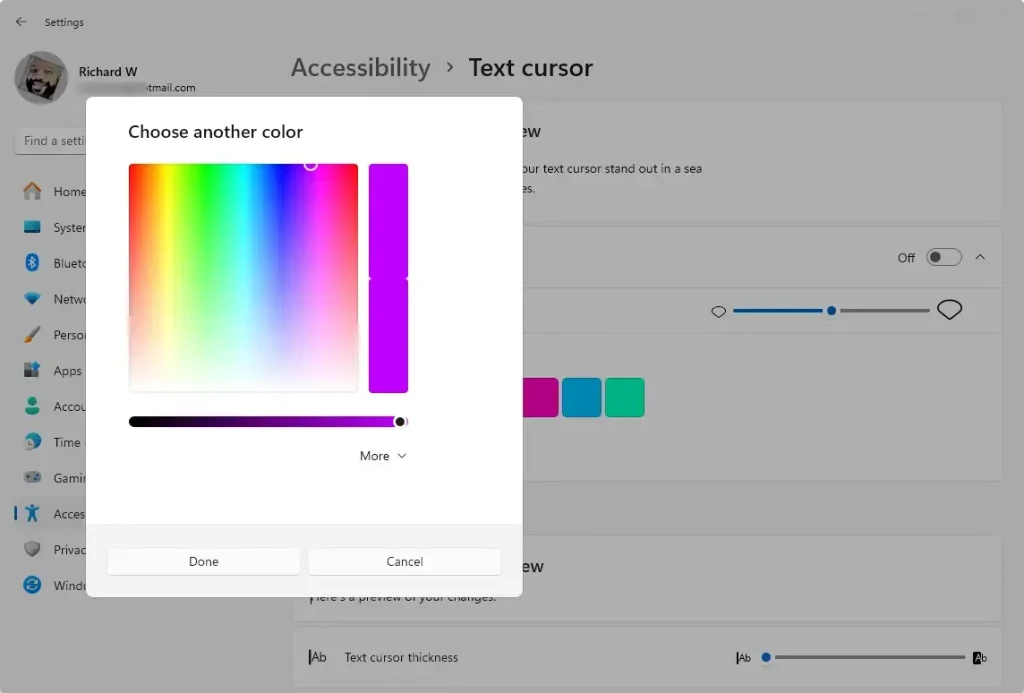
Custom text cursor color picker in Windows 11 - Click More to enter specific color codes using
RGBorHSVsettings if you want a very exact color. This is handy if you need to match a color you already use elsewhere.
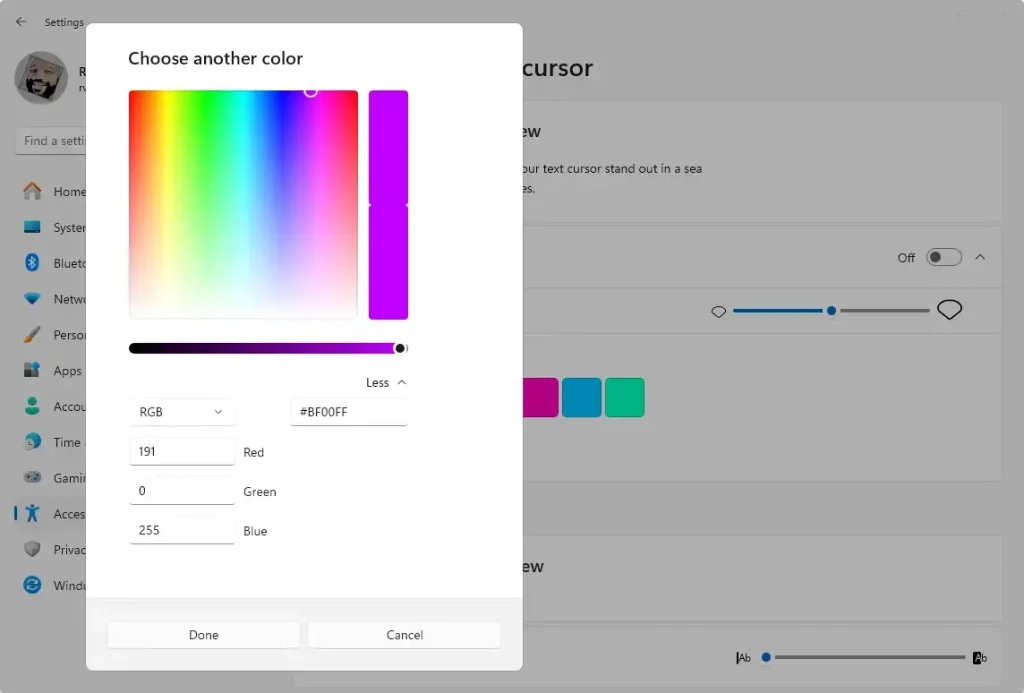
Advanced color picker for text cursor in Windows 11 - When you’re happy with your color, press Done. The picker closes and your custom color is now the selected one.
- Close the Settings window. Your new cursor color is now active! No restart or sign-out is needed. To undo it later, return to the same page and pick another color, or turn off the Text cursor indicator switch to go back to the plain cursor.
Most standard apps, including Notepad, Word and web browsers, follow the Windows setting.
Tips for Choosing a Cursor Color
- Pick a bright color that stands out against your desktop background and apps. Check it on both a white page and a dark one, since a color that works on light backgrounds can vanish on dark ones.
- Try a few colors to see which one feels easiest on your eyes. Give each one a minute of real typing before you decide, because a color that looks good in the picker may feel harsh after an hour.
- If you have vision problems, high contrast colors like bright yellow or green can help. The same Text cursor page also has a thickness slider, so you can combine a bold color with a thicker cursor.
Summary
Changing your text cursor color in Windows 11 makes it much easier to see where you’re typing. Windows 11 offers several preset colors and lets you create your own custom shade. It only takes a few clicks in Settings to change your text cursor color and improve visibility. If you ever want the original look back, switch the indicator off or pick a different color on the same page.
Have a question about this guide?
Answered by AI from this guide. Good questions may be added to this page — please don't include personal details.
Did this guide fix your problem?

About the Author
Richard
Tech Writer, IT Professional
Richard is a writer at Geek Rewind who turns complex IT tasks into clear, step-by-step guides. He draws on years of hands-on experience in system administration and enterprise IT operations, focusing on Windows, Linux and WordPress: the problems people actually run into, and the fixes that work. His server and WordPress guides come from systems he runs himself. Richard builds and maintains the platform behind Geek Rewind, from its Ubuntu servers and Nginx configuration to its custom WordPress plugins. Many new tutorials start with readers' questions, and he's always glad to answer them in the comments.
No comments yet — be the first to share your thoughts!