How to Change Font Size in Windows 11 Handwriting Panel

- 2 ways to do it
- Needs administrator rights
- Includes a restart or sign-out
The Handwriting Panel turns handwriting from a digital pen or finger into typed text on your screen. In Windows 11, the panel does not have its own size slider. Its size mostly follows your main display scale, so changing the scale is the most dependable way to make the writing area bigger or smaller.
Moving your system scaling from the default 100% to 125% makes text and icons larger across the whole display, and the handwriting box grows with them. You can change this in Settings System Display, in the Scale setting. Use it whenever the default writing area feels too small to use comfortably. To undo it, set Scale back to its previous value. Some apps only pick up the new scale after you close and reopen them, and a few need you to sign out and back in.
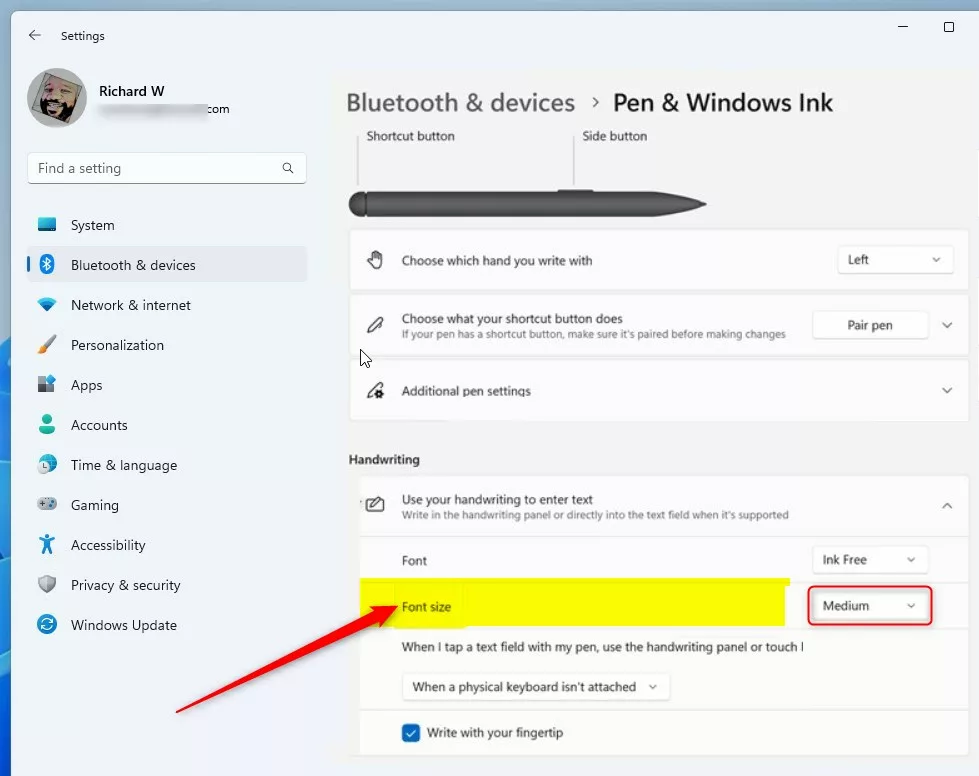
Open Settings Bluetooth & devices Pen & Windows Ink, expand Use your handwriting to enter text, and choose Small, Medium, or Large. The handwriting panel size updates when you reopen handwriting input.
Why Change the Font Size?
Larger text reduces eye strain, which matters if you write on a tablet for long stretches or sit a bit further from the screen. A compact footprint leaves more room for open windows, which helps on small displays. Try a size for a day or two of real work before you settle on it. The right balance between readability and screen space speeds up daily workflows.
Method 1Using Windows Settings (Easiest Way)
The easiest way to change the handwriting font size is through the Settings app. The Pen & Windows Ink page controls how your written words appear when you use handwriting input with the touch keyboard or a digital stylus. This built-in option needs no system file edits and no extra software, and it works the same on Windows 11 Home and Pro. You do not need administrator rights for it, and you do not need to restart.
Update Windows through Settings Windows Update, or use the display scaling method described earlier in this article.
- Open the Settings app. Either method works, and the Settings window should open:
- Click the Start menu and select Settings, or
- Press
Windows key + Ion your keyboard
- Click Bluetooth & devices in the list on the left side. The device options appear on the right.
- On the right side, scroll down if needed, then click Pen & Windows Ink. If this entry is missing, your PC may not have pen or touch hardware that Windows detects, so check that the device is connected.
- Look for the section called Use your handwriting to enter text and click it to expand it. The handwriting options should drop down below the heading.
- Choose your preferred font size:
- Small
- Medium (the default option)
- Large
- Close the Settings app when you’re done. Open the handwriting input again and check the size. To undo the change, return to the same page and select Medium.
Method 2Using Windows Registry Editor (Advanced Users Only)
You can also change the handwriting font size through the Registry Editor, a database that stores low-level system settings. This is the advanced method. You must sign in with an administrator account, and you edit system keys by hand. Most people should stick to the Settings app. Use the registry only if the standard menu options are missing or do not change the size.
In Registry Editor, choose File Export to save a copy of the registry. You can import that file later if something goes wrong. The Registry Editor is available on both Windows 11 Home and Pro.
⚠️ Admin Required: Administrative permissions are required to open the Registry Editor. If you are on a standard account, Windows asks for an administrator password when you open it.
- Open the Registry Editor:
- Press
Windows key + Rto open the Run dialog - Type
regeditand press Enter. Click Yes if User Account Control asks for permission, and the Registry Editor window should open.
- Press
- Navigate to this folder path:
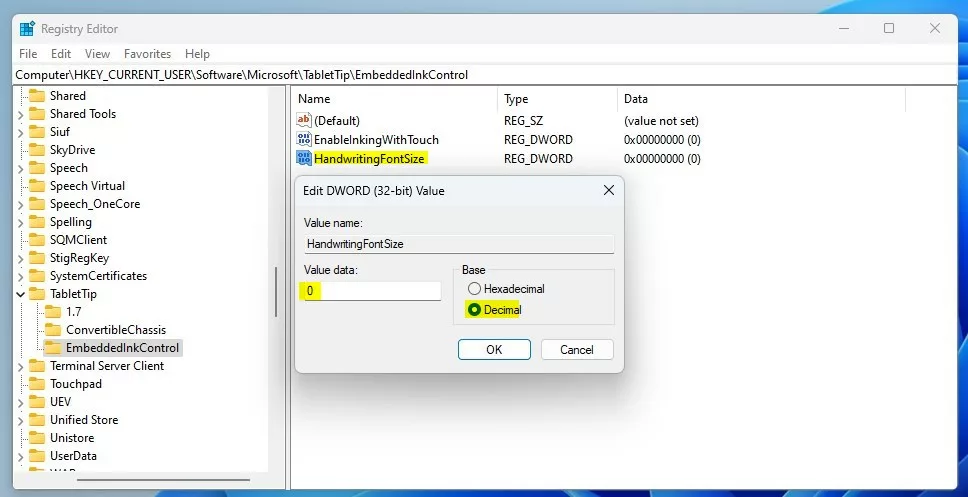
HKEY_CURRENT_USER\Software\Microsoft\TabletTip\EmbeddedInkControl. Use the folder tree on the left side, or paste the path into the address bar at the top of the window. - If the EmbeddedInkControl folder is missing, create it. Registry folders are called keys:
- Right-click TabletTip
- Select New Key
- Name it EmbeddedInkControl. The new key should appear under TabletTip.
- Click EmbeddedInkControl to select it, then right-click an empty area in the right side pane
- Select New DWORD (32-bit) Value. A new value appears in the right pane with its name ready to edit.
- Name this new value HandwritingFontSize and press Enter. Check the spelling, because Windows will ignore a value with the wrong name.
- Double-click HandwritingFontSize. The Edit DWORD (32-bit) Value box opens.
- Set the Base to Decimal
- Enter one of these numbers in the Value data box for your font size:
0for Small1for Medium2for Large
- Click OK. The value now shows your number in the right pane.
- Close the Registry Editor
- Restart your computer to apply the changes. To undo the edit, reopen the value and enter the Medium number, or import the backup you exported earlier, then restart again.
Summary
You can change the Windows 11 handwriting font size with the standard Settings app or with the advanced Registry Editor. The Settings menu is the fast and safe way to adjust your text for everyday typing and writing. If that option is missing or does not help, the registry method gives you another way to set your preferred size. Changing the display scale in Settings System Display is a third option, and it enlarges the whole panel along with everything else on screen.
- Easiest methodUse the Windows Settings app. Go to Bluetooth & devices, then Pen & Windows Ink, and pick your size. No restart is needed.
- Advanced methodUse the Windows Registry Editor to manually edit the HandwritingFontSize value. This needs an administrator account and a restart, and you should back up the registry first.
Which method to use depends on personal preference and how much control you want. Questions and troubleshooting inquiries belong in the comments section below.
Have a question about this guide?
Answered by AI from this guide. Good questions may be added to this page — please don't include personal details.
Did this guide fix your problem?

About the Author
Richard
Tech Writer, IT Professional
Richard is a writer at Geek Rewind who turns complex IT tasks into clear, step-by-step guides. He draws on years of hands-on experience in system administration and enterprise IT operations, focusing on Windows, Linux and WordPress: the problems people actually run into, and the fixes that work. His server and WordPress guides come from systems he runs himself. Richard builds and maintains the platform behind Geek Rewind, from its Ubuntu servers and Nginx configuration to its custom WordPress plugins. Many new tutorials start with readers' questions, and he's always glad to answer them in the comments.
No comments yet — be the first to share your thoughts!