How to Automatically Change Desktop Wallpaper in Windows 11


Automatic desktop wallpaper rotation in Windows 11 changes your background at set time intervals using either a custom folder of pictures or daily images from Windows Spotlight. The built-in Personalization menu controls this feature, letting you cycle through photos anywhere from every 1 minute to once a day.
You can also pick random order playback or skip to the next picture manually whenever you want a fresh screen.
Automatically change your Windows 11 wallpaper by going to Settings Personalization Background. Select either “Windows spotlight” for daily curated images or “Slideshow” to cycle through your own photos from a chosen folder.
Why change your wallpaper automatically?
Dynamic backgrounds keep the workspace feeling fresh and showcase favorite memories without requiring manual updates.
What happens when you are done?
Chosen images cycle at regular intervals once these steps finish. The Windows 11 screen looks dynamic and personalized because these steps optimize Windows 11 personalization settings to individual preferences.
Option 1Use Windows Spotlight
Windows Spotlight (a feature that downloads new background images from Bing every day) lets you set up an automatic wallpaper change in Windows 11 without downloading extra apps. This built-in tool updates your desktop background with daily photos from around the world so you always have a fresh view.
- Click the Start menu and open Settings app .
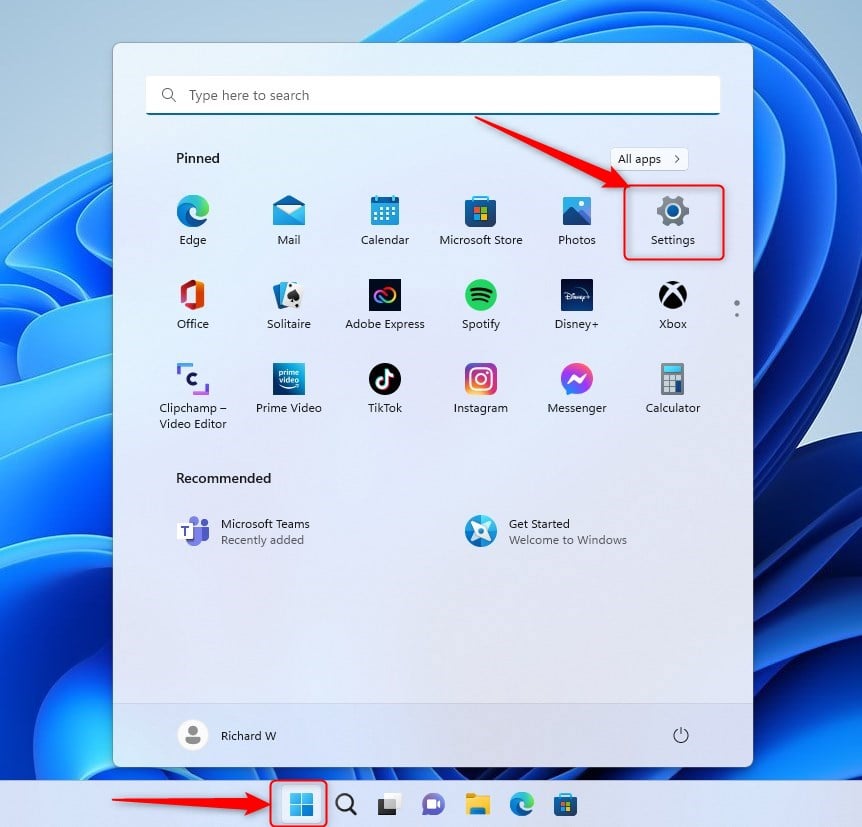
Open Settings from the Start menu , then select Personalization.
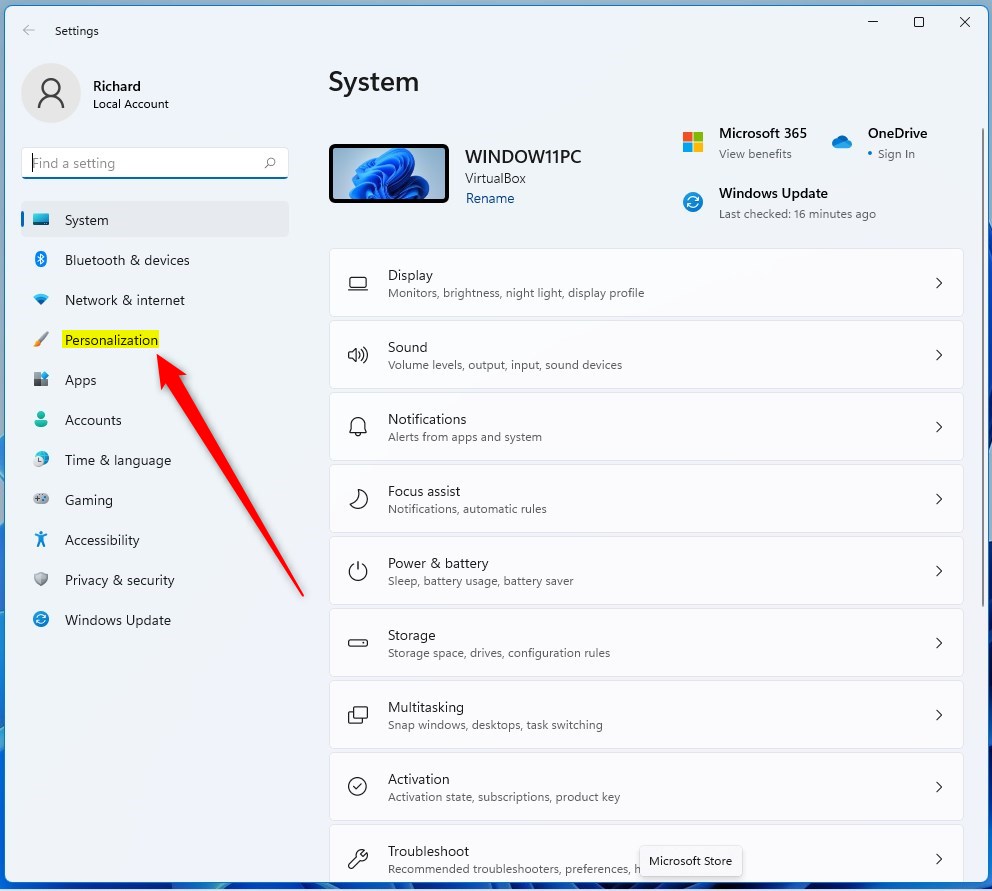
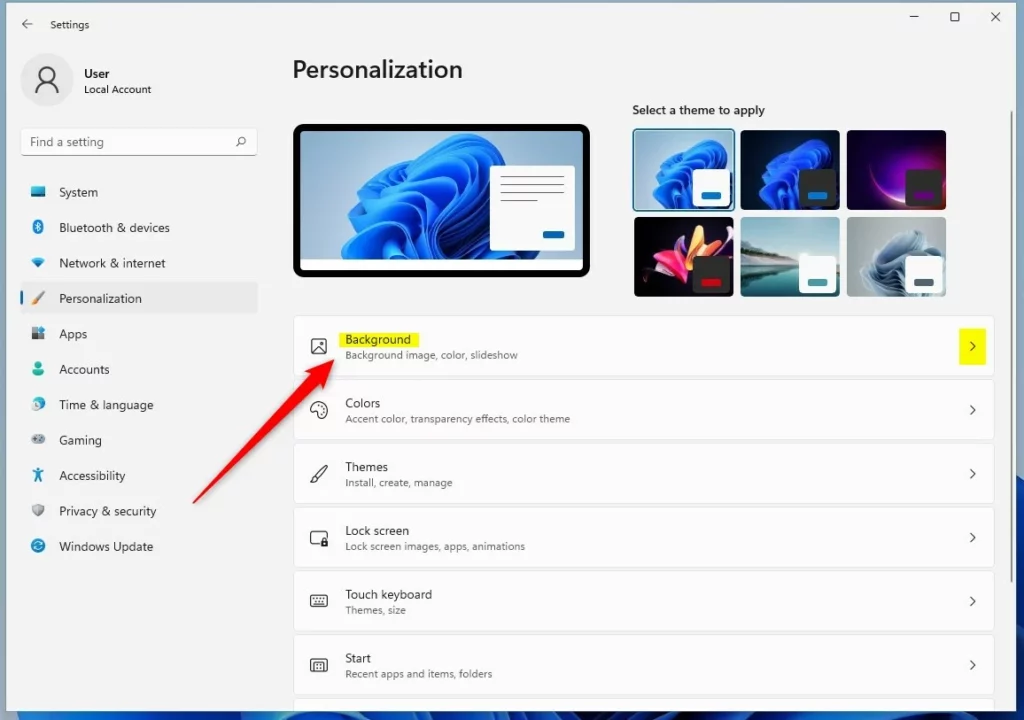
3. Select the Background tile on the right.
4. In the menu next to "Personalize your background," select Windows spotlight.
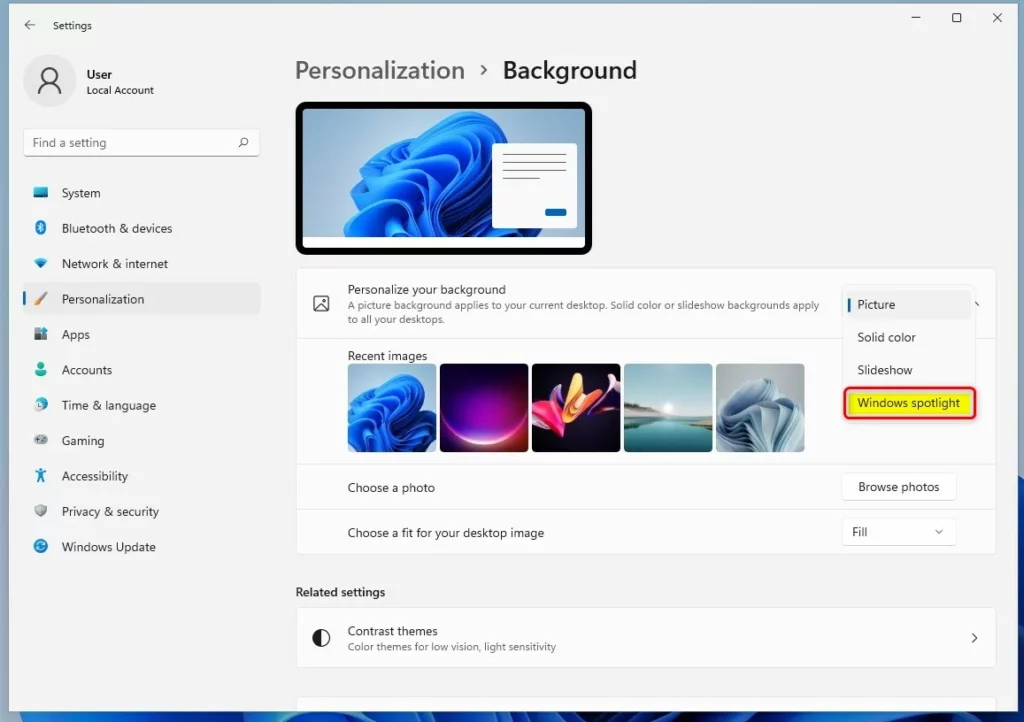
New images download and display automatically throughout the day.
Option 2Use your own photos with Slideshow
Slideshow (a built-in tool that cycles through a folder of images) lets you use your own pictures for an automatic wallpaper change in Windows 11. You just pick a folder stored on your computer, and Windows automatically rotates through those specific photos at set time intervals.
- Go to Start > Settings > Personalization > Background.
- In the "Personalize your background" menu, select Slideshow.
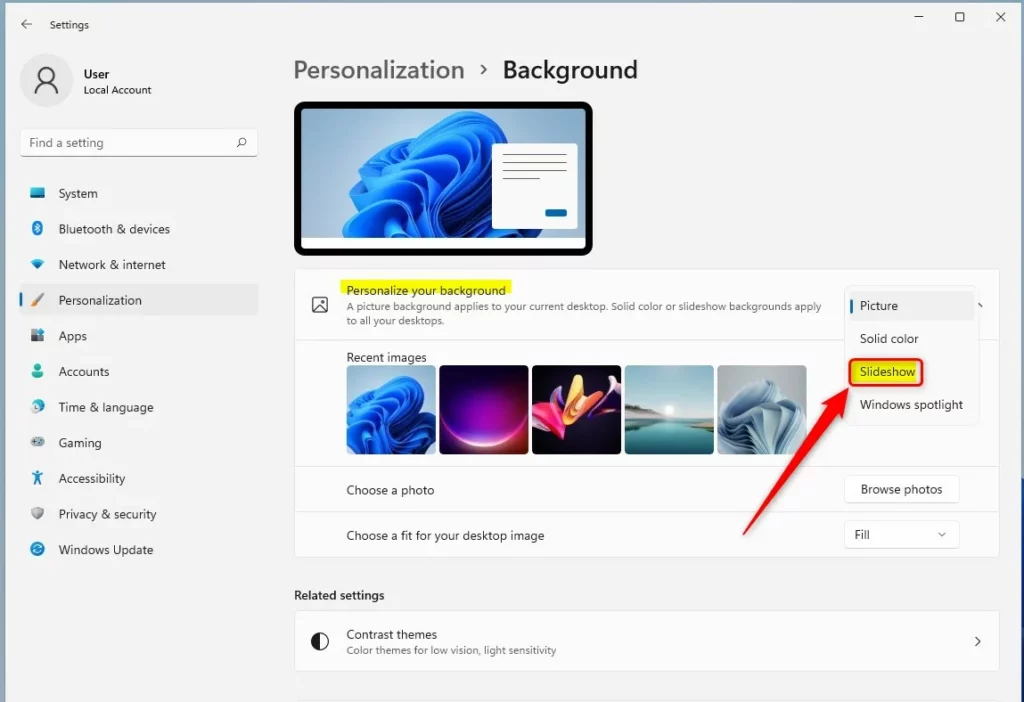
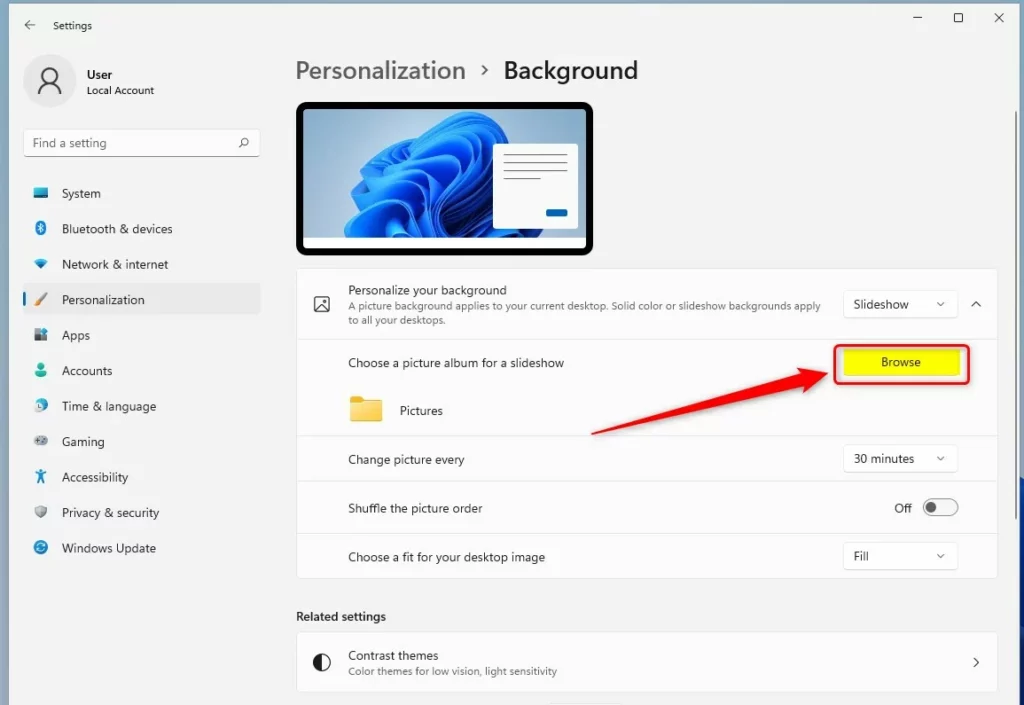
3. Click the Browse button to find the folder containing your photos.
4. Select your folder. Turning on the Shuffle toggle makes images appear in a random order.
Advanced Customization and Troubleshooting
Troubleshooting automatic wallpaper changes in Windows 11 often involves checking theme settings. Registry Editor tweaks (changes made through Windows' central database for system settings) sometimes fix wallpaper resets.
Multi-Monitor and Virtual Desktop Configuration
Different virtual desktops support different backgrounds in Windows 11. Right-clicking the desktop background and selecting 'Personalize' manages these settings individually for each workspace.
Third-Party Automation Tools
Third-party wallpaper tools like 'Wallpaper Engine' or 'Dynamic Theme' offer advanced features. Video backgrounds and weather-based image changes come with these tools. Better performance than the native slideshow feature occurs when handling hundreds of high-resolution image files.
Summary
Pictures change at intervals using either Windows Spotlight or the Slideshow feature to keep the Windows 11 desktop looking great. Spotlight provides global images, while Slideshow rotates through personal photo collections. Both options live in the Personalization settings menu.
How do I stop 🪟 Windows 11 from changing my wallpaper automatically?
To stop automatic changes, go to Settings Personalization Background Then, change the 'Personalize your background' dropdown menu from 'Slideshow' or 'Windows spotlight' to 'Picture' or 'Solid color'. This will lock your current background and prevent Windows from rotating images.
Does automatic wallpaper change affect battery life?
Yes, using a slideshow can slightly impact battery life. This is because the system must periodically wake up to load and process new image files. For maximum battery efficiency on laptops, use a single static image or a solid color background instead of a high-frequency slideshow.
Why does my wallpaper reset after a restart?
This often happens if your Windows account isn't synced correctly. It can also occur if a third-party theme app is overriding your settings. Check your 'Sync your settings' options in the Accounts menu or disable any third-party personalization software to see if the issue persists after a reboot.
Was this guide helpful?

About the Author
Richard
Tech Writer, IT Professional
Richard, a writer for Geek Rewind, is a tech enthusiast who loves breaking down complex IT topics into simple, easy-to-understand ideas. With years of hands-on experience in system administration and enterprise IT operations, he’s developed a knack for offering practical tips and solutions. Richard aims to make technology more accessible and actionable. He's deeply committed to the Geek Rewind community, always ready to answer questions and engage in discussions.



[…] comes with a standard desktop background. Users can change or replace that background with a custom picture, slideshow, or Windows Spotlight […]
[…] Spotlight lets users set up their desktop background and lock screen to automatically connect to Microsoft servers to discover and download random […]
[…] default, your device’s essential folders (your Desktop, Documents, and Pictures) will automatically be backed up to Microsoft cloud […]
[…] default, your device’s essential folders (your Desktop, Documents, and Pictures folders) will automatically be backed up to Microsoft cloud […]
[…] default, your device’s essential folders (your Desktop, Documents, and Pictures folders) will automatically be backed up to Microsoft cloud […]
[…] Spotlight lets users set up their desktop background and lock screen to automatically connect to Microsoft servers to discover and […]