How to Downgrade from Windows 11 to Windows 10


Downgrading from Windows 11 to Windows 10 reverses the upgrade and restores your previous operating system. Windows has a built-in rollback feature for this. It works within 10 days of upgrading and keeps your personal files and apps in place.
After that 10-day window, Windows deletes the old system files. You then have to do a clean install of Windows 10, which erases the system drive, so back up your data first. The rollback is the same on Windows 11 Home and Pro.
To downgrade from Windows 11 to Windows 10, open Settings , go to System Recovery and click Go back under Recovery options. This rolls back to your previous Windows 10 install and keeps your personal files. The option only works within 10 days of upgrading, and you need administrator access.
Why downgrade 🪟 Windows 11?
People go back to Windows 10 for a few common reasons:
- Performance problems, such as slow startup or lag that wasn’t there before the upgrade.
- Hardware that doesn’t work correctly with Windows 11, often because of driver issues with printers, scanners, audio devices or older peripherals.
- A preference for the older interface, such as the Start menu or taskbar behavior.
- Apps that are not yet optimized for the new operating system.
Before you roll back, check whether a driver or app update would fix the problem. That is often quicker than a rollback. Also keep in mind that Windows 10 reached end of support on October 14, 2025, so it no longer gets regular security updates unless you enroll in Microsoft’s Extended Security Updates program. Decide whether that suits you.
What happens when done?
Your computer reverts to the version of Windows 10 you had before the upgrade. Your files are kept, but you may need to reinstall some apps or adjust settings that changed while you used Windows 11. Apps you installed after upgrading are the most likely to need reinstalling. Settings you changed in Windows 11 may also go back to their old values.
The PC restarts during the process and takes a while to finish. Don’t be alarmed if it restarts more than once. Note: You must have administrative access to perform these steps.
If you want to try Windows 11 again later, you can upgrade through Windows Update , as long as your hardware still meets the requirements.
Important: The 10-Day Limit and Windows.old
Windows stores your old system files in a folder named 📁C:\
Running Disk Cleanup or Storage Sense and ticking “Previous Windows installation(s)” does this, and so does deleting the folder by hand. If you might want to roll back, leave the folder alone and don’t run those cleanup tools until you’ve decided.
Data Backup Requirements
Before you begin, back up your important files to an external drive or cloud storage. The rollback is designed to keep your data, but errors can happen, and a backup is the only real safety net. Copy your Documents, Desktop, Pictures and any other folders you can’t afford to lose.
If your drive is encrypted with BitLocker, make sure you have your BitLocker recovery key saved somewhere other than this PC. Check your Microsoft account if you’re unsure where it is. Also make sure you know the password or PIN you used to sign in to Windows 10, because you’ll need it after the rollback. On a laptop, plug in the charger before you start.
Step-by-step: How to go back
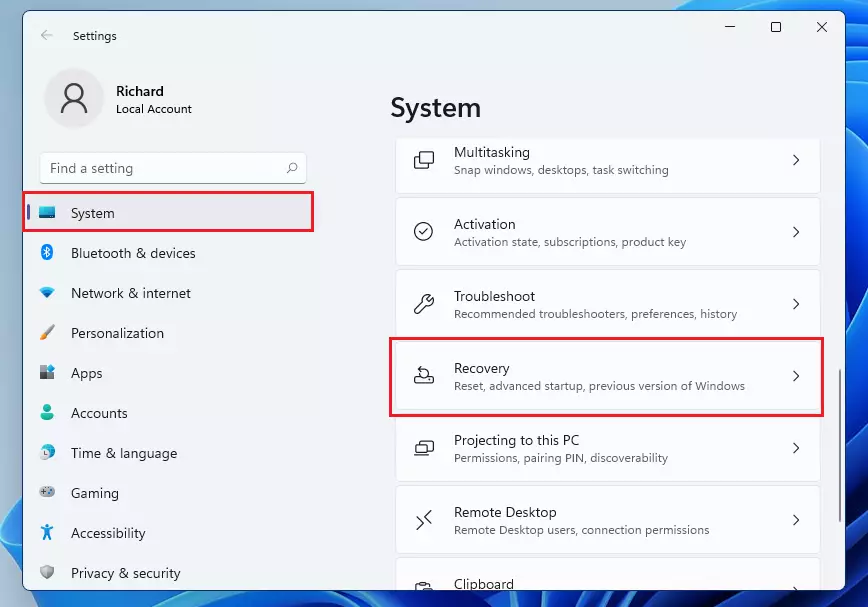
- Open your Settings menu. Press the Win+I on your keyboard, or click Start then Settings. The Settings window opens with the System page selected. %📂%LNK0%%

- In the System menu, look for the Recovery option on the right side of the screen and click it. The Recovery page opens and lists your recovery options. %📂%LNK1%%
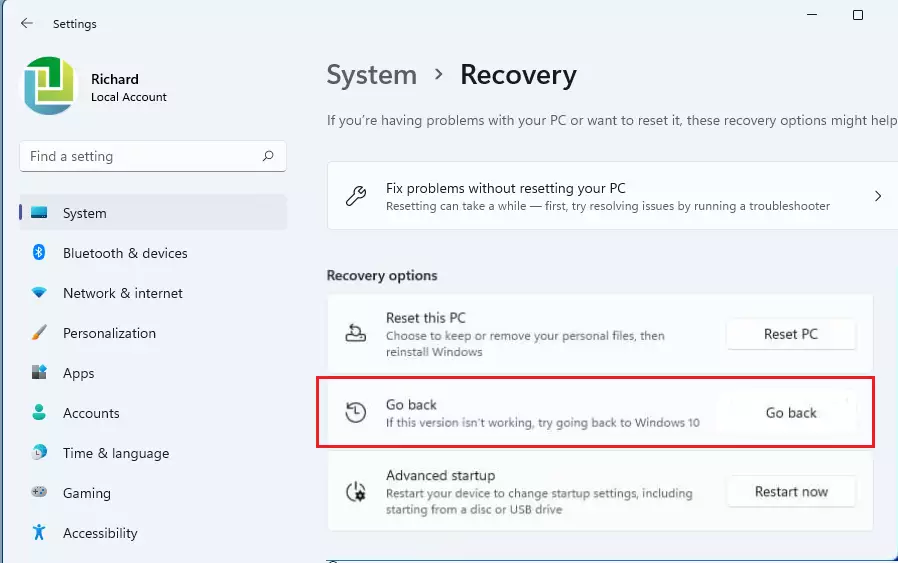
- Find the Recovery options section and click the Go back button. Windows shows a short “Please wait” screen, then opens the rollback wizard. If the button is missing or greyed out, the 10-day window has passed, the Windows.old folder was deleted, or you are not signed in as an administrator. In that case, see the section on clean installs further down.
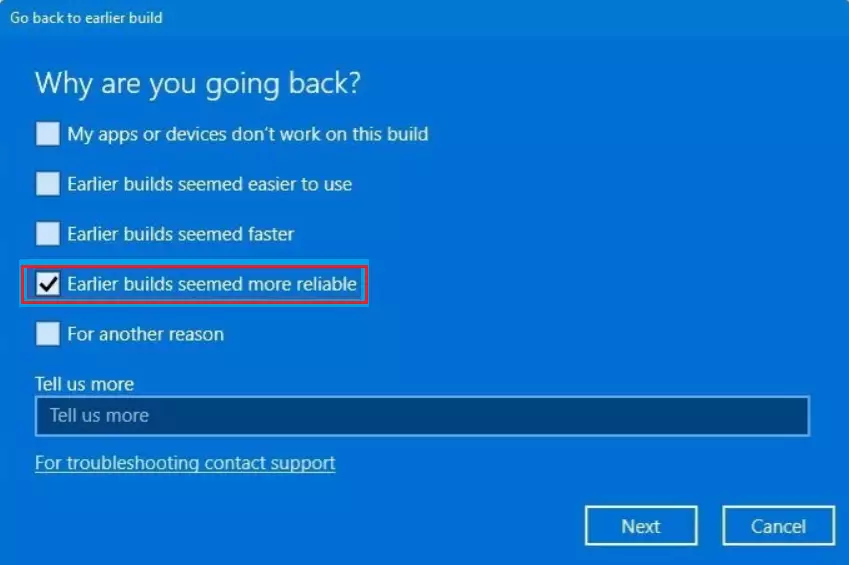
- A window pops up asking why you are going back. Select the reason that fits best, such as “Earlier builds seemed more reliable”. You can add a comment if you like, then click Next. The reason is only feedback for Microsoft and doesn’t change how the rollback works.
- When asked to check for updates , choose No, thanks. The wizard moves on to a screen explaining what the rollback will do.
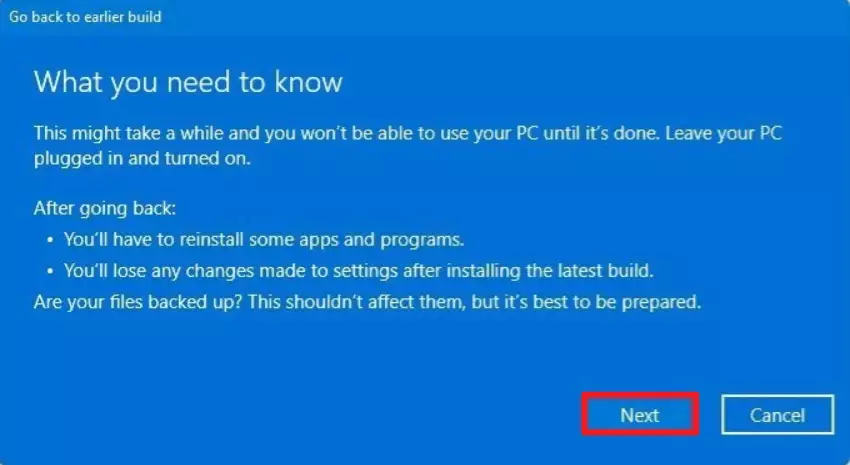
- Read through the information about the changes that will occur, then click Next. A further screen reminds you to know the password you used to sign in to Windows 10, so you don’t get locked out. Confirm you have it, then click Next again.
- Finally, click the Go back to Windows 10 button. The PC restarts and shows a “Restoring your previous version of Windows” screen. Don’t turn the PC off during this step. When it finishes, you land on the Windows 10 sign-in screen. Sign in and check that your files, apps and drivers are working.
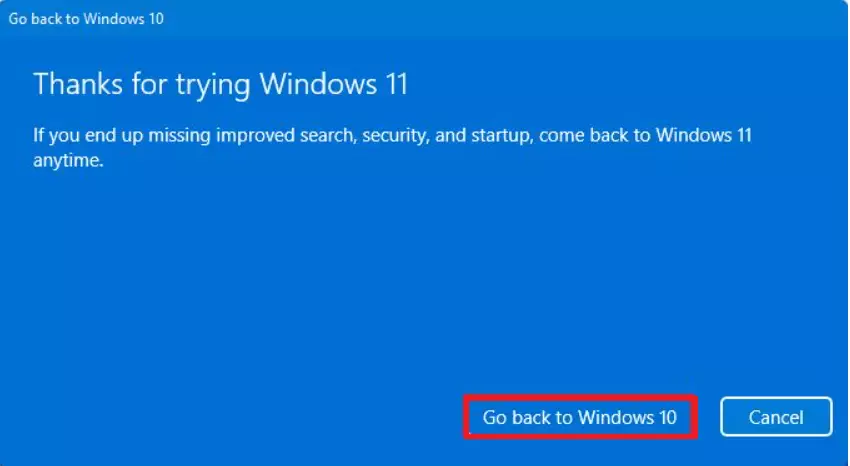
To downgrade Windows 11 to your previous operating system, press the Win plus I to open Settings . Go to System Recovery, then click Go back in the Recovery options section and follow the wizard. The PC restarts and Windows 10 comes back with your files intact.
What if the 10-day window has passed?
If it has been longer than 10 days since you upgraded, the simple Go back option won't work. Windows has already deleted the old system files it needs.
This erases the system drive, including your apps, settings and any files on it. Back up everything first and have your BitLocker recovery key ready if the drive is encrypted. Then create Windows 10 installation media from Microsoft's download page and boot from it. After the install, you'll need to reinstall your apps and restore your files from the backup.
If your PC was upgraded from Windows 10, it usually still has a digital license, so Windows 10 should activate on its own once you're online.
Summary
To downgrade Windows 11 to Windows 10 and keep your files, use the Recovery settings within 10 days of upgrading. If you miss that window, a clean install is required, so back up everything first. Always make sure you have admin rights before you begin, and don't delete the Windows.old folder or run cleanup tools that remove it until you've made up your mind.
Have a question about this guide?
Answered by AI from this guide. Good questions may be added to this page — please don't include personal details.
Did this guide fix your problem?

About the Author
Richard
Tech Writer, IT Professional
Richard is a writer at Geek Rewind who turns complex IT tasks into clear, step-by-step guides. He draws on years of hands-on experience in system administration and enterprise IT operations, focusing on Windows, Linux and WordPress: the problems people actually run into, and the fixes that work. His server and WordPress guides come from systems he runs himself. Richard builds and maintains the platform behind Geek Rewind, from its Ubuntu servers and Nginx configuration to its custom WordPress plugins. Many new tutorials start with readers' questions, and he's always glad to answer them in the comments.
No comments yet — be the first to share your thoughts!