How to Enable or Disable Windows Security Notifications in Windows 11


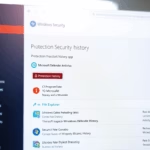
Windows Security notifications are the pop-up alerts in Windows 11 that warn you about virus detections, firewall status changes, and critical system health issues. Managing these alerts lets you stop unwanted pop-ups and choose exactly which security warnings appear on your screen.
You can turn off specific alerts like virus and threat protection if you prefer a quieter experience and actively monitor your PC yourself.
You can manage Windows Security notifications in Windows 11 via Settings System Notifications, or by using the Local Group Policy Editor or Registry Editor for more advanced control. Adjusting these settings helps you receive only the security alerts that are important to you.
Why manage these notifications?
Managing Windows 11 security notifications helps stop annoying pop-ups from appearing on your screen, which is especially useful if you already use a different antivirus program. Turning off these alerts keeps your desktop quiet, but you must remember to check your computer health yourself since Windows stops warning you about problems.
You will need to manually check your security provider settings to ensure your system remains protected.
Disclaimer: Disabling Windows 11 security notifications can hide critical alerts about your computer’s health, such as virus threats or firewall issues. Only disable these if you are an advanced user or have alternative security software installed. For official guidance, refer to Microsoft Support.
Method 1Standard Settings (Non-Technical Users)
Disabling Windows 11 security notifications through the Settings app is the easiest way to stop alerts without touching advanced tools. You can turn off these messages directly in your system settings so Windows stops interrupting your work with security warnings.
- Open Settings and go to System > Notifications.
- Scroll down to find Windows Security in the list of apps.
- Toggle the switch to Off to stop notifications from appearing in the Notification Center.
Method 2Local Group Policy Editor (IT Admin Context)
Turning off Windows 11 security notifications using the Local Group Policy Editor (a tool for managing system settings across multiple devices) lets you block alerts on one or many computers at the same time. This method works best for system administrators who want to control notification settings across a network.
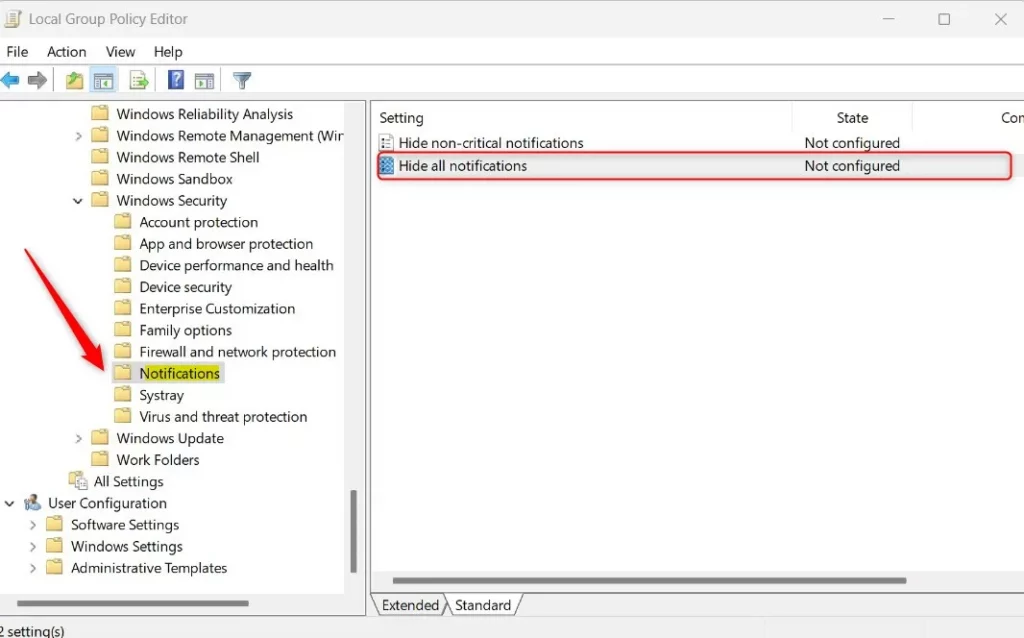
To open the Local Group Policy Editor, press `Windows Key + R` to open the Run dialog, then type `gpedit.msc` and press Enter. Navigate to: Computer Configuration\Administrative Templates\Windows Components\Windows Security\Notifications.
Select Enabled to suppress all alerts. Click Apply and restart your computer.
Method 3Registry Editor
Suppressing Windows 11 security notifications through the Registry Editor requires you to change specific system keys to block alerts permanently. This advanced method stops all unwanted security messages from popping up by making a direct change to your Windows system database.
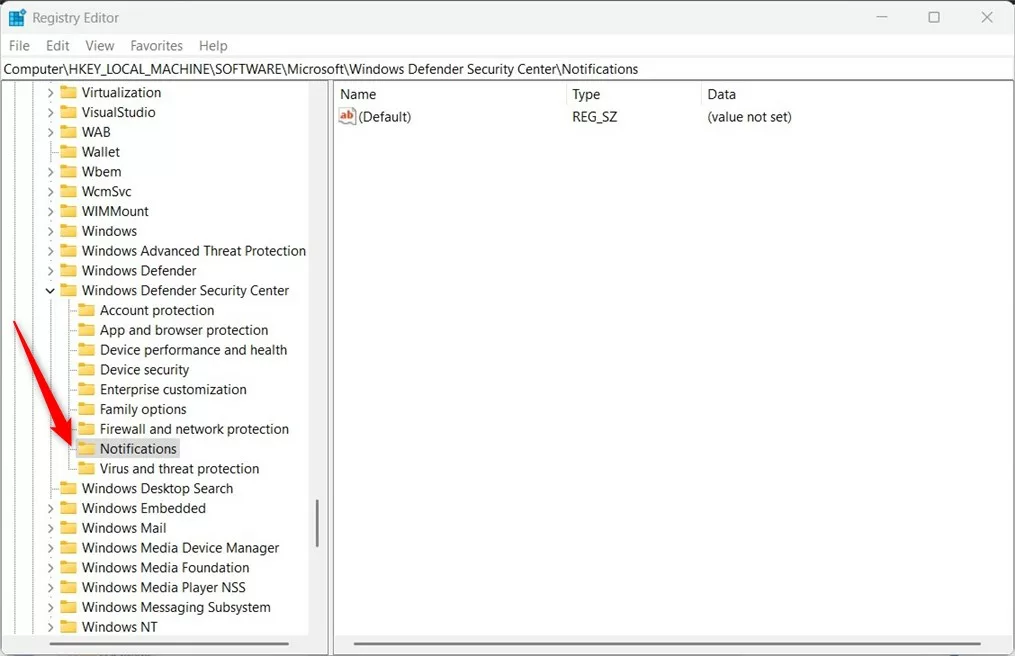
Open the Registry Editor by typing `regedit` in the Run dialog (press `Windows Key + R`) and navigate to: HKEY_LOCAL_MACHINE\SOFTWARE\Policies\Microsoft\Windows Defender Security Center\Notifications.
In the right pane, right-click, choose New DWORD (32-bit) Value, and name it: DisableNotifications. Set its value to 1 to hide alerts.
Troubleshooting and Common Issues
If notifications still aren't disabling, double-check that you're logged in with an administrator account. Check if a Group Policy is overriding your registry settings. If you see Windows Defender SmartScreen alerts, these are separate from general security notifications and should generally remain enabled to protect against malicious websites.
Summary
Managing Windows 11 security notifications helps keep your PC clutter-free. You can use the Settings app for simple changes or the Group Policy/Registry Editor for system-wide control. Always remember that these alerts are designed to keep your device safe, so proceed with caution.
Was this guide helpful?

About the Author
Richard
Tech Writer, IT Professional
Richard is a writer at Geek Rewind who turns complex IT tasks into clear, step-by-step guides. He draws on years of hands-on experience in system administration and enterprise IT operations, focusing on Windows, Linux and WordPress: the problems people actually run into, and the fixes that work. His server and WordPress guides come from systems he runs himself. Richard builds and maintains the platform behind Geek Rewind, from its Ubuntu servers and Nginx configuration to its custom WordPress plugins. Many new tutorials start with readers' questions, and he's always glad to answer them in the comments.
No comments yet — be the first to share your thoughts!