
This article explains how to turn the confirmation prompt on or off when deleting online-only cloud files in File Explorer in Windows 11.
What is File Explorer?
Windows File Explorer is a file manager that comes with Microsoft Windows. It gives you a simple way to view, copy, move, delete, and rename files and folders. You can organize everything in folders to keep things neat.
You can use online-only files when you enable OneDrive or Dropbox in Windows 11. Cloud files are stored on the internet, not on your computer.
Why Would You Want This Prompt?
When you delete an online-only file from a cloud location in File Explorer, you see a “Delete File” message asking you to confirm. This prompt warns you that the file will be deleted forever. It won’t go to your Recycle Bin where you can get it back.
You can choose to see this prompt every time or turn it off. Read on to learn how.
Method 1: Enable or Disable the Delete File Prompt in File Explorer
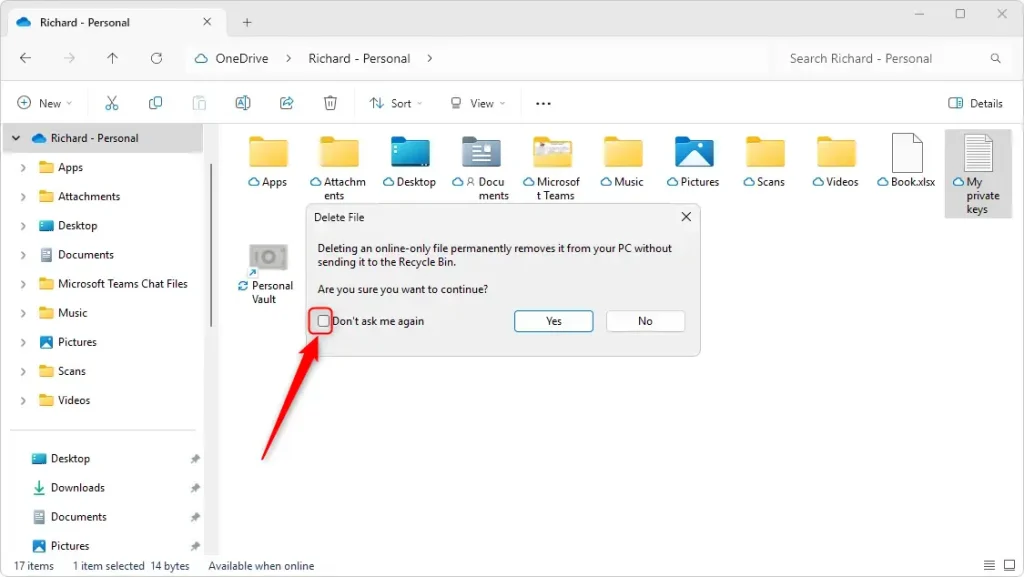
When you delete an online-only cloud file in File Explorer, a confirmation message appears. It asks you to confirm that you really want to delete the file permanently.
Look for a checkbox that says “Don’t ask me again.”
- To keep getting the prompt: Leave the box unchecked.
- To stop getting the prompt: Check the box. Future deletions won’t ask you to confirm.
Method 2: Enable or Disable Cloud File Deletion Prompts Using the Registry Editor
Another way to control the confirmation prompt is to use the Windows Registry Editor. This method is more advanced.
Important: Always back up your registry before making changes or create a System Restore point as a safety step.
Steps to Follow:
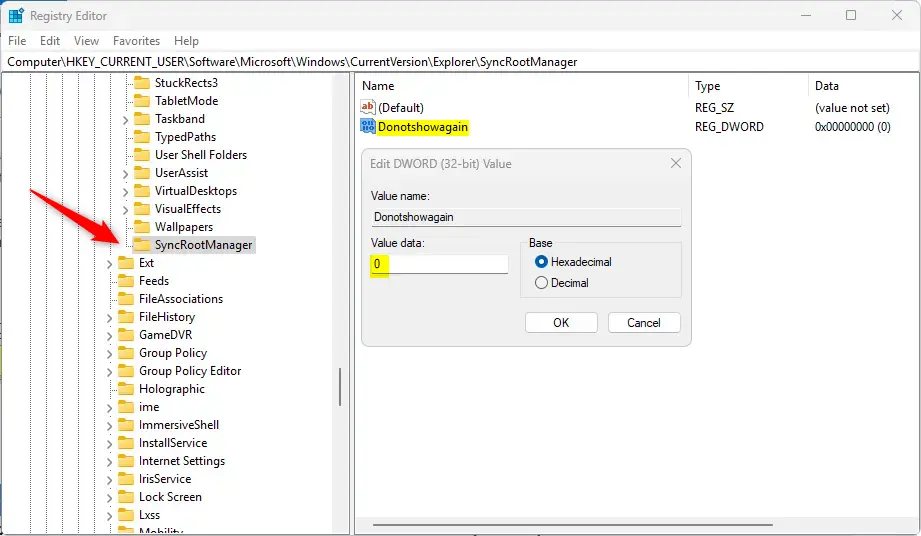
- Open the Windows Registry and go to this folder path:
Computer\HKEY_CURRENT_USER\Software\Microsoft\Windows\CurrentVersion\Explorer\SyncRootManager - Right-click on
SyncRootManagerand selectNew>DWORD (32-bit) Value. - Name the new DWORD
Donotshowagain. - Double-click
Donotshowagainto edit it.- Enter 0: You will always get the cloud file deletion confirmation in File Explorer.
- Enter 1: The confirmation prompt will be disabled.
- ⚠️ ADMIN REQUIRED: You may need to restart your computer for the changes to take effect.
Summary
Managing the confirmation prompt for deleting online-only cloud files in Windows 11 File Explorer helps you work the way you want. Here’s what you need to know:
- The delete confirmation prompt gives you extra protection. It stops you from accidentally deleting important files.
- Turning off the prompt makes your work faster if you delete files often and don’t want to be asked each time.
- You can easily turn this feature on or off through File Explorer or the Windows Registry Editor.
- Always back up your registry and create a System Restore point before making registry changes. This protects you if something goes wrong.
- Whether you use prompts or not, knowing how to manage cloud file deletions helps you stay organized in Windows 11.



Leave a Reply