How to Change Lid Close Action in Windows 11

Changing the lid close action in Windows 11 lets you pick what your laptop does the moment you shut the screen. The options are sleep, shut down, hibernate, or do nothing at all.
You adjust the lid close action in Windows 11 via Power Options in Control Panel . Open Power Options, click “Choose what the power button does,” and select your desired action for “When I close the lid” under both “On battery” and “Plugged in.
You can adjust this power setting in less than 60 seconds, and you can set different rules for when you’re on battery and when you’re plugged in. Settings, the classic Control Panel , Windows Terminal and Group Policy can all change it. None of the methods below needs a restart.
Here is what each action does when you close the lid:
- Do Nothing = Your computer does nothing when you close the lid. The screen may stay on if you have an external monitor connected, and the laptop keeps running with the lid shut. Make sure it has airflow, or it can overheat in a bag.
- Sleep = Your computer goes to sleep when you close the lid. It resumes in a few seconds, but it still draws a small amount of power.
- Hibernate = Your computer enters hibernate mode when you close the lid. It saves your session to disk and powers off, so it uses almost no battery. If this choice is missing from your menus, hibernation is probably turned off on that PC.
- Shut Down = Your computer shuts down when you close the lid. Unsaved work is lost unless apps prompt you first, so save before you close the lid.
Starting with Windows 11 build 29550.1000 (Canary), changes made in Settings to Display, Sleep and Hibernate timeouts, the Power/Sleep button, and lid close actions now apply to all power plans. This helps your configuration persist reliably. On earlier or regular release builds, a change in Settings affects only the active power plan.
Option One
Change Lid Close Action for Current Power Plan in Settings
Settings is the quickest way to change the lid close action for your active power plan, and it needs Windows 11 version 24H2 or newer. If you don’t see the options below, you are probably on an older version, so use the Control Panel or Windows Terminal methods instead. You’ll set the action separately for “Plugged in” and “On battery”.
- Open Settings (Win+I).
- Click System on the left side, then click Power & battery on the right side. The page shows your screen, sleep and battery options.
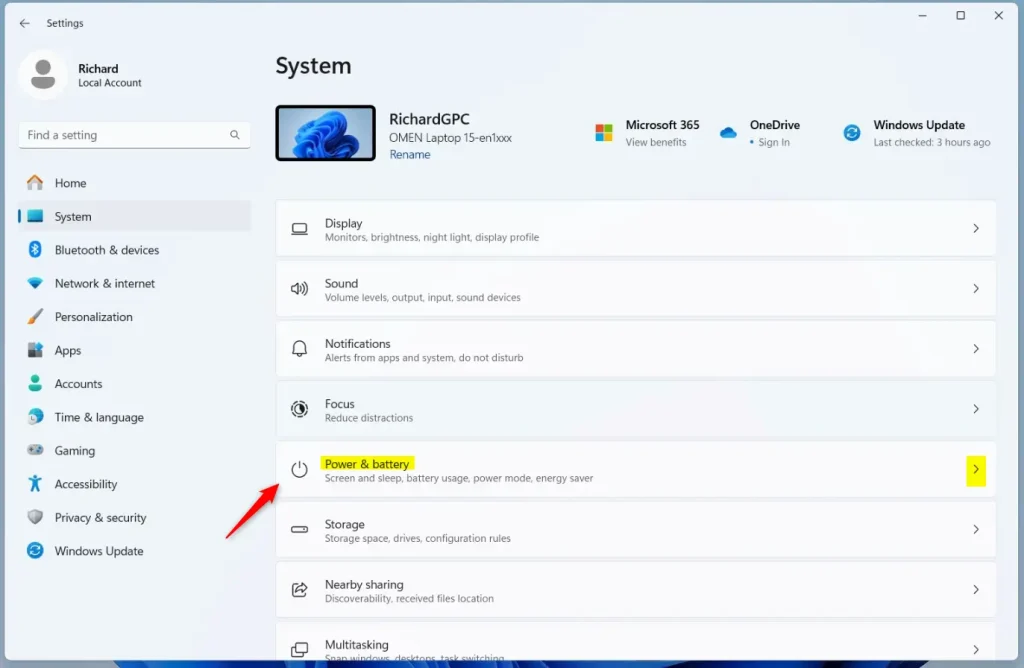
- Click Lid & power button controls to expand it. You should now see the drop-down menus for the lid and the power button. On a desktop PC without a lid, this section may be missing or show fewer options.
- Open the Closing the lid will make my PC drop-down menus, under both “Plugged in” and “On battery”. Choose Do Nothing, Sleep (default), Hibernate, Shutdown, or Display Off.
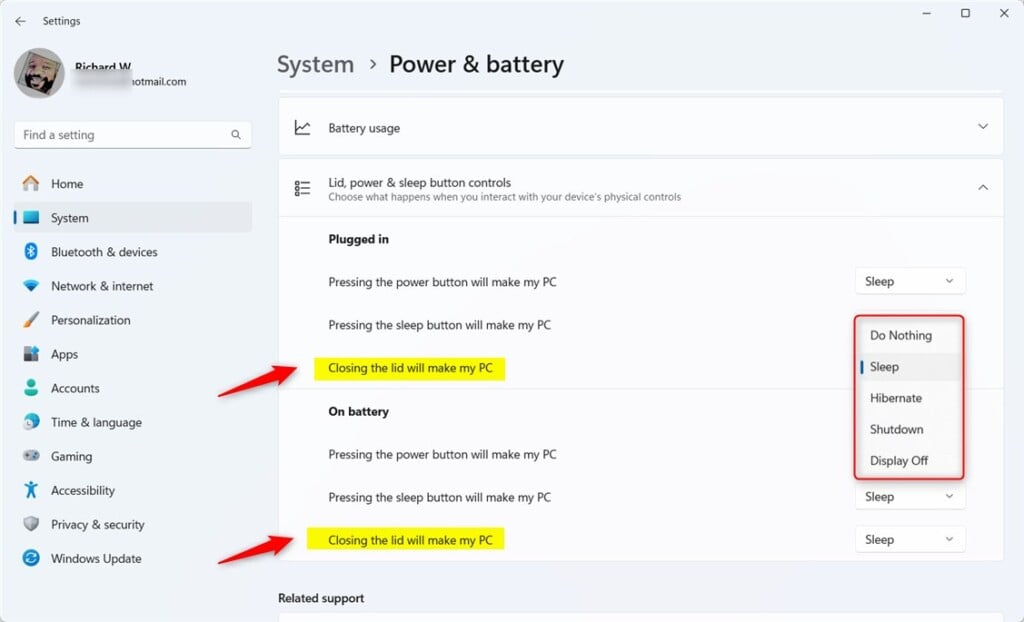
- Close Settings if you like. The change applies immediately and nothing needs saving. To undo it, reopen this page and set the menus back to Sleep.
If a menu is greyed out or reverts after you set it, a Group Policy on your PC (see the last method) may be controlling the lid action. A work or school device can also be managed by your organization.
Option Two Open Power & battery settings
Change Lid Close Action for Current Power Plan in Power Options
Power Options in the Control Panel changes the lid close action for your current power plan, and it works on older Windows 11 versions where Settings lacks the lid options. You’ll open Power Options, choose what the power button does, and pick an action for when you close the lid.
- Open the Control Panel (icons view), and click the Power Options icon. If you don’t see icons, set View by in the top right to Large icons or Small icons.
- Click Choose what the power button does in the left pane.
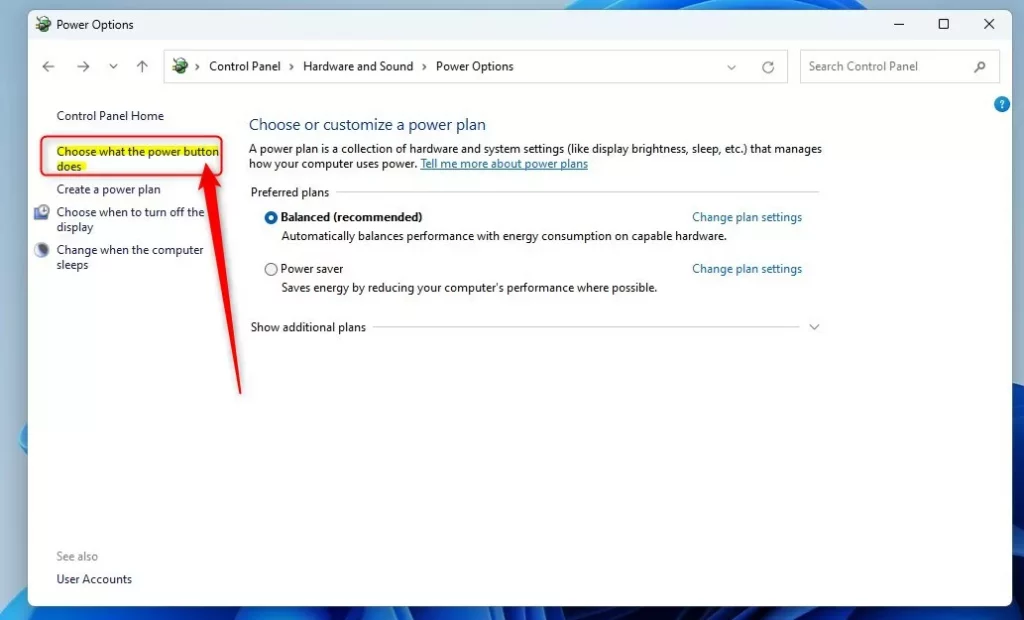
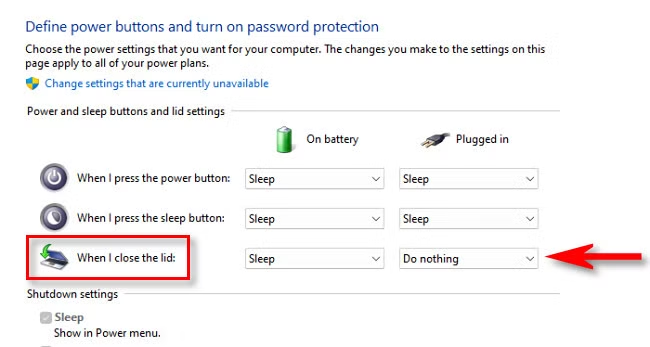
- Find the “When I close the lid” setting. In both the “On battery” and “Plugged in” drop menus, select Do nothing, Sleep (default), Hibernate, or Shut down.
- Click Save changes. The change takes effect straight away. To undo it, come back here and set both menus to Sleep.
If “When I close the lid” doesn’t appear, the PC has no lid, such as a desktop. A missing Hibernate choice means hibernation is turned off.
Option Three
Change Lid Close Action for Specific Power Plan in Advanced Power Options
Advanced Power Options in the Control Panel changes the lid close action for one specific power plan rather than the active plan. You’ll open the plan’s settings, go into the advanced power settings, and update the lid close action under the power buttons and lid menu. Use this when you keep several plans and want each to behave differently.
- Open the Control Panel (icons view), and click the Power Options icon.
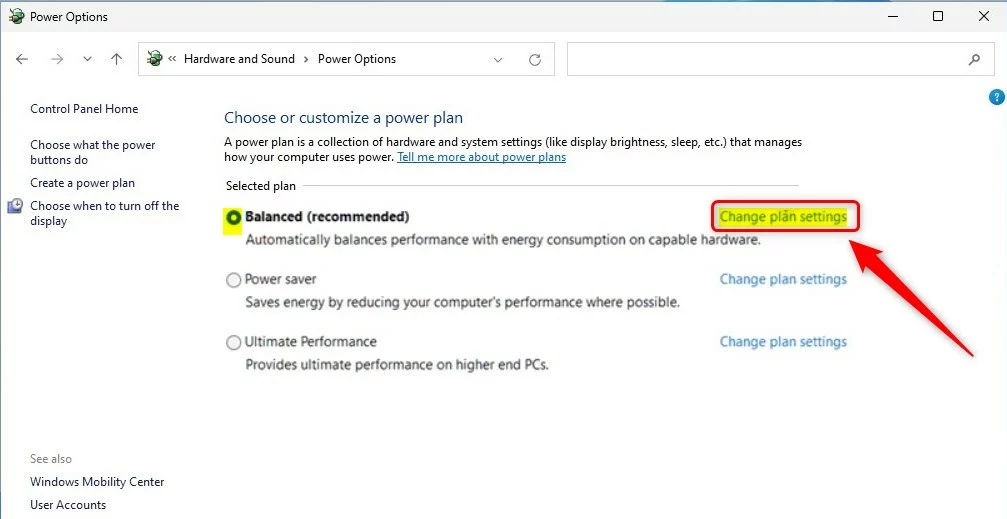
- Click Change plan settings next to the power plan you want to change (example: “Balanced”). It doesn’t have to be the plan that is currently selected.
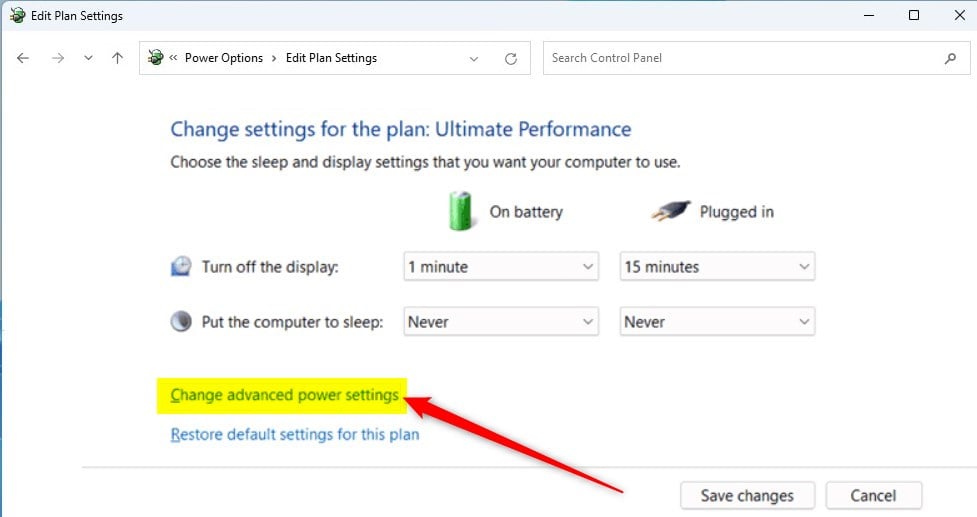
- Click Change advanced power settings. A small Power Options window opens with a tree of settings.
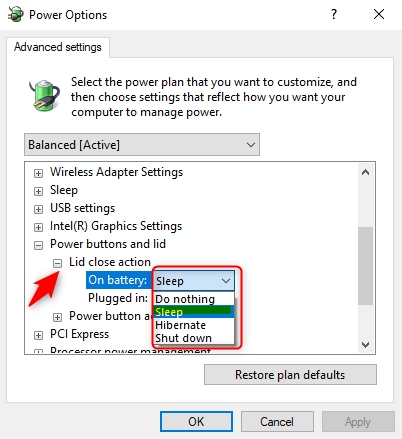
- Expand Power buttons and lid, then expand Lid close action. (see screenshot below step 5)
- In both the “On battery” and “Plugged in” drop menus for the Lid close action setting, select Do nothing, Sleep (default), Hibernate, or Shut down. Then click OK.
The change applies only to the plan you opened. To undo it, return to the same spot and set both menus back to Sleep. To change other plans too, repeat these steps for each one.
Option Four
Change Lid Close Action for Current Power Plan in Windows Terminal
Windows Terminal lets you change the lid close action for your current power plan by running a single powercfg command. You’ll open a terminal, paste the command for the state you want (on battery, plugged in, or both), and press Enter. Nothing is printed when it works.
- Open Windows Terminal, and select either Windows PowerShell or Command Prompt. If a command returns an access error, close the window and reopen Windows Terminal as administrator.
- Copy and paste the command below you want to use for when on battery and/or plugged in into Windows Terminal, and press Enter. Run one command per state you want to change.
On battery
(Do nothing)
powercfg -setdcvalueindex SCHEME_CURRENT 4f971e89-eebd-4455-a8de-9e59040e7347 5ca83367-6e45-459f-a27b-476b1d01c936 0OR
(Sleep – default)
powercfg -setdcvalueindex SCHEME_CURRENT 4f971e89-eebd-4455-a8de-9e59040e7347 5ca83367-6e45-459f-a27b-476b1d01c936 1OR
(Hibernate)
powercfg -setdcvalueindex SCHEME_CURRENT 4f971e89-eebd-4455-a8de-9e59040e7347 5ca83367-6e45-459f-a27b-476b1d01c936 2OR
(Shut down)
powercfg -setdcvalueindex SCHEME_CURRENT 4f971e89-eebd-4455-a8de-9e59040e7347 5ca83367-6e45-459f-a27b-476b1d01c936 3AND/OR
Plugged in
Desktop computers use this option because desktop systems lack separate "On battery" and "Plugged in" choices unless connected to a UPS (Uninterruptible Power Supply).
(Do nothing)
powercfg -setacvalueindex SCHEME_CURRENT 4f971e89-eebd-4455-a8de-9e59040e7347 5ca83367-6e45-459f-a27b-476b1d01c936 0OR
(Sleep - default)
powercfg -setacvalueindex SCHEME_CURRENT 4f971e89-eebd-4455-a8de-9e59040e7347 5ca83367-6e45-459f-a27b-476b1d01c936 1OR
(Hibernate)
powercfg -setacvalueindex SCHEME_CURRENT 4f971e89-eebd-4455-a8de-9e59040e7347 5ca83367-6e45-459f-a27b-476b1d01c936 2OR
(Shut down)
powercfg -setacvalueindex SCHEME_CURRENT 4f971e89-eebd-4455-a8de-9e59040e7347 5ca83367-6e45-459f-a27b-476b1d01c936 3- Close Windows Terminal if you like. To check the result, open Power Options in the Control Panel and look at the lid setting. To undo the change, run the Sleep command again.
Option Five
Change Lid Close Action for Specific Power Plan in Windows Terminal
This version of the command targets a specific power plan by its unique GUID instead of the current plan. You'll find the plan's GUID first, then run the command that updates the lid behavior for that exact plan.
- Open Windows Terminal, and select either Windows PowerShell or Command Prompt.
- Copy and paste the command below into Windows Terminal, and press Enter. It lists every power plan on the PC. Write down the GUID (example: 381b4222-f694-41f0-9685-ff5bb260df2e) of the plan you want to change (example: "Balanced"). (see screenshot below)
powercfg /L- Type the command below you want to use for when on battery and/or plugged in into Windows Terminal, and press Enter. Run one command per state you want to change.
On battery
(Do nothing)
powercfg -setdcvalueindex GUID 4f971e89-eebd-4455-a8de-9e59040e7347 5ca83367-6e45-459f-a27b-476b1d01c936 0OR
(Sleep - default)
powercfg -setdcvalueindex GUID 4f971e89-eebd-4455-a8de-9e59040e7347 5ca83367-6e45-459f-a27b-476b1d01c936 1OR
(Hibernate)
powercfg -setdcvalueindex GUID 4f971e89-eebd-4455-a8de-9e59040e7347 5ca83367-6e45-459f-a27b-476b1d01c936 2OR
(Shut down)
powercfg -setdcvalueindex GUID 4f971e89-eebd-4455-a8de-9e59040e7347 5ca83367-6e45-459f-a27b-476b1d01c936 3AND/OR
Plugged in
Desktop computers use this option because desktop systems lack separate "On battery" and "Plugged in" choices unless connected to a UPS (Uninterruptible Power Supply).
(Do nothing)
powercfg -setacvalueindex GUID 4f971e89-eebd-4455-a8de-9e59040e7347 5ca83367-6e45-459f-a27b-476b1d01c936 0OR
(Sleep - default)
powercfg -setacvalueindex GUID 4f971e89-eebd-4455-a8de-9e59040e7347 5ca83367-6e45-459f-a27b-476b1d01c936 1OR
(Hibernate)
powercfg -setacvalueindex GUID 4f971e89-eebd-4455-a8de-9e59040e7347 5ca83367-6e45-459f-a27b-476b1d01c936 2OR
(Shut down)
powercfg -setacvalueindex GUID 4f971e89-eebd-4455-a8de-9e59040e7347 5ca83367-6e45-459f-a27b-476b1d01c936 3If the GUID is wrong or mistyped, the command fails with an error, so copy it exactly.
Example: Set to "Shut down" while "Plugged in" for the Balanced power plan GUID (381b4222-f694-41f0-9685-ff5bb260df2e)
powercfg -setacvalueindex 381b4222-f694-41f0-9685-ff5bb260df2e 4f971e89-eebd-4455-a8de-9e59040e7347 5ca83367-6e45-459f-a27b-476b1d01c936 3- Close Windows Terminal if you like. To undo the change, run the Sleep command for the same plan GUID.
Option Six
Specify Lid Close Action for All Power Plans in Local Group Policy Editor
Local Group Policy Editor lets administrators enforce a specific lid close action on Windows 11 Pro, Enterprise, and Education editions. You'll open the policy editor with gpedit.msc, go to the power management settings, and set the lid close rule. A policy overrides what users choose in Settings or the Control Panel, so use it when you want the behavior locked.
It is not included in Home. Option Seven below provides an alternative configuration method for all editions.
- Press Win+R, type
gpedit.msc, and press Enter to open the Local Group Policy Editor. - Navigate to the location below in the left pane of the Local Group Policy Editor. (see screenshot below)
Computer Configuration > Administrative Templates > System > Power Management > Button Settings
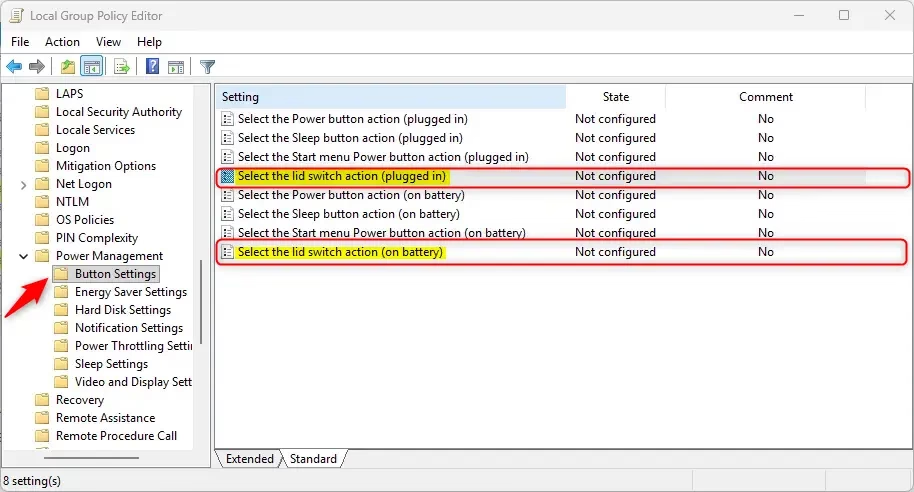
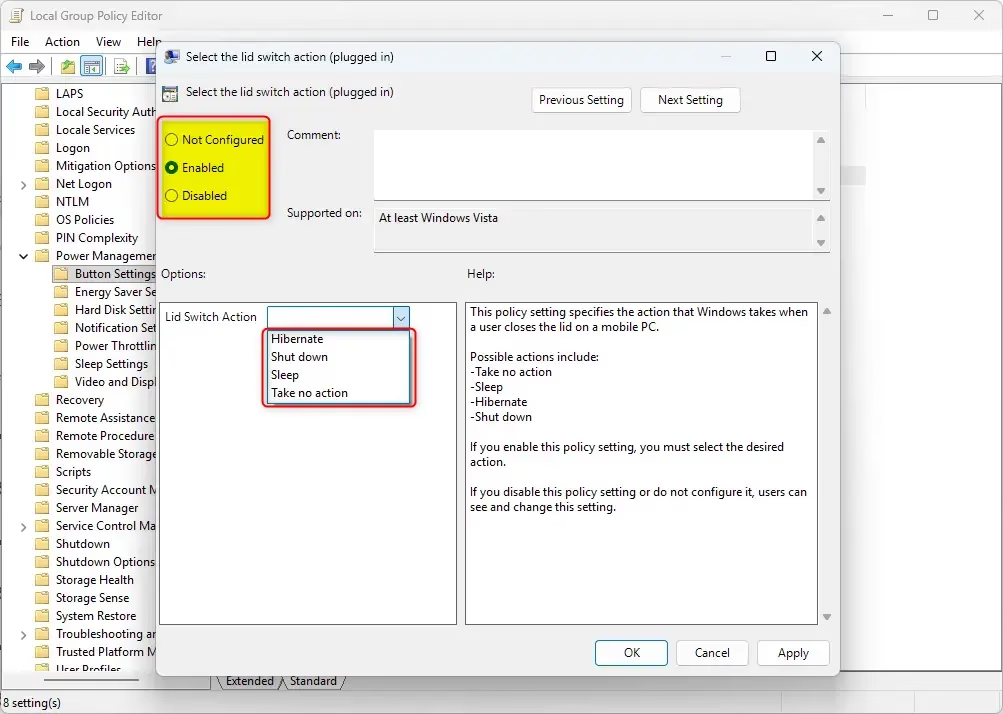
- In the right pane of Button Settings, double-click the Select the lid switch action (plugged in) and/or Select the lid switch action (on battery) policy you want to edit. A properties window opens.
- Choose one of the options below, then click OK. The policy applies on its own. If the lid doesn't behave as expected, restart the PC once.
Default User Choice for Lid Close Action
- Select (dot) Not Configured, click OK. This is also how you undo a policy you set earlier.
To Specify "Hibernate" for Lid Close Action
- Select (dot) Enabled, select Hibernate in the Lid Switch Action drop menu under Options, click OK
To Specify "Shut down" for Lid Close Action
- Select (dot) Enabled, select Shut down in the Lid Switch Action drop menu under Options, click OK
To Specify "Sleep" for Lid Close Action
- Select (dot) Enabled, select Sleep in the Lid Switch Action drop menu under Options, click OK
To Specify "Take no action" for Lid Close Action
- Select (dot) Enabled, select Take no action in the Lid Switch Action drop menu under Options, click OK
Conclusion
Changing the lid close action tailors your laptop's power behavior to your daily workflow and battery needs. Decide whether the computer sleeps, shuts down, hibernates, or does nothing when you close the lid, then use the method that suits your edition of Windows.
- Choose Your Preferred Action: Select an action that suits your needs, whether it is Do Nothing, Sleep, Hibernate, or Shut Down. Sleep is the default, and Hibernate saves the most battery.
- Apply Settings to Specific Power Plans: Make adjustments for different power plans to balance performance and energy consumption. The Advanced Power Options and GUID methods let you target one plan.
- Utilize Various Methods: Choose from Settings, Control Panel, Windows Terminal, or Local Group Policy Editor. Settings is the easiest, and Group Policy is the one that locks the behavior (Pro, Enterprise and Education only).
- Experience Consistency Across Power Plans: Starting with Windows 11 build 29550.1000, changes made in Settings apply to all power plans.
- Enhance Productivity: Tailor your laptop's behavior to fit your workflow, such as keeping it running with an external monitor, or hibernating to save battery in a bag.
Once the setting is in place, your laptop responds the same way every time you close the lid.
Frequently asked questions
How do I change the lid close action on my computer?
Open Settings, go to System Power & battery, then expand the lid close action section. Choose what you want your laptop to do when you close the screen: sleep, hibernate, shut down, or do nothing. You can set different actions for battery power versus plugged in.
How do I change what happens when I close the lid?
In Settings, navigate to System Power & battery and find the lid close action option. Select your preferred behavior from the dropdown menu—sleep, hibernate, shut down, or no action. Changes apply immediately to your active power plan.
How do I change what my computer does when I close the lid?
Open Settings and go to System Power & battery. Expand the lid close action section and pick what happens when you close the lid: sleep, hibernate, shut down, or nothing. You can customize this separately for battery and wall power.
How do I turn off the lid open action?
There is no lid open action to turn off—Windows only controls what happens when you close the lid. Open Settings System Power & battery, find lid close action, and select "Do nothing" if you want your laptop to ignore the lid closing.
Still have a question?
Answered by AI from this guide. Good questions may be added to this page — please don't include personal details.
Did this guide fix your problem?

About the Author
Richard
Tech Writer, IT Professional
Richard is a writer at Geek Rewind who turns complex IT tasks into clear, step-by-step guides. He draws on years of hands-on experience in system administration and enterprise IT operations, focusing on Windows, Linux and WordPress: the problems people actually run into, and the fixes that work. His server and WordPress guides come from systems he runs himself. Richard builds and maintains the platform behind Geek Rewind, from its Ubuntu servers and Nginx configuration to its custom WordPress plugins. Many new tutorials start with readers' questions, and he's always glad to answer them in the comments.
No comments yet — be the first to share your thoughts!