How to Turn On or Off Search Indexer Enhanced Mode in Windows 11

You turn on or off Windows 11 Search Indexer Enhanced Mode to control how thoroughly your PC searches for files.
Enhanced Mode allows Windows to index all locations on your computer, not just user-created folders, significantly speeding up file searches across your entire system.
This feature expands the search scope beyond your user profile folders to include all drives and directories, creating a more comprehensive index for faster retrieval.
When you activate Enhanced Mode, Windows scans your entire hard drive, indexing the metadata for every file. This process might temporarily increase system resource usage.
Consider enabling this if you often struggle to locate files stored in less common locations on your PC, but be mindful of increased disk activity.
In Windows 11, enable Enhanced Mode for faster file searches by going to Settings > Privacy & security > Search > Find my files, and selecting Enhanced. To disable it, choose Classic. Alternatively, use the Registry Editor with specific commands to set the EnableFindMyFiles value to 1 for Enhanced or 0 for Classic.
Option 1Using Windows Settings
Keep in mind: You’ll need administrator rights to make these changes.
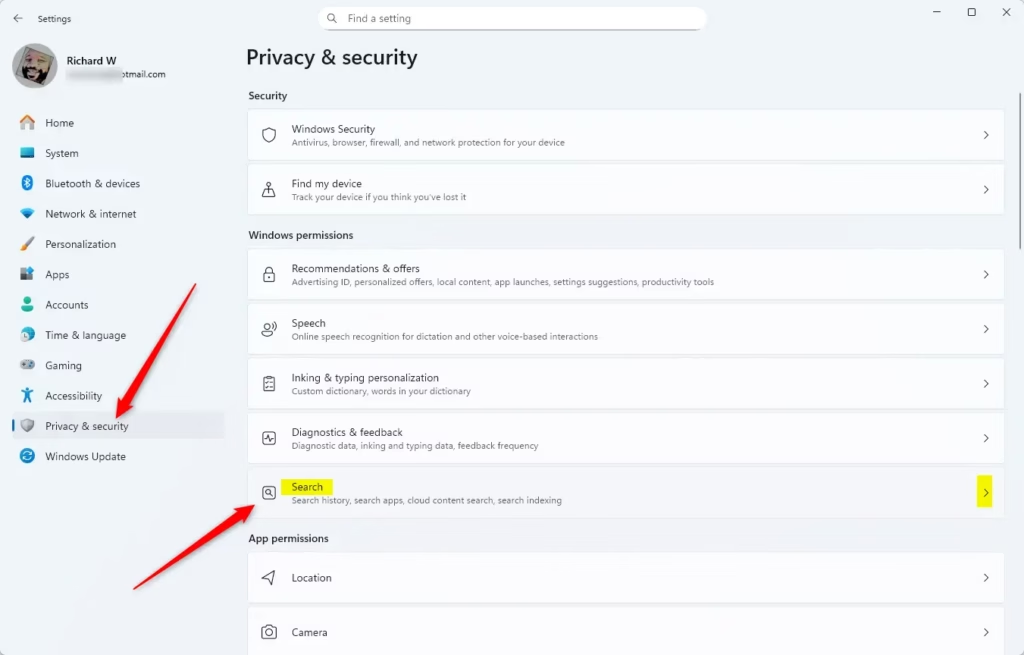
- Open Settings (or press ⊞ Win+I on your keyboard).
- Click on Privacy & security on the left menu.
- Click on Search on the right side.
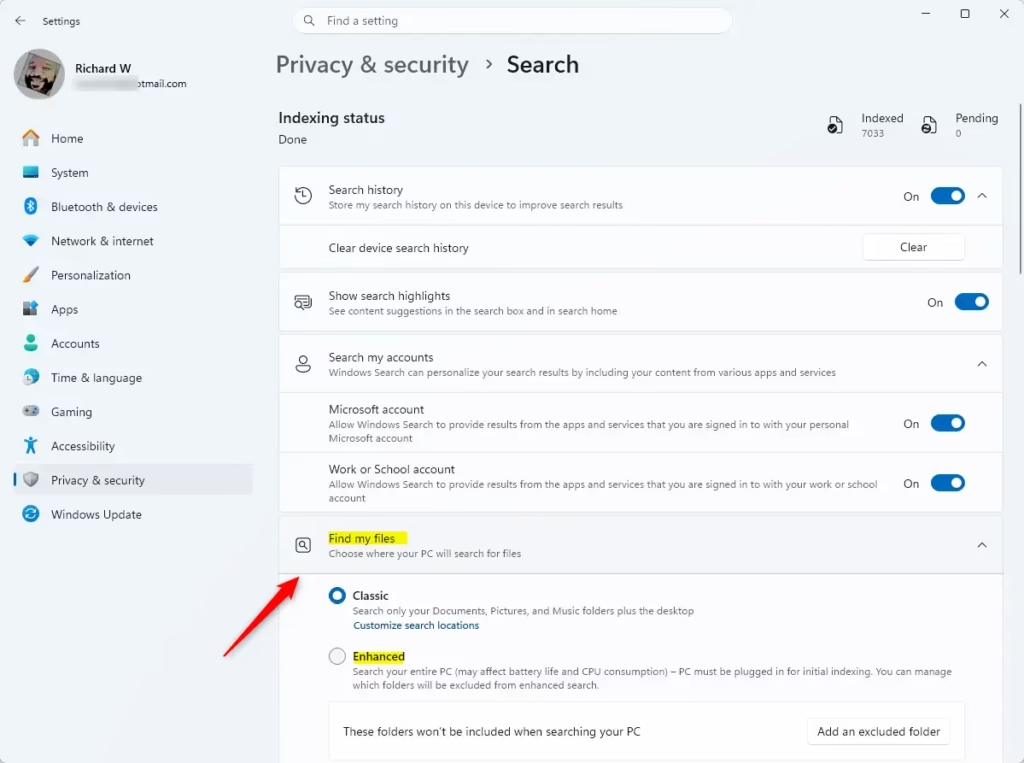
- Under the Find my files section, choose either Classic or Enhanced.
Option 2Using the Registry
You can change Enhanced Search Indexing in Windows 11 using the Registry Editor, but it’s a bit more technical. This method involves running specific commands in the Windows Terminal as an administrator to switch between Classic and Enhanced modes.
You can change this setting using the Windows Terminal. Open the Terminal as an administrator and use the following commands:
To use Classic Mode (Default):
reg add "HKEY_LOCAL_MACHINE\SOFTWARE\Microsoft\Windows Search" /v EnableFindMyFiles /t REG_DWORD /d 0 /f
To use Enhanced Mode:
reg add "HKEY_LOCAL_MACHINE\SOFTWARE\Microsoft\Windows Search" /v EnableFindMyFiles /t REG_DWORD /d 1 /f
Performance and Troubleshooting
Enhanced Search Indexing in Windows 11 can sometimes use more computer power, making things run slower. If you notice your PC is sluggish, check the Windows Search service to make sure it’s set to start automatically and consider excluding folders you don’t need indexed.
For cloud-synced files like OneDrive, Windows handles indexing through the cloud provider’s sync engine. This means files not downloaded to your PC may not appear in local search results until they are synced.
Summary
Enhanced Search Indexing in Windows 11 helps you find files much quicker, which is great for busy users. Just remember it uses more system resources, so it’s a good idea to keep your laptop plugged in when you first turn it on.
Does Enhanced Mode use more CPU and battery?
Yes. Because Enhanced mode constantly monitors your entire drive for changes to update the search indexer database, it requires more CPU cycles and disk activity. This background work consumes more power, which can noticeably reduce battery life on portable devices like Copilot+ PCs.
How does Enhanced Indexing differ from standard indexing?
Standard or Classic indexing only tracks files in your user profile folders like Documents and Pictures. Enhanced indexing expands this scope to include the entire system drive, including system files and custom folders, allowing you to find any file on your computer regardless of its location.
Was this guide helpful?

About the Author
Richard
Tech Writer, IT Professional
Richard, a writer for Geek Rewind, is a tech enthusiast who loves breaking down complex IT topics into simple, easy-to-understand ideas. With years of hands-on experience in system administration and enterprise IT operations, he’s developed a knack for offering practical tips and solutions. Richard aims to make technology more accessible and actionable. He's deeply committed to the Geek Rewind community, always ready to answer questions and engage in discussions.



No comments yet — be the first to share your thoughts!