How to Delete Windows.old Folder in Windows 11


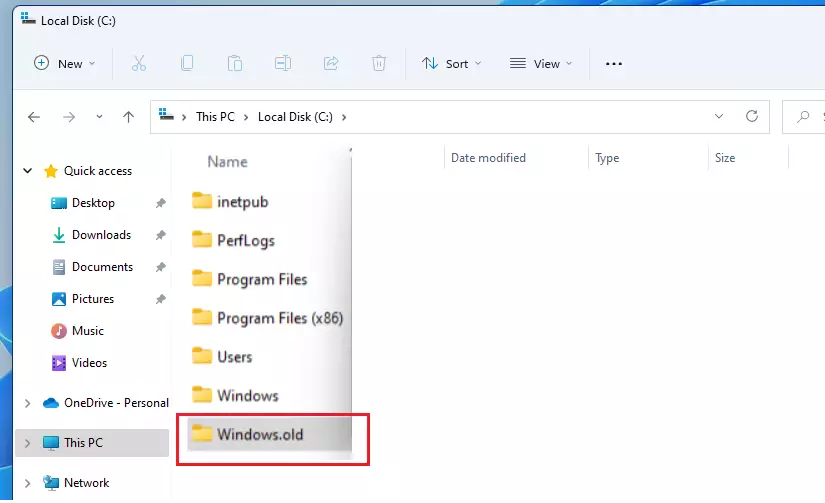
After you upgrade to Windows 11, your computer creates a folder named Windows.old on your main drive. This folder holds your old system files. It is there in case you want to go back to your previous version of Windows.
Why delete the Windows.old folder?
When you upgrade to Windows 11, your computer saves a copy of your old system files in a folder called Windows.old. This folder is located at C:\Windows.old. It acts as a safety net if you decide to go back to your previous version of Windows. However, it often takes up 10GB to 30GB of disk space. If your computer is running well, you can safely remove it to free up valuable storage.
What happens when done?
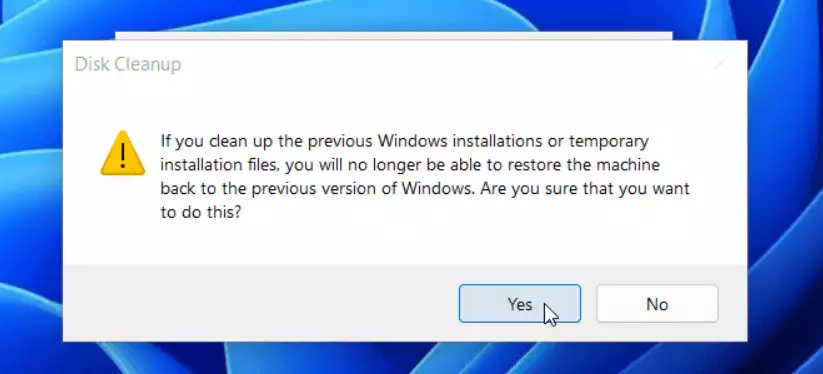
After you delete this folder, you will reclaim a significant amount of disk space. The trade-off is that the option to revert to your previous Windows version via the Settings menu will no longer work. You will be fully committed to your current Windows 11 installation.
How to use Disk Cleanup (Recommended)
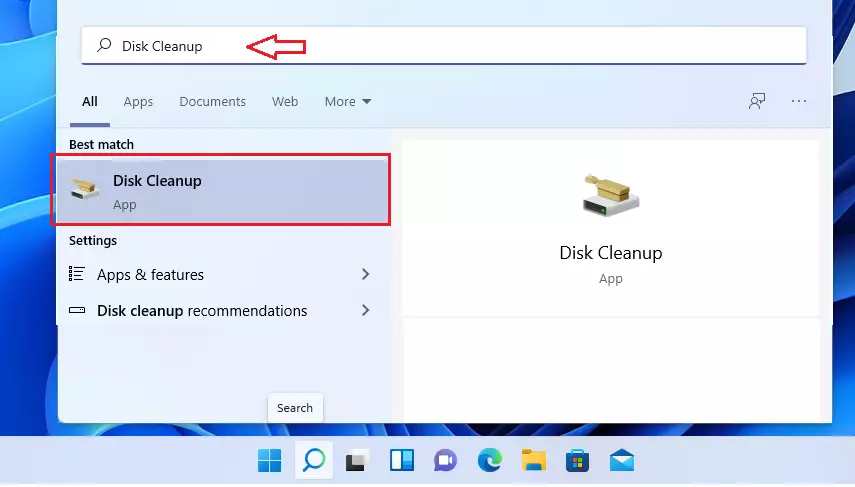
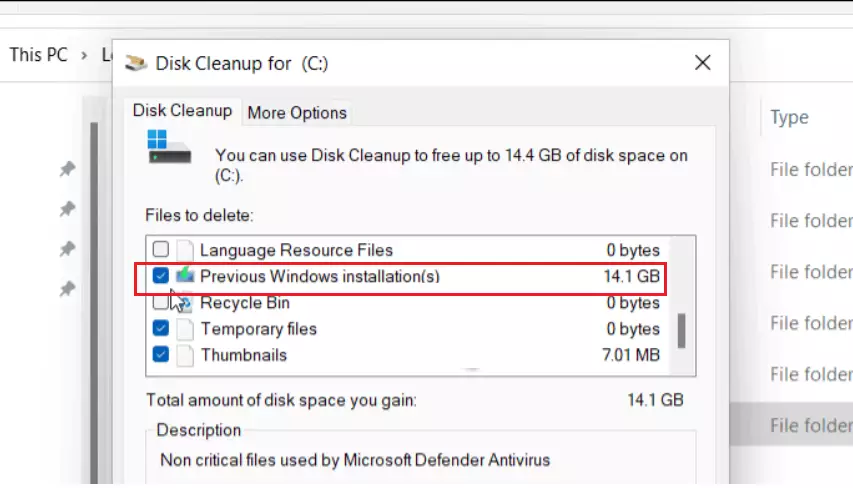
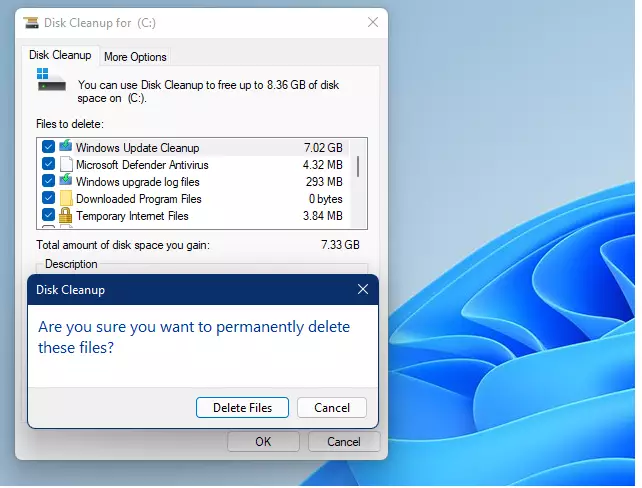
The safest way to remove these files is by using the built-in Disk Cleanup tool. This ensures that Windows handles the deletion process correctly without leaving broken registry entries.
- Click the Start button and search for Disk Cleanup.
- Select the app from the list.
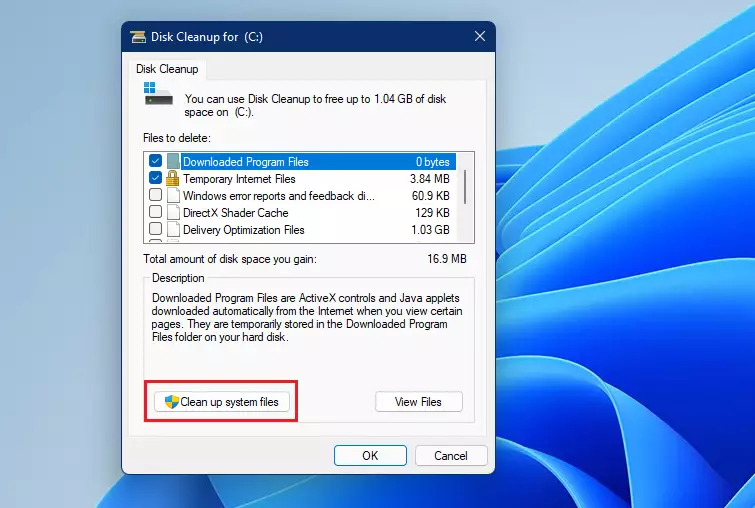
- Click the Cleanup System Files button. (Requires administrator privileges).
- The tool will scan your drive. This might take a few minutes.
- Look for Previous Windows installation(s) in the list.
- Check the box and click OK.
How to use Command Prompt for stubborn files
If the folder refuses to delete, you can use the Command Prompt to force the removal. Requires administrator privileges.
- Search for cmd in the Start menu.
- Right-click it and select Run as administrator.
- Type the following command and press Enter: Code
rd /s /q C:\Windows.old
This command tells Windows to remove the directory (rd) with all subfolders (/s) and without asking for confirmation (/q).
Automating cleanup with Storage Sense
You can let Windows handle this automatically. Go to Settings > System > Storage > Storage Sense. Turn it on, and Windows will automatically delete temporary files and old installation folders when you are low on space.
Troubleshooting: What if it still won’t delete?
If you still see the folder, run the System File Checker. Open Command Prompt as an administrator and type
sfc /scannow
to repair any system file issues that might be preventing the deletion. For more details, visit the official Microsoft Support page.
Summary
- The Windows.old folder stores files from your old version of Windows.
- You can delete it if you do not plan to revert to your previous version.
- Deleting it frees up a large amount of storage space.
- Use Disk Cleanup or Storage Sense for the safest results.
- Always ensure you have administrator privileges before attempting to delete system folders.
Is it safe to delete Windows.old?
Yes, it is perfectly safe to delete the Windows.old folder if you are satisfied with your current Windows 11 installation. It contains temporary system files from your previous OS. Deleting it simply removes the ability to easily roll back your system to the older version using built-in Windows tools.
Why can’t I delete the Windows.old folder?
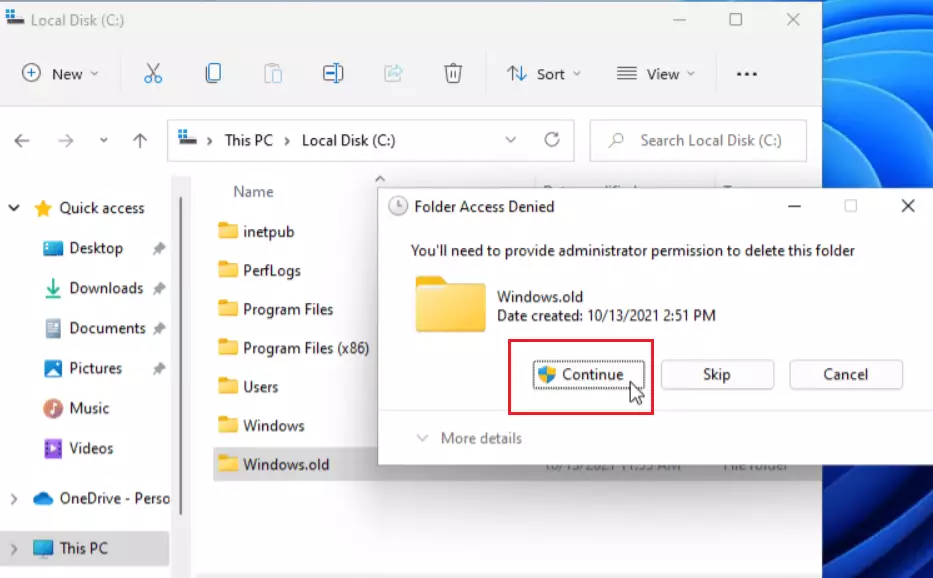
You may encounter permission errors because Windows.old is a protected system folder. Even with administrator privileges, Windows may block manual deletion to prevent accidental data loss. If you cannot delete it via File Explorer, use the Disk Cleanup tool or the Command Prompt method to force the removal.
Was this guide helpful?

About the Author
Richard
Tech Writer, IT Professional
Richard, a writer for Geek Rewind, is a tech enthusiast who loves breaking down complex IT topics into simple, easy-to-understand ideas. With years of hands-on experience in system administration and enterprise IT operations, he’s developed a knack for offering practical tips and solutions. Richard aims to make technology more accessible and actionable. He's deeply committed to the Geek Rewind community, always ready to answer questions and engage in discussions.



No comments yet — be the first to share your thoughts!