How to Uninstall Programs in Windows 11

You uninstall programs in Windows 11 through the Settings app or the Control Panel.
Uninstalling applications is key to freeing up disk space and boosting your PC’s performance. Windows 11 offers two main ways to do this.
The Settings app’s “Apps” section provides the most current method for removing software. For those who prefer the traditional interface, the Control Panel still reliably manages your installed programs.
Removing unwanted software ensures your system runs efficiently and prevents background processes from hogging resources. This guide shows you both common methods for decluttering your Windows 11 PC.
You can uninstall programs in Windows 11 through Settings > Apps > Installed apps, or by searching for Control Panel and selecting Uninstall a program. Find the app in the respective list, click the three dots or the Uninstall button, and follow the prompts to remove it.
Standard Methods to Remove Apps
Most users should use the built-in Windows tools first. These are safe and easy to use.
Using the Settings App
- Open the Start menu and click Settings.
- Go to Apps and then Installed apps.
- Find the app you want to remove.
- Click the three dots and select Uninstall.
Using the Control Panel
- Search for Control Panel in the Start menu.
- Click Uninstall a program under the Programs header.
- Select the app from the list and click Uninstall at the top.
Advanced: Uninstall Programs in 🪟 Windows 11 via Command Prompt
If a program won’t uninstall the usual way in Windows 11, you can use the Command Prompt to remove it. This method is helpful when the standard uninstaller doesn’t work, and you’ll need administrator access to get started.
Note: You must have administrative access to perform these steps. Official Microsoft Support
- Click the Start button and search for Command Prompt.
- Right-click the app and choose Run as administrator.

windows 11 command prompt administrator - Type
wmicand press Enter. - Type
product get nameto see your list of apps.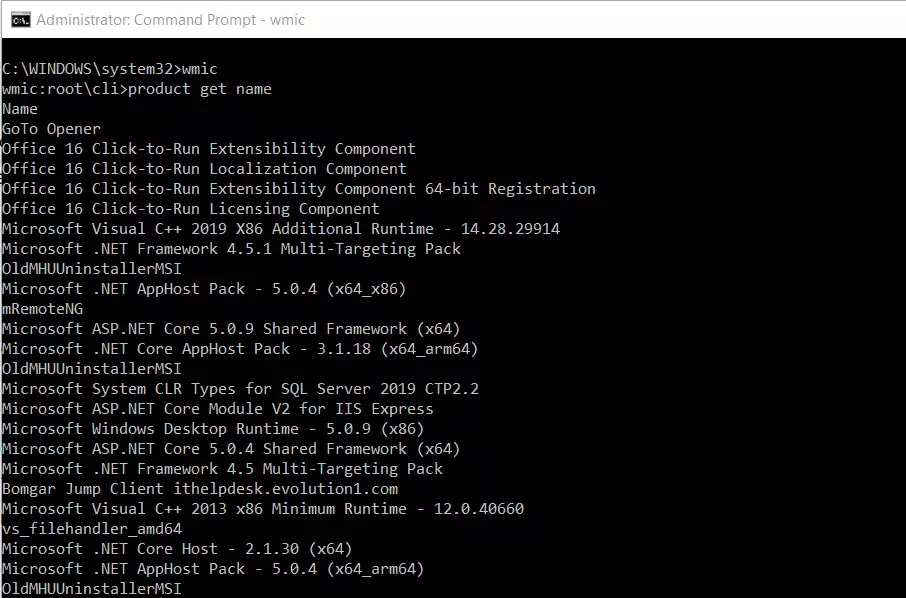
windows uninstall program command prompt - Type
product where name="Your App Name" call uninstalland press Enter. - Type Y to confirm.
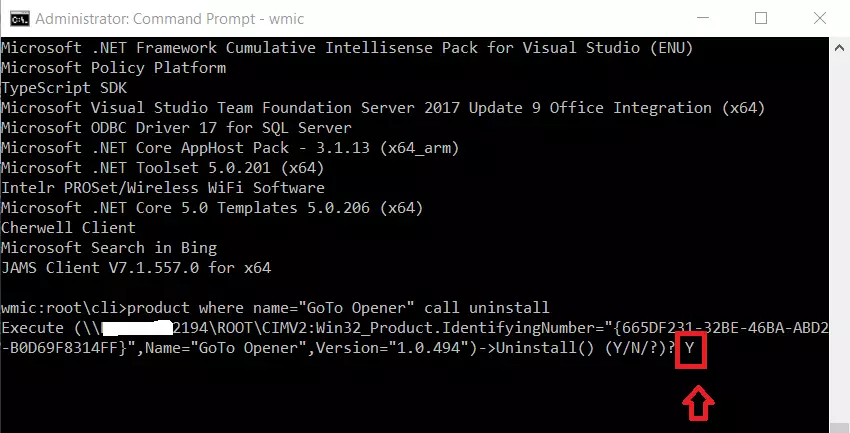
windows 11 uninstall program command prompt
Troubleshooting Stubborn Apps
If an app is broken, try to Repair it first in the Settings menu instead of uninstalling. If it still won’t go away, you may need to use a third-party uninstaller tool to clean up leftover files in C:\Program Files or registry keys in HKEY_LOCAL_MACHINE\SOFTWARE.
Summary
You now know how to remove apps using the Settings app, Control Panel, and Command Prompt. Use the standard methods for daily tasks and the Command Prompt for stubborn software. Always back up your important files before making deep changes to your system.
Why can’t I uninstall some programs on 🪟 Windows 11?
Some programs may be running in the background, preventing removal. Others might have corrupted installation files. Try restarting your computer first. If that fails, use the Task Manager to end the program’s process or try uninstalling it while in Safe Mode to bypass active locks.
Does uninstalling a program remove all its data?
Not always. Standard uninstallers often leave behind temporary files, user preferences, or registry entries. These leftovers are meant to help if you reinstall the app later. To remove everything, you may need to manually delete folders in your AppData directory or use a dedicated cleaning tool.
Was this guide helpful?

About the Author
Richard
Tech Writer, IT Professional
Richard, a writer for Geek Rewind, is a tech enthusiast who loves breaking down complex IT topics into simple, easy-to-understand ideas. With years of hands-on experience in system administration and enterprise IT operations, he’s developed a knack for offering practical tips and solutions. Richard aims to make technology more accessible and actionable. He's deeply committed to the Geek Rewind community, always ready to answer questions and engage in discussions.



No comments yet — be the first to share your thoughts!