How to Change Your Account Picture in Windows 11

This guide shows you how to add or change the profile picture for your Windows 11 account.
Why Change Your Account Picture?
Windows 11 allows you to personalize your user profile with a custom image. This helps you quickly identify your account on the login screen, especially if multiple people share the same computer. By default, Windows displays a generic silhouette. Adding a photo makes your experience more personal and professional.
What happens when done: Your chosen image will appear on the lock screen, the Start menu, and in various Microsoft apps across your devices.
How to Add or Change Your Windows 11 Profile Photo
Follow these steps to update your local or Microsoft account image.
Step 1: Open Settings
You can access your account settings quickly by pressing Windows key + I on your keyboard or by clicking Start and selecting the Settings gear icon.

Step 2: Navigate to Your Info
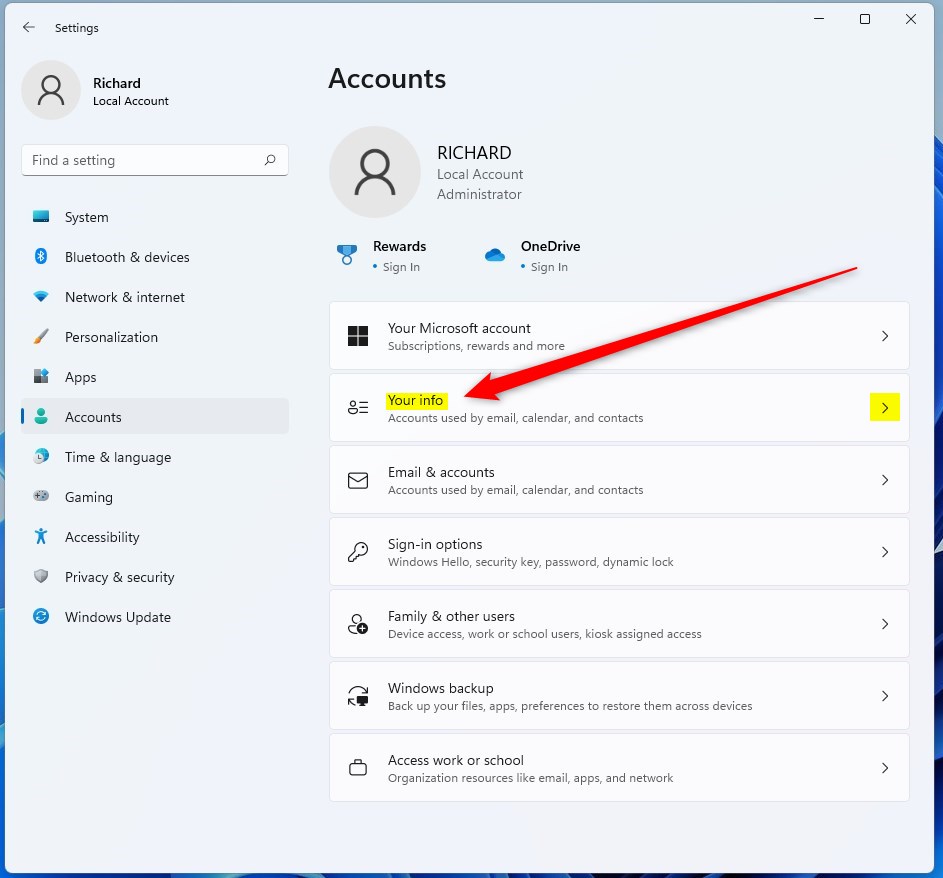
In the Settings menu, click Accounts on the left sidebar. Then, select Your info. This page displays your current profile details.
Step 3: Choose Your Image
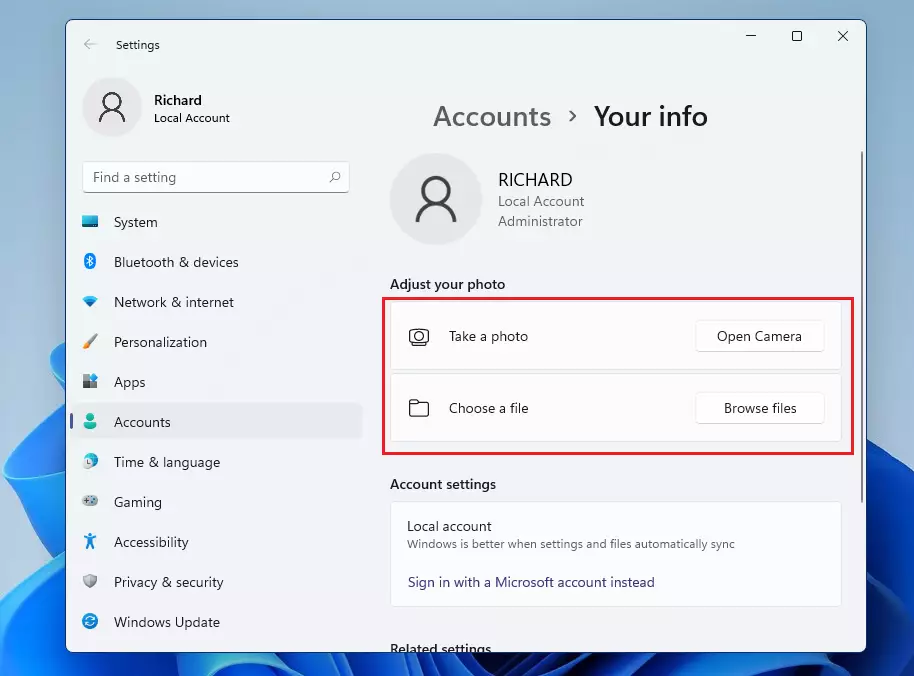
Under the Adjust your photo section, you can click Open camera to take a new picture or Browse files to select an existing image from your computer. Windows supports common formats like JPG, PNG, and BMP.
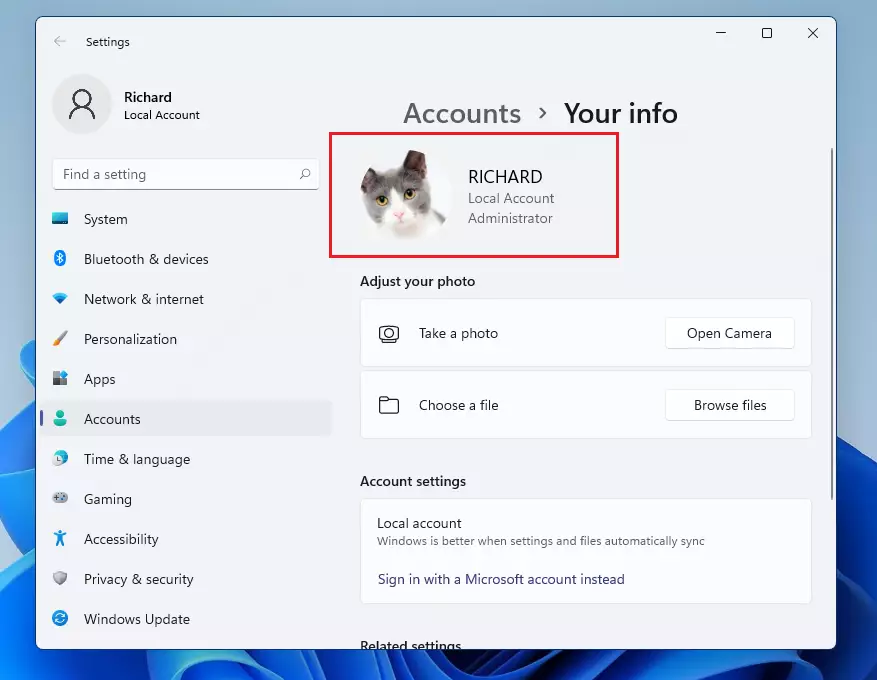
What happens when done: Your new profile image will immediately replace the old one. It may take a few moments to sync if you are using a Microsoft account.
Troubleshooting and Edge Cases
Why is the ‘Change’ button missing?
If you cannot change your picture, your account might be managed by an organization. Work or school accounts often have policies that prevent users from changing their profile images. If you see a message stating that some settings are managed by your organization, you must contact your IT administrator for permission.
Can I use a GIF as my profile picture?
Windows 11 does not support animated GIFs for account pictures. If you try to upload one, it will only display the first frame as a static image. Use a standard JPG or PNG file for the best results.
Does this change my Outlook or Microsoft 365 picture?
Yes, if you use a Microsoft account, changing your Windows 11 profile photo often updates your image across the entire Microsoft ecosystem, including Outlook, Teams, and Microsoft 365. You can manage your cloud-synced image directly at the Microsoft Account portal.
How to Remove or Reset Your Picture
Windows does not have a simple ‘Delete’ button for photos. To reset to the default avatar, navigate to C:\ProgramData\Microsoft\User Account Pictures and replace the current image files with the default system assets, or simply select a generic icon from the ‘Browse files’ menu if available.
Summary
Changing your account picture in Windows 11 is a simple way to customize your PC. Whether you use a local account or a Microsoft account, you can update your image through the Accounts section in Settings. Remember that work or school accounts may restrict these changes. By keeping your image updated, you make your login experience faster and more personal.
Was this guide helpful?





Leave a Reply