How to Adjust Copilot’s Read Aloud Voice Speed on Windows 11


You can adjust Copilot’s Read Aloud voice speed on Windows 11 by tweaking a specific setting within the system’s Accessibility features.
Copilot, your integrated AI assistant in Windows 11, offers voice responses that you can tailor to your preference, ensuring a comfortable listening experience.
This customization is particularly useful if Copilot’s default speaking rate, often around 1x speed, feels too quick or too sluggish for your comprehension.
Adjusting this setting means Copilot will consistently use your preferred voice speed for all its spoken responses going forward.
You can access Copilot by clicking its icon on the Taskbar or pressing Windows key + C.
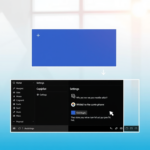
Open Copilot, click your profile picture, then Settings. Select the Voice option and use the Voice speed slider to adjust how fast Copilot speaks. Save your changes to apply the new speed.
How to change narrator speed?
And now select narrator on the left. Side on the right side now you can customize some of the narrator. Options so if you scroll down you can change the voice speed.
What voice command activates Copilot on Windows?
To start using it, simply open the Copilot desktop app from the taskbar or press the Copilot key on supported keyboards. If you want to use Copilot hands-free, you can enable voice activation using the wake word “Hey Copilot”.
How to make Microsoft Copilot faster?
You can make Microsoft Copilot faster by clearing your browser’s cache, checking your internet connection, and closing any apps or tabs you aren’t using.
Why is Microsoft Copilot so fast?
A copilot can automate repetitive tasks, no coding required. Providing contextual intelligence. AI suggestions help you make faster, more informed decisions.
Was this guide helpful?

About the Author
Richard
Tech Writer, IT Professional
Richard, a writer for Geek Rewind, is a tech enthusiast who loves breaking down complex IT topics into simple, easy-to-understand ideas. With years of hands-on experience in system administration and enterprise IT operations, he’s developed a knack for offering practical tips and solutions. Richard aims to make technology more accessible and actionable. He's deeply committed to the Geek Rewind community, always ready to answer questions and engage in discussions.



No comments yet — be the first to share your thoughts!