How to Open Notifications in Microsoft Teams

You open Microsoft Teams notifications by clicking the Bell icon in the top-right corner of the app window.
The Bell icon is your central hub for all activity alerts within Microsoft Teams, acting as a consolidated view of missed messages, mentions, and other important updates.
You can access this notification feed anytime, ensuring you don’t miss crucial information from your colleagues or team members. For instance, if someone directly mentions you in a chat, that alert will appear here.
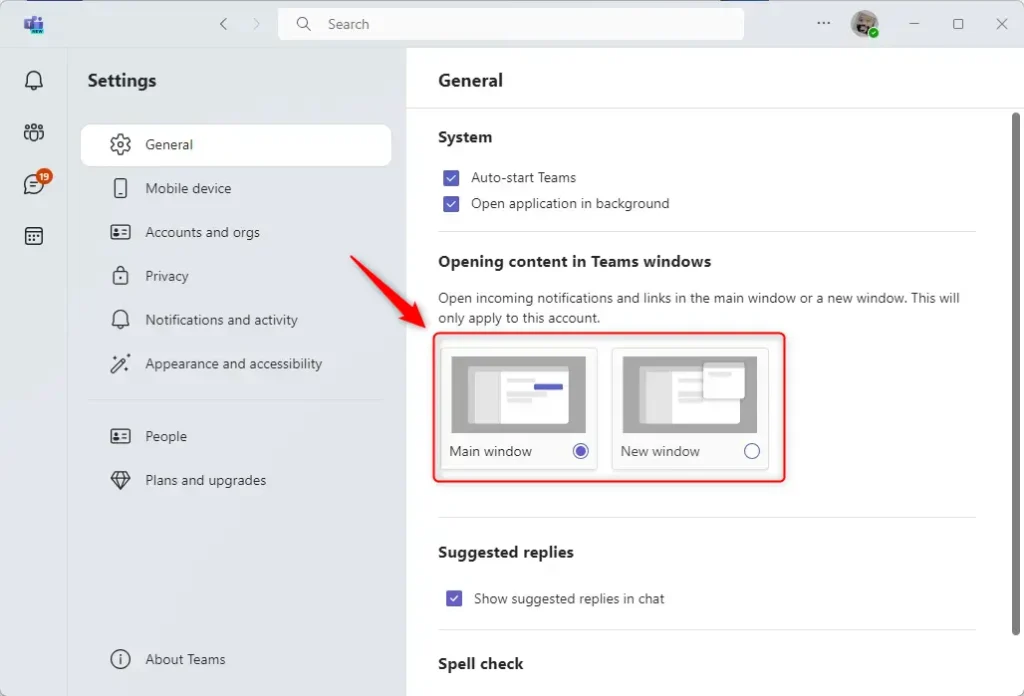
Here is how to change your preferences for opening content in Microsoft Teams.
Steps to update your notification settings
- Open the Teams app. You can find it by clicking the Start menu and looking through your list of apps.
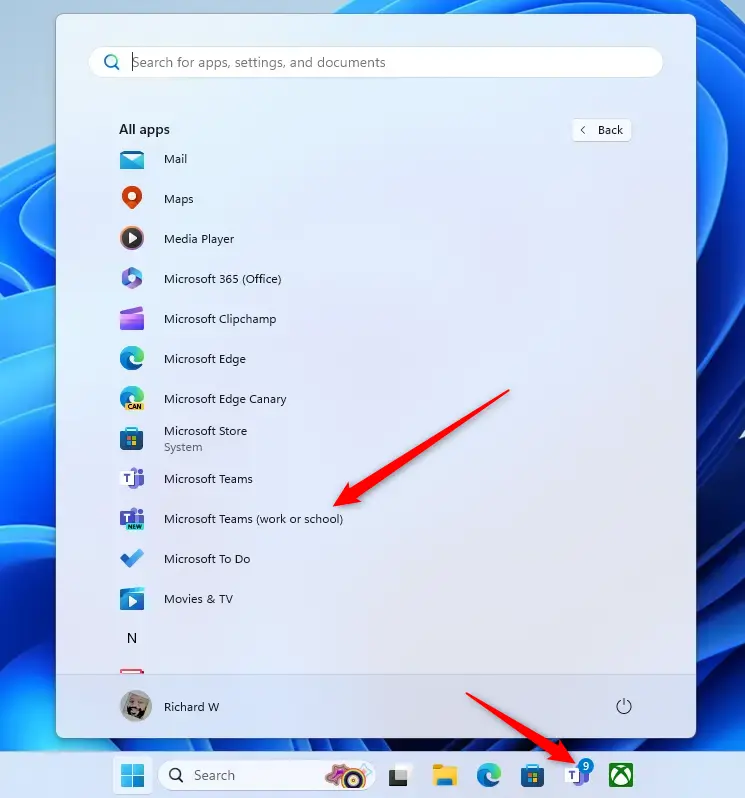
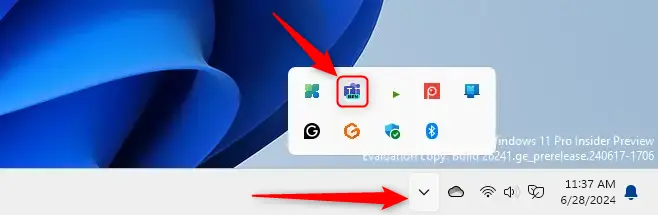
- You can also start the app from the Taskbar or Taskbar overflow.
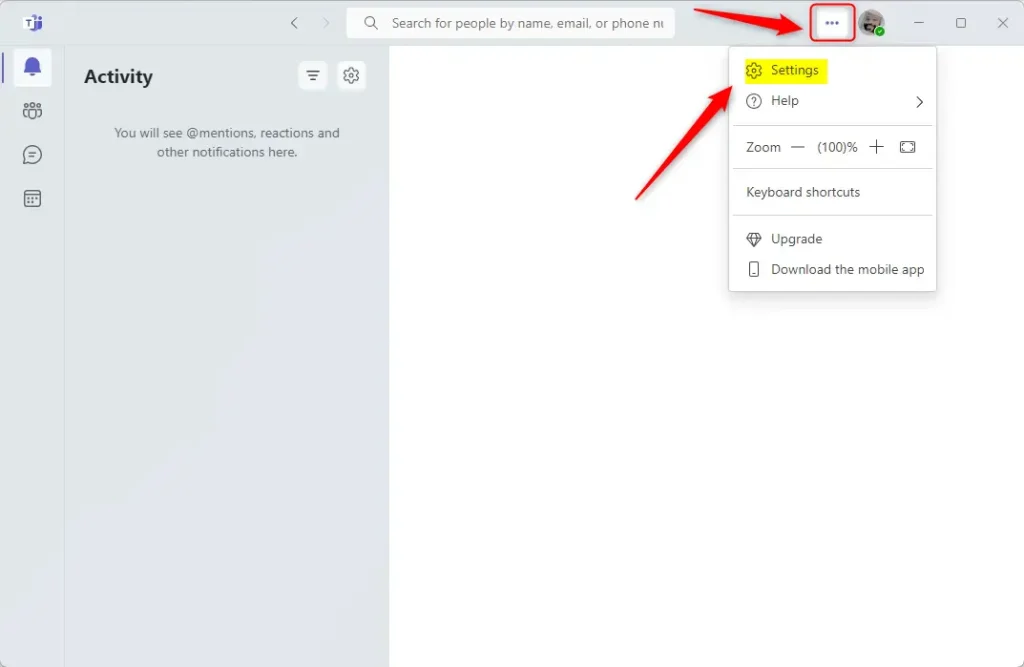
- When the app opens, look for the three dots (…) near your profile picture at the top. Click them and select Settings.
- On the left side of the screen, click the General tab.
- Look for the section called Opening content in Teams windows.
- Choose either Main window or New window based on your preference.
Note: Depending on your company’s security rules, you may need admin privileges to access certain advanced app configurations or to install updates for the application. If you are on a home computer, your standard account will usually have the permissions needed to change these settings.
Summary
The new Microsoft Teams app gives you control over how you view your notifications and links. By going into the General settings, you can decide if you want links to open in your main window or a separate window. This simple change helps you organize your workspace and keeps your tasks running smoothly.
Was this guide helpful?

About the Author
Richard
Tech Writer, IT Professional
Richard, a writer for Geek Rewind, is a tech enthusiast who loves breaking down complex IT topics into simple, easy-to-understand ideas. With years of hands-on experience in system administration and enterprise IT operations, he’s developed a knack for offering practical tips and solutions. Richard aims to make technology more accessible and actionable. He's deeply committed to the Geek Rewind community, always ready to answer questions and engage in discussions.


No comments yet — be the first to share your thoughts!