How to Enable or Disable InPrivate Browsing in Edge


You can enable or disable InPrivate Browsing in Microsoft Edge by directly modifying the Windows Registry.
InPrivate Browsing is a privacy feature in Edge that stops it from saving your browsing history, cookies, and form data for a session. This tutorial shows you how to change specific registry keys to permanently disable InPrivate mode or force all Edge windows to open in it.
Microsoft Edge, built on the Chromium engine, is the default browser in Windows 11. For instance, you might want to disable InPrivate Browsing on a shared family PC to ensure browsing history is always recorded.
Modify the Windows Registry by navigating to Computer\🗝️HKEY_LOCAL_MACHINE\SOFTWARE\Policies\Microsoft\Edge. Create or edit the InPrivateModeAvailability DWORD value, setting it to 1 to disable or 2 to force InPrivate mode. Restart your computer for the changes to apply.
How to Enable or Disable InPrivate Browsing
You can turn InPrivate browsing on or off in Microsoft Edge by changing a setting in the Windows Registry Editor, but you’ll need administrator permission to do this.
- Open the Windows Registry editor as an administrator.
- Go to the following location in the registry:
Computer\HKEY_LOCAL_MACHINE\SOFTWARE\Policies\Microsoft\Edge
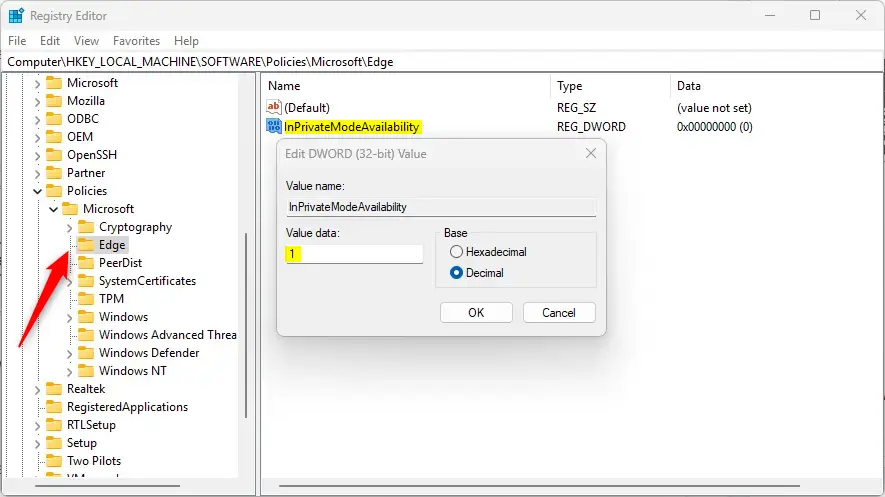
- Find InPrivateModeAvailability on the right side and double-click it.
- Type
1to turn off InPrivate browsing completely. - Type
2to force the browser to always open in InPrivate mode.
If you don’t see ‘InPrivateModeAvailability,’ right-click in an empty space, choose ‘New,’ then ‘DWORD (32-bit) Value,’ and name it ‘InPrivateModeAvailability.’ Then, set the value to 1 or 2 depending on your preference.
To revert to the normal default settings, delete the ‘InPrivateModeAvailability’ item you created. You may need to restart your computer for these changes to take effect.
Summary
InPrivate Browsing is a fantastic tool for privacy. By tweaking the Windows Registry, you can enable, disable, or force this feature to match your needs. Just remember, these steps require administrator access, and a quick system restart will finalize the process.
Was this guide helpful?

About the Author
Richard
Tech Writer, IT Professional
Richard, a writer for Geek Rewind, is a tech enthusiast who loves breaking down complex IT topics into simple, easy-to-understand ideas. With years of hands-on experience in system administration and enterprise IT operations, he’s developed a knack for offering practical tips and solutions. Richard aims to make technology more accessible and actionable. He's deeply committed to the Geek Rewind community, always ready to answer questions and engage in discussions.



[…] article explains how to open an InPrivate browsing window in Microsoft […]