How to Enable HDR Screenshot Color Corrector in Snipping Tool


You enable HDR Screenshot Color Corrector in Windows 11’s Snipping Tool to ensure your screenshots accurately represent colors on HDR displays.
This feature automatically adjusts colors in screenshots taken with the Snipping Tool, making them look correct whether you’re viewing them on a standard SDR display or a High Dynamic Range (HDR) monitor.
Windows 11 introduced this handy correction to combat color shifts often seen when capturing HDR content.
What Is the Snipping Tool?
The Snipping Tool is a built-in screenshot tool in Windows. It lets you capture screenshots of any part of your screen. You can take full-screen captures, grab individual windows, or select just the area you want.
With the Snipping Tool, you can redact text, disable screen capture and recording, including system audio and microphone when recording, disable automatically saving screenshots, and more.
Why Should You Know About the HDR Color Corrector?
Starting with version 11.2403.8.0, Microsoft added an HDR screenshot color corrector feature. This feature automatically adjusts the colors of screenshots taken on HDR monitors.
Why is this useful? If you have an HDR monitor, this feature makes your screenshots look the way they actually appear on your screen. The colors will match what you see.
When should you turn it off? If you don’t have an HDR monitor, you probably don’t need this feature. You may also want to disable it if you prefer to adjust colors yourself. On older or slower computers, turning it off may help the Snipping Tool run faster.
How to Turn the HDR Color Corrector On or Off
- Open the Snipping Tool on your computer.
- Click the three dots button (See more) in the top right corner.
- Select Settings from the menu.
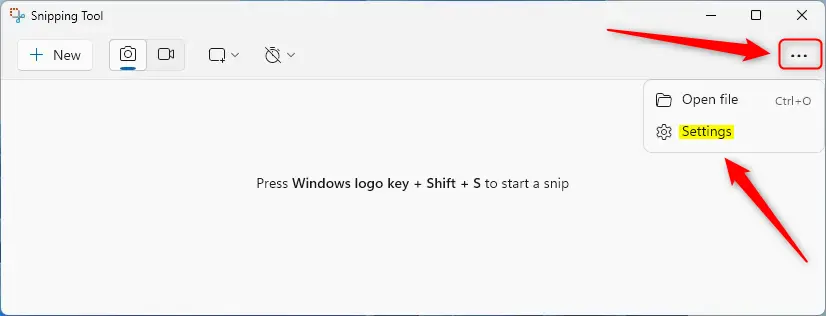
- Look for the “HDR screenshot color corrector” option on the Settings screen.
- Toggle the switch button to turn it On or Off based on what you want.
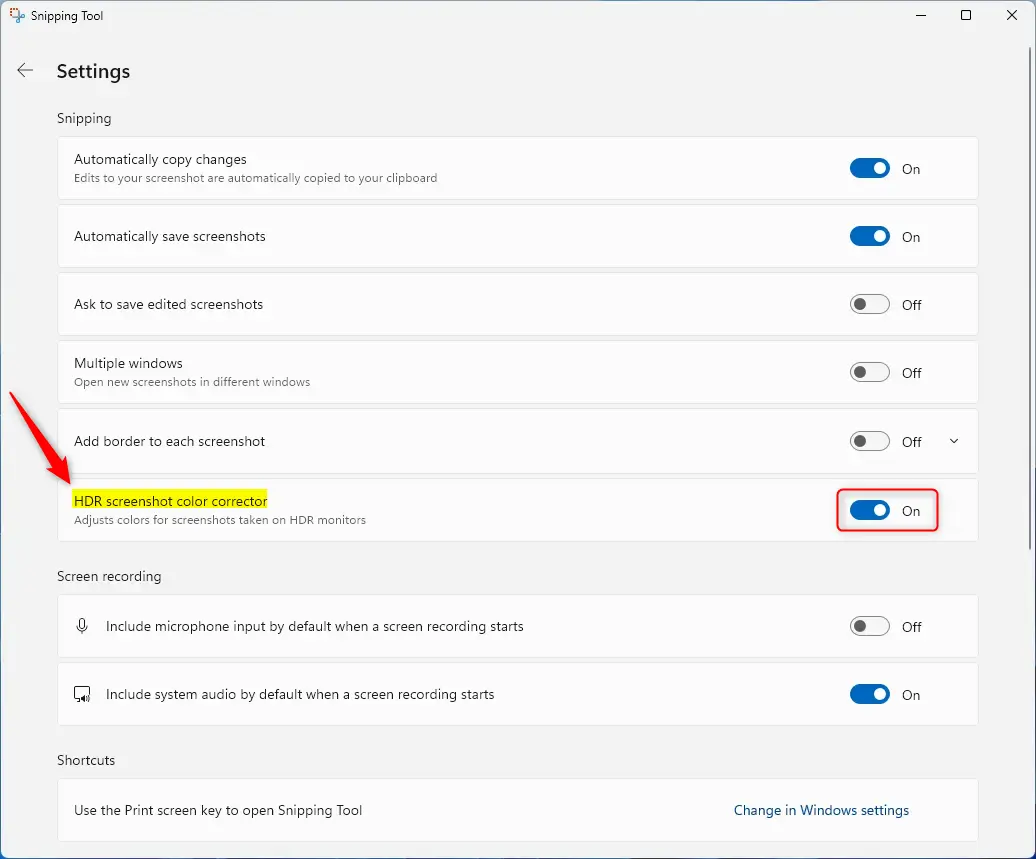
- Close the Snipping Tool when you’re done.
That’s all there is to it! Your setting is now saved.
Summary
The Snipping Tool in Windows 11 is a handy built-in tool for taking screenshots. It recently gained a new HDR screenshot color corrector feature. This feature automatically fixes the colors in your screenshots if you use an HDR monitor. You can easily turn this feature on or off by opening the Snipping Tool, clicking the three dots menu, selecting Settings, and toggling the HDR screenshot color corrector switch. Turn it on if you have an HDR monitor and want accurate colors. Turn it off if you don’t have an HDR monitor or if you want better performance on older computers.
Frequently Asked Questions
What is the HDR screenshot color corrector in Snipping Tool?
How do I enable HDR screenshot color corrector in Snipping Tool?
Can I disable the HDR screenshot color corrector feature?
Why would I want to disable the HDR screenshot color corrector?
Is the HDR screenshot color corrector available in all versions of Snipping Tool?
Was this guide helpful?

About the Author
Richard
Tech Writer, IT Professional
Richard, a writer for Geek Rewind, is a tech enthusiast who loves breaking down complex IT topics into simple, easy-to-understand ideas. With years of hands-on experience in system administration and enterprise IT operations, he’s developed a knack for offering practical tips and solutions. Richard aims to make technology more accessible and actionable. He's deeply committed to the Geek Rewind community, always ready to answer questions and engage in discussions.




[…] a built-in screenshot tool in Windows that allows you to capture screenshots of any part of your screen, including full-screen captures, individual windows, or user-defined capture […]