Enhance Video Quality in Microsoft Edge: Vivid vs Graphic Driver


You can settings-to-save-network-bandwidth-in-windows-11/" class="sal-link" rel="noopener" target="_blank" data-sal-id="11921">enhance video quality in Microsoft Edge by choosing between Vivid mode and Graphic driver enhancement for Video Super Resolution (VSR).
Video Super Resolution (VSR) is a feature within Microsoft Edge that uses machine learning to improve the clarity of videos you watch. It works by reducing compression artifacts and sharpening the picture.
When you enable VSR, you have two main options for how the enhancement is applied. Vivid mode offers a built-in, easy-to-use enhancement for brighter colors, suitable for most content.
Alternatively, Graphic driver enhancement leverages your computer’s specific graphics card capabilities for potentially superior results. This option requires a compatible GPU, such as an NVIDIA GeForce RTX 30-series or AMD Radeon RX 6000-series or newer, for its full effect.
Select Vivid mode or graphic driver enhancement as the preferred video enhancement method in Edge
As mentioned, you can select Vivid mode or Graphic driver enhancement as Edge’s preferred video enhancement method.
Here’s how to do it.
First, open the Microsoft Edge browser.
Then click on Setting and more (Alt+F) 3 horizontal dots button on the top right corner and select Settings.

Next, click on System and performance on the left panel.
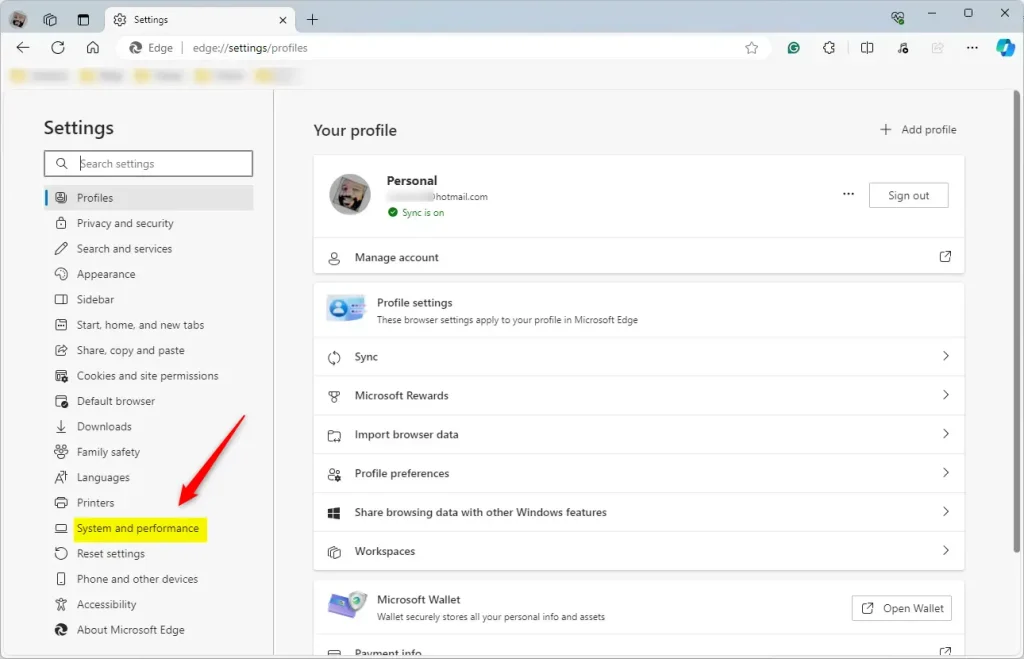
Select the “Enhance video in Microsoft Edge” tile under System on the System and performance settings page, then toggle the switch to the On position to enable.
Once enabled, select the “Preferred method of video enhancement” tile and select the method you want to use from the drop-down option:
- Vivid mode
- Graphic driver enhancement
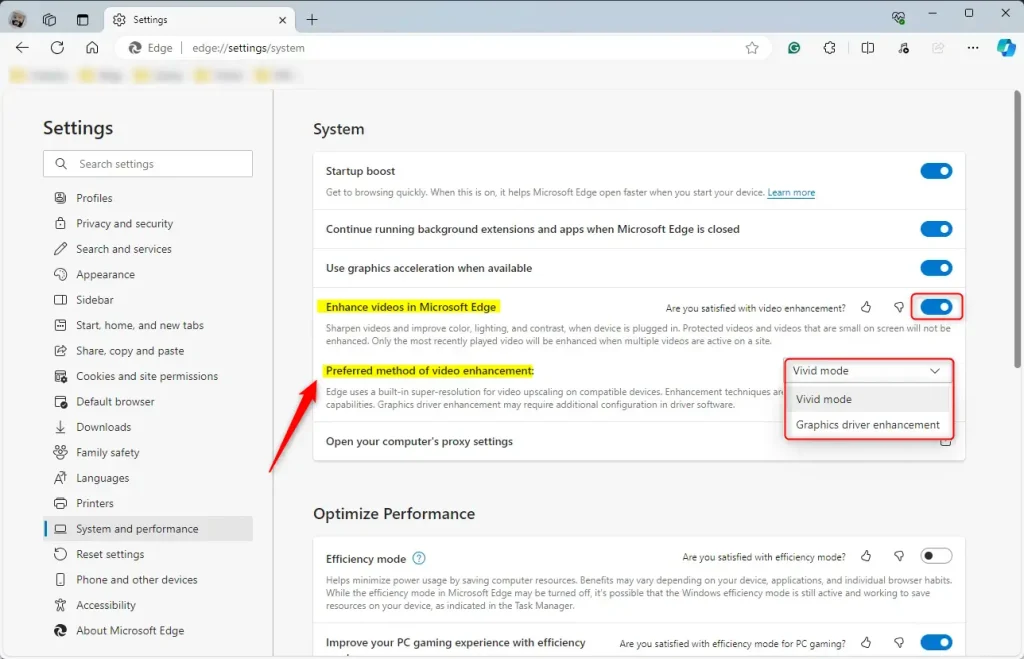
Your changes should apply immediately. Exit and restart the Microsoft Edge browser.
That should do it!
Conclusion:
- The Microsoft Edge browser offers the Video super-resolution (VSR) feature, which uses machine learning to enhance video quality.
- Users can select their preferred method of video enhancement, choosing between Vivid mode and Graphic driver enhancement.
- Vivid mode provides vivid and brighter colors, suitable for most videos, while graphic driver enhancement requires a compatible graphics card for superior video quality.
- To select the preferred method, users can navigate to Settings > System and Performance> Enhance video in Microsoft Edge and select their preferred method from the drop-down menu.
- Users can optimize their video viewing experience in Microsoft Edge by following these steps.
Frequently Asked Questions
What is Video Super Resolution (VSR) in Microsoft Edge?
How do I enable Vivid mode in Microsoft Edge?
What is the difference between Vivid mode and Graphic driver enhancement?
Can I switch between Vivid mode and Graphic driver enhancement?
Do I need a special graphics card for Graphic driver enhancement?
Was this guide helpful?

About the Author
Richard
Tech Writer, IT Professional
Richard, a writer for Geek Rewind, is a tech enthusiast who loves breaking down complex IT topics into simple, easy-to-understand ideas. With years of hands-on experience in system administration and enterprise IT operations, he’s developed a knack for offering practical tips and solutions. Richard aims to make technology more accessible and actionable. He's deeply committed to the Geek Rewind community, always ready to answer questions and engage in discussions.




No comments yet — be the first to share your thoughts!