How to Create Desktop Shortcuts for Microsoft Store Apps


This article explains how to create desktop shortcuts for Microsoft Store apps on Windows 11.
Microsoft Store apps are available for download through the Microsoft Store on Windows 10 and Windows 11. When you install apps from the store, their icons appear in the Start menu and the Apps folder.
You can drag and drop their icons to your Desktop to create shortcuts for them.
Why Create Desktop Shortcuts for Microsoft Store Apps?
Creating desktop shortcuts for Microsoft Store apps is useful if you frequently use a specific app and want to access it quickly. Instead of opening the Microsoft Store app and searching for the app each time, you can click on the desktop shortcut to launch the app.
It saves you time and makes your workflow more efficient.
Create Desktop Shortcuts from the Start Menu
Follow these steps to create Microsoft Store app shortcuts on your Desktop from the Start menu.
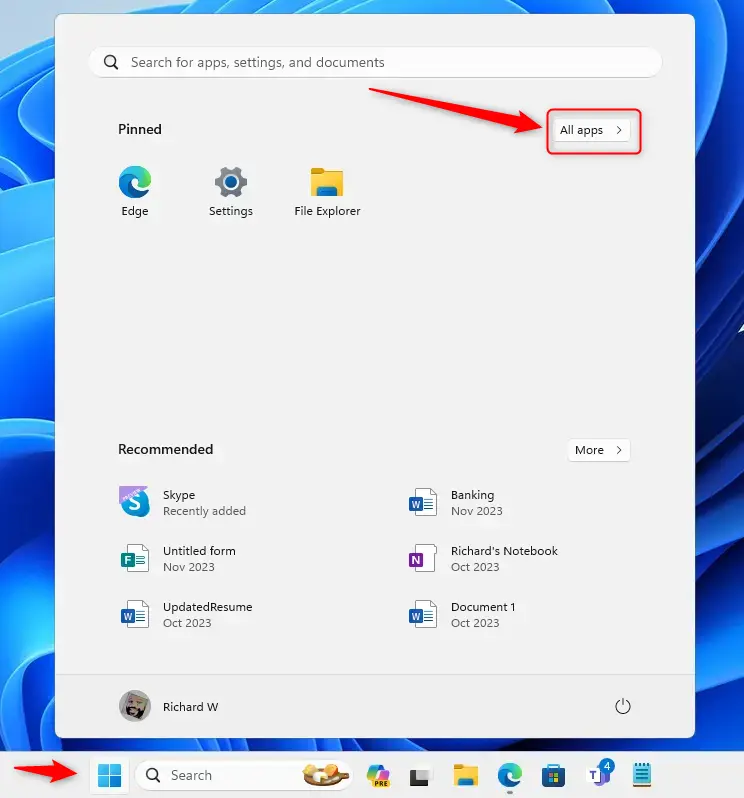
- Open the Start menu and click on All apps.
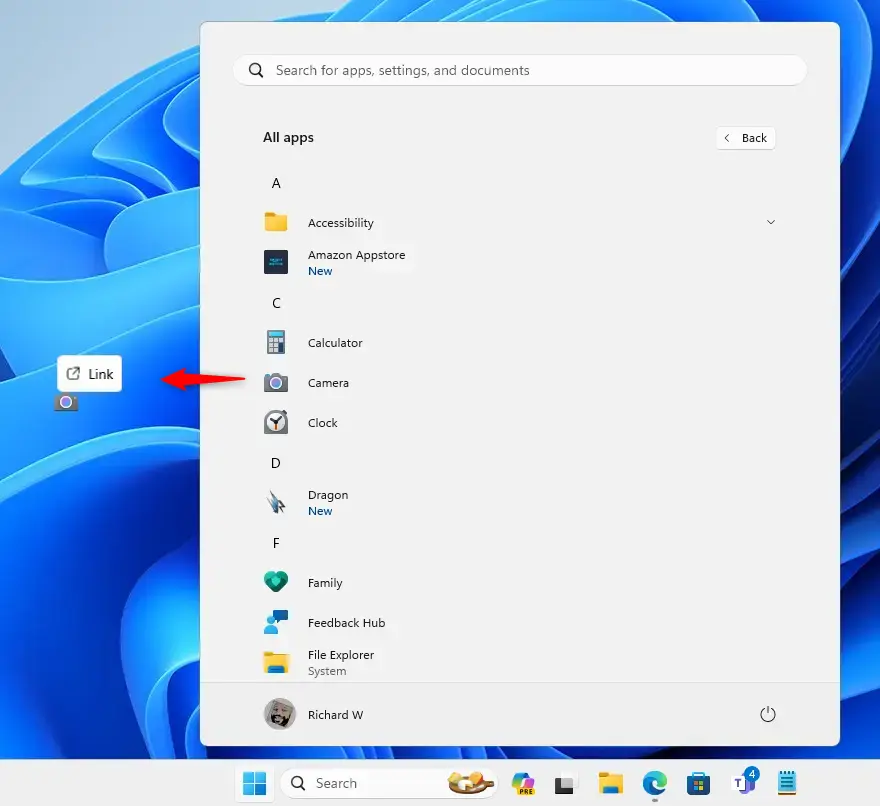
- Select the app’s icon and drag it from All apps to your Desktop until you see the Link option. Then drop the app on the Desktop.
Create Desktop Shortcuts from the Apps Folder
Another way to create desktop icon shortcuts is to use the apps folder.
- Open File Explorer (Win+E).
- Type the following command into the address bar of File Explorer, and press Enter to open the Applications folder.
shell:appsfolder- Drag the app’s icon from the apps folder to the Desktop until you see the Create link option on the Desktop. Then drop the app on the Desktop.
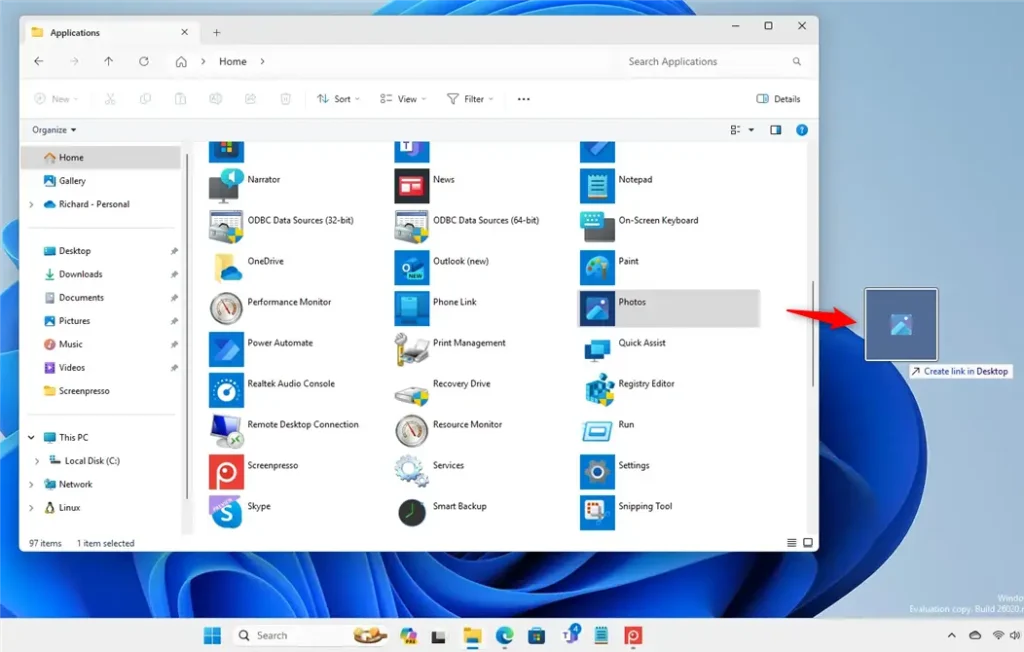
Alternatively, right-click the app’s icon and select Create shortcut.
That’s it!
Summary
Time-saving: Creating desktop shortcuts for Microsoft Store apps saves you time by providing quick access to frequently used applications.
Efficient workflow: Desktop shortcuts streamline your workflow and let you access specific apps without navigating the Microsoft Store or the Start menu.
Convenience: Desktop shortcuts offer convenience, allowing you to launch your desired apps with a simple click. This enhances your overall user experience and productivity.
Frequently Asked Questions
How do I create a desktop shortcut for a Microsoft Store app?
Can I create shortcuts for Microsoft Store apps from the apps folder?
What is the benefit of creating desktop shortcuts for apps?
Is there an alternative way to create a shortcut for a Microsoft Store app?
Will creating a desktop shortcut affect the app's performance?
Was this guide helpful?

About the Author
Richard
Tech Writer, IT Professional
Richard, a writer for Geek Rewind, is a tech enthusiast who loves breaking down complex IT topics into simple, easy-to-understand ideas. With years of hands-on experience in system administration and enterprise IT operations, he’s developed a knack for offering practical tips and solutions. Richard aims to make technology more accessible and actionable. He's deeply committed to the Geek Rewind community, always ready to answer questions and engage in discussions.


[…] are multiple ways to install the app. You can get it from the Microsoft Store, download its executable and install or use the winget […]
[…] the command line or shortcut, you can open Edge InPrivate browsing window. Below are the commands to do […]