How to Show or Hide OS Edition on Windows 11


You can show or hide the Windows 11 OS edition watermark on your desktop wallpaper.
The OS edition watermark, such as “Windows 11 Pro,” displays the specific version of Windows you are currently using, typically appearing in the bottom-right corner of your screen.
You can easily control this watermark’s visibility using two powerful built-in Windows tools. We’ll explore how to modify the Registry Editor or leverage the Group Policy Editor, a feature available in Windows 11 Pro and Enterprise editions, to achieve this.
You can show or hide the OS edition watermark on Windows 11 by editing the registry. Navigate to either 🗝️HKEY_CURRENT_USERControl PanelDesktop or 🗝️HKEY_LOCAL_MACHINESOFTWAREMicrosoftWindows NTCurrentVersionWindows, create a DWORD value named PaintDesktopVersion, and set its data to 1 to show or 0 to hide.
Why do this?
Normally, you have to dig through settings to find your system info. By adding a desktop build number, you can see your exact Windows version at a glance without opening extra menus. This is helpful for IT professionals or users managing multiple test machines.
What happens when you are done?
After you finish and restart your PC, your desktop background will either show or hide the small text watermark that lists your Windows edition and build number. This change is purely visual and does not alter your system files or activation status.
Steps to Show or Hide the Watermark
You can easily show or hide the OS edition watermark on your Windows 11 desktop by making a simple change in the Windows Registry editor.
First, open the Windows Registry. Press ⊞ Win+R, then type regedit.exe and hit Enter. You have two options: change the setting for just your account, or for everyone on the PC.
- Use 🗝️HKEY_CURRENT_USER to change settings for your account only.
- Use 🗝️HKEY_LOCAL_MACHINE to change settings for all users on the computer.
Use 🗝️HKEY_CURRENT_USER for your account. This path leads to the settings for your current user:
HKEY_CURRENT_USER\Control Panel\Desktop
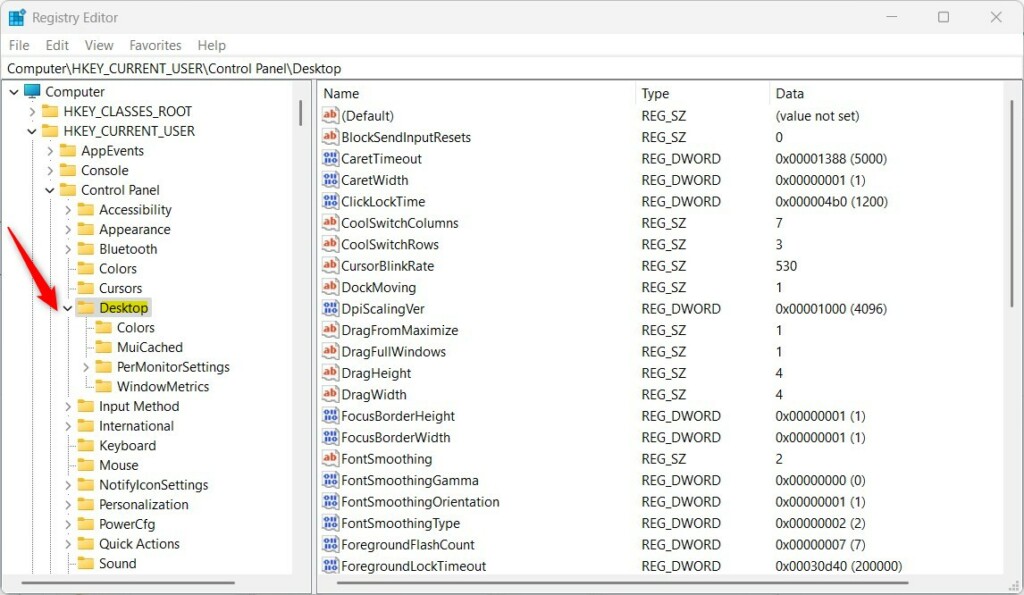
If you don’t see the Desktop folder, right-click the Control Panel key and create the subkey folder named “Desktop.”
- Right-click in the empty space on the right side of the Desktop folder.
- Select New then DWORD (32-bit) Value.
- Name this new item
PaintDesktopVersion. - Double-click
PaintDesktopVersionand ensure the Base is set to Decimal. - In the Value data box, type
1to show the watermark or0to hide it.
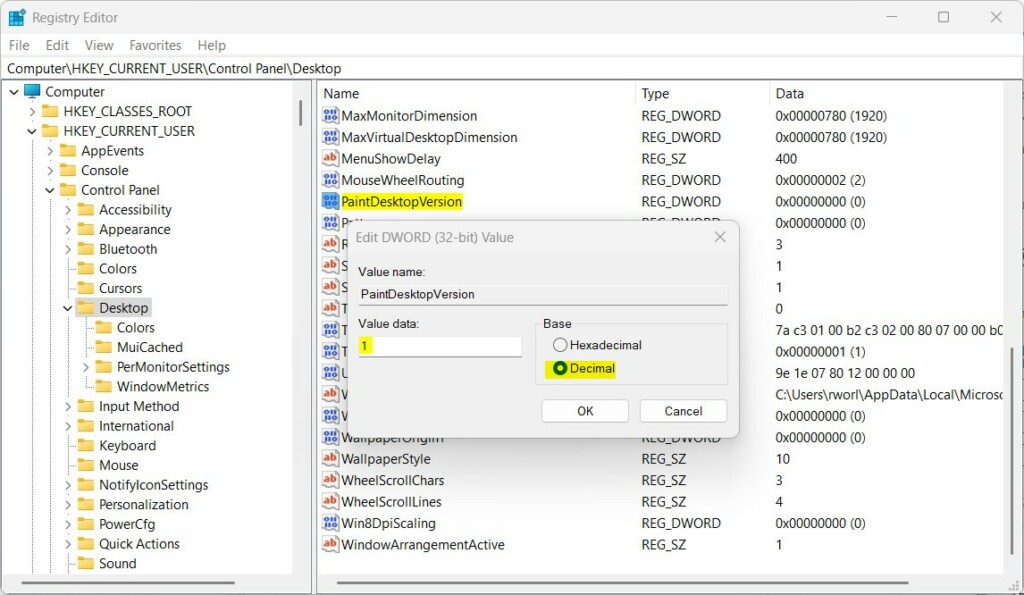
For all users, choose 🗝️HKEY_LOCAL_MACHINE. Use this path instead if you want to apply this to all users on the computer:
HKEY_LOCAL_MACHINE\SOFTWARE\Microsoft\Windows NT\CurrentVersion\Windows- Create and update the item
PaintDesktopVersion. - Set the Base to Decimal.
- Type
1to show the watermark or0to hide it.
Using Group Policy Editor (GPO)
Windows 11 Pro and Enterprise users can easily show or hide the OS edition watermark using the Group Policy Editor.
Risk Mitigation and Updates
Will Windows updates revert my changes? Occasionally, major feature updates may reset registry keys to default values. If your watermark disappears after an update, simply repeat the steps above. Always refer to official Microsoft documentation for system requirements and update details.
Summary
You’ve learned how to change the OS edition watermark on your Windows 11 desktop by editing the registry.
Does hiding the OS edition affect Windows activation status?
No, hiding or showing the OS edition watermark does not affect your Windows activation status. The watermark is merely a visual overlay for your desktop wallpaper. Your system remains fully activated and functional regardless of whether this text is visible on your screen.
Is it safe to edit the registry to remove the watermark?
Yes, editing the registry to toggle the watermark is safe when following specific instructions. However, always back up your registry before making changes. Incorrectly modifying other keys can cause system instability, so be careful to only edit the specific values mentioned in this guide.
Was this guide helpful?

About the Author
Richard
Tech Writer, IT Professional
Richard, a writer for Geek Rewind, is a tech enthusiast who loves breaking down complex IT topics into simple, easy-to-understand ideas. With years of hands-on experience in system administration and enterprise IT operations, he’s developed a knack for offering practical tips and solutions. Richard aims to make technology more accessible and actionable. He's deeply committed to the Geek Rewind community, always ready to answer questions and engage in discussions.



2/13/2026 – Does not work anymore. Does not match my System > About information. I ‘see’ the watermark says: Windows 11 Pro, Build 26100.ge_release.240331-1435.
The System > About reads: Windows 11 Pro, 25H2, 26200.7840. And a Windows Feature Experience Pack of 1000.26100.291.0.
I have used Chris Titus WinUtil previously and wonder if that changed something necessary.