How to Enable or Disable Hover Search in Windows 11


Windows 11 includes a feature that triggers the search menu when you move your mouse over the taskbar search icon. This is often linked to Search Highlights, which displays daily content or icons in the search box. Microsoft introduced this to help users peek at results faster without clicking.
Why use this? It provides a quick way to view trending topics or recent files without interrupting your current workflow.
What happens when done? The search interface will either expand instantly upon hovering or remain static until you manually click the icon, depending on your configuration.
Enable or Disable Search Hover via Settings
The easiest way to manage this is through the Windows Settings app. This method does not require advanced technical knowledge.
- Open the Settings app by pressing Windows Key + I.
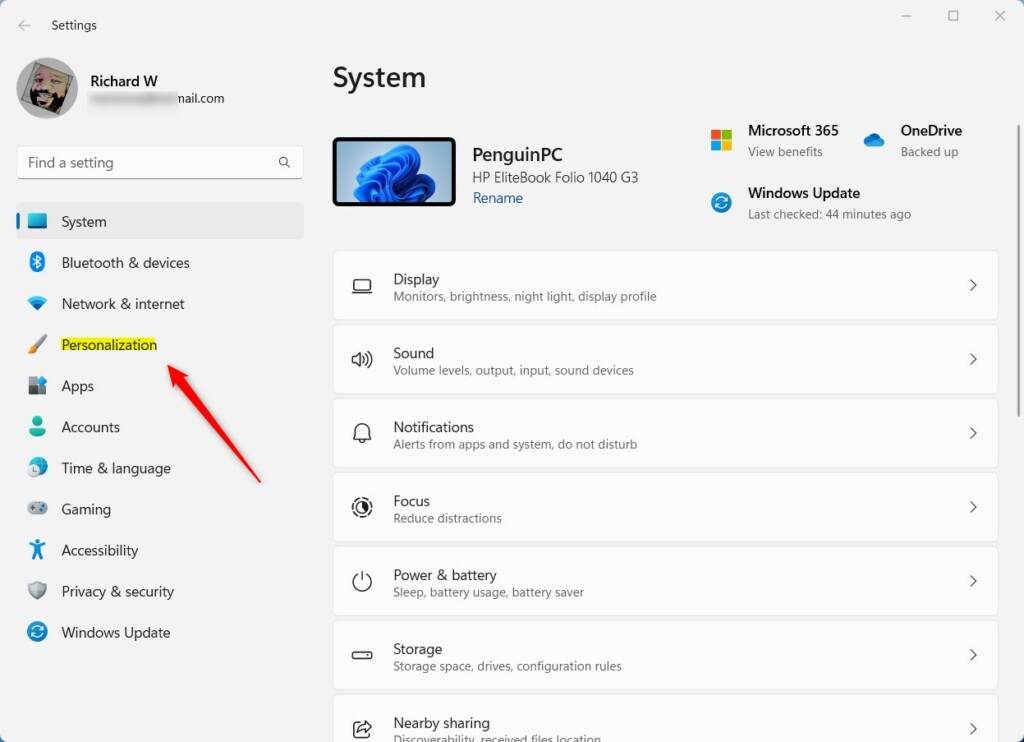
- Select Personalization from the left-hand sidebar.
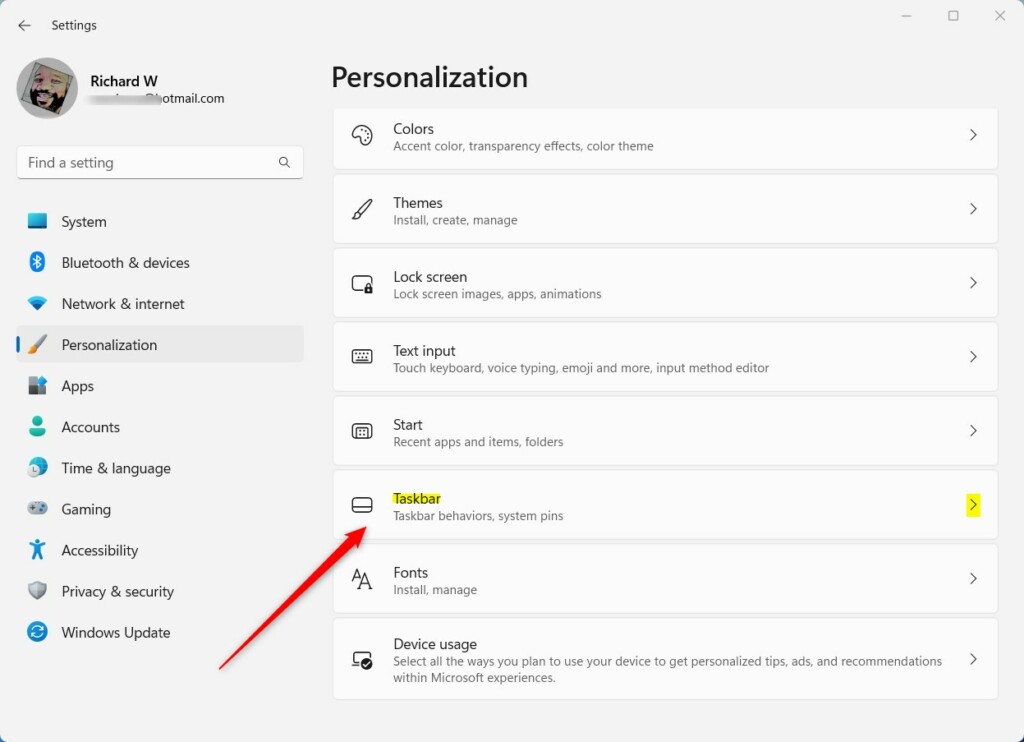
- Click on the Taskbar tile.
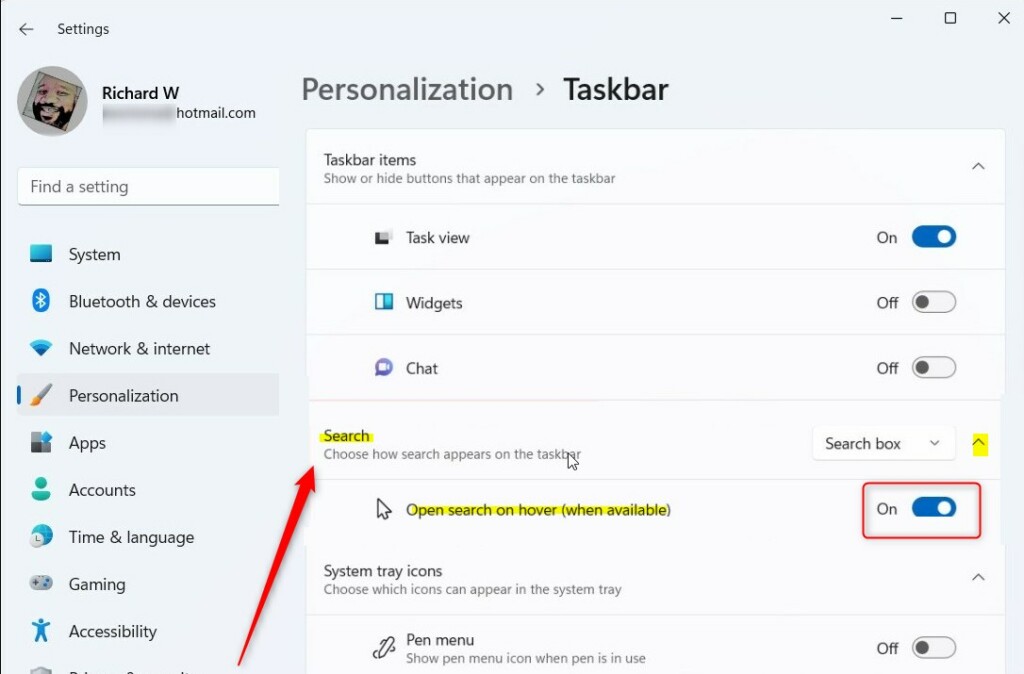
- Expand the Taskbar items or Search section.
- Locate Open search on hover and toggle the switch to On or Off.
Advanced Configuration via Registry Editor
WARNING: This method requires admin privileges. Modifying the registry incorrectly can cause system instability. Always back up your registry before proceeding.
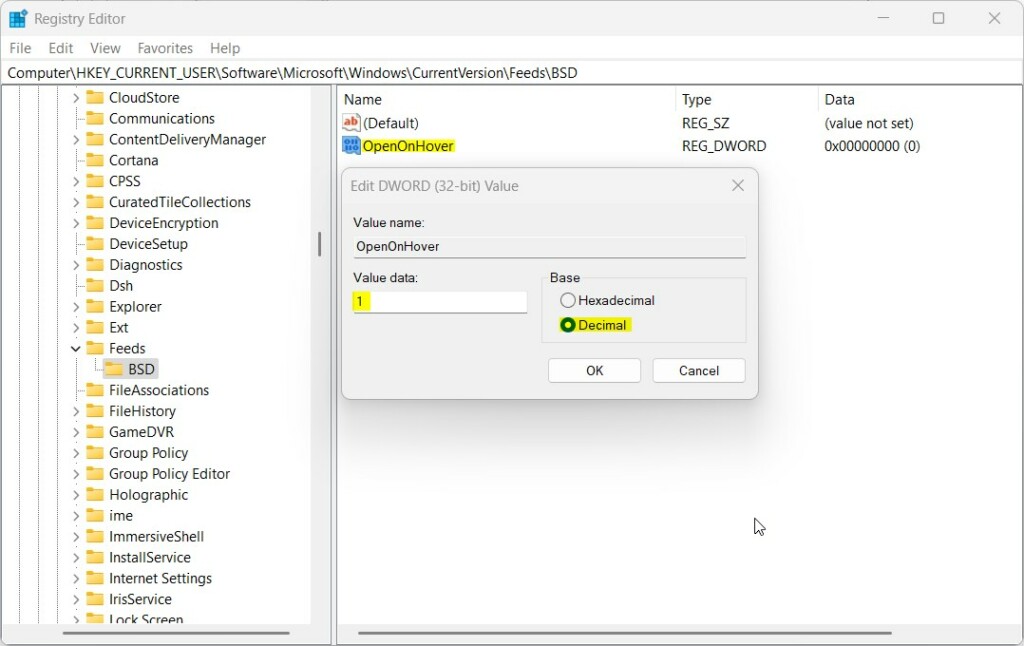
- Press Windows Key + R, type
regedit, and press Enter. - Navigate to:
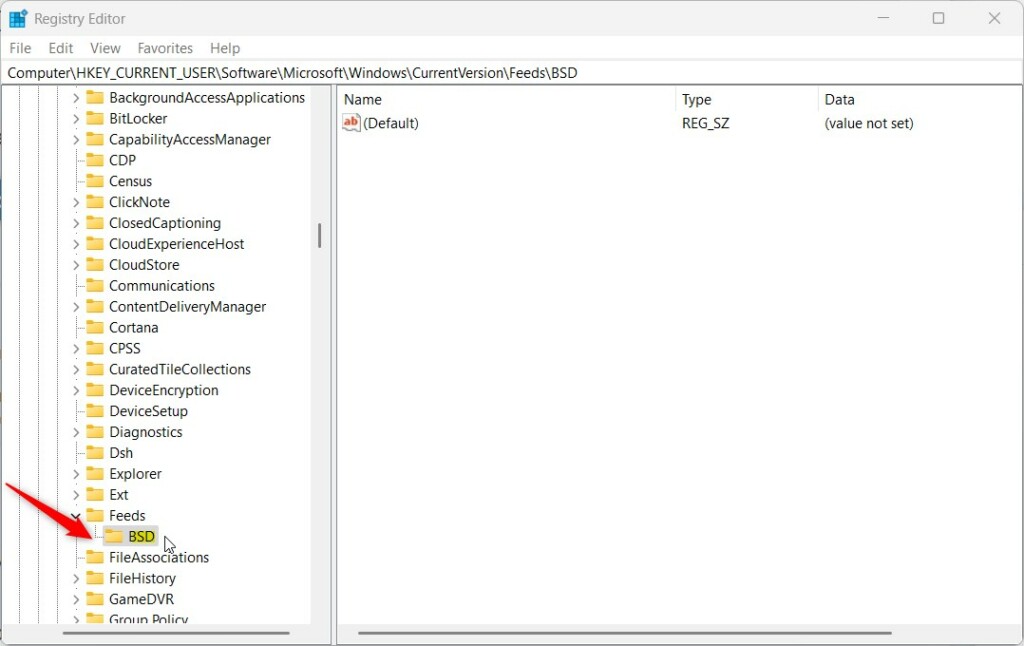
HKEY_CURRENT_USER\Software\Microsoft\Windows\CurrentVersion\Feeds\DSB - If the DSB key is missing, right-click Feeds, select New > Key, and name it DSB.
- Right-click in the right pane, select New > DWORD (32-bit) Value.
- Name the value
OpenOnHover. - Double-click
OpenOnHoverand set the Value data to1to enable or0to disable. - Restart your computer to apply changes.
Troubleshooting Common Search UI Bugs
If your search menu turns transparent or fails to respond, it is often due to a conflict with the Windows Explorer shell. Try restarting the shell via Task Manager. Right-click the Taskbar, open Task Manager, find Windows Explorer, and click Restart. If the search button remains unresponsive, ensure your Windows 11 is updated to the latest build, as Microsoft frequently patches search UI bugs in official documentation.
Summary
Managing the Windows 11 hover search feature allows you to customize your taskbar for better efficiency. Whether you prefer the quick-peek functionality or a static search box, you can easily toggle these settings via the Windows Settings app or the Registry Editor. If you encounter UI glitches, a simple restart of the Windows Explorer shell is usually the most effective fix.
Why does my search menu turn transparent when I hover?
Transparency artifacts usually occur due to graphics driver glitches or outdated Windows Explorer shell processes. Restarting the Windows Explorer process in Task Manager often resolves these visual bugs. If the issue persists, check for pending Windows updates or perform a clean install of your graphics drivers to ensure full compatibility.
How do I disable Search Highlights in Windows 11?
You can disable Search Highlights by navigating to Settings > Personalization > Taskbar. Look for the Search section and toggle off the option labeled Show search highlights. This removes the daily content icons from your search box, providing a cleaner, more minimalist look for your taskbar search experience.
Is hover search a system resource hog?
Generally, the hover search feature has a negligible impact on system resources. However, if you have a slow hard drive or limited RAM, the pre-loading of search highlights may cause minor stutters. Disabling the feature can slightly improve responsiveness on older hardware by reducing background task activity during mouse movement.
Was this guide helpful?



[…] or hide the “Open Bing Chat in Edge” and “Find results in Web” icons in the Windows Search gleam or Start […]