How to Enable or Disable Microsoft Edge Desktop Search Bar in Windows 11

- 24 steps
- Needs administrator rights
- Group Policy needs Windows 11 Pro, Enterprise or Education
- Includes a restart or sign-out
The Microsoft Edge desktop search bar is a floating widget on your Windows 11 screen. It lets you search the web or open websites without launching the full browser. You can turn it on or off in Microsoft Edge version 94 and later, depending on whether you want quick access to web searches from the desktop.
When the bar is active, you can drag it anywhere on your desktop, and Windows remembers its last position after you restart the computer. You can also pin the bar so it stays on your screen after you close Microsoft Edge.
To turn on the Microsoft Edge desktop search bar in Windows 11, open Registry Editor, go to 🗝️HKEY_LOCAL_MACHINE\
How to Enable or Disable Microsoft Edge Desktop Search Bar
This guide uses the Windows Registry, so it works on Windows 11 Home and Pro alike. You don’t need the Group Policy editor. Pick the section below for what you want to do, enabling or disabling the search bar. Both use the same registry value and differ only in the number you set.
Enable Microsoft Edge Desktop Search Bar
To enable the Microsoft Edge desktop search bar, add a new DWORD value to the registry. Open Registry Editor and go to 🗝️HKEY_LOCAL_MACHINE\
Registry Editor is the tool that edits the Windows Registry, the database where Windows and its apps store configuration settings. Because this key sits under 🗝️HKEY_LOCAL_MACHINE, which applies to the whole PC, you need to be signed in with an administrator account.
Back up the registry before you begin. In Registry Editor, click File Export, choose All under Export range, name the file and save it somewhere safe. To restore it later, double-click the saved .reg file.
Follow these steps:
- Press Win+R to open the Run dialog box.
- Type
regeditand press Enter. If User Account Control asks for permission, click Yes. Registry Editor opens, with a tree of keys in the left pane. - Browse to the following key in the left pane. You can also paste the path into the address bar at the top of Registry Editor and press Enter:
HKEY_LOCAL_MACHINE\SOFTWARE\Policies\Microsoft\Edge - Check whether the
Edgekey exists. If it doesn’t, you need to create it. Right-click theMicrosoftkey, select New, then Key, and name itEdge. The new key appears in the left pane. This is normal on a PC where no Edge policies have been set before. - Right-click the
Edgekey in the left pane. - Select New, then DWORD (32-bit) Value. A new entry appears in the right pane with its name highlighted for editing.
- Name the new value
SearchbarAllowedand press Enter. - Double-click
SearchbarAllowed. The Edit DWORD (32-bit) Value window opens. - To enable the search bar, set the Value data to
1. Leave Base on Hexadecimal. For a value of 1 the base makes no difference. - Click OK. The value now shows the data you entered in the right pane.
- Close Registry Editor.
- Close Microsoft Edge completely and open it again so the change takes effect. No Windows restart is needed.
To undo this, set the value to 0 as described in the next section, or right-click the value in Registry Editor and select Delete. If the search bar still doesn’t appear, make sure Edge is version 94 or later and fully closed, including any background Edge processes.
Disable Microsoft Edge Desktop Search Bar
To disable the Microsoft Edge desktop search bar, change the same registry value to 0. This removes the search widget and frees up screen space. Open Registry Editor, go to 🗝️HKEY_LOCAL_MACHINE\
As before, you must edit the Windows Registry and sign in with an administrator account to change this setting.
Back up the registry before you begin. In Registry Editor, click File Export, choose All under Export range, and save the file somewhere safe. If you already made a backup for the enable steps, you can use that one.
Follow these steps:
- Press Win+R to open the Run dialog box.
- Type
regeditand press Enter. If User Account Control asks for permission, click Yes. Registry Editor opens. - Browse to the following key in the left pane:
HKEY_LOCAL_MACHINE\SOFTWARE\Policies\Microsoft\Edge - Check whether the
Edgekey exists. If it doesn’t, you need to create it. Right-click theMicrosoftkey, select New, then Key, and name itEdge. The new key appears in the left pane. - Right-click the
Edgekey in the left pane. - Select New, then DWORD (32-bit) Value. A new entry appears in the right pane with its name highlighted. If you enabled the search bar earlier, the value already exists. In that case skip this step and the next one, and just double-click the existing value.
- Name the new value
SearchbarAllowedand press Enter. - Double-click
SearchbarAllowed. The Edit DWORD (32-bit) Value window opens. - To disable the search bar, set the Value data to
0. - Click OK. The right pane now shows the value with the data 0.
- Close Registry Editor.
- Close Microsoft Edge completely and open it again so the change takes effect. No Windows restart is needed.
To bring the search bar back, set the value to 1 using the steps in the previous section.
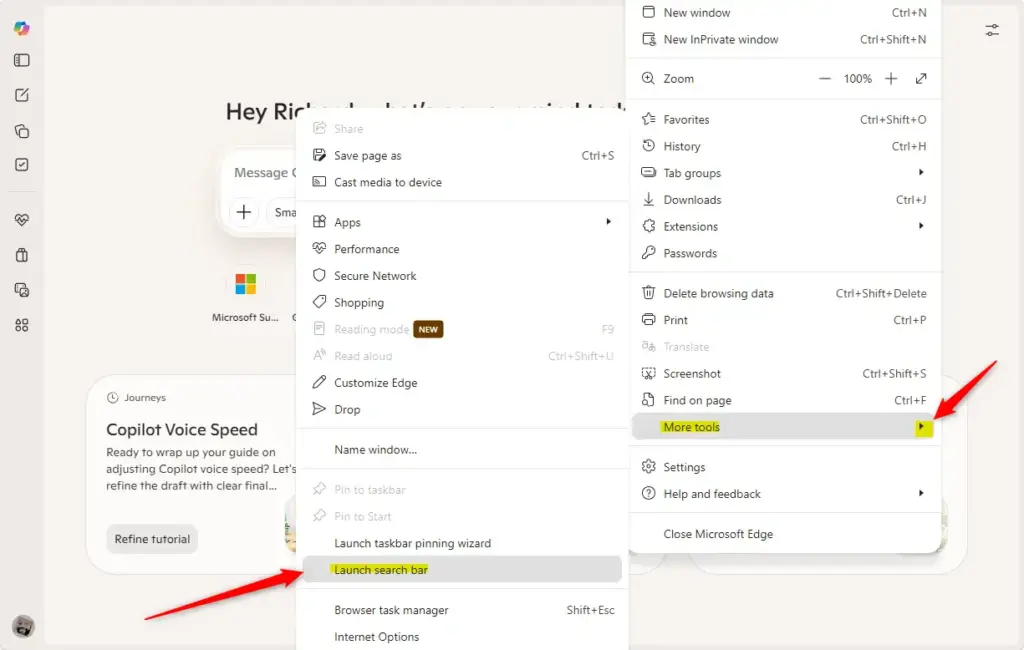
Close Microsoft Edge fully and open it again for the search bar change to apply. Edge reads the policy value when it starts, so a window that was already open keeps the old behavior. If the bar doesn't change, check Task Manager for leftover msedge.exe processes. Edge can keep running in the background after you close its window. End them, then start Edge again.
You can also type edge://policy in the Edge address bar and click Reload policies to see whether Edge has picked up your registry value.
References:
https://learn.microsoft.com/en-us/DeployEdge/microsoft-edge-policies#searchbarallowed
Summary
Controlling the Edge desktop search bar means changing a value in the Windows Registry from an administrator account. Setting the SearchbarAllowed value to 1 turns the search bar on, and setting it to 0 turns it off. After either change, close Microsoft Edge and reopen it so the new setting takes effect. Back up the registry first, and you can reverse the change at any time by setting the opposite value or deleting it.
Have a question about this guide?
Answered by AI from this guide. Good questions may be added to this page — please don't include personal details.
Did this guide fix your problem?

About the Author
Richard
Tech Writer, IT Professional
Richard is a writer at Geek Rewind who turns complex IT tasks into clear, step-by-step guides. He draws on years of hands-on experience in system administration and enterprise IT operations, focusing on Windows, Linux and WordPress: the problems people actually run into, and the fixes that work. His server and WordPress guides come from systems he runs himself. Richard builds and maintains the platform behind Geek Rewind, from its Ubuntu servers and Nginx configuration to its custom WordPress plugins. Many new tutorials start with readers' questions, and he's always glad to answer them in the comments.
No comments yet — be the first to share your thoughts!