How to Add or Remove OneDrive Icon on Windows 11 Desktop


You can easily add or remove the OneDrive icon from your Windows 11 desktop to streamline your workflow.
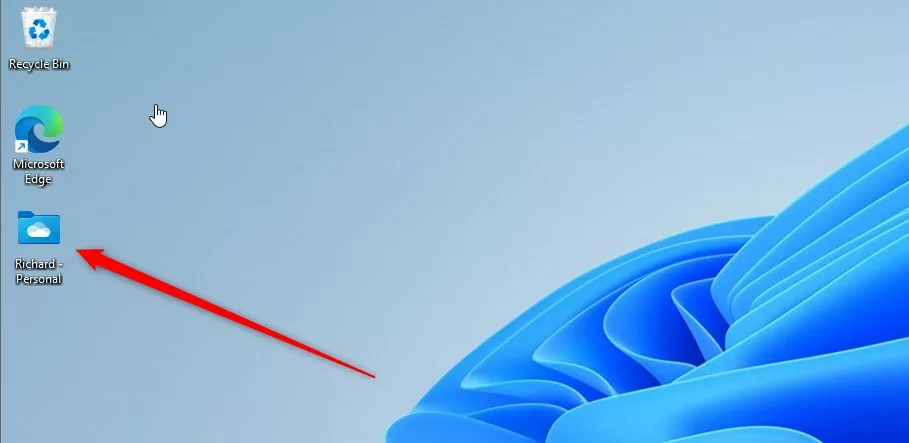
OneDrive is Microsoft’s cloud storage solution, allowing you to sync files across devices and access them from anywhere. The desktop icon offers a convenient shortcut directly to your synced files.
For example, many users prefer to see the OneDrive icon for quick access to documents or photos. Others choose to remove it to maintain a cleaner desktop appearance.
This guide shows you how to manage the OneDrive icon on your Windows 11 system, ensuring your desktop reflects your personal preferences and needs.
You can show or hide the OneDrive desktop icon using the Registry Editor. Navigate to 🗝️HKEY_CURRENT_USER\Software\Microsoft\Windows\CurrentVersion\Explorer\HideDesktopIcons\NewStartPanel, create a new DWORD value named {018D5C66-4533-4307-9B53-224DE2ED1FE6}, and set its data to 0 to show or 1 to hide.
Understanding OneDrive Icon Status Meanings
The OneDrive icon on your Windows 11 taskbar uses simple symbols to show you the status of your files, letting you know at a glance if they’re synced, online-only, or having issues.
- Blue Cloud: Your file is online only. It does not take up space on your PC.
- Green Checkmark: The file is synced and available on this device.
- Red X: There is a sync error. Click the icon to see what is wrong.
- Gray Icon: OneDrive is not signed in or is not running.
How to Pin OneDrive to the Taskbar
If you want quick access without cluttering your desktop, pin OneDrive to the taskbar. 1. Click the Start button. 2. Type OneDrive. 3. Right-click the app and select Pin to taskbar.
How to Show or Hide the OneDrive Icon via Registry
You can change whether the OneDrive icon appears on your Windows 11 desktop by editing the Registry, but you’ll need admin rights to do this safely.
- Open the Windows Registry.
- Navigate to:
HKEY_CURRENT_USER\Software\Microsoft\Windows\CurrentVersion\Explorer\HideDesktopIcons\NewStartPanel - If
NewStartPanelis missing, right-clickHideDesktopIconsand create it.
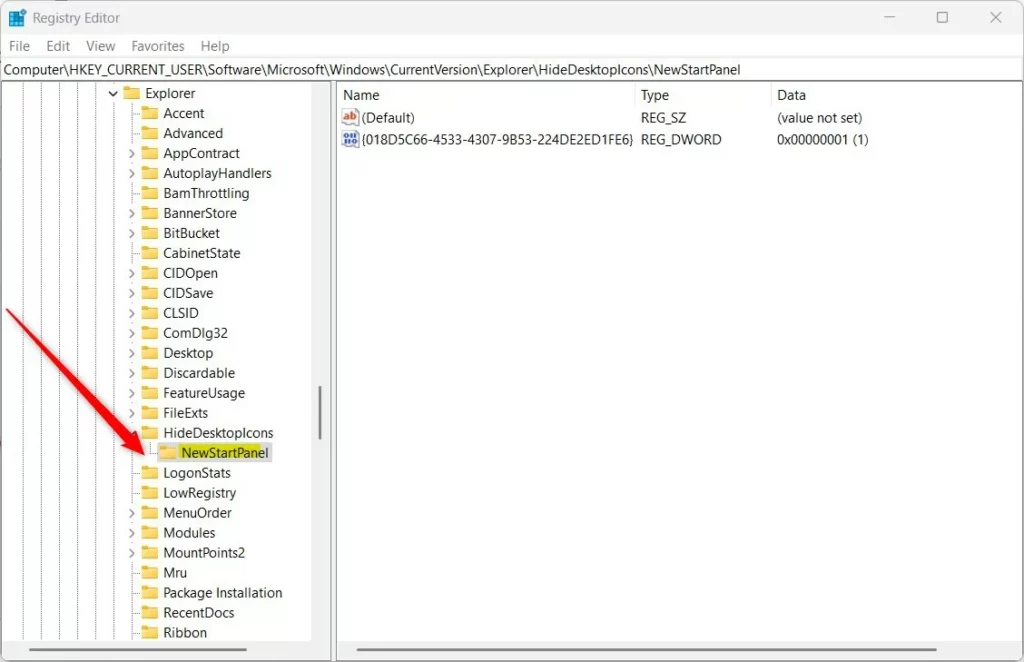
- Right-click the right side and select New > DWORD (32-bit) Value.
- Name it:
{018D5C66-4533-4307-9B53-224DE2ED1FE6} - Double-click it and set Value data to
0to show or1to hide.
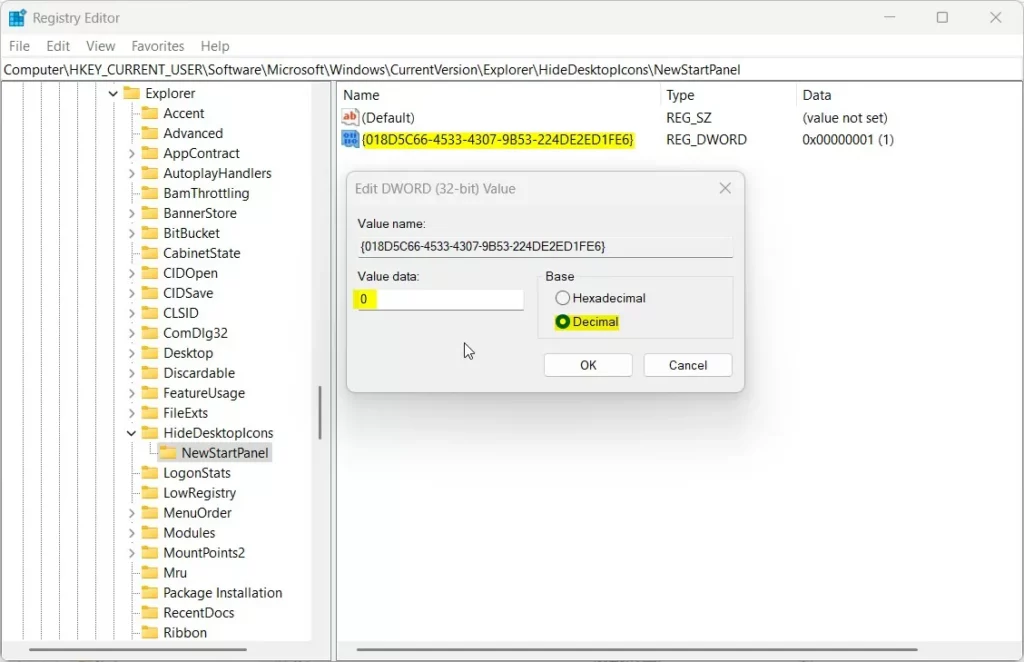
Restart your computer to apply changes.
Troubleshooting Missing OneDrive Icons
If your icon is missing from the system tray, try these steps: 1. Check if OneDrive.exe is running via Task Manager. 2. Run a Windows Update to ensure your system is current. 3. Reset OneDrive by pressing ⊞ Win+R and typing %localappdata%\Microsoft\OneDrive\onedrive.exe /reset.
Summary
Managing your OneDrive icon on Windows 11 helps keep your desktop tidy and ensures your files are syncing correctly.
Why is my OneDrive icon grayed out?
A gray OneDrive icon usually means the application is not running or you are not signed in. Click the icon to open the sign-in window. If it still does not work, try restarting the OneDrive app from your Start menu or checking your internet connection.
Why are there two OneDrive icons in my taskbar?
This often happens if you have both a personal and a work or school account signed in at the same time. Windows creates a separate icon for each account to help you manage your different file sets independently. You can hide one if you prefer.
Was this guide helpful?

About the Author
Richard
Tech Writer, IT Professional
Richard, a writer for Geek Rewind, is a tech enthusiast who loves breaking down complex IT topics into simple, easy-to-understand ideas. With years of hands-on experience in system administration and enterprise IT operations, he’s developed a knack for offering practical tips and solutions. Richard aims to make technology more accessible and actionable. He's deeply committed to the Geek Rewind community, always ready to answer questions and engage in discussions.



[…] you use OneDrive, you can add or remove OneDrive’s icon to your desktop, share your files and folders, lock or unlock OneDrive personal vault, change OneDrive location, […]
[…] save space on your hard drive. You could also be switching to a different service like Dropbox or OneDrive. Sometimes, you just want to stop your files from uploading to the internet […]