How to Get Notifications on File Changes in OneDrive on Windows 11


You get notifications on file changes in OneDrive on Windows 11 by enabling and customizing the built-in Windows notification settings and specific OneDrive sync client options.
OneDrive notifications alert you to important activities, like when a colleague modifies a shared document or when a file syncs successfully. You can tailor these alerts to prevent digital clutter and focus on crucial updates.
For instance, you can choose to receive desktop pop-ups or disable them entirely, ensuring your Windows 11 taskbar remains free of unnecessary interruptions.
Mastering these settings lets you maintain control over your workflow and stay informed without being overwhelmed by constant alerts.
Enable OneDrive notifications by opening OneDrive settings, clicking Notifications, and toggling on desired alerts. You can also manage these in Windows 11 Settings > System > Notifications.
Change settings in the OneDrive app
You can change these settings easily through the app menu.
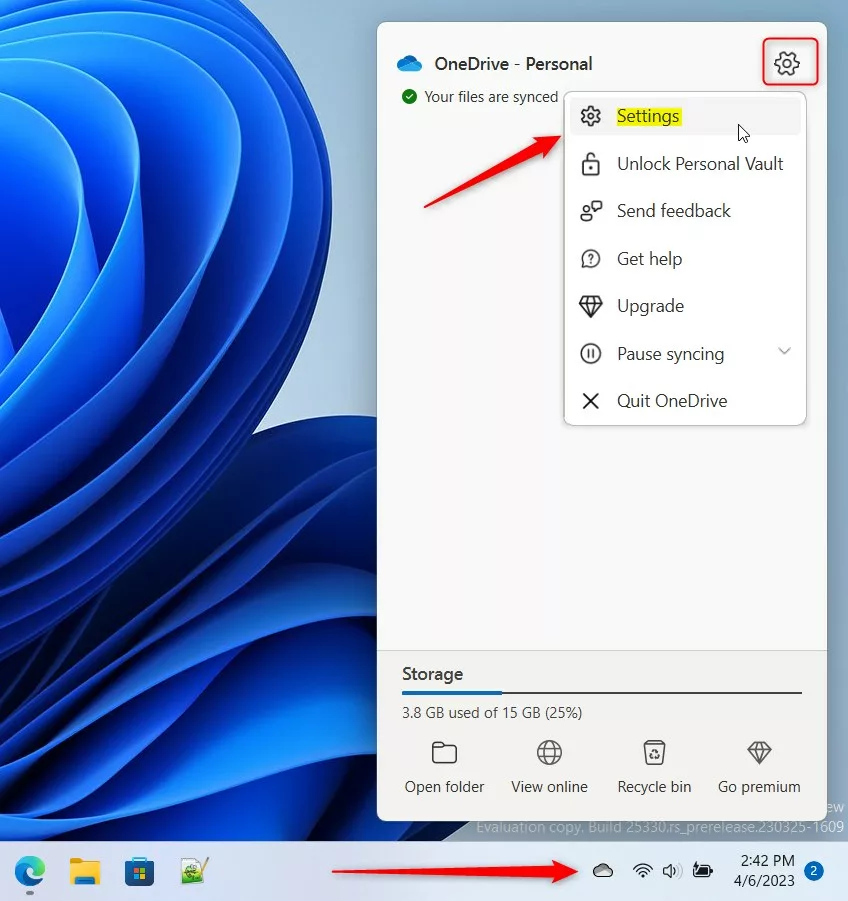
- Click the OneDrive icon on your Taskbar (Taskbar overflow).
- Click the gear icon and select Settings.
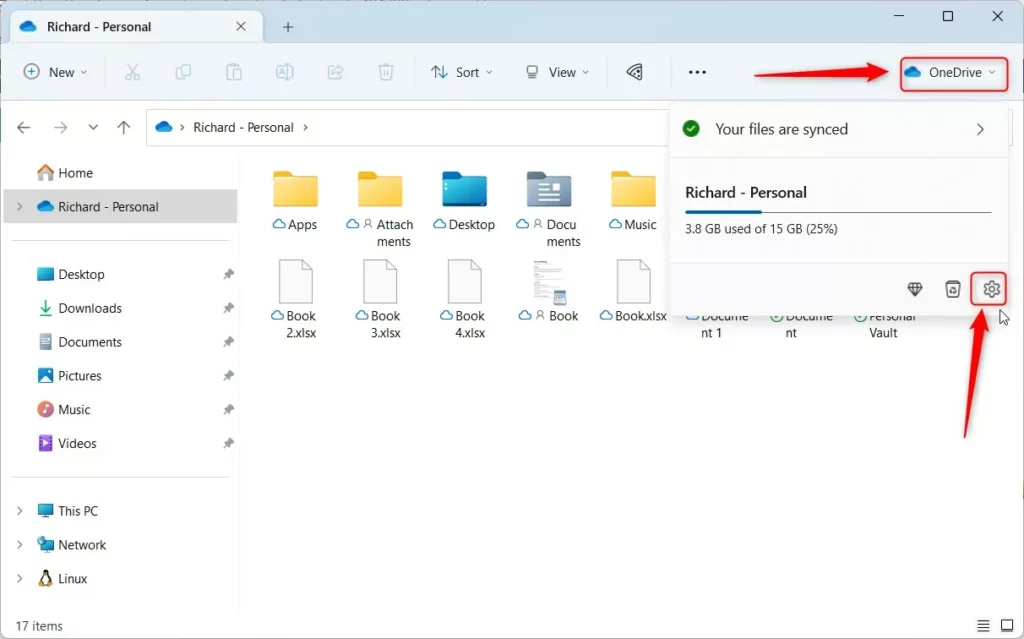
Alternatively, open your OneDrive folder in Windows File Explorer. Click the OneDrive button at the top and select the Settings gear.
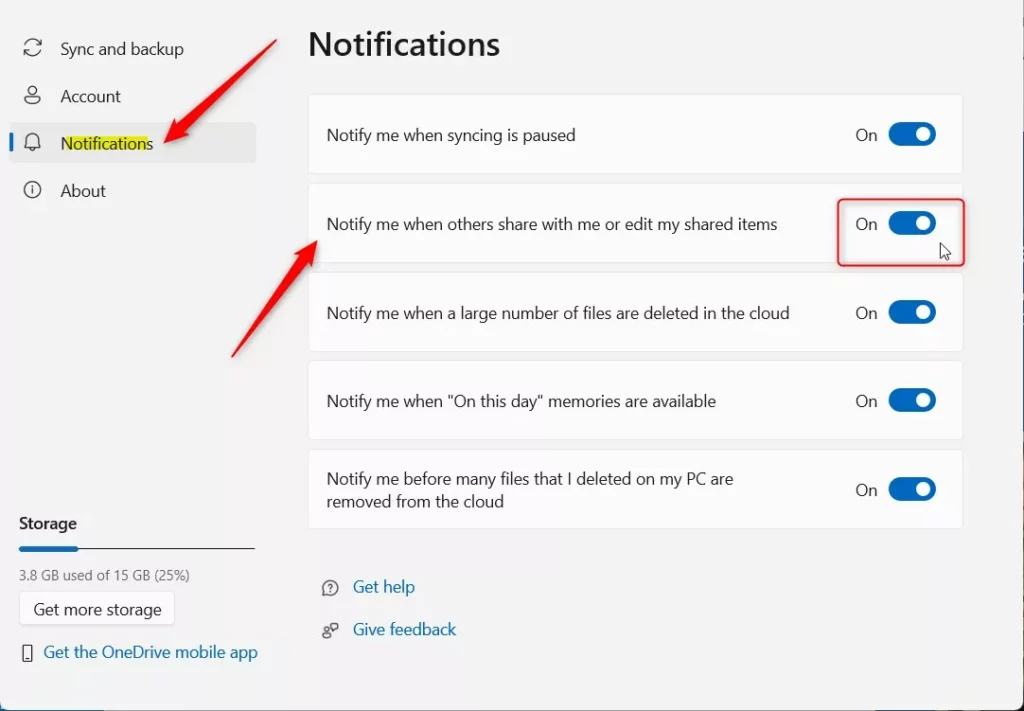
- In the settings window, click Notifications on the left.
- Find the switch for “Notify me when others share with me or edit my shared items.”
- Toggle it to On to get alerts, or Off to stop them.
Managing OneDrive Memories and Sync Notifications
OneDrive often sends “Memories” notifications to remind you of photos from years past. If you find these distracting, you can disable them. Go to the same Notifications menu in OneDrive settings and toggle off the switch for “Notify me when this day in history memories are available.”
For sync activity, you can also manage how OneDrive alerts you about sync issues. Ensuring these are enabled helps you know immediately if a file failed to upload to the cloud.
🪟 Windows 11 Notification Center Integration
OneDrive integrates directly with the Windows 11 Notification Center. You can manage these banners by going to Settings > System > Notifications. Here, you can find OneDrive in the list of apps and toggle the main switch to stop all OneDrive pop-ups. You can also use Focus Assist or Do Not Disturb mode to silence all alerts during work hours.
Change settings using the Registry
[ADMIN PRIVILEGES REQUIRED] Advanced users can use the Windows Registry Editor to change this setting. Be careful when editing the registry.
- Open the Windows Registry.
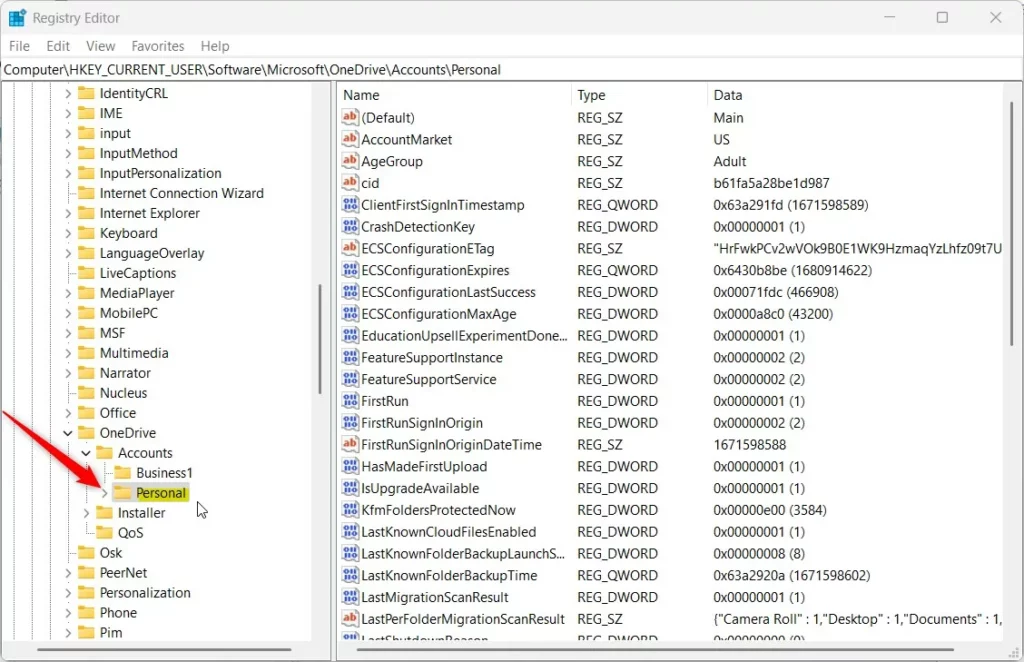
- Go to this path:
HKEY_CURRENT_USER\Software\Microsoft\OneDrive\Accounts\Personal
If the Personal folder does not exist, right-click the Accounts folder, select New, and create the subkey named Personal.
- Right-click in the empty space on the right side and select New -> DWORD (32-bit) Value.
- Name the new item
ShareNotificationDisabled. - Double-click the item. Set the Base to Decimal.
- Set the Value data to
0to enable notifications, or1to disable them.
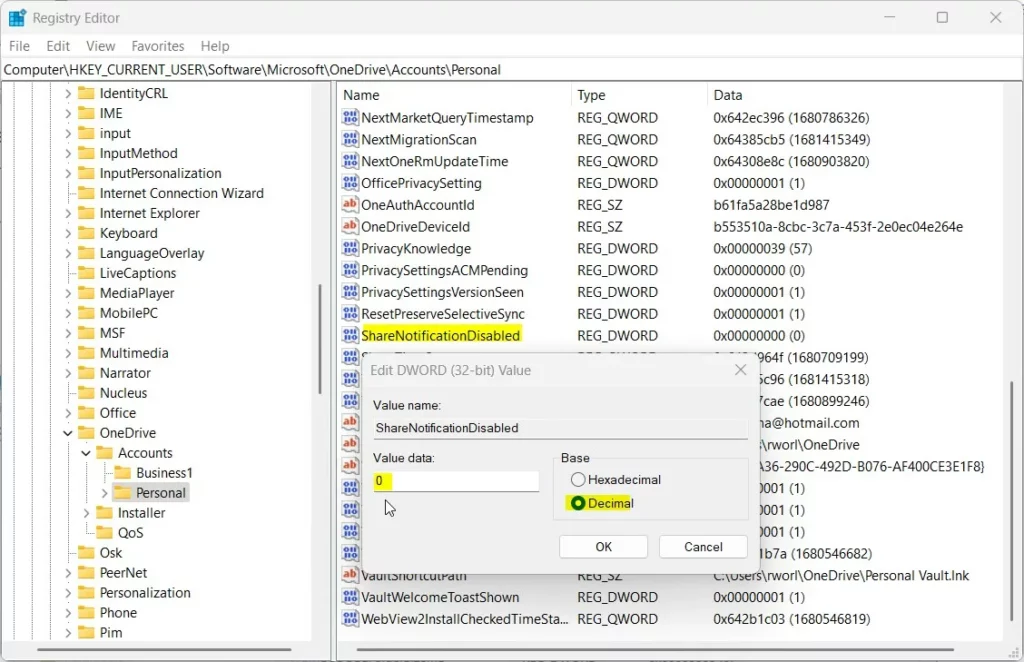
Save your changes and restart your computer for them to take effect.
Summary
You can control your OneDrive alerts by using the app’s settings menu, the Windows 11 Notification Center, or the Windows Registry. Whether you want to stop photo memories or manage sync status alerts, these steps help you keep your digital workspace organized and free from unnecessary interruptions.
How do I stop OneDrive from showing photo memories?
To stop photo memories, open OneDrive settings, navigate to the Notifications tab, and toggle off the switch labeled “Notify me when this day in history memories are available.” This will prevent OneDrive from sending you photo-related alerts while keeping your file sync notifications active.
Does disabling OneDrive notifications affect file syncing?
No, disabling notifications does not stop your files from syncing. OneDrive will continue to upload and download your files in the background. You simply will not receive pop-up alerts or banners on your screen when changes occur or when files are shared with you.
Was this guide helpful?

About the Author
Richard
Tech Writer, IT Professional
Richard, a writer for Geek Rewind, is a tech enthusiast who loves breaking down complex IT topics into simple, easy-to-understand ideas. With years of hands-on experience in system administration and enterprise IT operations, he’s developed a knack for offering practical tips and solutions. Richard aims to make technology more accessible and actionable. He's deeply committed to the Geek Rewind community, always ready to answer questions and engage in discussions.




No comments yet — be the first to share your thoughts!