How to Lock and Unlock OneDrive Personal Vault in Windows 11


The onedrive-personal-vault-in-windows-11/" class="sal-link" rel="noopener" target="_blank" data-sal-id="25123">OneDrive Personal Vault is a secure area in your cloud storage designed for your most sensitive documents.
Why use this? It adds a layer of encryption and multi-factor authentication to protect your data from unauthorized access.
What happens when done? Your files are hidden behind a secondary security wall that requires identity verification to view or edit.
Comparison of Authentication Methods
| Method | Security Level | Best For |
|---|---|---|
| Windows Hello PIN | High | Quick access on personal devices |
| Biometrics (Face/Fingerprint) | Highest | Fast, secure login |
| Microsoft Authenticator | High | Remote or multi-device verification |
How to Unlock OneDrive Personal Vault
You can OneDrive Personal Vault unlock using several methods. The most common way is through File Explorer. Simply double-click the Personal Vault icon in your OneDrive folder. A prompt will appear asking for your identity verification. Choose your preferred method, such as your Windows Hello PIN or a code from the Microsoft Authenticator app.
Using File Explorer
Open File Explorer and navigate to your OneDrive folder. Right-click the Personal Vault icon. Select OneDrive and then Unlock Personal Vault.
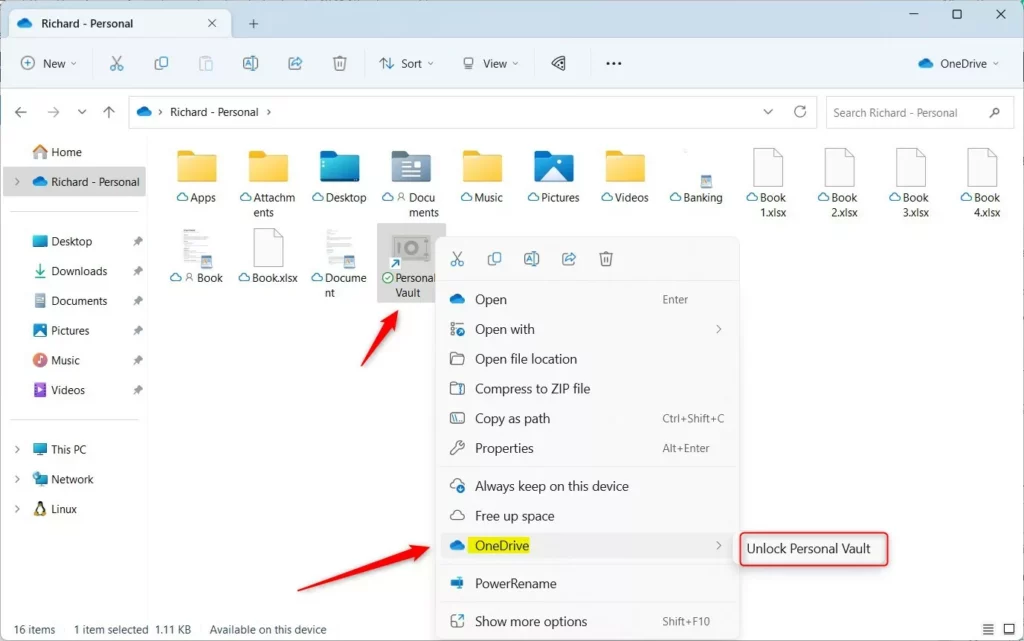
Using the Taskbar Menu
Click the OneDrive cloud icon on your taskbar. If the vault is locked, click the gear icon for Settings and select Unlock Personal Vault.

Troubleshooting and Error Handling
If you cannot see the Personal Vault, ensure your OneDrive app is updated to the latest version. Sometimes, OneDrive sync issues prevent the vault from appearing. Check your internet connection and ensure you are signed in with your Microsoft account. If you see an error code, visit the official Microsoft support documentation for specific error resolutions.
Configuration and Security Settings
You can manage how your vault behaves. To change the auto-lock timer, open the OneDrive settings menu. Navigate to the Account tab. Look for the Personal Vault section. You can adjust the inactivity timeout duration there. Note: Changing system-wide security policies may require admin privileges.
Summary
The OneDrive Personal Vault is a powerful tool for protecting sensitive data. By using Windows Hello, biometrics, or 2FA, you ensure that only you can access your private files. You can easily lock or unlock the vault using File Explorer, the taskbar, or notifications. Remember to keep your OneDrive app updated and check your security settings to customize your auto-lock preferences for the best balance of convenience and safety.
Why does my Personal Vault keep locking automatically?
The Personal Vault is designed to lock automatically after a set period of inactivity to ensure your files remain secure. This is a built-in security feature. You can adjust the timeout duration in your OneDrive settings, but it will always lock if you leave your computer idle for too long.
Can I change the unlock method from Windows Hello to 2FA?
Yes, you can use different authentication methods. While Windows Hello is the default for convenience, you can choose to use the Microsoft Authenticator app or an email code during the unlock prompt. Click ‘More options’ or ‘Use a different method’ when the verification window appears to select your preferred 2FA choice.
How do I share files stored inside the Personal Vault?
For security reasons, you cannot directly share files from inside the Personal Vault. To share a file, you must first move it out of the Personal Vault and into a regular folder within your OneDrive. Once the file is moved, you can use the standard share options to send it to others.
Was this guide helpful?

About the Author
Richard
Tech Writer, IT Professional
Richard, a writer for Geek Rewind, is a tech enthusiast who loves breaking down complex IT topics into simple, easy-to-understand ideas. With years of hands-on experience in system administration and enterprise IT operations, he’s developed a knack for offering practical tips and solutions. Richard aims to make technology more accessible and actionable. He's deeply committed to the Geek Rewind community, always ready to answer questions and engage in discussions.


No comments yet — be the first to share your thoughts!