How to Enable or Disable Projecting to this PC in Windows 11


Projecting to this PC is a Windows 11 feature that turns your computer into a wireless receiver. It uses Miracast technology to mirror screens from phones, tablets, or other laptops.
Why do this? It is perfect for showing photos or presentations on a larger screen without needing HDMI cables.
What happens when done? Your PC acts as a secondary monitor, allowing you to view and interact with content from another device wirelessly.
Prerequisites for Wireless Display
Before you start, your hardware must support Wi-Fi Direct and Miracast. Most modern computers support this, but older hardware might not. You also need the Wireless Display feature installed as an Optional Feature in Windows.
How to check if your PC supports Miracast
1. Press Windows Key + R, type dxdiag, and hit Enter.
2. Click Save All Information and open the text file.
3. Search for Miracast. If it says Available, your PC is ready.
How to Enable or Disable Projecting to this PC
Follow these steps to manage your settings. Note: This process requires admin privileges to modify system-wide display settings.
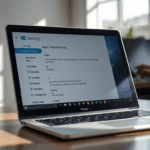
- Open Settings by pressing Windows Key + I.

- Click System on the left sidebar.
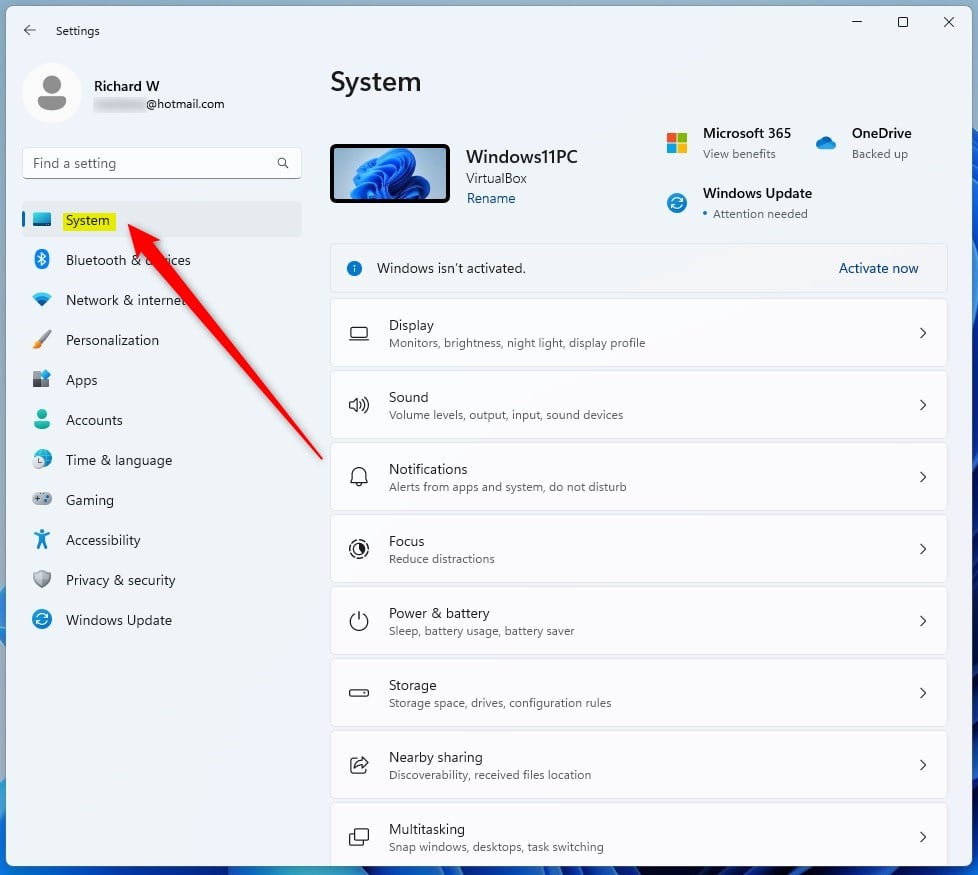
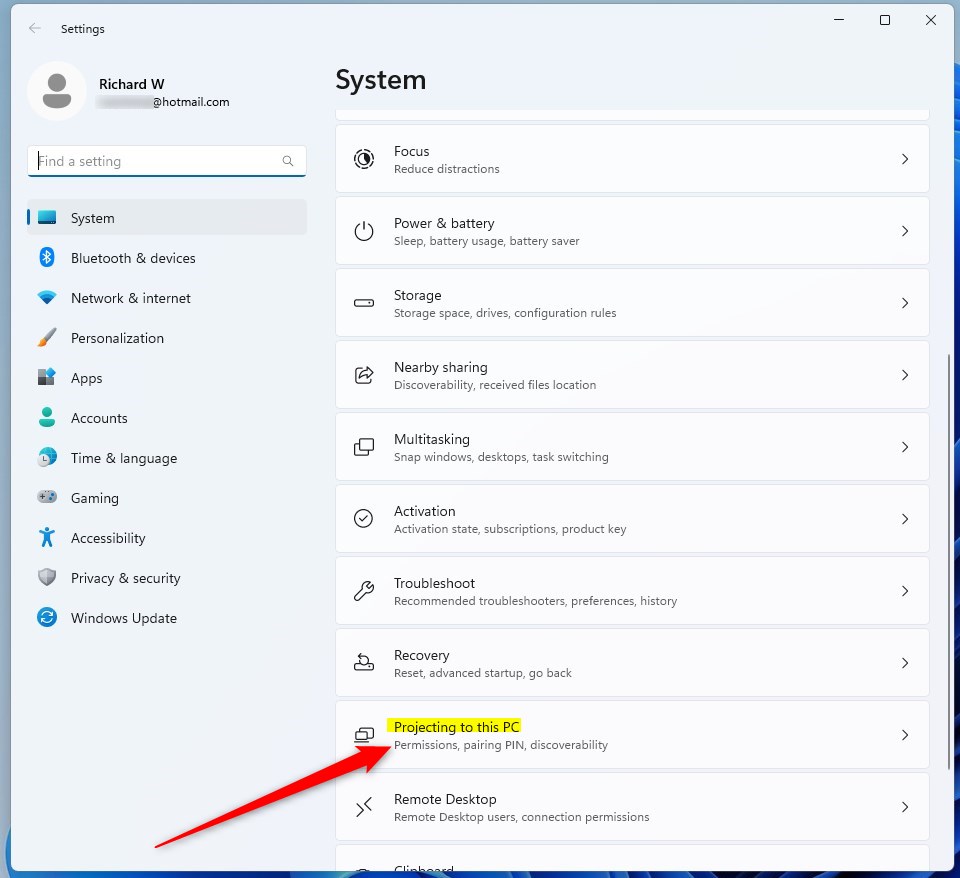
- Select Projecting to this PC.
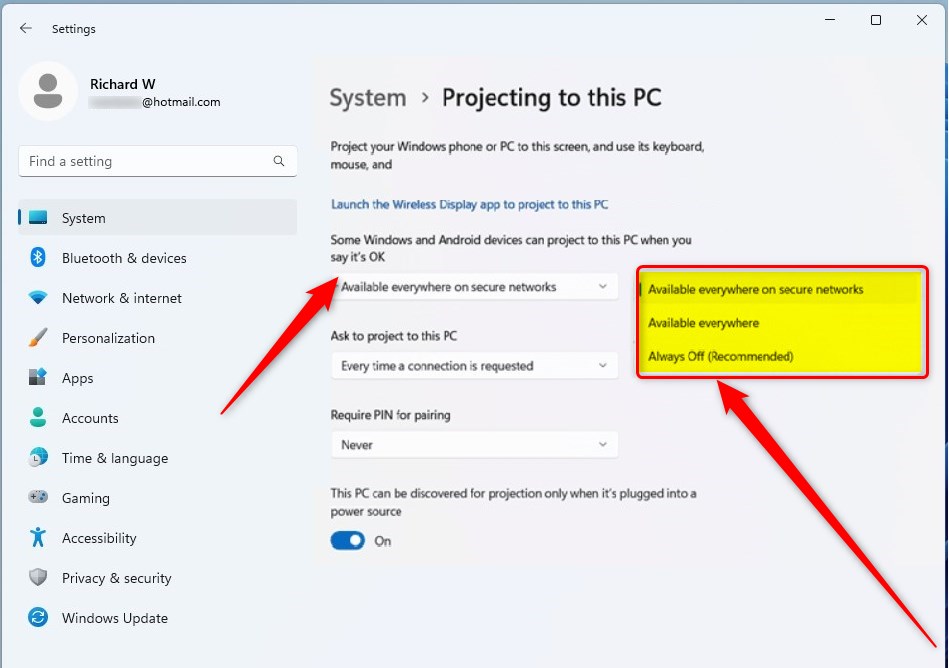
- Choose your preferred connection mode from the dropdown menu.
Troubleshooting Connection Issues
If the Projecting to this PC option is greyed out, you likely need to install the Wireless Display feature. Go to Settings > Apps > Optional features > View features and search for Wireless Display. Install it and restart your computer. If you experience lag, ensure both devices are on the same 5GHz Wi-Fi network to improve bandwidth.
Summary
Projecting to this PC is a powerful way to share screens wirelessly using Miracast. By ensuring your hardware supports the Wireless Display feature and configuring your network settings, you can easily mirror devices. Remember to keep your settings on ‘Always Off’ when not in use to maintain your system’s security. For more details, visit the official Microsoft support page.
Do I need an internet connection to project to my PC?
No, you do not need an active internet connection. Projecting to this PC uses Wi-Fi Direct, which creates a direct wireless connection between your devices. As long as both devices have Wi-Fi enabled and support Miracast, they can communicate locally without needing to access the internet or a router.
Can I project to a PC that is not on the same Wi-Fi network?
Generally, no. Miracast technology is designed for local proximity. While you do not need an internet connection, both devices must be in physical range of each other. If you are on different networks, the devices may fail to discover each other because they cannot establish the necessary peer-to-peer handshake.
Was this guide helpful?


[…] change how often your computer asks for permission to “Ask to project to this PC” when projecting to this PC in Windows […]
[…] guide explains how to turn the “Require PIN for pairing” feature on or off when projecting to this PC in Windows […]