How to Download Latest Windows 11 ISO with UUP Dump


You can download the latest Windows 11 ISO image directly from Microsoft’s servers using UUP Dump.
UUP Dump is a powerful utility that allows you to gather essential Windows installation files and compile them into a bootable ISO. This method is especially useful for obtaining the newest preview builds of Windows 11, often before they are officially released.
By using UUP Dump, you bypass the standard update channels to get the latest features and security updates sooner. This process empowers you to create your own installation media, ensuring you’re always up-to-date with the newest Windows 11 features, even for versions like Windows 11 23H2.
Download the latest Windows 11 ISO using UUP Dump by visiting their website, selecting your desired build, language, and edition. Run the downloaded package as administrator to compile the ISO.
Official Microsoft 🪟 Windows 11 ISO Download
Downloading the official Windows 11 ISO directly from Microsoft is the safest and most reliable method, ensuring your files are genuine and malware-free.
System Requirements and Compatibility
Before you download Windows 11, make sure your computer meets the minimum system requirements, including a compatible 64-bit processor, 4GB of RAM, and 64GB of storage.
How to Create a Bootable USB for 🪟 Windows 11
After downloading the Windows 11 ISO file, you’ll need to create a bootable USB drive using a tool like Rufus or Microsoft’s Media Creation Tool to install it.
Advanced Method: Downloading with UUP Dump
UUP Dump offers an advanced method to download specific Windows 11 preview builds or Arm64 versions directly from Microsoft servers, creating a custom ISO file.
Steps to Download via UUP Dump
Downloading the Windows 11 ISO using UUP Dump is straightforward. You’ll start by going to the UUP Dump website and picking the specific Windows 11 Insider Preview version you’re looking for.
2. Click the Downloads tab and select your desired Windows 11 Insider Preview build.
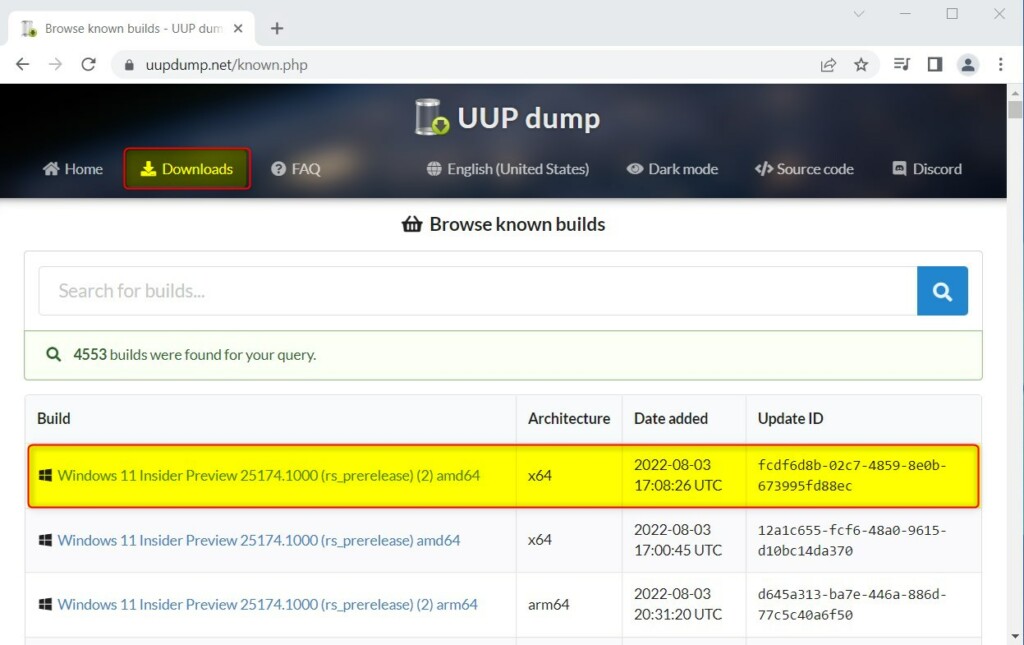
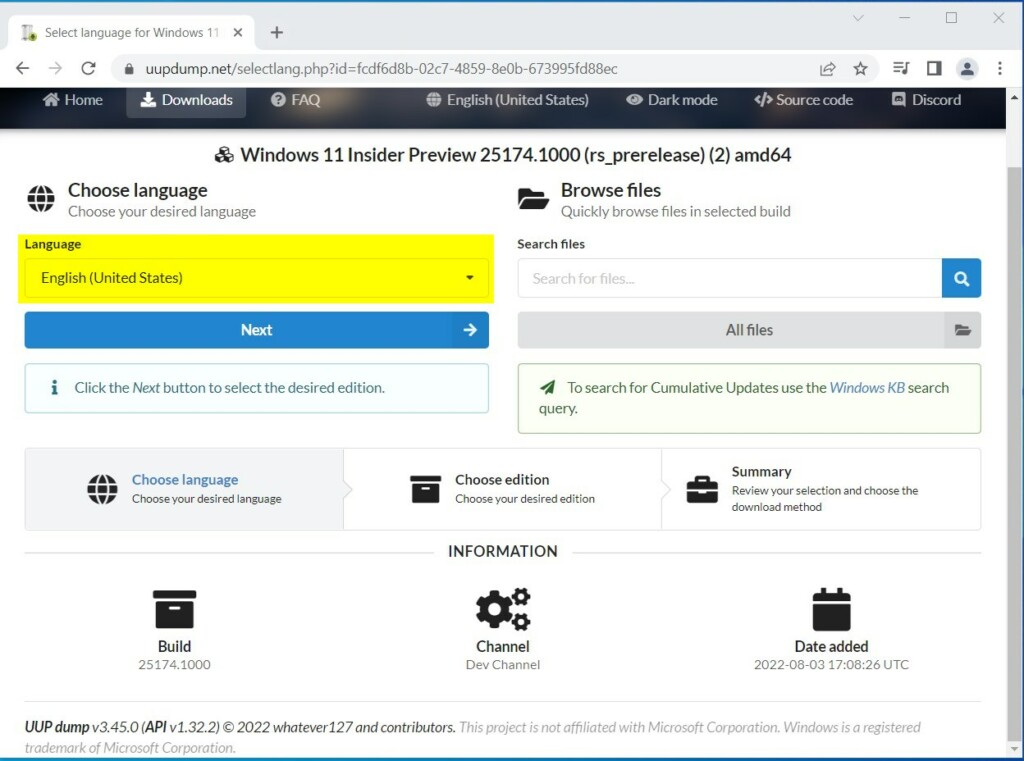
3. Choose your language and click Next.
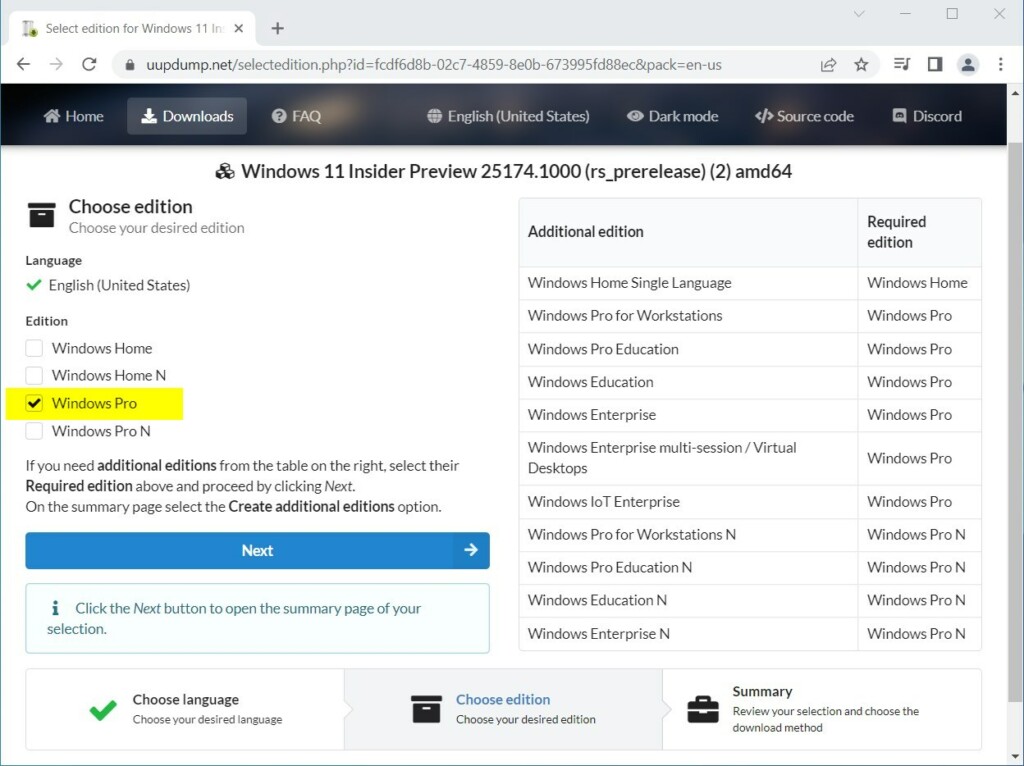
4. Select your edition (Home, Pro, or Enterprise) and click Next.
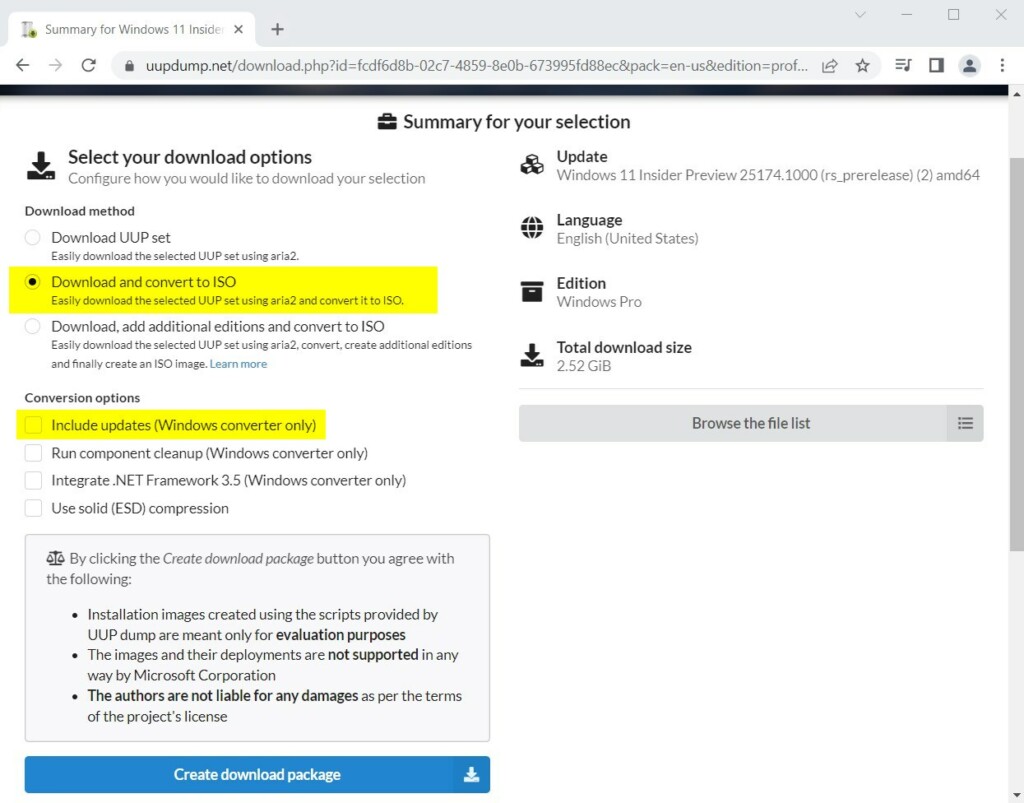
5. Choose Download and convert to ISO and click Create download package.
6. Extract the downloaded zip file to a folder on your drive, such as 📁C:\Users\User\Downloads\UUP.
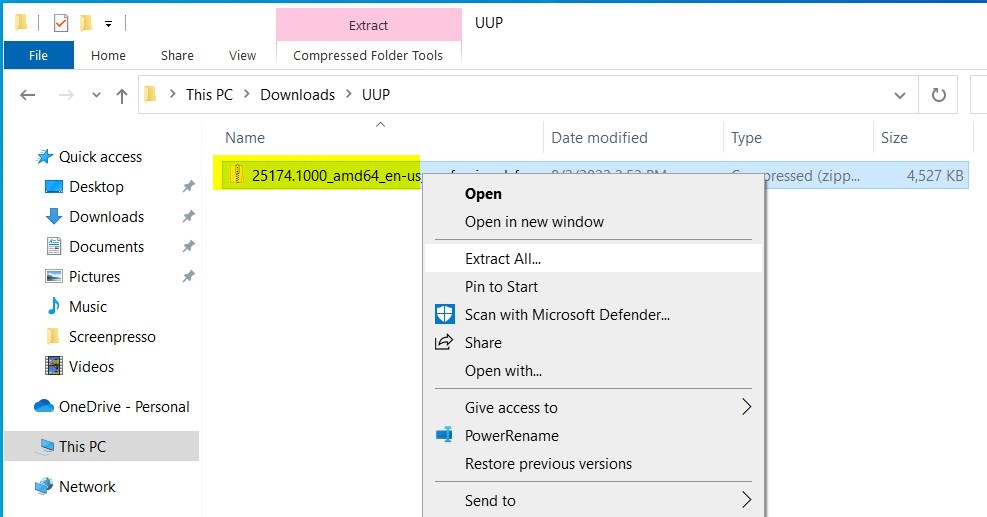
7. Find the file named uup_download_windows.
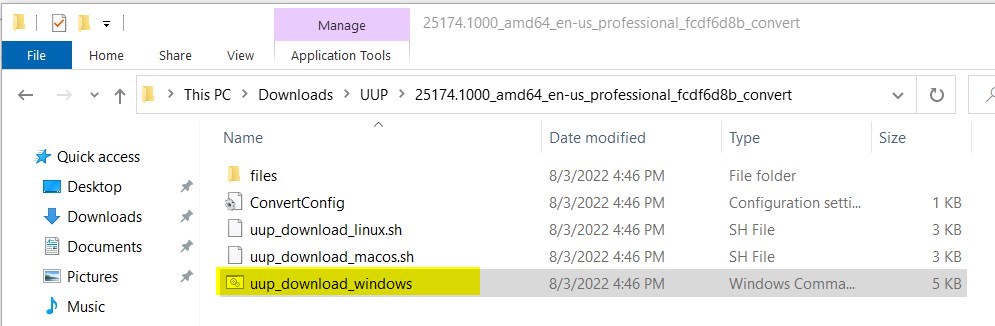
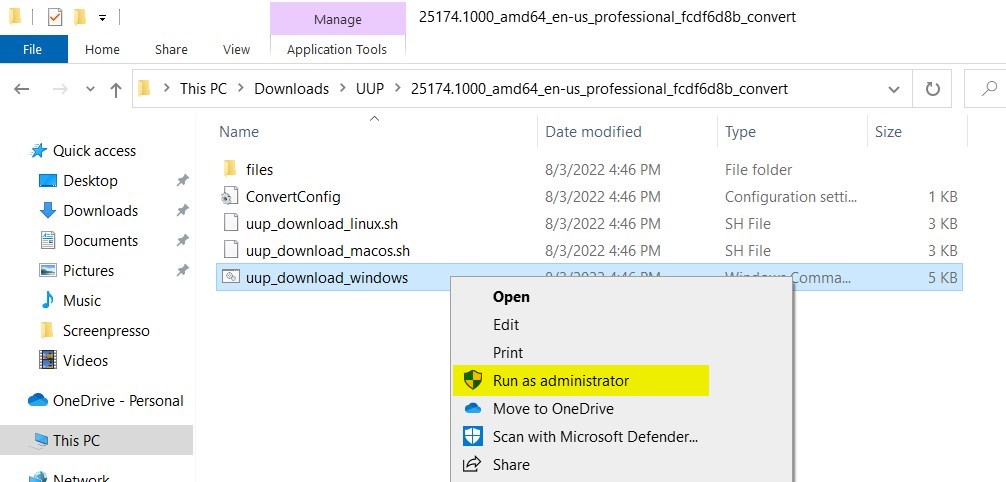
8. You’ll need administrator privileges for this. Right-click the file and choose ‘Run as administrator’.
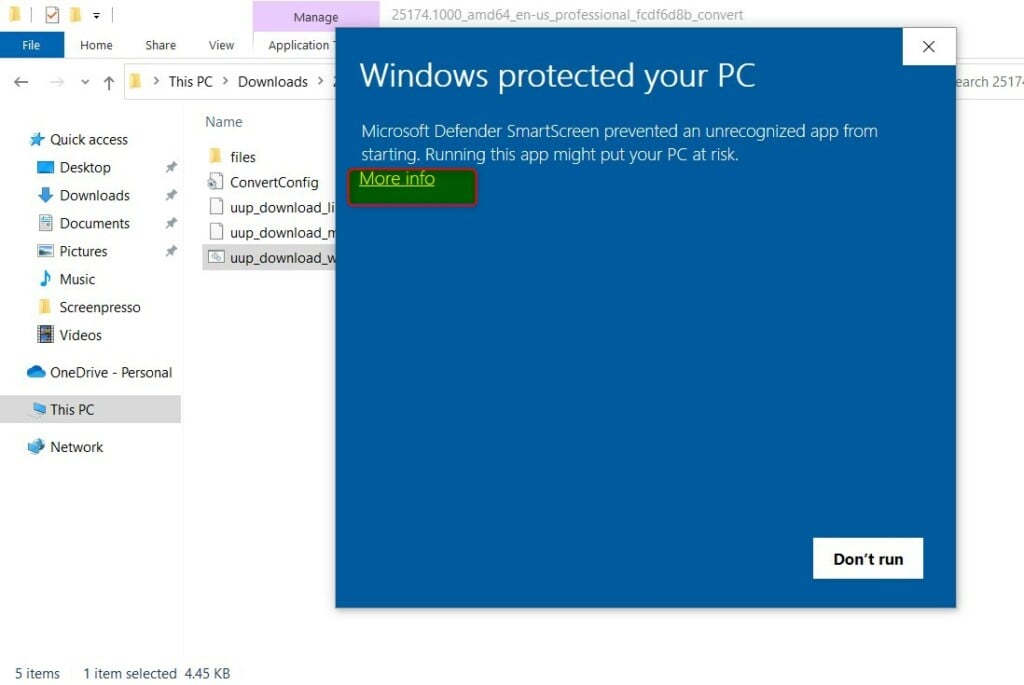
9. If a security prompt appears, click More info then Run anyway.
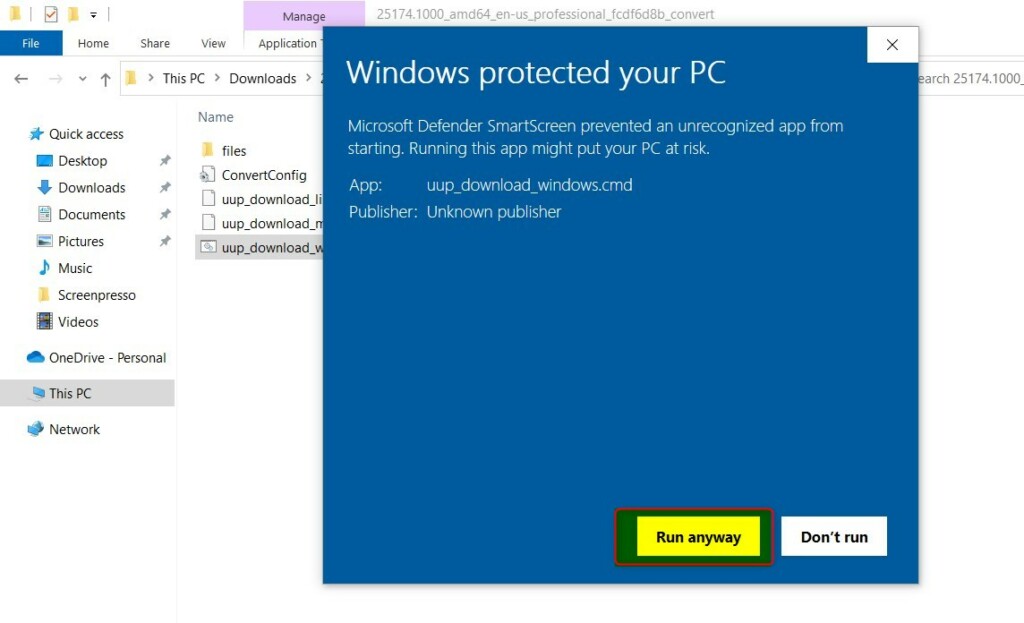
10. A command prompt will open to process the files. Once finished, press 0 to exit. Your ISO will be in the same folder.
Summary
For a secure and stable Windows 11 download, use the official Microsoft website, or choose UUP Dump for specific preview builds, always checking system requirements first.
Is it safe to download 🪟 Windows 11 ISO from third-party sites?
Downloading Windows 11 ISO files from unofficial sources like Internet Archive or torrent sites is highly risky. These files can contain malware, spyware, or backdoors that compromise your data. Always use official Microsoft channels or verified tools like UUP Dump to ensure the integrity of your operating system files.
Was this guide helpful?

About the Author
Richard
Tech Writer, IT Professional
Richard, a writer for Geek Rewind, is a tech enthusiast who loves breaking down complex IT topics into simple, easy-to-understand ideas. With years of hands-on experience in system administration and enterprise IT operations, he’s developed a knack for offering practical tips and solutions. Richard aims to make technology more accessible and actionable. He's deeply committed to the Geek Rewind community, always ready to answer questions and engage in discussions.




[…] How to Download Latest Windows 11 ISO with UUP Dump […]