How to Enable Core Isolation Memory Integrity in Windows 11

You enable Core Isolation Memory Integrity in Windows 11 to bolster your PC’s security against kernel-level exploits and malicious drivers.
This feature leverages Virtualization-based Security (VBS) and Hypervisor-protected Code Integrity (HVCI) to create a protected memory region. This isolated space prevents untrusted code from compromising the Windows kernel, effectively blocking malware injection.
It specifically protects against threats that exploit driver vulnerabilities, which often run with high system privileges. Windows 11 actively checks drivers before they execute.
Enabling Core Isolation uses hardware virtualization to sandbox critical system processes, making your computer significantly harder to hack. You’ll experience enhanced protection without noticeable performance degradation.
How to enable or disable Core Isolation Memory Integrity
Follow these steps to manage your security settings. Note: This step requires admin privileges.
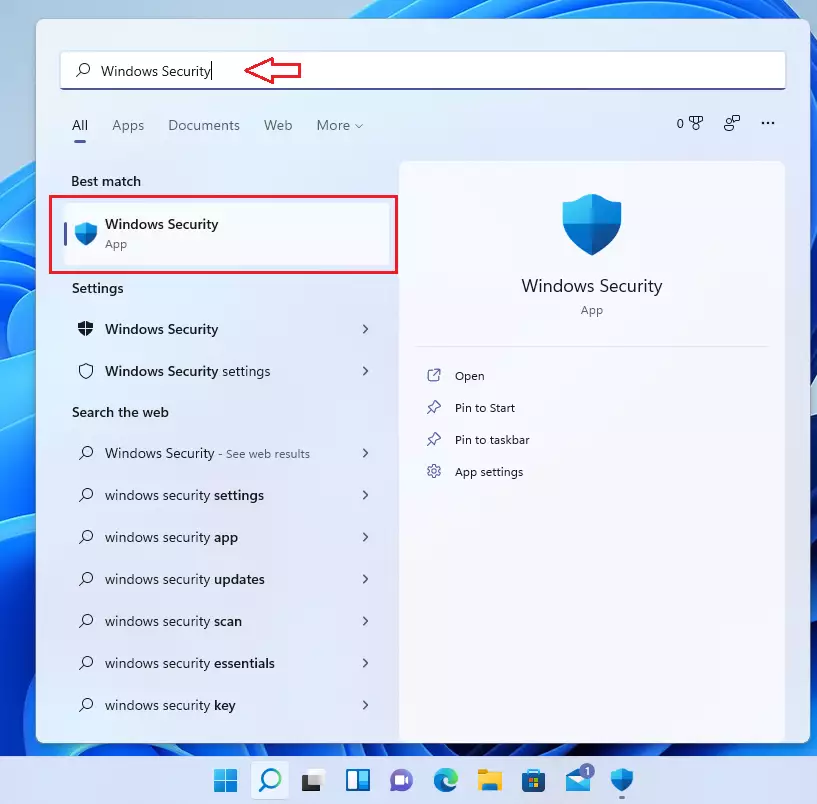
- In the search box on your taskbar, type Windows Security and select it from the list.
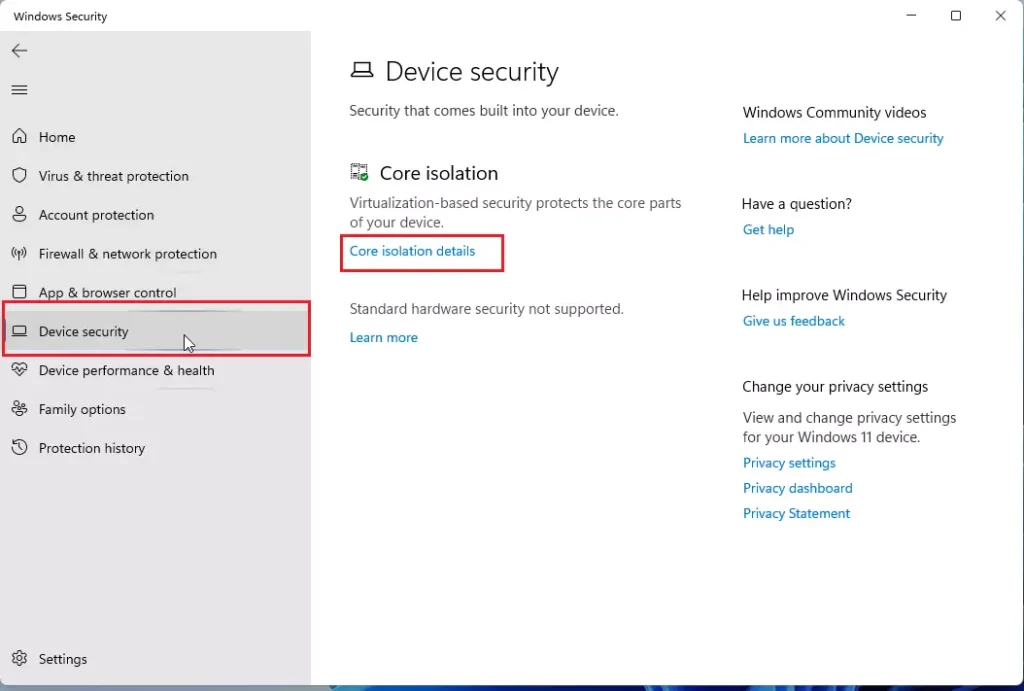
- Inside the Windows Security window, click on Device security.
- On the next page, click the link labeled Core isolation details.
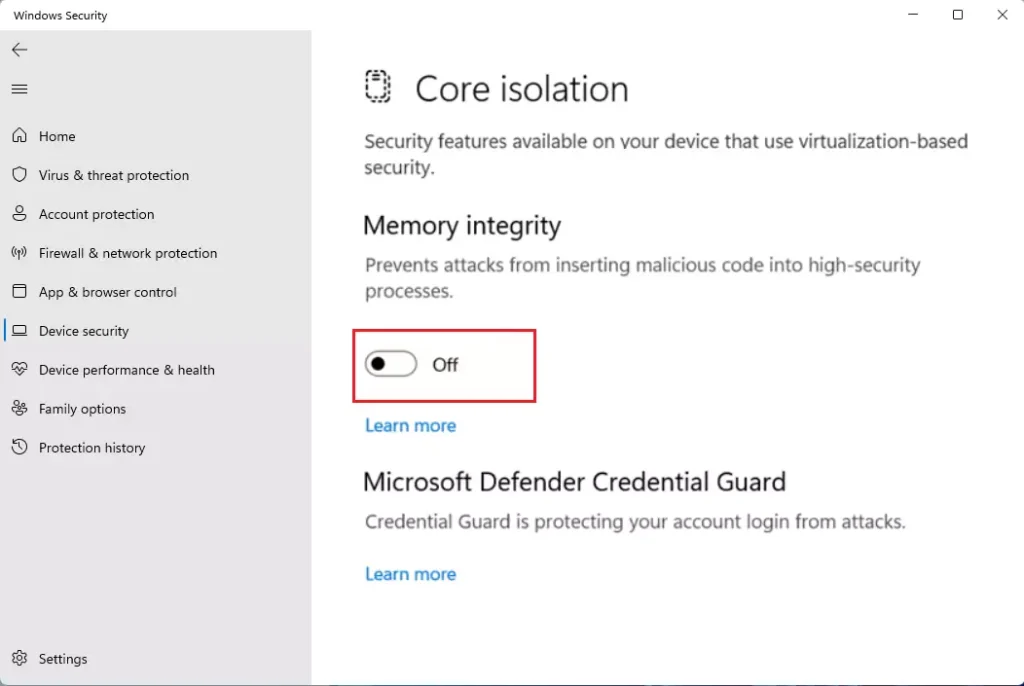
- Toggle the Memory integrity switch to On or Off.
Troubleshooting Incompatible Drivers
Sometimes, you cannot turn on Memory Integrity because of a driver conflict. Windows will show you a list of incompatible drivers. These are often older files that do not meet modern security standards. You can find these by looking at the Review incompatible drivers link inside the Core Isolation settings page.
To fix this, you should visit your computer manufacturer’s website. Look for updated drivers for your hardware. If you cannot find an update, you may need to uninstall the device or the software associated with that driver. You can often find the specific file path, such as C:\Windows\System32\drivers, to identify the culprit.
Comparison of Windows Security Features
| Feature | Purpose |
|---|---|
| Core Isolation | Uses virtualization to isolate core processes. |
| Secure Boot | Ensures only trusted firmware boots the PC. |
| Kernel-mode Hardware-enforced Stack Protection | Protects against memory-based attacks. |
Summary
- Core Isolation Memory Integrity uses virtualization to protect your system kernel.
- It blocks malicious drivers from running, preventing ransomware and other attacks.
- You can manage this in the Windows Security app under Device Security.
- If it won’t turn on, check for incompatible drivers like oem.inf files.
- Always keep your system drivers updated to ensure full compatibility and security.
Why is Memory Integrity greyed out?
If the option is greyed out, it usually means your hardware does not support virtualization or it is disabled in your BIOS/UEFI settings. Ensure that Virtualization Technology is enabled in your computer’s BIOS. If it is already enabled, a conflicting driver might be preventing the system from activating the feature.
Does Core Isolation affect gaming performance?
For most users, the impact on gaming performance is minimal. Because it uses hardware-level virtualization, modern processors handle the load efficiently. However, on older hardware, you might notice a slight drop in frame rates. If you experience significant lag, ensure your drivers are fully updated to the latest versions.
Was this guide helpful?

About the Author
Richard
Tech Writer, IT Professional
Richard, a writer for Geek Rewind, is a tech enthusiast who loves breaking down complex IT topics into simple, easy-to-understand ideas. With years of hands-on experience in system administration and enterprise IT operations, he’s developed a knack for offering practical tips and solutions. Richard aims to make technology more accessible and actionable. He's deeply committed to the Geek Rewind community, always ready to answer questions and engage in discussions.



No comments yet — be the first to share your thoughts!