How to Change Screen Tint Color and Strength in Windows 11


Want to reduce eye strain on your Windows 11 PC? You can change the screen tint color and strength.
The screen tint feature applies a customizable color overlay to your entire display, making it easier on your eyes during extended computer use.
This built-in option helps you personalize what you see by letting you choose specific colors and adjust their intensity. For instance, a common choice is a warm yellow or orange tint.
You can access and configure these settings through the Accessibility section of the Windows 11 Settings app.
Open Settings, navigate to Accessibility, and select Screen tint. Choose a preset color or a custom shade, then use the Strength slider to adjust its intensity.
Why Use Screen Tint?
Using a screen tint in Windows 11 can help reduce eye strain and discomfort from looking at your screen for too long.
What happens when you enable Screen Tint?
When you turn on this feature, you’ll see a semi-transparent color layer applied across your entire display. This changes the color temperature of your screen, making it easier on your eyes while still allowing you to see everything clearly. It is a great way to customize your visual experience.
Screen Tint vs. Night Light: What is the Difference?
Windows 11’s Screen Tint and Night Light both help your eyes, but they work in different ways.
How to Enable Screen Tint in 🪟 Windows 11
Windows 11 screen tint helps reduce eye strain by adjusting your screen’s color, and you can turn it on using the Settings app or a quick command if needed.
Note: This step requires administrative privileges.
1. Open the Start menu, type Terminal, right-click it, and select Run as administrator.
2. Copy and paste the following command and press Enter:vivetool.exe /enable /id:60662124
3. Restart your computer to apply the changes.
Change Screen Tint Color in Settings
Once you’ve turned on the Windows 11 screen tint, changing its color and strength is simple using the built-in Settings menu.
1. Open Settings (⊞ Win+I).
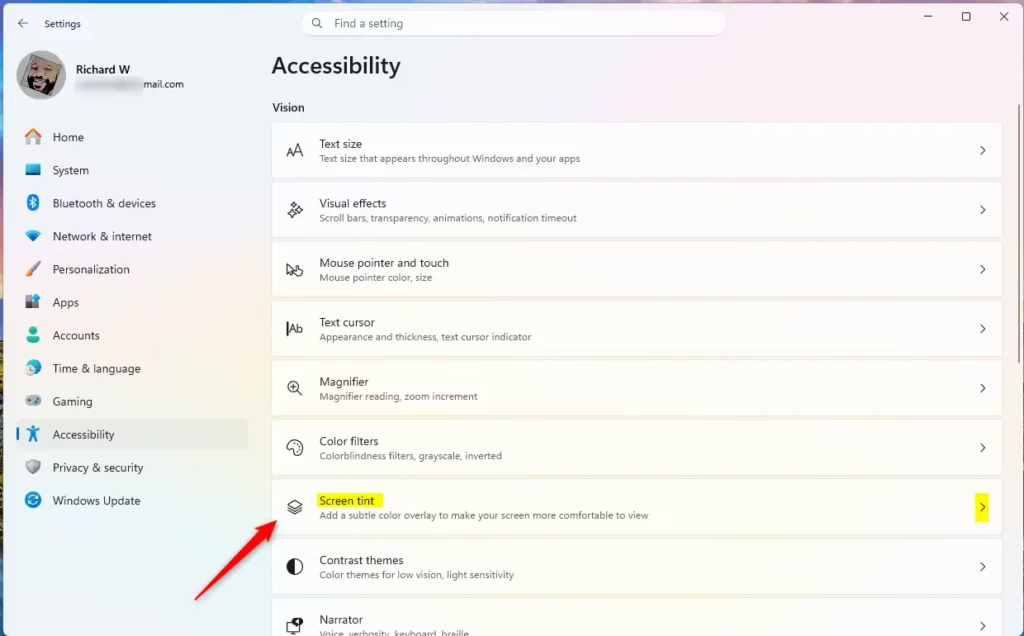
2. Click Accessibility on the left, then select Screen tint on the right. Open Screen tint settings.
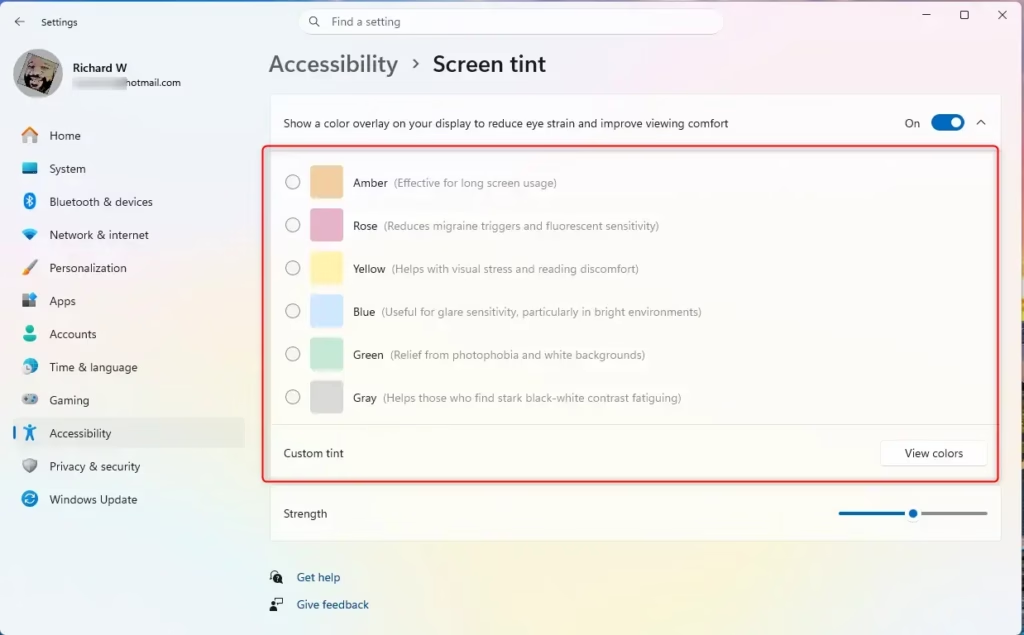
3. Choose a preset color or select Custom tint to pick your own shade. You can use the Strength slider to decide how dark or light the tint appears.
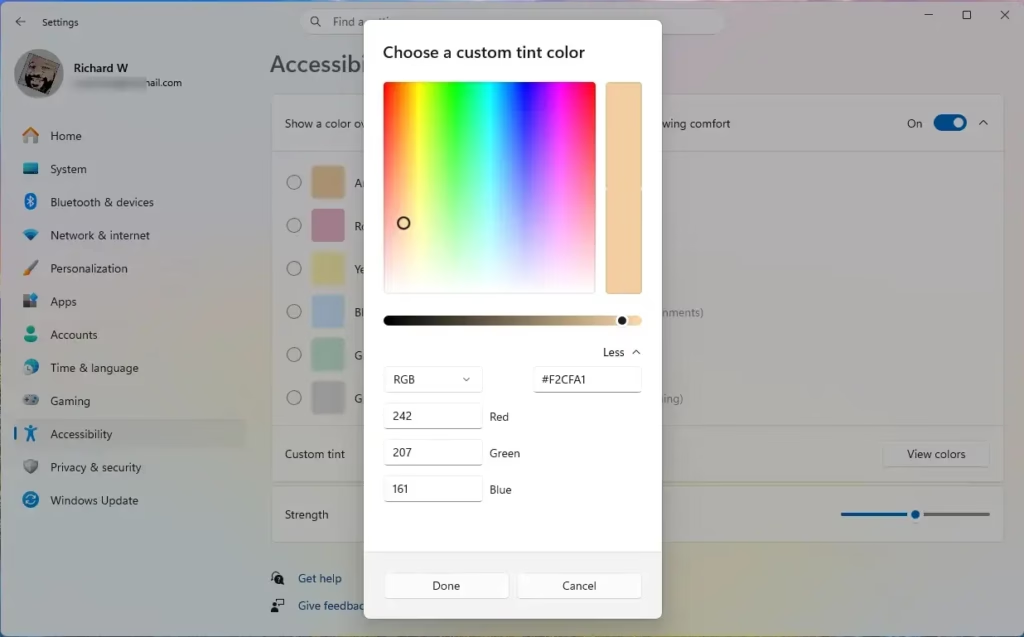
4. To create a custom color, click View colors. You can enter specific RGB or HSV codes for precise control.
Troubleshooting and Resetting Settings
If your screen tint settings in Windows 11 aren’t quite right, you can easily reset them by turning the feature off or adjusting specific values.
Pro Tip: Quick Toggles
There isn’t a default keyboard shortcut for Screen Tint just yet, but you can pin the Accessibility settings page to your Taskbar for quick access. Right-click the Settings icon on your taskbar after opening the Screen Tint page.
Summary
Windows 11’s Screen Tint feature helps reduce eye strain by letting you add a color overlay to your screen, which you can adjust for comfort.
Does screen tinting affect performance in games?
Generally, no. Screen Tint is a lightweight overlay handled by the Windows display manager. It does not significantly impact your graphics card or CPU performance. You should be able to play games with the tint enabled without noticing any frame rate drops or stuttering during your gameplay sessions.
Can I create custom tint colors in 🪟 Windows 11?
Yes. Within the Screen Tint settings, you can select the Custom tint option. This allows you to open a color picker where you can select any hue you prefer. You can also input specific RGB or HSV color codes to match your personal preference or specific accessibility needs.
Is Screen Tint available on all versions of 🪟 Windows 11?
Currently, Screen Tint is an experimental feature found in specific Windows 11 Insider Preview builds. It is not yet available in the standard public release of Windows 11. Microsoft may roll it out to everyone in a future update, but for now, it remains a testing feature for Insiders.
Was this guide helpful?

About the Author
Richard
Tech Writer, IT Professional
Richard, a writer for Geek Rewind, is a tech enthusiast who loves breaking down complex IT topics into simple, easy-to-understand ideas. With years of hands-on experience in system administration and enterprise IT operations, he’s developed a knack for offering practical tips and solutions. Richard aims to make technology more accessible and actionable. He's deeply committed to the Geek Rewind community, always ready to answer questions and engage in discussions.



No comments yet — be the first to share your thoughts!