

This tutorial shows you how to turn startup boost on or off in Microsoft Edge. You can do this for just your account or for everyone on your 11 computers.
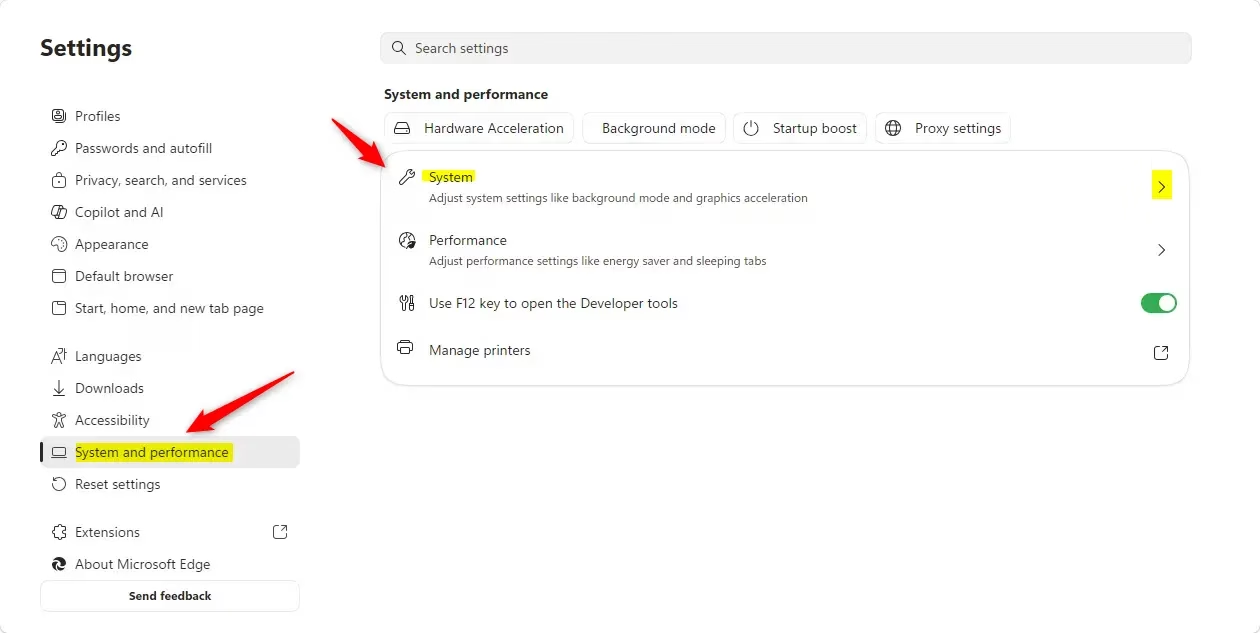
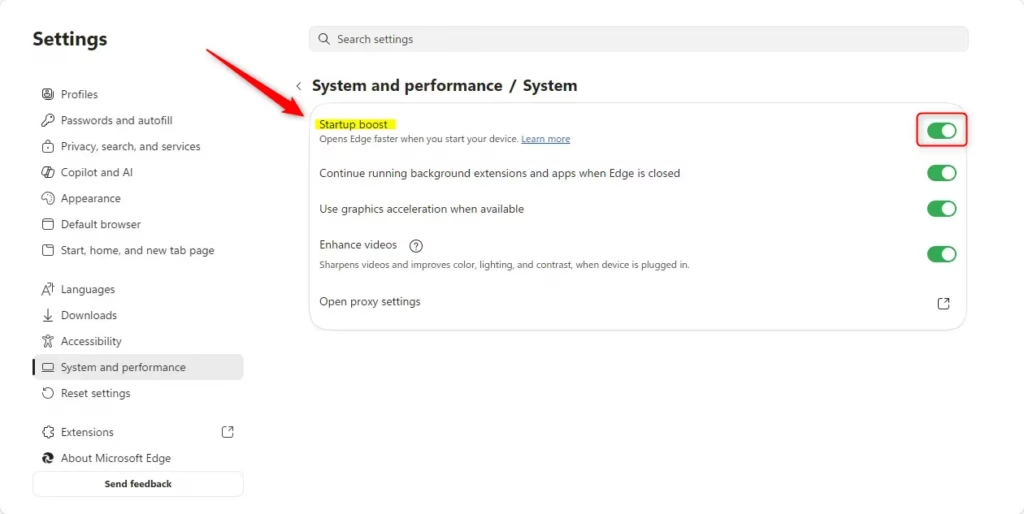
Enable or disable Microsoft Edge’s Startup Boost in Settings. Click the three dots, select Settings, then System and performance, and finally System. Toggle the Startup boost option to your preference.
What Is Startup Boost?
Microsoft Edge’s Startup Boost is a feature that helps the browser open faster by keeping it running quietly in the background after you close it, using very few resources.
Why use startup boost? This feature helps Microsoft Edge start faster. Here’s how it works: startup boost keeps the browser running quietly in the background even when you close it. The browser uses very few resources while running in the background.
What happens when you use startup boost? Microsoft Edge starts much faster when you click it on the taskbar, desktop, or when you open a link from another app. This happens after your computer starts up or after you close the browser.
Startup boost does not use much computer power. It only keeps some Microsoft Edge processes ready. When your browser windows are already open, startup boost does not add any extra load.
Option One
Turn Startup Boost On or Off in Microsoft Edge Settings
You can easily turn Microsoft Edge’s Startup Boost on or off directly within the browser’s settings menu by going to System and performance.- Open Microsoft Edge.
- Click the Settings and more button (three dots) at the top right. You can also press Alt+F. Then click Settings.
- Click System and performance on the left side. Then click System on the right side.
If you don’t see a left pane, click the three lines menu button at the top left. Or make the Microsoft Edge window wider until you see the left pane. - Turn Startup boost on (this is the default) or off. Pick what you want.
- You can now close the Settings tab or Microsoft Edge.
Option Two
Turn Startup Boost On or Off for All Users Using the Registry
As an administrator, you can control Microsoft Edge’s Startup Boost for everyone on your computer using the Windows Registry, either through the Terminal app or by editing the registry value directly.
You can use the Windows Terminal app as an administrator and run a command. Or you can go directly to the Registry and edit the value yourself. This option uses the StartupBoostEnabled policy for Microsoft Edge.
Always Turn On Startup Boost for All Users
This setting will override Option One and gray it out.
reg add "HKEY_LOCAL_MACHINE\SOFTWARE\Policies\Microsoft\Edge" /v StartupBoostEnabled /t REG_DWORD /d 1 /f
Turn Off Startup Boost for All Users
This setting will override Option One and gray it out.
reg add "HKEY_LOCAL_MACHINE\SOFTWARE\Policies\Microsoft\Edge" /v StartupBoostEnabled /t REG_DWORD /d 0 /f
Allow Users to Choose (Default Setting)
This is the default. It lets users use Option One to turn startup boost on or off.
reg delete "HKEY_LOCAL_MACHINE\SOFTWARE\Policies\Microsoft\Edge" /v StartupBoostEnabled /f
Summary
Microsoft Edge’s Startup Boost makes your browser open faster by keeping it ready in the background.
Should I disable Edge Startup Boost?
You should consider disabling Edge Startup Boost if your computer has limited memory or you want to reduce background activity.
What does the startup boost feature in Microsoft Edge do?
Microsoft Edge’s Startup Boost feature makes the browser start faster by running quietly in the background.
What does Ctrl+F5 do in Edge?
Pressing Ctrl+F5 in Microsoft Edge forces a hard refresh of the current webpage, ignoring any cached files.
How do I change which programs open on startup?
You can change which programs open automatically when Windows starts by using the Task Manager.
Was this guide helpful?
100% of readers found this helpful (1 votes)

About the Author
Richard
Tech Writer, IT Professional
Richard, a writer for Geek Rewind, is a tech enthusiast who loves breaking down complex IT topics into simple, easy-to-understand ideas. With years of hands-on experience in system administration and enterprise IT operations, he’s developed a knack for offering practical tips and solutions. Richard aims to make technology more accessible and actionable. He's deeply committed to the Geek Rewind community, always ready to answer questions and engage in discussions.



No comments yet — be the first to share your thoughts!