How to Enable or Disable Drop Tray in Windows 11

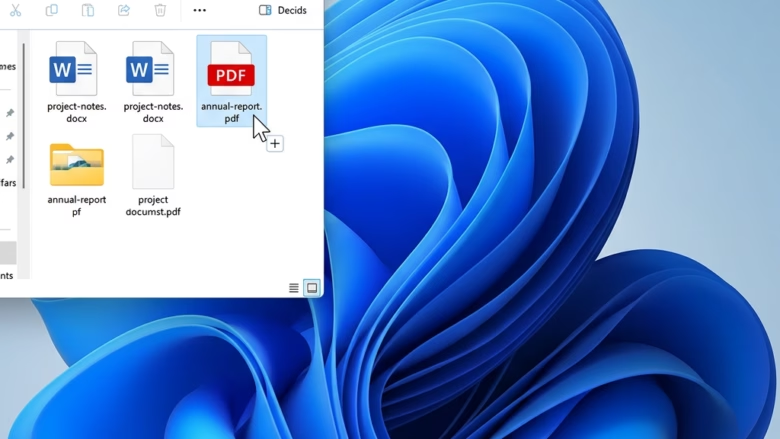
This tutorial will show you how to turn the Drop Tray feature on or off in Windows 11. This feature works with your account.
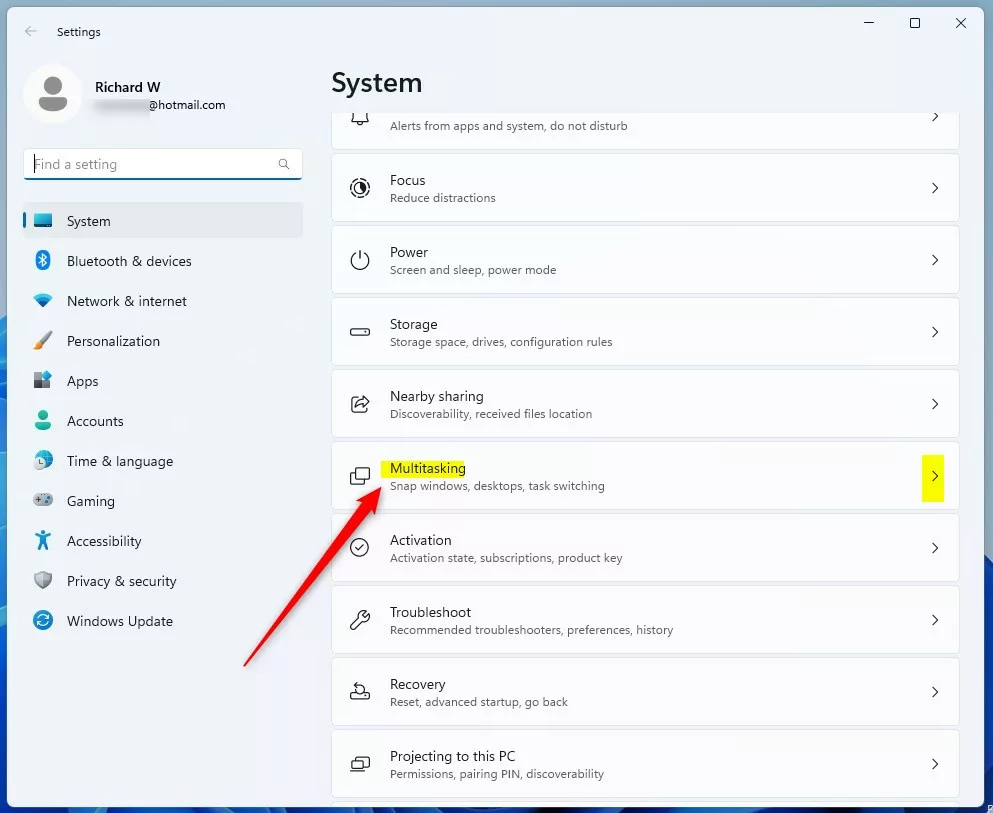
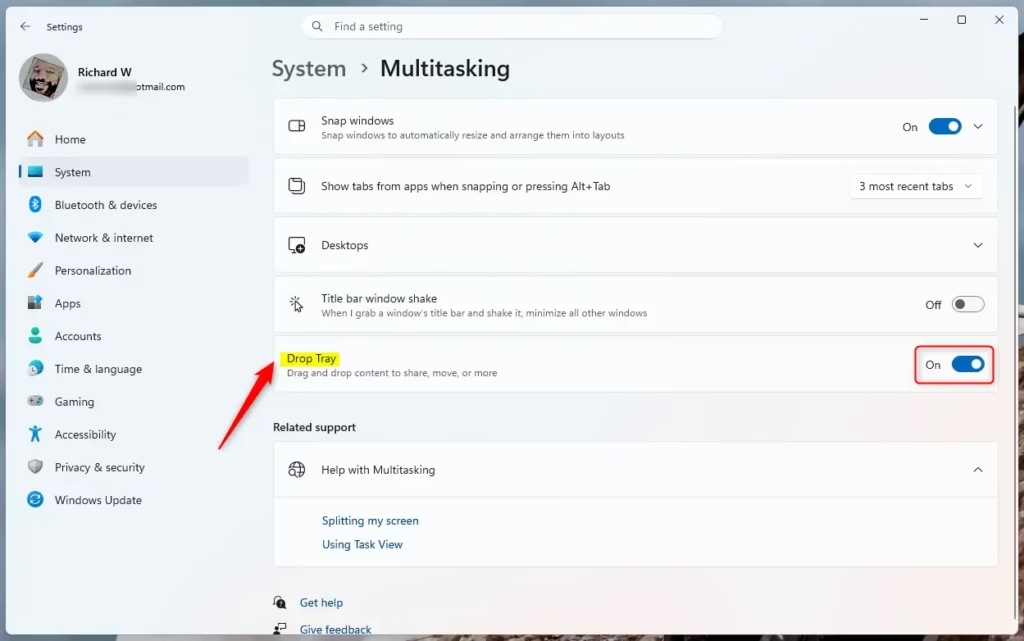
To enable or disable the Drop Tray in Windows 11, open Settings by pressing ⊞ Win+I. Navigate to System, then Multitasking, and toggle the Drop Tray option on or off.
What is Drop Tray?
Drop Tray in Windows 11 is a handy feature that makes sharing files much simpler.
Drop Tray also lets you move files to a folder you pick. It works with multiple files at once. The tray shows the apps you use most, so sharing is faster.
Why Use Drop Tray?
Drop Tray saves you time. Instead of using menus, you just drag and drop. This is quicker and easier. If you don’t want the tray to appear, you can turn it off.
How to Turn Drop Tray On or Off
Option 1Use Settings
- Open Settings by pressingon your keyboard.GENERIC
Win+I - Click System on the left side.
- Click Multitasking on the right side.
- Find the Drop Tray option. Turn it On (this is the default) or Off based on what you want.
- You can now close Settings.
Option 2Use Registry Editor
You can turn the Drop Tray feature on or off using the Windows Registry Editor, which lets you make advanced system changes.
Flag: This method requires admin privileges.
To Turn On Drop Tray:
This is the default setting.
reg add "HKEY_CURRENT_USER\Software\Microsoft\Windows\CurrentVersion\CDP" /v DragTrayEnabled /t REG_DWORD /d 1 /f
To Turn Off Drop Tray:
reg add "HKEY_CURRENT_USER\Software\Microsoft\Windows\CurrentVersion\CDP" /v DragTrayEnabled /t REG_DWORD /d 0 /f
Summary
Drop Tray in Windows 11 is a useful tool for quickly sharing files by dragging and dropping them into apps or folders.
How do I get the classic taskbar back on 🪟 Windows 11?
Windows 11 does not natively support reverting to the classic Windows 10 taskbar. While you can adjust alignment via Settings > Personalization > Taskbar, the core interface remains modern. Third-party tools like ExplorerPatcher or StartAllBack are required if you wish to restore the classic taskbar functionality and appearance on your system.
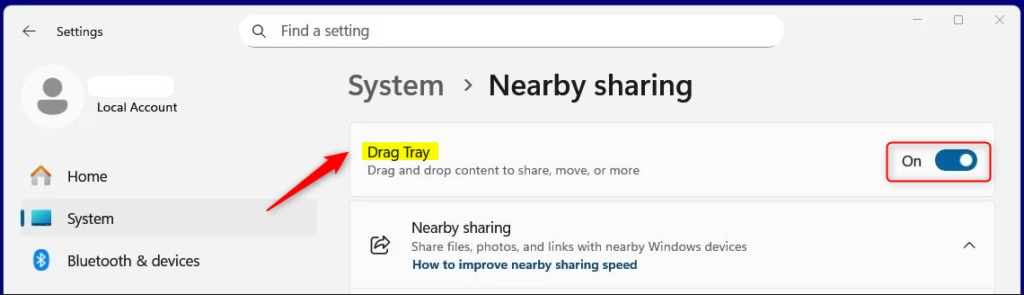
How do I get rid of the drag tray?
You can easily turn off the Drop Tray feature in Windows 11 by going into your Settings and adjusting the Multitasking options.
How do I enable drag and drop to the taskbar in 🪟 Windows 11?
Windows 11 lets you drag and drop files directly to the taskbar icons to open them with specific apps.
How do I drop down the taskbar?
The Windows 11 taskbar is fixed at the bottom of your screen and cannot be moved using normal settings.
Was this guide helpful?

About the Author
Richard
Tech Writer, IT Professional
Richard, a writer for Geek Rewind, is a tech enthusiast who loves breaking down complex IT topics into simple, easy-to-understand ideas. With years of hands-on experience in system administration and enterprise IT operations, he’s developed a knack for offering practical tips and solutions. Richard aims to make technology more accessible and actionable. He's deeply committed to the Geek Rewind community, always ready to answer questions and engage in discussions.




No comments yet — be the first to share your thoughts!