How to Add or Remove Xbox Mode in Task View on Windows 11

You can add or remove the Xbox Mode button from Task View on Windows 11 to streamline your open application view.
Task View is the feature that displays thumbnails of all your currently open applications, accessible via the ⊞ Win+Tab keyboard shortcut.
This specific optimization is available starting with Windows 11 build 22621.1992 and allows you to declutter Task View by hiding or showing this gaming-focused shortcut.
By following a few simple registry edits, you can customize your Task View experience to better suit your workflow, whether you’re a gamer or not.
Open Settings by pressing ⊞ Win+I, navigate to Gaming > Xbox mode, and toggle ‘Show Xbox mode in Task View’ to On or Off. Alternatively, edit the ‘ShowOnDesktopSwitcher’ value in Registry Editor under 🗝️HKEY_CURRENT_USER\Software\Microsoft\GameBar.
What Is Xbox Mode?
Xbox Mode on your Windows 11 PC is a special view that makes your computer feel more like an Xbox console by only showing your games and game apps, helping you focus.
Xbox Mode works on laptops, desktops, and tablets. You can enter Xbox Mode from the Xbox app, Game Bar settings, or by pressing ⊞ Win+F11. For more information, see Full screen experience expands to more Windows 11 PC form factors
Why Use Xbox Mode?
You’d want to use Xbox Mode because it gives you a clean, simple screen that works well with game controllers, cutting out distractions so you can easily switch between your games and apps.
By default, Xbox Mode appears in Task View. Task View is what you see when you press Alt+Tab or click the Task View button. However, you can turn this off if you don’t want to see it there.
How to Add or Remove Xbox Mode in Task View
Option 1Using Settings
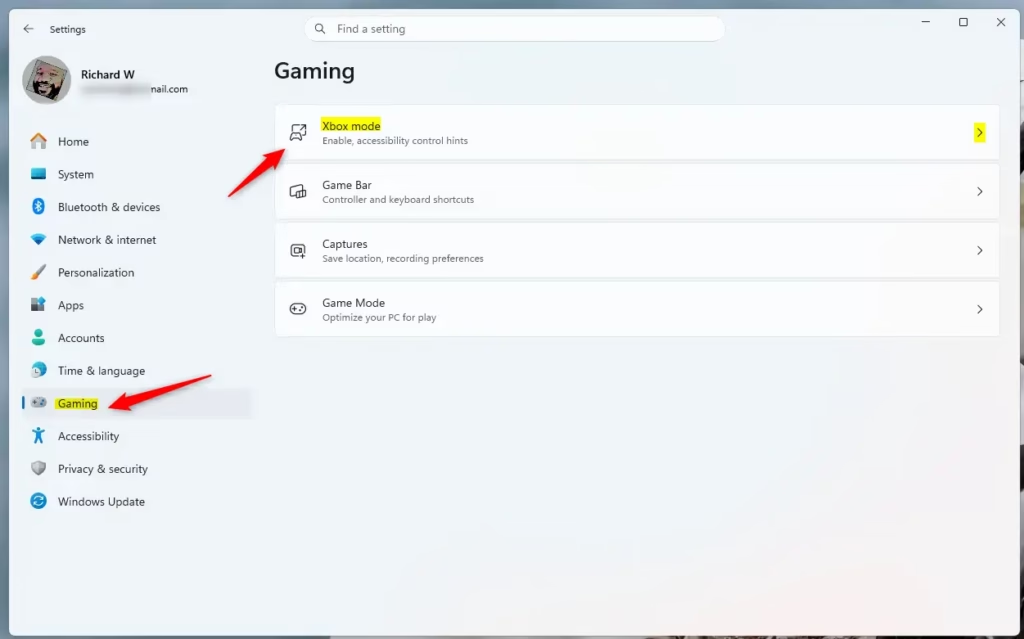
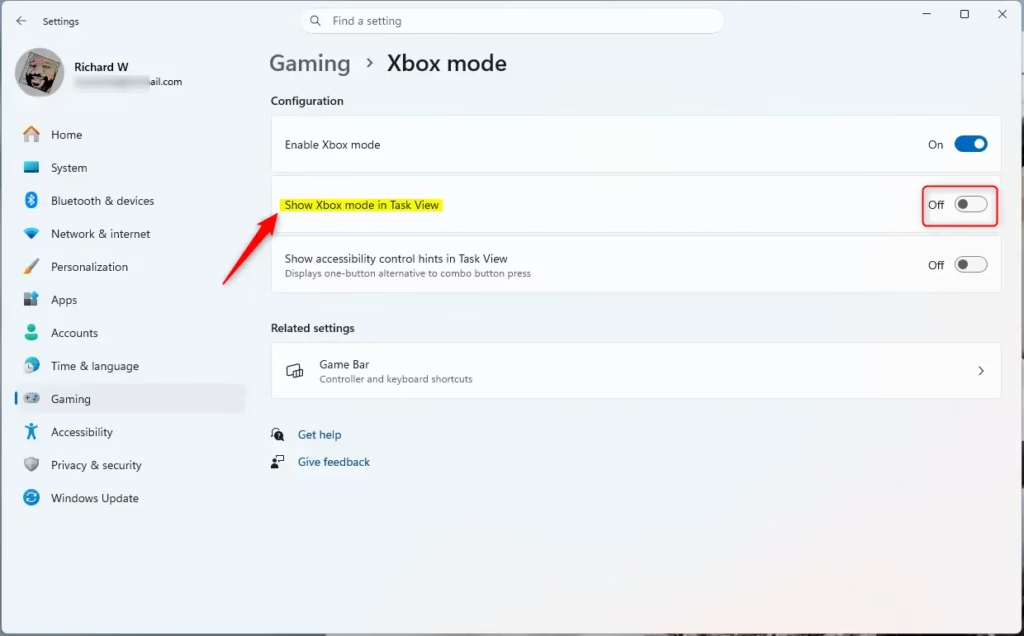
You can add Xbox Mode to your Task View using the Settings app by opening Settings (press ⊞ Win+I), going to Gaming, then Xbox mode, and turning on the ‘Show Xbox mode in Task View’ option.
- Open Settings by pressing ⊞ Win+I.
- Click Gaming on the left side.
- Click Xbox mode on the right side.
- Look for the option Show Xbox mode in Task View. Switch it On to show Xbox Mode in Task View, or switch it Off to hide it.
- You can now close Settings.
Option 2Using Registry Editor
Adding Xbox Mode to Task View can be done using the Registry Editor by finding the ‘ShowOnDesktopSwitcher’ value in the correct path and changing its setting to 1.
You can also change this setting using the Registry Editor or Windows Terminal. The Registry is where Windows stores advanced settings.
To add Xbox Mode to Task View, look for this registry path:
HKEY_CURRENT_USER\Software\Microsoft\GameBarFind the value:
“ShowOnDesktopSwitcher” and change the value to 1
To remove Xbox Mode from Task View, change the value to:
“ShowOnDesktopSwitcher” change the value to 0
The first setting (00000001) shows Xbox Mode in Task View by default. The second setting (00000000) hides it.
Terminal command:
Enable:
reg add "HKEY_CURRENT_USER\Software\Microsoft\Windows\CurrentVersion\GamingConfiguration" /v ShowOnDesktopSwitcher /t REG_DWORD /d 1 /f
Disable:
reg add "HKEY_CURRENT_USER\Software\Microsoft\Windows\CurrentVersion\GamingConfiguration" /v ShowOnDesktopSwitcher /t REG_DWORD /d 0 /f
Summary
This setting controls whether Xbox Mode appears in your Task View, the list of open windows you see when you press Alt+Tab, making it easier to access if you use it a lot.
Why would you use this? If you use Xbox Mode often, keeping it in Task View makes it easy to access. If you don’t use Xbox Mode, hiding it keeps Task View cleaner.
How do you do it? You can turn this setting on or off in Settings under Gaming > Xbox mode. Advanced users can also edit the Windows Registry directly using Registry Editor or Windows Terminal. Both methods work the same way. Choose whichever method is easier for you.
How do I get out of task view mode?
To get out of Task View on Windows 11, just press the Esc key on your keyboard or click on an empty part of your desktop.
What is the Xbox button task view on 🪟 Windows 11?
The Xbox button integration in Task View allows users to quickly access the Xbox gaming interface directly from the Windows 11 multitasking screen. By selecting this option, you can launch your game library or enter a full-screen, controller-friendly gaming environment, effectively minimizing desktop distractions for a more immersive console-like experience.
Does anyone use task view?
Yes, many Windows 11 users find Task View very helpful for managing lots of open windows, organizing their workspace with virtual desktops, and quickly switching between apps.
How do I change the taskbar to classic view?
Windows 11 doesn’t have a built-in classic taskbar look, but you can move the icons to the left in Settings, or use third-party tools for a more classic appearance.
Was this guide helpful?

About the Author
Richard
Tech Writer, IT Professional
Richard, a writer for Geek Rewind, is a tech enthusiast who loves breaking down complex IT topics into simple, easy-to-understand ideas. With years of hands-on experience in system administration and enterprise IT operations, he’s developed a knack for offering practical tips and solutions. Richard aims to make technology more accessible and actionable. He's deeply committed to the Geek Rewind community, always ready to answer questions and engage in discussions.



No comments yet — be the first to share your thoughts!