How to Turn On or Off Mobile Hotspot in Windows 11

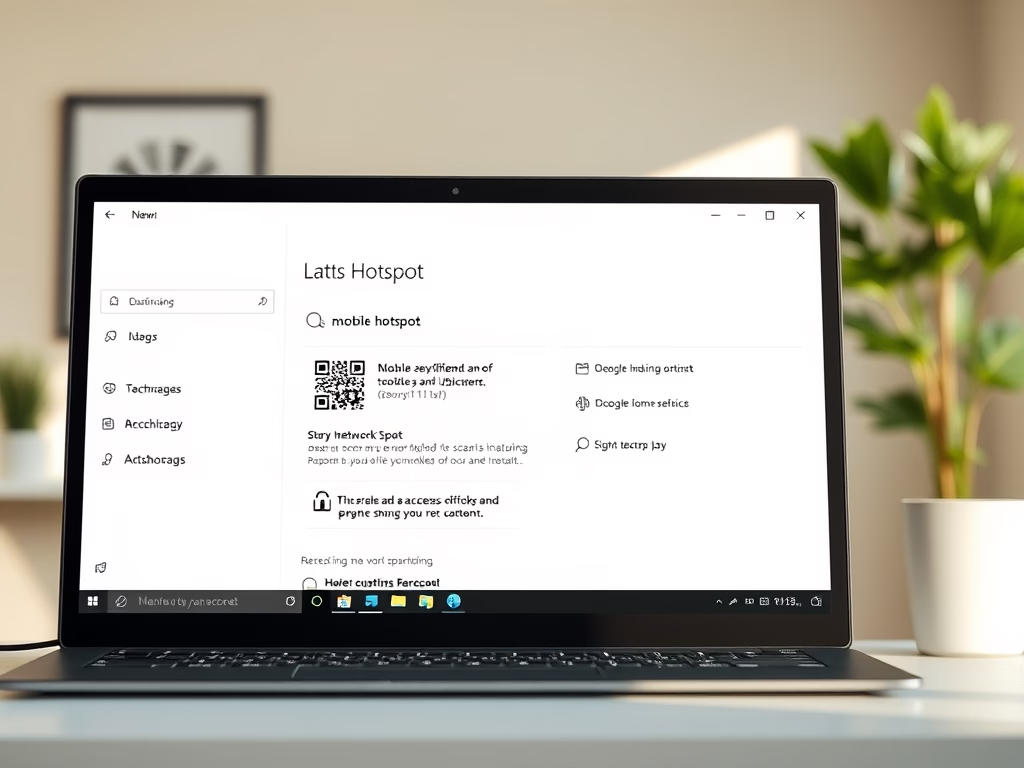
You can turn your Windows 11 PC into a mobile hotspot to share its internet connection with other devices.
A mobile hotspot allows you to broadcast your PC’s Wi-Fi signal, enabling phones, tablets, or other computers to connect to the internet through your machine.
This feature is particularly useful if your PC has a reliable internet connection, such as a wired Ethernet or a strong Wi-Fi signal, and you need to provide internet access to a device that lacks its own connection.
Windows 11 makes this process straightforward, allowing you to enable or disable the mobile hotspot functionality with just a few clicks in your network settings.
Open Quick Settings by pressing ⊞ Win+A and click the Mobile hotspot button. Alternatively, open Settings (⊞ Win+I), navigate to Network & internet, then Mobile hotspot, and use the toggle switch.
What Can You Share?
You can share Internet from:
- Your Wi-Fi connection
- Your Ethernet (wired) connection
- Your cellular data (if your PC supports it)
Why this matters: When you share cellular data, it uses your data plan. Watch how much data you’re using so you don’t go over your limit.
How to Connect Other Devices to Your Hotspot
On the device you want to connect (like a phone or another PC):
- Open Wi-Fi settings.
- Look for the network name (SSID) you set on your Windows PC’s hotspot.
- Select it and enter the password you created.
- Connect.
New Features in 🪟 Windows 11
Windows 11 added helpful features:
- Show a QR code for your hotspot password. Just scan it to connect quickly.
- Share your hotspot over the faster 6 GHz Wi-Fi band (if your PC supports it).
Quick Ways to Turn Mobile Hotspot On or Off
Option 1Using Quick Settings
- Press
Win + Ato open Quick Settings. - Click the Mobile hotspot button to turn it on or off.

Option 2Using Settings
- Press
Win + Ito open Settings. - Click Network & internet on the left menu.
- Click Mobile hotspot on the right side.
- Toggle the switch to turn the hotspot on or off.

How to Set Up Your Mobile Hotspot
Setting up your Windows 11 mobile hotspot lets you share your PC’s internet connection with other devices, like phones or tablets, making it easy to get online anywhere.
- Open Settings by pressing
Win + I. - Go to Network & internet > Mobile hotspot.
- Choose the Internet connection you want to share from the dropdown menu (like Wi-Fi or Ethernet).

- Choose how you want to share your connection — via Wi-Fi or Bluetooth.
- To change your hotspot name and password, click Edit.
- Type a name for your hotspot network (SSID).
- Set a password (at least 8 characters).
- Choose the Wi-Fi band (6 GHz, 5 GHz, 2.4 GHz, or Any available).
- Click Save.
- Turn on the Mobile hotspot switch if it’s not already on.
You can now share your hotspot network name and password with friends or other devices.
Extra Tips
- Your hotspot network will show up openly in Wi-Fi lists on other devices (not hidden).
- If you shut down or restart your PC, the hotspot will turn off automatically.
- Before using hotspot, make sure your PC’s wireless adapter supports this feature. To check, open Command Prompt [admin privileges required] and type:
Before you start sharing your internet, here are a few handy tips to keep in mind for your Windows 11 mobile hotspot, like knowing it's not hidden and turns off when your PC does.netsh wlan set hostednetwork mode=allow
And disable it with:
netsh wlan set hostednetwork mode=disallowMore Help
For more details, visit the official Microsoft guide: Use your Windows device as a mobile hotspot - Microsoft Support
Summary
- You can easily share your Internet with other devices using Mobile Hotspot on Windows 11.
- Share Internet from Wi-Fi, Ethernet, or cellular data.
- Use Quick Settings or Settings to turn the hotspot on or off.
- Customize your hotspot's name, password, and Wi-Fi band.
- New Windows 11 features include QR codes to share your hotspot quickly.
- Hotspot turns off automatically when you restart or shut down your PC.
You can easily share your internet with other devices using the Mobile Hotspot feature in Windows 11, whether you're using Wi-Fi, Ethernet, or cellular data.
Does 🪟 Windows 11 support mobile hotspot?
Windows 11 - Turn Mobile Hotspot On / Off Here's how to turn Mobile Hotspot for your Windows 11 device on or off. If your device isn't running Windows® 11, refer to the Windows 10 instructions.
Why can't I set up a mobile hotspot on my PC?
Update your network adapter driver If it's outdated, you may not be able to connect to a hotspot. On the taskbar, type Device Manager in the search box. Select Device Manager > Network adapters. Right-click your adapter (like Intel® Dual Band Wireless).
Was this guide helpful?

About the Author
Richard
Tech Writer, IT Professional
Richard, a writer for Geek Rewind, is a tech enthusiast who loves breaking down complex IT topics into simple, easy-to-understand ideas. With years of hands-on experience in system administration and enterprise IT operations, he’s developed a knack for offering practical tips and solutions. Richard aims to make technology more accessible and actionable. He's deeply committed to the Geek Rewind community, always ready to answer questions and engage in discussions.


No comments yet — be the first to share your thoughts!