Enable Mobile Hotspot on Ubuntu Linux


Mobile hotspot on Ubuntu Linux turns your computer into a wireless router so you can share your wired Ethernet, Wi-Fi , or cellular internet connection with nearby devices. This built-in network feature broadcasts a brand-new Wi-Fi signal directly from your PC to phones, tablets, and laptops.
Setting up a password protects your shared network so only people with the correct key can join. You need a working wireless card inside your computer that supports access point mode to broadcast the connection successfully. Most modern cards do, but a few older ones and some USB adapters do not. If the hotspot refuses to start, the card is the first thing to check.
One more thing to know before you start. Many wireless cards cannot stay connected to a Wi-Fi network and broadcast a hotspot at the same time. The easiest setup is a PC that gets its internet over Ethernet and shares it over Wi-Fi. If you only have Wi-Fi, expect the PC to drop its own wireless connection when the hotspot turns on.
To turn on mobile hotspot in Ubuntu Linux, click the System Menu in the top-right corner and select the Hotspot toggle. If that button is missing, open System Settings, choose Wi-Fi , and click Wi-Fi Hotspot to set a network name and password.
How to turn on mobile hotspot in Ubuntu Linux
This is the most efficient method for everyday users. It works best after you have set up the hotspot once, because the toggle reuses the network name and password you saved earlier. If you have never configured a hotspot on this PC, start with the Settings method further down.

Using Quick Settings
- Click the System Menu (the battery/network icon) in the top-right corner of your screen. A panel opens with the quick toggles for Wi-Fi , Bluetooth , volume and more.
- Look for the Hotspot button. Click it to toggle the feature on or off instantly. When it is on, the button is highlighted and your PC starts broadcasting its Wi-Fi network.
If you do not see a Hotspot button, your Ubuntu version may not show it in this menu. That does not mean the feature is missing. Use the System Settings method below instead. The button can also be missing or greyed out if your wireless card does not support access point mode.

Configuring Hotspot Settings
Configuring your Ubuntu Linux mobile hotspot requires choosing a network name and a secure password inside the main system settings. This process lets you share your computer’s internet connection with nearby phones, tablets, or other laptops by turning your wireless card into a local Wi-Fi router. You can update these connection details at any time if your devices fail to connect.
No restart is needed at any point. The steps below follow the default GNOME desktop on current Ubuntu releases.
- Open your %📂%LNK0%% System Settings.
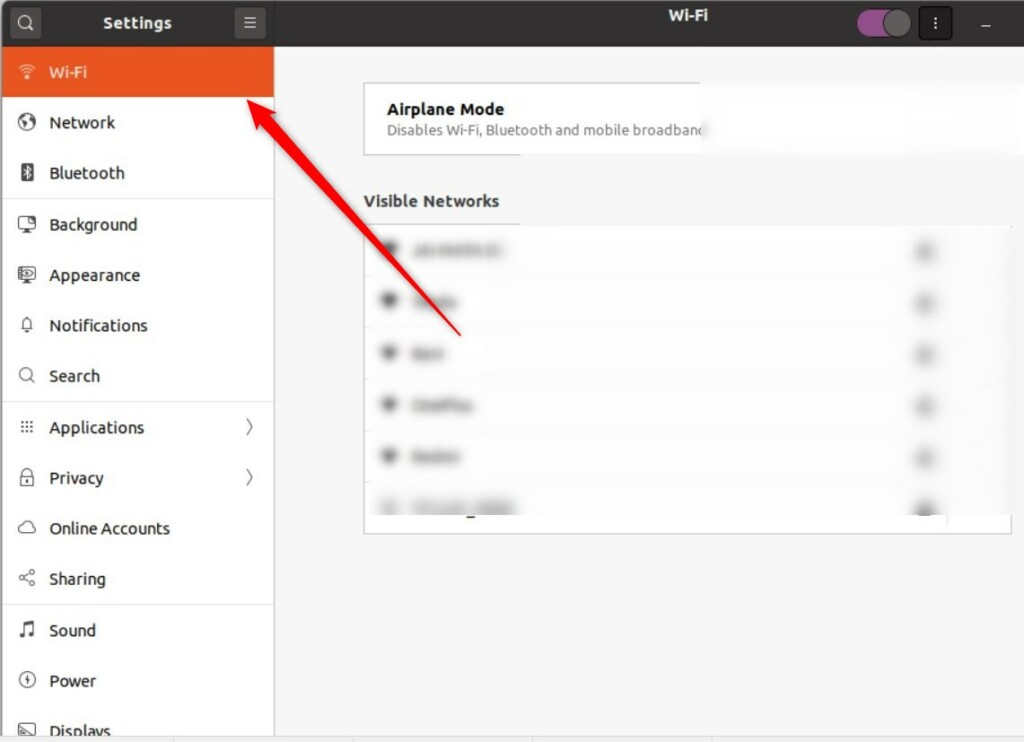
- Click the Wi-Fi tab in the sidebar. The list of wireless networks appears on the right.
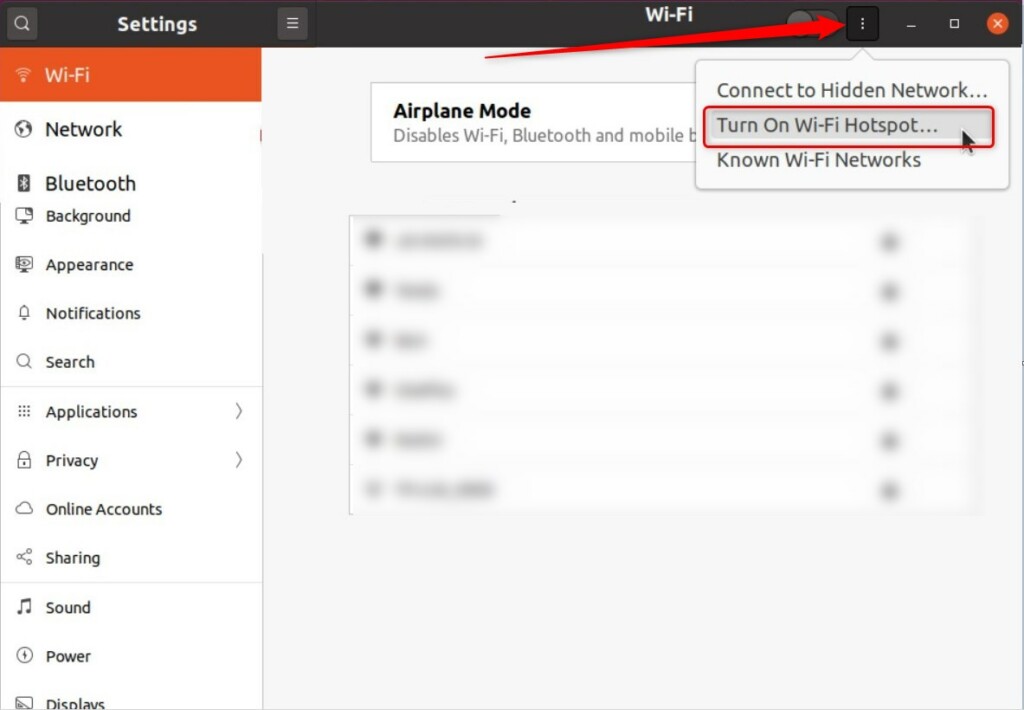
- Click the Wi-Fi Hotspot button located at the top right of the panel. On some Ubuntu versions this entry sits inside the menu icon (three lines or dots) at the top right of the panel instead of being a separate button. A setup window opens.
If the Wi-Fi tab is missing entirely, Ubuntu does not see a wireless card. Check that the card is installed, that its driver is loaded, and that airplane mode is off.
A window will pop up. Here you can configure your connection. Depending on your Ubuntu version, you may see only the name and password fields, or all of the options below:
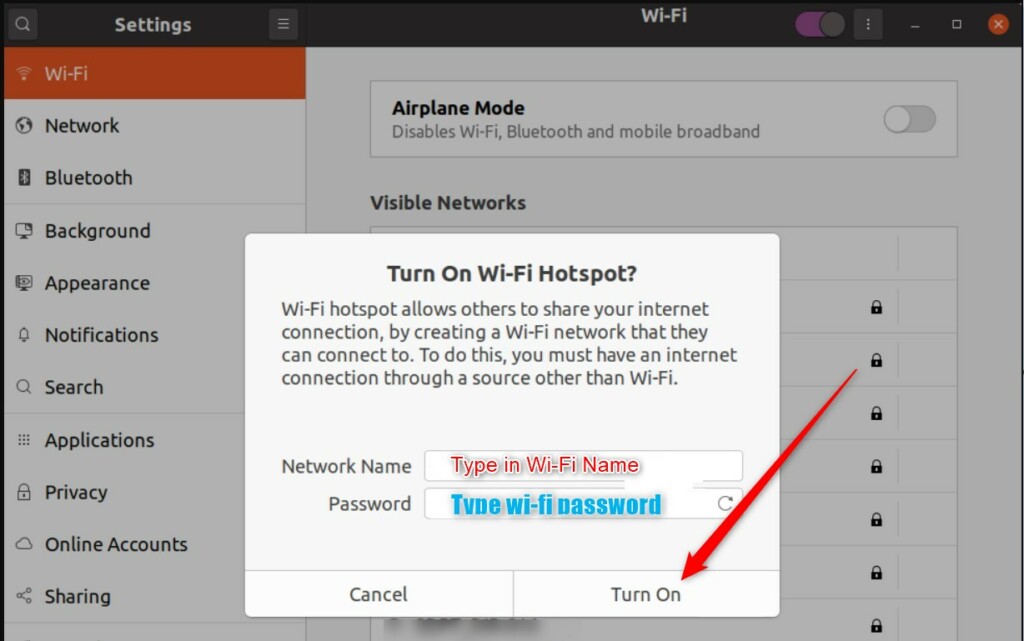
- Network Name: Give your hotspot a name so you can find it. Pick something you will recognize in a crowded list of networks, and avoid putting personal details in it, since anyone nearby can see it.
- Password: Create a strong password to keep your connection secure. Use at least 8 characters. A longer passphrase is better, because anyone with the password can use your internet connection.
- Security: Set this to WPA3 for the best modern protection. If you have older devices that cannot connect, you may need to switch to WPA2.
- Band: Choose 5 GHz for faster speeds if you are close to your computer. Choose 2.4 GHz for better range and compatibility with older devices. If a device cannot see the hotspot at all, try 2.4 GHz first, since some older devices and cards do not support 5 GHz.
Once you have entered your details, click Turn On. Your computer will now act as a wireless access point.
On your phone or other device, open its Wi-Fi list, pick the network name you chose, and enter the password. The device should connect within a few seconds. If it does not, double-check the password, then try WPA2 or the 2.4 GHz band. You can change these details at any time by turning the hotspot off and setting it up again.
You can also turn the hotspot off from there when you are finished. Turning it off stops the broadcast and disconnects every device using it. If your PC dropped its own Wi-Fi connection when the hotspot started, reconnect to your normal network from the same menu.
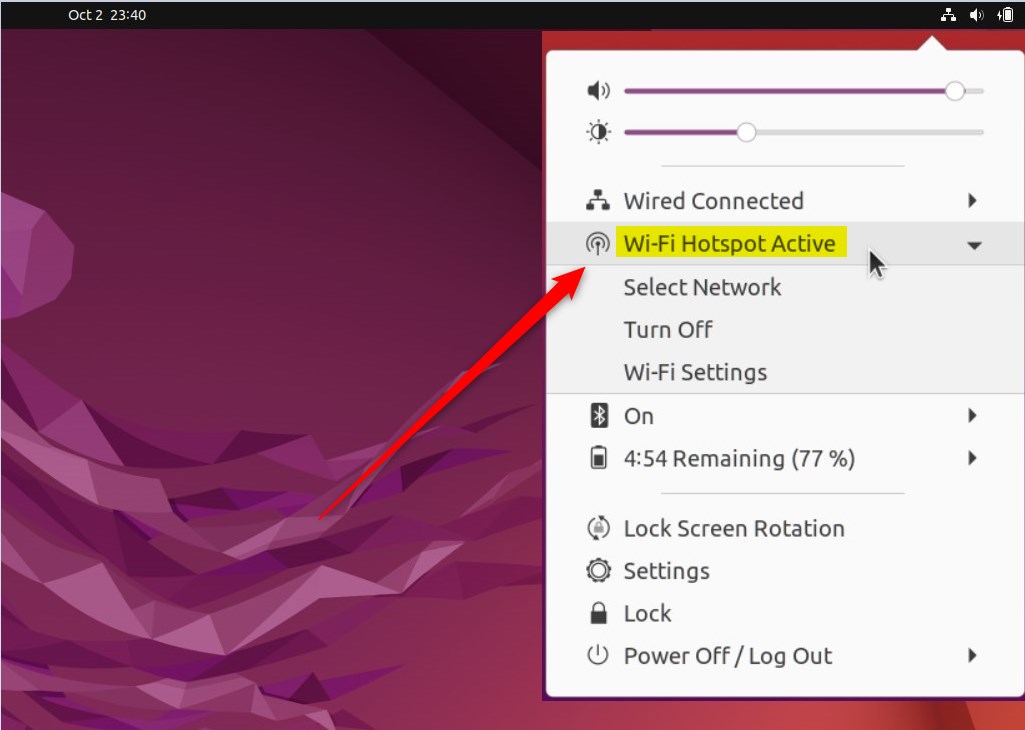
That is all there is to it! You are now sharing your internet connection securely with your other devices. Turn the hotspot off when you do not need it, so nobody connects by accident and your PC is not broadcasting a network for no reason.
Have a question about this guide?
Answered by AI from this guide. Good questions may be added to this page — please don't include personal details.
Did this guide fix your problem?

About the Author
Richard
Tech Writer, IT Professional
Richard is a writer at Geek Rewind who turns complex IT tasks into clear, step-by-step guides. He draws on years of hands-on experience in system administration and enterprise IT operations, focusing on Windows, Linux and WordPress: the problems people actually run into, and the fixes that work. His server and WordPress guides come from systems he runs himself. Richard builds and maintains the platform behind Geek Rewind, from its Ubuntu servers and Nginx configuration to its custom WordPress plugins. Many new tutorials start with readers' questions, and he's always glad to answer them in the comments.
No comments yet — be the first to share your thoughts!