Turn On or Off Lower Screen Brightness When Using Battery Saver in Windows 11

Go to Settings > System > Power & battery. Expand the Battery saver section and toggle “Lower screen brightness when using battery saver” On or Off. This setting dims your screen when Battery Saver is active to conserve power.
What is Battery Saver?
Battery Saver helps your laptop or tablet use less power when it runs on battery. When you turn it on, Windows cuts back on certain features to save power. This helps your battery last longer.
Battery Saver usually turns on automatically when your battery gets down to 20%.
Why Lower Your Screen Brightness?
Your screen uses a lot of battery power. When Battery Saver is active, your screen brightness automatically dims by about 30%. This small adjustment can make your battery last much longer.
You can change how much the brightness lowers. You can also turn this feature on or off completely.
Important Things to Know
Windows Battery Saver helps your laptop run longer on a single charge by automatically lowering screen brightness when you’re not plugged in. This feature only works when your device is running on battery power, not when it’s connected to an outlet. It conveniently turns itself off once you plug your laptop in to charge.- Battery Saver only works when your device runs on battery, not when plugged in.
- It turns off automatically when you plug your device in to charge.
- If you watch HDR videos (high-quality videos with bright colors), you might want to turn off dimming. This keeps your screen bright for the best picture.
How to Turn On or Off Lower Screen Brightness in Battery Saver
- Open Settings by pressing
Win + Ion your keyboard. - Click on System in the left menu. Then click Power & battery on the right side. You can also click this link to go straight there: Open Power & battery settings
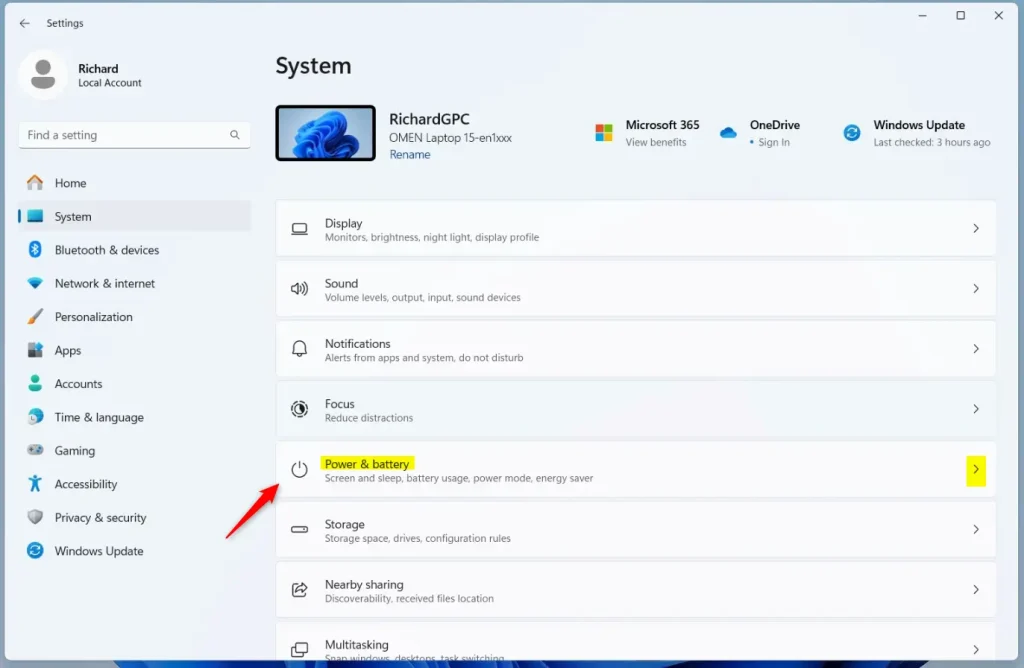
You can easily control whether your screen dims automatically when Battery Saver is on by following a few simple steps in Windows Settings. To adjust the battery saver screen brightness, open Settings by pressing ⊞ Win+I on your keyboard, then click on System and Power & battery.
- Scroll down to find Battery saver and click it to expand.
- You will see the option Lower screen brightness when using battery saver. Turn it On or Off depending on what you want.
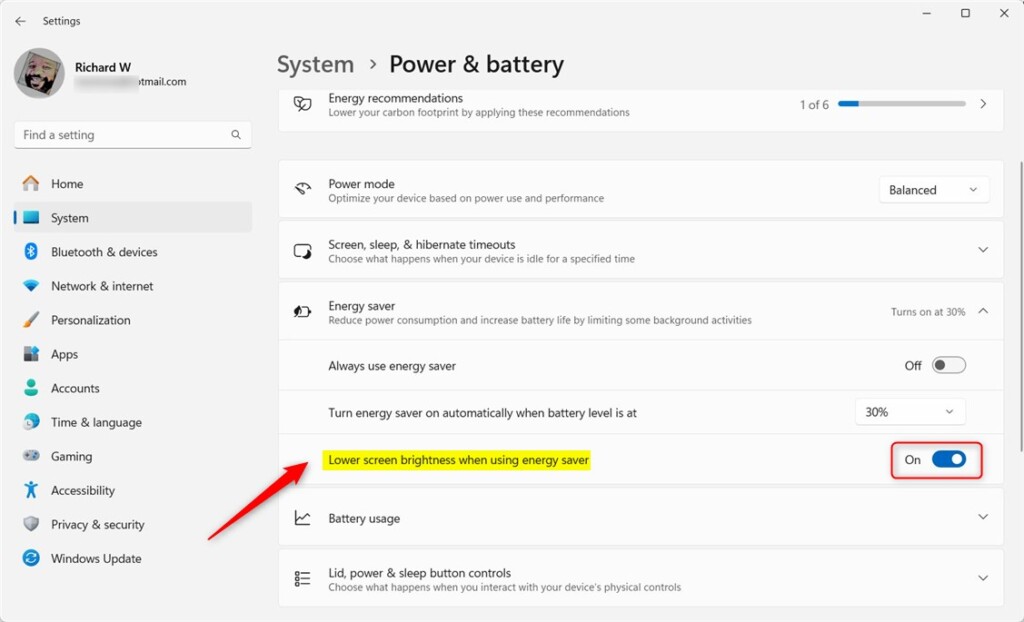
You can easily control whether your screen dims automatically when Battery Saver is on by following a few simple steps in Windows Settings. To adjust the battery saver screen brightness, open Settings by pressing ⊞ Win+I on your keyboard, then click on System and Power & battery.
- When you’re done, close the Settings window.
Summary
Using Battery Saver is a smart way to make your laptop’s battery last longer, and choosing to lower screen brightness can save even more power when you really need it. When you turn on this feature, your screen automatically dims to conserve battery life. Remember, Battery Saver usually turns on by itself when your battery gets low, typically below 20%.
What happens when you turn on lower screen brightness? Your screen automatically dims to save more battery power.
Key points to remember:
- Battery Saver turns on by itself when your battery drops below 20%.
- For the best video quality (HDR), you might want to keep your screen brightness normal and turn off the dimming option.
- Changing these settings is quick and easy in the Settings app under Power & battery.
- By knowing how to use these settings, you can make your Windows 11 device last longer on battery and still enjoy a good screen experience.
Does the battery saver dim the screen?
Windows 11’s Battery Saver mode is your device’s lifeline when power is low, automatically curbing background tasks and lowering screen brightness to extend runtime.
Does turning down your screen brightness save battery?
Adjust your screen brightness: One of the biggest drains on your phone’s battery is the display, so reducing the brightness of your screen can significantly extend its battery life. Consider using the “auto brightness” setting, which adjusts the screen’s brightness based on the ambient light in your environment.
Does iPhone power saving mode dim the screen?
When enabled, Adaptive Power can lower screen brightness, limit background activity, and make performance adjustments to conserve power throughout the day. It can also automatically turn on Low Power Mode when your battery reaches 20%.
Was this guide helpful?

About the Author
Richard
Tech Writer, IT Professional
Richard, a writer for Geek Rewind, is a tech enthusiast who loves breaking down complex IT topics into simple, easy-to-understand ideas. With years of hands-on experience in system administration and enterprise IT operations, he’s developed a knack for offering practical tips and solutions. Richard aims to make technology more accessible and actionable. He's deeply committed to the Geek Rewind community, always ready to answer questions and engage in discussions.

No comments yet — be the first to share your thoughts!