How to Change Display Orientation in Windows 11

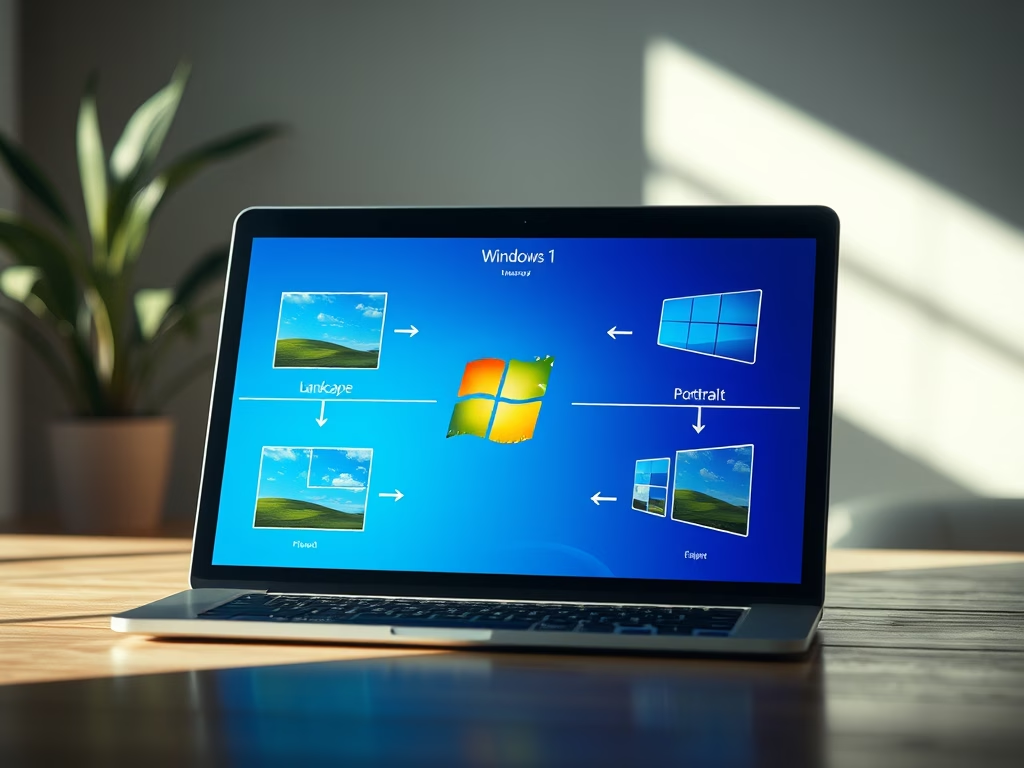
You change display orientation in Windows 11 by adjusting your screen’s rotation settings through the Display settings menu.
Display orientation is about how your computer screen is positioned. You can switch between the normal wide view (landscape), the tall view (portrait), and their upside-down versions. This is especially useful for devices with touchscreens or when you need a different screen layout.
Windows 11 makes this quite simple. You can quickly flip your screen from the default wide landscape view to a tall portrait view, or even upside down versions of both.
For convertible laptops and tablets, Windows 11 can even auto-rotate your display when you physically turn your device. Since build 22557, this automatic rotation is noticeably faster.
You change display orientation in Windows 11 through the Display settings. Open Settings, navigate to System > Display, and select your desired orientation from the dropdown menu under Scale & layout. Alternatively, some devices support auto-rotation or specific keyboard shortcuts.
Ways to Change Your Screen Orientation
Option 1Rotate Your Device (For Tablets & 2-in-1 Devices)
If your device supports it, turn it sideways, and the screen will rotate automatically.
Option 2Use Keyboard Shortcuts
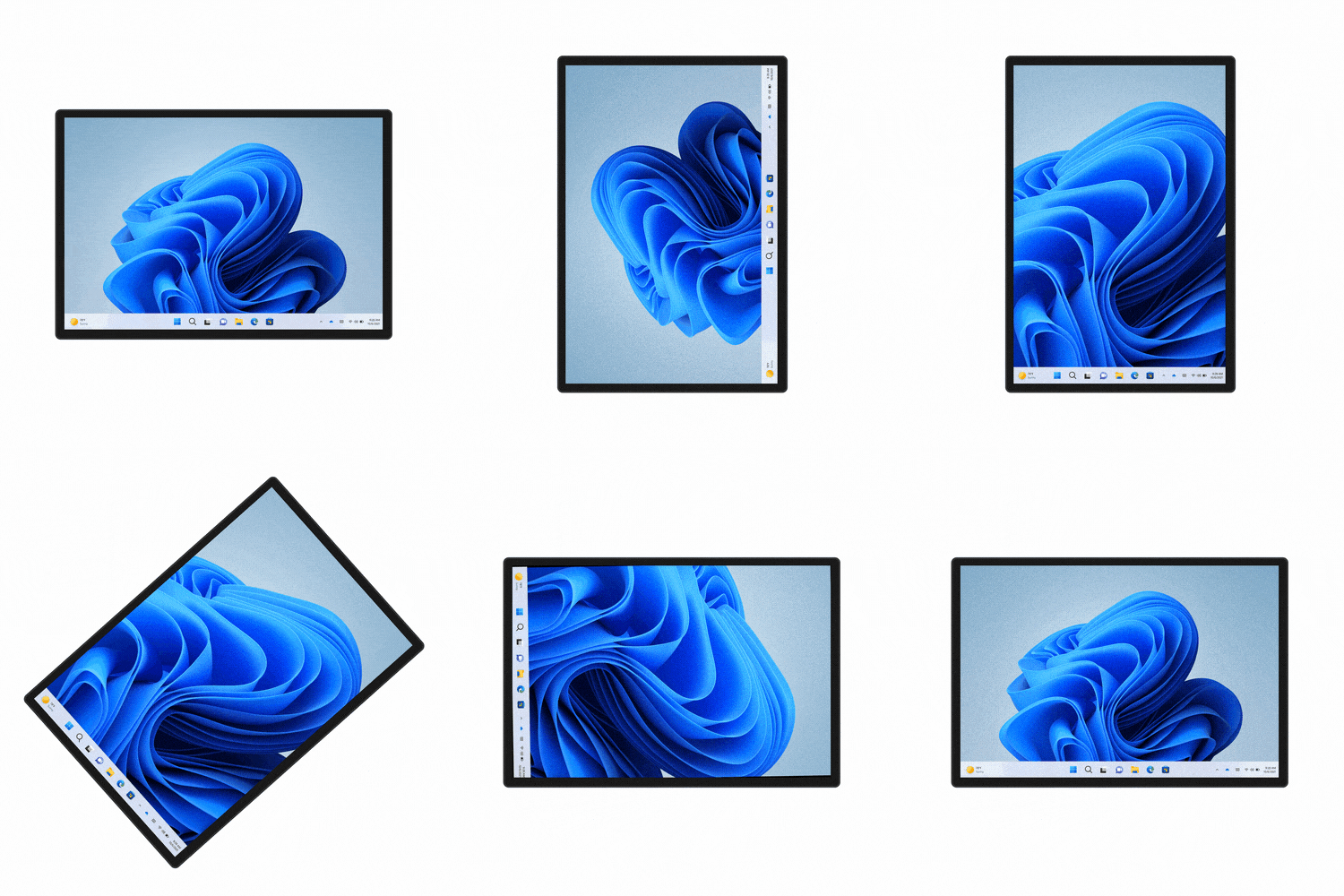
You can change your Windows 11 display orientation quickly using keyboard shortcuts on many PCs.
- Ctrl + Alt + Up Arrow = Normal landscape (default)
- Ctrl + Alt + Down Arrow = Upside down landscape
- Ctrl + Alt + Right Arrow = Rotate screen 90° to the right
- Ctrl + Alt + Left Arrow = Rotate screen 90° to the left
Keep in mind, these shortcuts might not work on every computer, as it can depend on your graphics card.
Option 3Change Orientation in Windows Settings
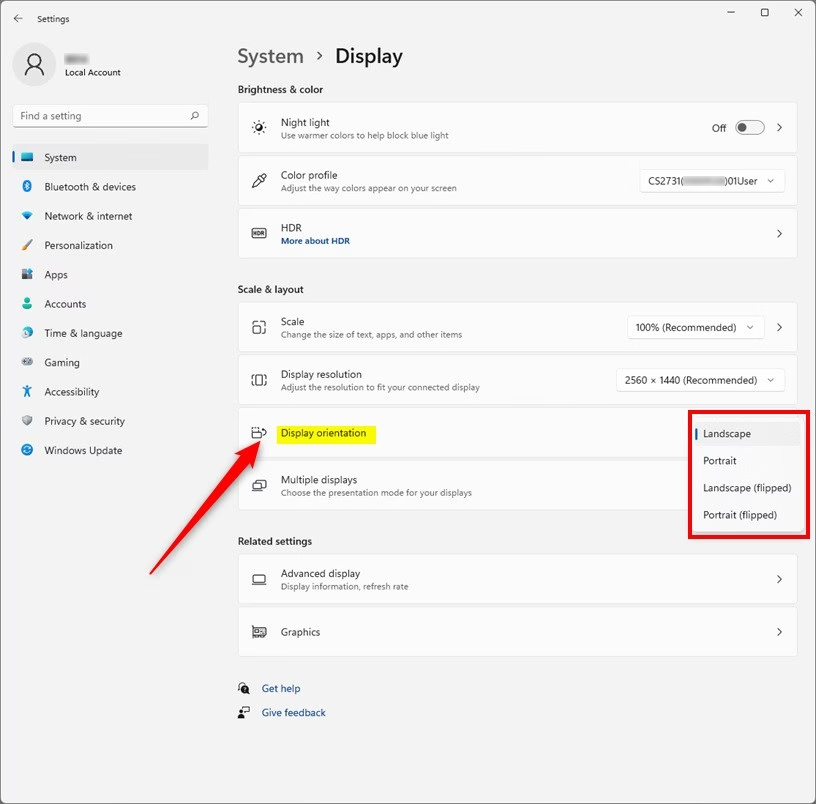
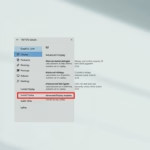
- Press Windows key + I to open Settings.
- Click System on the left, then select Display on the right.
- Scroll down to the Scale & layout section.
- Click the drop-down menu under Display orientation and pick the way you want your screen to turn.
- Windows will show you a preview. Click Keep changes if you like it, or Revert to go back.
Changing your Windows 11 display orientation is easy using the built-in Settings app.

Option 4Use NVIDIA Control Panel (If You Have NVIDIA Graphics)
If you have an NVIDIA graphics card, you can change the Windows 11 display orientation using the NVIDIA Control Panel.
- Open NVIDIA Control Panel (search for it in the Start menu).
- On the left, click Rotate display under the Display section.
- Select the screen you want to change (if you have multiple).
- Choose your orientation: Landscape, Portrait, Landscape (flipped), or Portrait (flipped).
- Click Apply.
- If the new setting looks good, click Yes to keep it, or No to cancel.
You have 20 seconds to decide before it switches back automatically.
Summary
- You can change your screen between landscape and portrait modes based on what you need.
- Tablets and 2-in-1 devices can rotate the screen automatically as you turn them.
- Several easy ways to change your screen orientation:
- Physically rotate your device (if supported).
- Use keyboard shortcuts (on some PCs).
- Change settings in Windows Settings app.
- Use NVIDIA Control Panel if you have NVIDIA graphics.
- Always make sure the screen is set the way you want for the best experience.
You can easily change your Windows 11 display orientation between landscape and portrait modes to suit your needs.
Why can't I change the Display orientation in 🪟 Windows 11?
Right click on the desktop and select "Display Settings" from the shortcut menu. Select the preferred orientation from the pull down menu. The orientation cannot be changed if the pull down menu is not visible. Rotate the monitor to the desired orientation.
Was this guide helpful?

About the Author
Richard
Tech Writer, IT Professional
Richard, a writer for Geek Rewind, is a tech enthusiast who loves breaking down complex IT topics into simple, easy-to-understand ideas. With years of hands-on experience in system administration and enterprise IT operations, he’s developed a knack for offering practical tips and solutions. Richard aims to make technology more accessible and actionable. He's deeply committed to the Geek Rewind community, always ready to answer questions and engage in discussions.

No comments yet — be the first to share your thoughts!