Add New Multiple Desktops in Windows 11

You can create and manage multiple virtual desktops in Windows 11 to organize your digital workspace.
Virtual desktops function like separate monitors, allowing you to group applications and tasks logically. For example, you might dedicate one desktop to work projects and another to personal browsing.
This feature, built directly into Windows 11, requires no third-party software. You can switch between these desktops using keyboard shortcuts like Windows Key + Ctrl+←/Right Arrow.
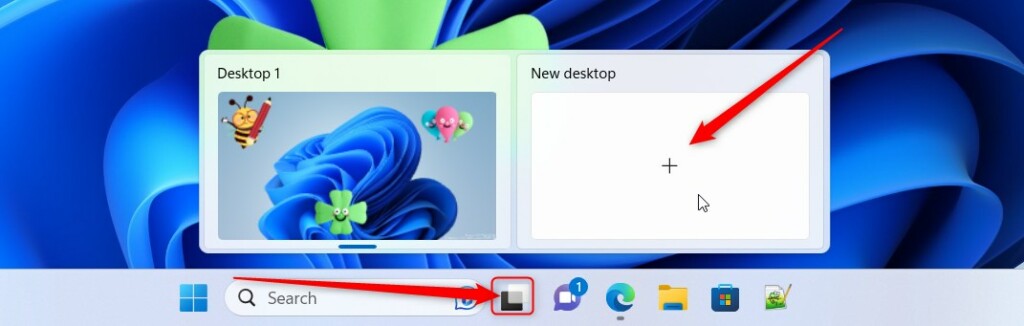
Adding a new desktop is a quick process. Click the Task View icon on your taskbar or press Windows Key + Tab, then select the “New desktop” option.
Click the Task View icon or press ⊞ Win+Tab, then select “New desktop.” Alternatively, press Ctrl+⊞ Win+D to create a new desktop instantly. You can then rename your new desktop for organization.
What is a Virtual Desktop?
A virtual desktop in Windows 11 is like having extra screens for your computer, letting you keep different apps and windows open on each one.
You can switch between these desktops anytime without closing your apps. And the best part? Your desktops stay saved even if you restart or sign out of your computer.
How to Add New Virtual Desktops
Option 1Use a Keyboard Shortcut
Press Ctrl + Win + D keys together. A new virtual desktop appears right away.
After creating it, you can give your new desktop a name. For example, “Work” or “Games”.
Your screen will switch to the new desktop automatically. You can switch back anytime.
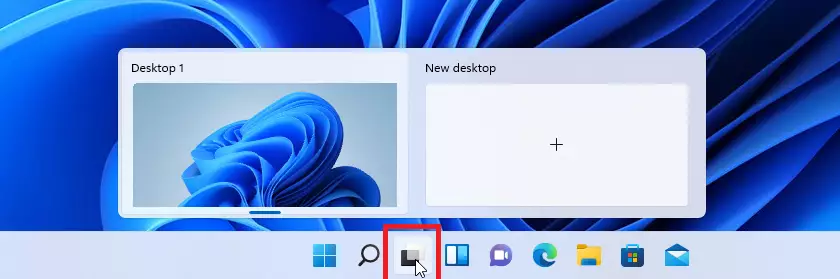
Option 2Use the Task View Button
- Click on the Task View button.
- At the top, click New desktop to add a new desktop.
- Now, rename your new desktop to something you’ll easily remember.
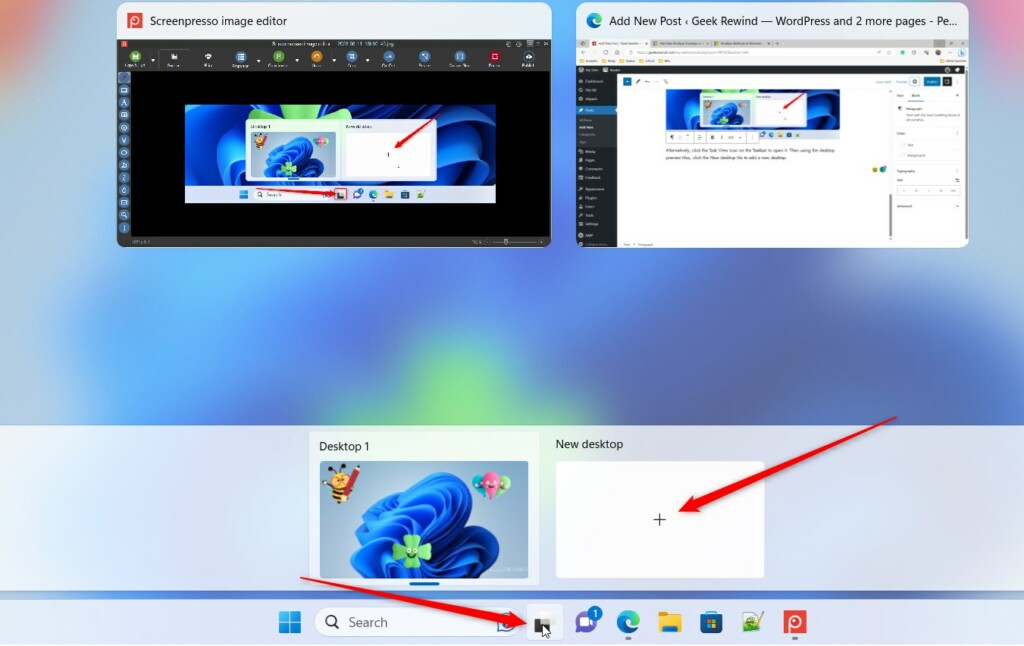
Option 3Open Task View Using Keyboard
- Press
Win + Tabkeys to open Task View. - Click the New desktop button at the top left corner.
- You will switch to the new desktop automatically.
- Rename it to whatever you like by right-clicking the desktop thumbnail and selecting Rename.
How to Switch Between Desktops
- Press
Win + Tabto open Task View, then click on the desktop you want. - Or use
Ctrl + Win + Left ArroworRight Arrowkeys to move between desktops quickly.
How to Close a Virtual Desktop
- Open Task View (
Win + Tab). - Hover over the desktop you want to close.
- Click the X button on that desktop’s thumbnail.
Why Use Multiple Desktops?
- Stay organized: Keep your work apps separate from games or entertainment.
- Easy multitasking: Switch between projects without closing anything.
- Personalize: Name your desktops for quick access.
- Keep things running: Desktops stay even after restarting your PC.
- Work smarter: Move fast between work and fun without clutter.
Using multiple desktops in Windows 11 helps you stay organized by letting you keep work apps separate from games or entertainment.
For more info, visit the official Microsoft support page: Multiple Desktops in Windows 11 – Microsoft Support
Summary
You can create and manage multiple desktops in Windows 11 to set up separate workspaces for different tasks.
How do I activate multiple desktops?
Keyboard Shortcut: Press Ctrl + Windows Key + D to create a new virtual desktop. Keyboard Shortcut: You can switch between desktops by clicking on the respective desktop thumbnail or using the keyboard shortcut Ctrl + Windows key + Left/Right arrow.
Was this guide helpful?

About the Author
Richard
Tech Writer, IT Professional
Richard, a writer for Geek Rewind, is a tech enthusiast who loves breaking down complex IT topics into simple, easy-to-understand ideas. With years of hands-on experience in system administration and enterprise IT operations, he’s developed a knack for offering practical tips and solutions. Richard aims to make technology more accessible and actionable. He's deeply committed to the Geek Rewind community, always ready to answer questions and engage in discussions.




No comments yet — be the first to share your thoughts!