How to Turn On Bluetooth LE Audio in Windows 11

This guide will help you turn on or off the new Bluetooth LE Audio feature on your Windows 11 PC. It’s written in simple steps anyone can follow.
What is Bluetooth LE Audio?
Bluetooth Low Energy Audio (LE Audio) is a new way to send sound over Bluetooth that uses less battery and works better for calls. It also supports new devices like hearing aids that older Bluetooth can’t handle.
LE Audio can help your wireless headphones or earbuds last longer and give clearer voice calls.
Does Your 🪟 Windows 11 PC Support LE Audio?
Not every Windows 11 computer can use LE Audio, even if it says it has Bluetooth LE. To use LE Audio, your PC must:
- Run Windows 11 version 22H2 or newer
- Have Bluetooth hardware that supports LE Audio
- Have drivers (software for hardware) that support LE Audio from your device maker
How to Turn Bluetooth LE Audio On or Off Using Settings
Why do this? The Settings app is the easiest way to control LE Audio on your PC.
What happens? Your PC will use LE Audio for better sound quality and longer battery life when you turn it on.
- Open Settings:
- Click the Start menu and select Settings, or
- Press
Windows key + Ion your keyboard - On the left side, click Bluetooth & devices.
- On the right side, find and click Devices to open device options.
- Look for the option “Use LE Audio when available” and toggle it On or Off.
Note: This option only appears if your PC supports LE Audio and Bluetooth is turned on. To turn Bluetooth on, see this guide.
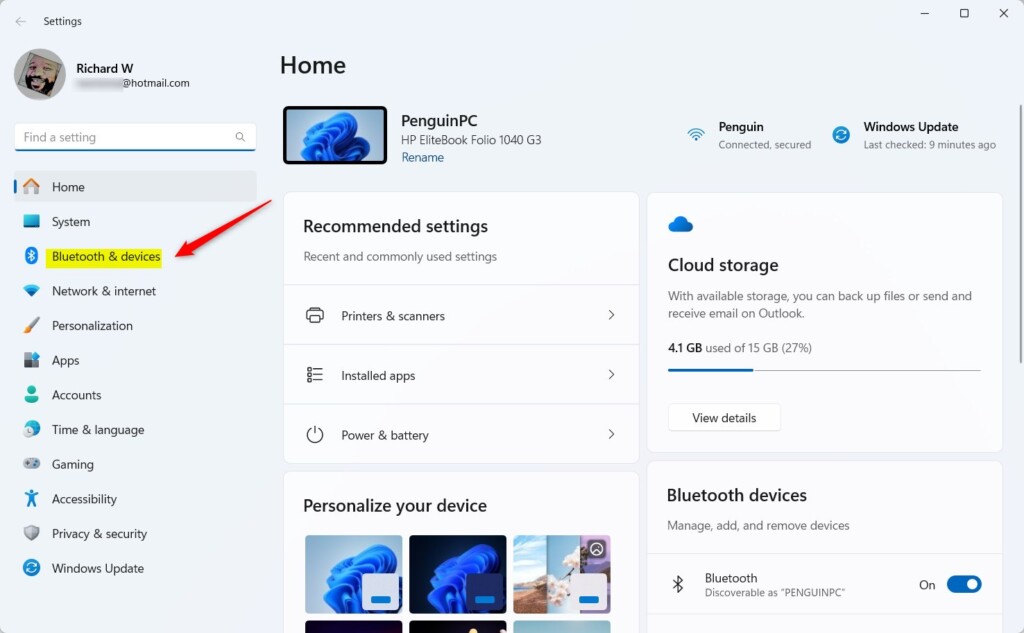
Windows 11 Bluetooth & devices Settings
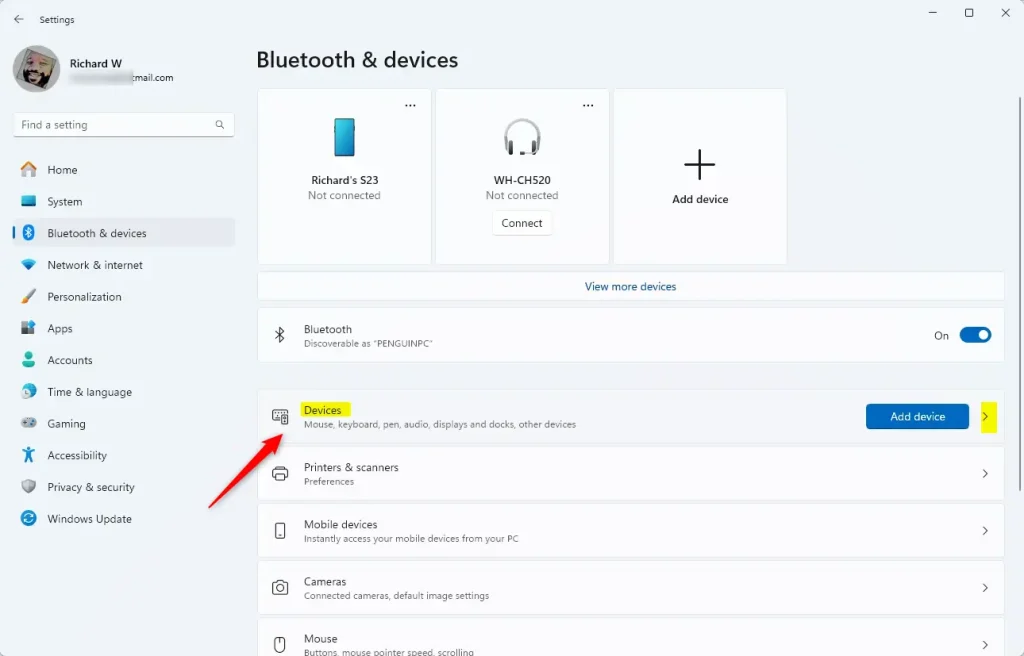
Devices section in Bluetooth & devices Settings
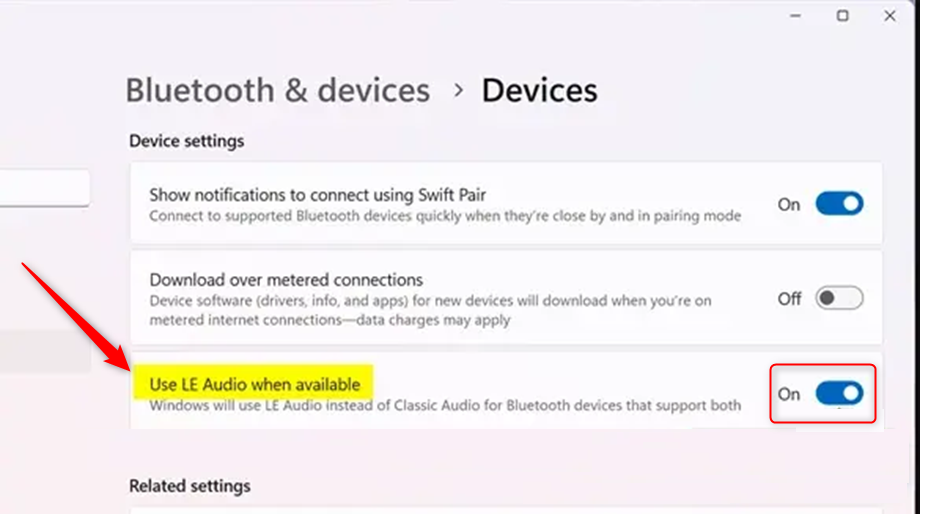
Toggle “Use LE Audio when available”
How to Turn Bluetooth LE Audio On or Off Using the Registry (Advanced)
Bluetooth LE Audio in Windows 11 provides improved sound quality and extended battery life on compatible devices through either the Settings app or Registry Editor, though support depends on your hardware and driver compatibility. do this? Advanced users can use the Registry to control LE Audio settings when the Settings app option is not available.
What happens? You change a setting in your PC’s registry to enable or disable LE Audio.
⚠️ Admin privileges required. If you feel comfortable with advanced steps, you can also change the LE Audio setting by editing the Windows Registry. Be careful! Making the wrong changes can cause problems. Always back up your registry or create a system restore point first.
- Open the Registry Editor:
- Press
Windows key + R, typeregedit, then press Enter.
- Press
- Go to this folder path:
Computer\HKEY_LOCAL_MACHINE\SYSTEM\CurrentControlSet\Services\BthAvctpSvc\Parameters\Bats - Right-click on Bats, choose New > DWORD (32-bit) Value.
- Name it
UserPrefersClassicAudio. - Double-click this new entry and set the value:
0to enable Bluetooth LE Audio
1to disable Bluetooth LE Audio- Close the Registry Editor and restart your PC for the changes to take effect.
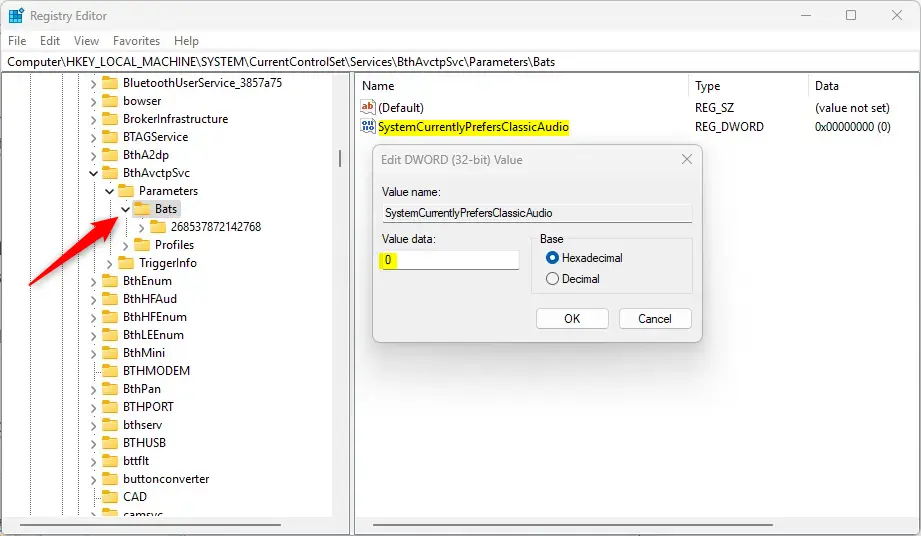
Editing the Registry to enable or disable LE Audio
Summary
- Bluetooth LE Audio lets you enjoy better sound and longer battery life on compatible devices.
- Only some Windows 11 PCs support LE Audio — make sure your PC meets the requirements.
- You can easily turn LE Audio on or off in the Settings app if your PC supports it.
- Advanced users can use the Registry Editor to change the setting but should be careful and back up first.
- Make sure Bluetooth is turned on to see the LE Audio option.
- By following these simple steps, you can get the most out of your Bluetooth audio experience on Windows 11!
Want more info? Check out the official Microsoft page: Does my Windows 11 PC support Bluetooth LE Audio?
Was this guide helpful?

About the Author
Richard
Tech Writer, IT Professional
Richard, a writer for Geek Rewind, is a tech enthusiast who loves breaking down complex IT topics into simple, easy-to-understand ideas. With years of hands-on experience in system administration and enterprise IT operations, he’s developed a knack for offering practical tips and solutions. Richard aims to make technology more accessible and actionable. He's deeply committed to the Geek Rewind community, always ready to answer questions and engage in discussions.


No comments yet — be the first to share your thoughts!