

Windows 11 is adding a new feature called “Mobile devices.” It lets you use your Android phone or tablet camera as a webcam on your PC. This works in any video app you use.
Windows Mobile devices (also called Phone Link) connects your mobile devices to your PC. New features keep getting added to the Mobile devices settings.
Why would you want this? You can use your phone’s camera instead of your PC’s webcam. Your phone camera is often better quality. You get more flexibility too. You can switch between your front and back cameras. You can pause the video stream if you need a break. You can also use special effects that your phone offers.
What happens when you enable it? Your phone camera becomes available in video apps on your PC. You can use it for video calls, recordings, or streaming.
Right now, this feature is only available to some users. It’s being rolled out to Windows Insiders.
How to Use Your Phone Camera as a Webcam on Windows 11
Step 1: Open Settings
Click the Start menu on your PC. Select Settings. Or use this keyboard shortcut: press Windows key + I together.
Step 2: Go to Bluetooth & Devices
The Settings app opens. On the left side, click Bluetooth & devices.

Step 3: Select Mobile Devices
On the right side, look for the Mobile devices tile. Click it to expand the menu.
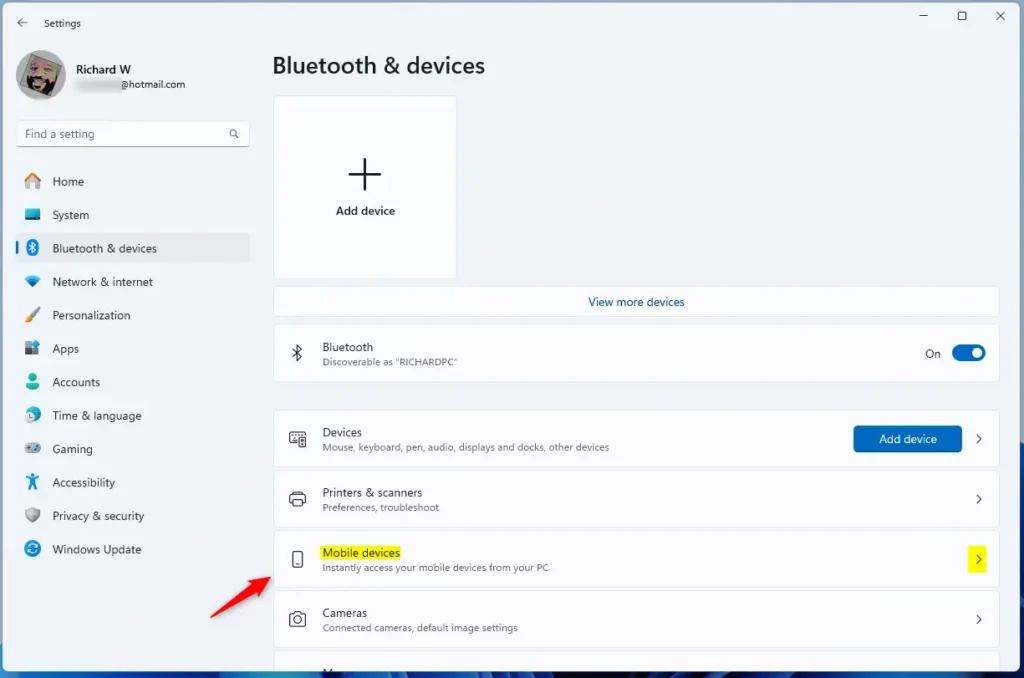
Step 4: Open Manage Devices
Look for the “Allow this PC to access your mobile device” section. Click the Manage devices button under it.
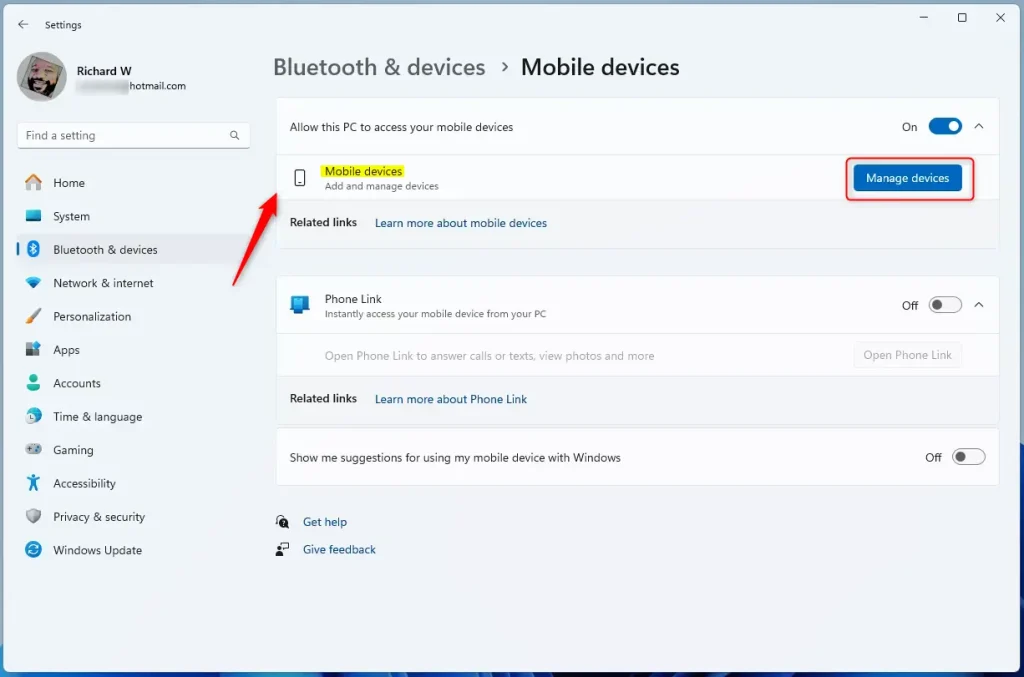
Step 5: Enable Camera Access
Find the tile that says Use as a connected camera. The toggle switch next to it should be in the Off position. Click the switch to turn it On.
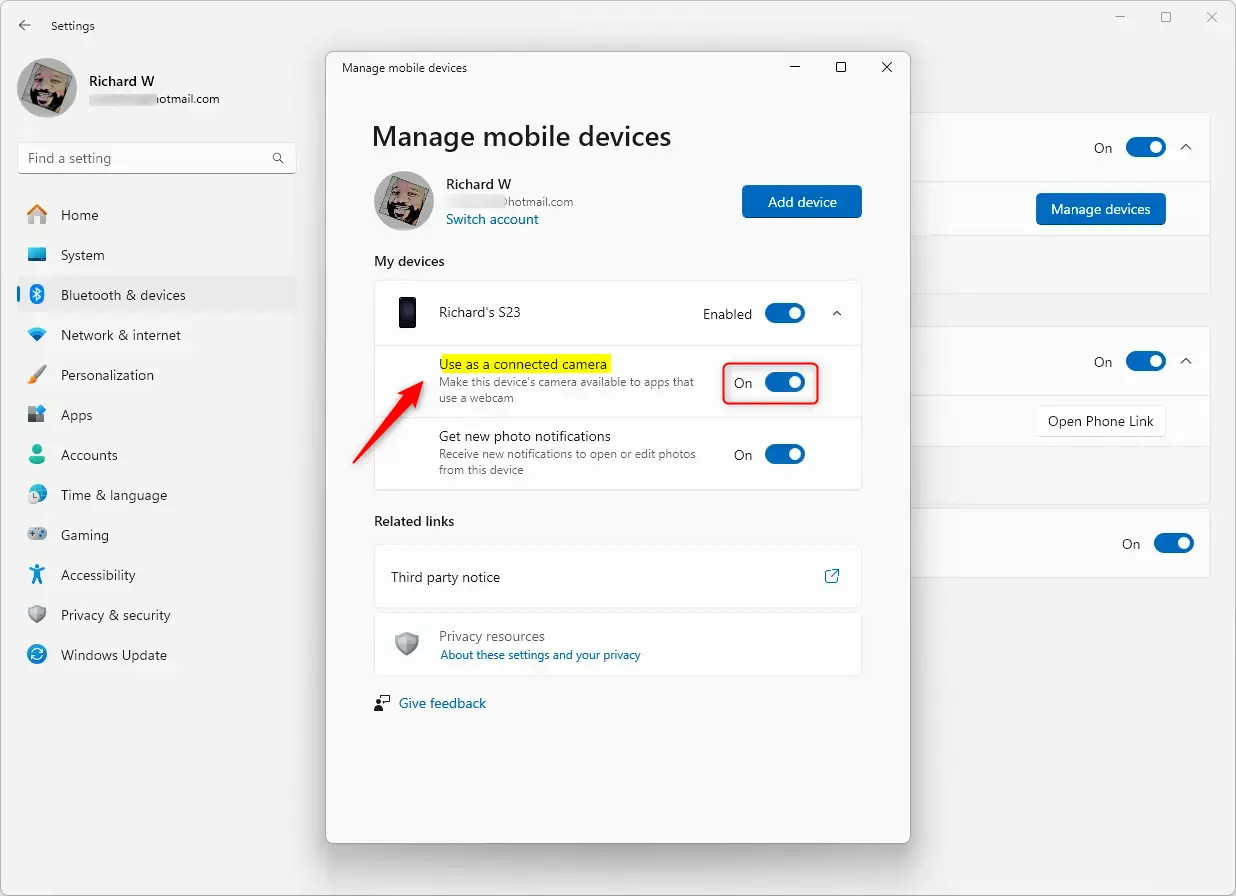
To turn it off later: Click the same switch to toggle it back to Off.
Step 6: See Your Connected Camera
Once you turn it on, your phone appears as a connected device. You will see which cameras are available.
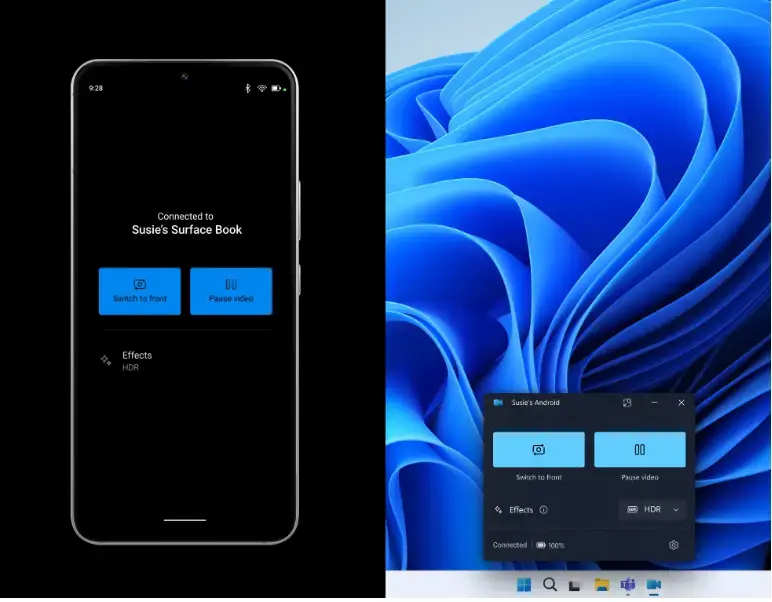
That’s it! Your phone camera is now ready to use in your video apps.
Frequently Asked Questions
How can I use my Android camera as a webcam on Windows 11?
What features does the Mobile devices feature offer for webcam use?
Is the Mobile devices feature available for all Windows 11 users?
What do I need to do before using my Android camera as a webcam?
Can I access my recent photos from my Android device on Windows 11?
Summary
Windows 11 now lets you use your Android phone or tablet camera as a webcam on your PC. First, open Settings and go to Bluetooth & devices. Then select Mobile devices and click Manage devices. Find Use as a connected camera and toggle the switch to On. Your phone camera will then appear as an available camera in your video apps. You can switch between front and back cameras and pause the stream whenever you need to. This feature gives you a better quality webcam experience and more control over your video calls and recordings. Right now, it’s only available to some Windows 11 users, but Microsoft is rolling it out to more people soon.
Leave a Reply