What to Do When Windows 11 Activation Fails with Error Code 0x803fa067

- 4 ways to do it
- Needs administrator rights
- Includes a restart or sign-out
Windows 11 activation error code 0x803fa067 stops your operating system from verifying your digital license. The result is an “Activate Windows” watermark on your screen and greyed-out personalization settings. The error happens when Windows cannot match your PC hardware to your product key. It often shows up after you replace a motherboard, buy a used computer, or upgrade from Windows Home to Windows Pro.
Fixing it usually takes about 5 minutes, using either the built-in Activation Troubleshooter or a valid product key entered in the Settings app. You do not need special technical skills. Work through the methods below in order, because the quick ones come first and the more involved ones come later.
Windows 11 error 0x803fa067 means your product key or digital license does not match your PC’s hardware or edition, often after a motherboard swap or an upgrade from Windows Home to Pro. To fix it, open Settings, go to System Activation, and click Troubleshoot to run the Activation Troubleshooter. If that fails, enter a valid product key on the same Activation page.
Understanding 🪟 Windows 11 Activation and Error 0x803fa067
This error appears when Windows fails to verify your product key, or when your license does not match your hardware or your installed edition. Microsoft uses this check to confirm your copy of Windows is genuine. It typically appears after a hardware change or when you move between editions of Windows.
A license can be tied to your PC in two main ways. A license that came with a new computer usually links to the motherboard. A digital license bought through the Microsoft Store links to your Microsoft account. The error usually means there is a mismatch between what Windows expects and what your PC presents. For example, after a motherboard swap Windows sees what looks like a brand new device and does not recognize your old license.
The error also shows up during edition upgrades. If you try to move from Windows Home to Windows Pro with an incorrect product key, or without a working connection to the activation servers, Windows cannot complete the check and returns 0x803fa067. However the error started, one of the methods below should clear it.
Before You Start: Basic Checks
Before you change anything, rule out the simple causes. A dropped network connection or a wrong clock can stop your PC from reaching the Microsoft activation servers, and that can produce odd error codes during verification. Check these three things first:
- Check your internet connectionWindows has to reach the Microsoft activation servers over the internet. Make sure your Wi-Fi or ethernet cable is working and that you can load a few web pages in your browser. If a VPN is running, turn it off for now, since it can interfere with the check.
- Check the date and timeIf your clock is out by even a few minutes, security certificates fail to match and activation breaks. Click the clock in the bottom right corner of your screen and confirm the date, time and time zone are correct. A dead CMOS battery on an older PC can reset the clock, so check again after a restart if it keeps drifting.
- Sign in with your Microsoft accountIf your digital license links to your Microsoft account, make sure you are signed into that exact account on this PC, not a local offline account. You can see which account you are using under Settings Accounts Your info.
If all three check out and the error is still there, move on to the troubleshooter.
Method 1Use the Built-In Activation Troubleshooter
The built-in Activation Troubleshooter is designed to diagnose and fix license errors like 0x803fa067. You run it from the Activation page in Settings and let Windows try to resolve the problem itself. It is the safest first fix because it does not need a new product key.
You must be signed into an account with administrator rights to run the troubleshooter.
- Click the Start button on your taskbar and select Settings (the gear icon). The Settings window opens.

- In the Settings window, click System in the left-hand menu.
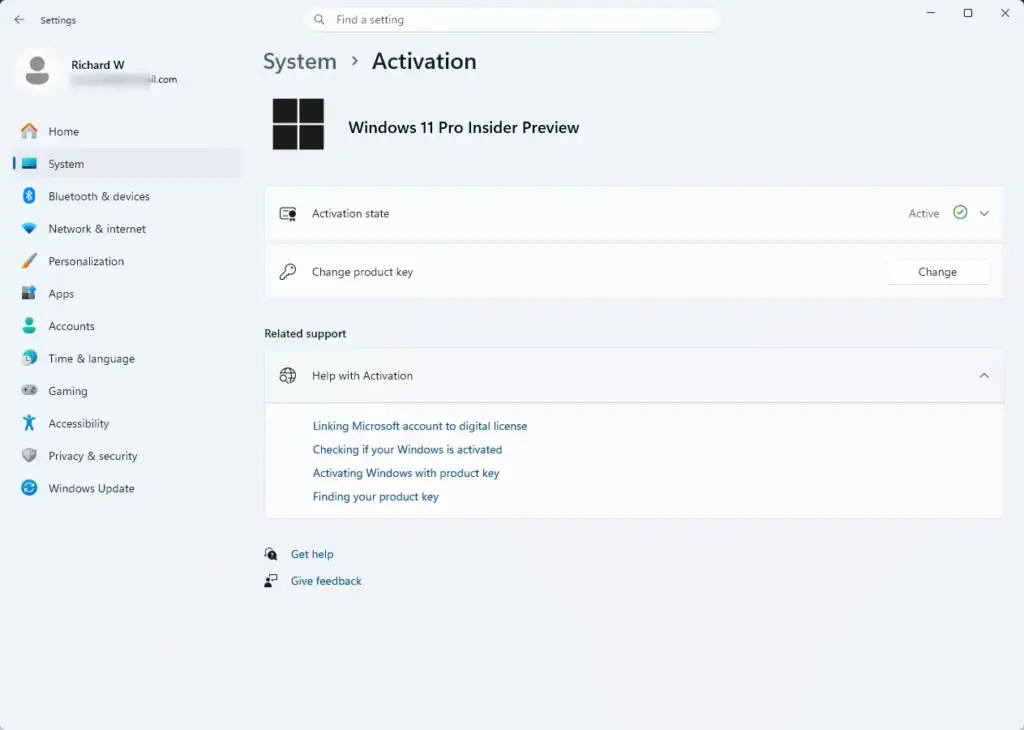
- Scroll down and click Activation. You should see your activation status near the top of the page.
- Click the Troubleshoot link next to the activation status. This link only appears when Windows is not currently activated. If you do not see it, Windows already considers itself activated, so the error may have come from a different action, such as entering a key.
- Wait while the troubleshooter checks your system and talks to the Microsoft servers. This can take a minute or so.
- If the tool detects a hardware change, click I changed hardware on this device recently.
- Sign in with your Microsoft account when prompted, select your current device from the list of linked computers, and click Activate.
When this works, the Activation page shows that Windows is activated, and the watermark disappears after a short while or after a restart. The troubleshooter often resolves the key mismatch and clears error 0x803fa067 straight away. It matters because it fixes common digital license problems after a major hardware change or an upgrade without making you buy a new product key. If it reports that it cannot activate Windows on this device, go on to the next method.
Method 2Re-entering Your Product Key
Re-entering your product key refreshes your license information with the system. You type your 25-character key into the activation menu in Settings, which forces Windows to check and accept the license again. This often clears a persistent error.
- Open the Start menu and click Settings.

- Go to System Activation.
- Find the section titled Upgrade your edition of Windows (on some builds it reads Change product key) and click the Change button next to it.
- When the window asks you to enter a product key, type your 25-character code carefully. Check for look-alike characters, such as 0 and O or 8 and B.
- Click Next, then click Activate.
If the key is valid and matches your installed edition of Windows 11, the system accepts it, contacts the servers, and the error goes away. If you get the same error again, the key may not match your edition. See the Home and Pro section below.
Method 3Using Command Prompt for Stubborn Activation Issues
Command Prompt lets you force Windows 11 to accept your product key when the Settings page does not respond or keeps failing. You open it with administrator rights and run commands that install your key and then try an online activation.
Note: This step requires administrator privileges.
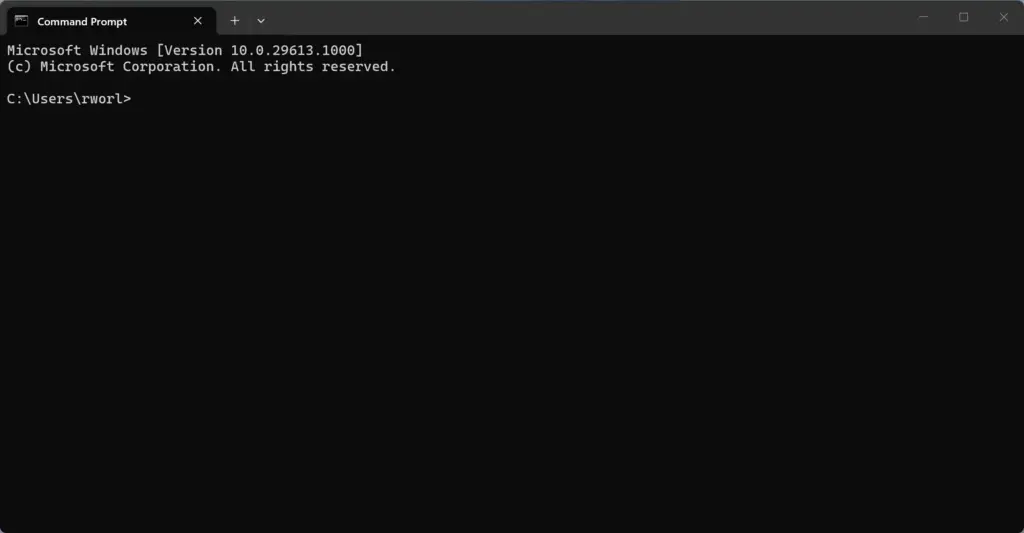
- Click the Start button and type
cmdinto the search bar. Right-click Command Prompt in the results and choose Run as administrator. - If a User Account Control box asks whether you want to allow this app to make changes to your device, click Yes. A command window opens with a black background.
- Type the following command to install your product key, replacing the placeholder with your actual 25-character key:
slmgr.vbs /ipk XXXXX-XXXXX-XXXXX-XXXXX-XXXXXThen press Enter.
- A small pop-up window confirms that the product key was installed successfully. Click OK. If you get an error here instead, the key is invalid or does not match your edition, so stop and check the key before continuing.
- Type the following command to force online activation:
slmgr.vbs /atoThen press Enter. - Another pop-up window tells you whether activation succeeded. Whatever it says, restart your computer, then check Settings System Activation.
Method 4Handling Edition Mismatches (Home vs. Pro)
An edition mismatch between Windows 11 Home and Pro is a very common reason for error 0x803fa067. It happens when you try to use a Pro product key on a PC with the Home edition installed. Windows cannot apply the key to the wrong edition, so activation fails with this error.
The fix is to bring the installed edition in line with the key you bought. Start by checking which edition you have, then upgrade if needed:
- Open Settings from the Start menu.

- Go to System About.
- Scroll down to the Windows specifications section and look at the Edition line. It says either Windows 11 Home or Windows 11 Pro.
- If the edition says Home but your key is for Pro, go back to System Activation.
- Click Change product key and enter the generic upgrade key Microsoft provides for switching editions:
VK7JG-NPHTM-C97JM-9MPGT-3V66TThis generic key upgrades the system to Pro, but it does not activate Windows permanently. You still need to enter your own real key afterward. - Let the upgrade run. Your computer restarts, and the process can take several minutes, so do not turn the PC off. When it boots back up as Windows 11 Pro, return to the Activation page and enter your actual, purchased product key.
If the edition already matches your key, this is not your problem, and you should look at the hardware section next.
Dealing with Secondhand Hardware and Motherboard Swaps
Motherboard swaps and secondhand hardware often cause activation to fail, because Windows treats the machine as a brand new computer. When you replace a major part such as the motherboard or CPU, your old digital license may no longer match the hardware. You then need to relink the license through your Microsoft account.
What you can do depends on the type of license. An OEM license (Original Equipment Manufacturer, meaning it came pre-installed on a pre-built PC from a maker such as Dell, HP or Lenovo) is tied to the original motherboard. It generally cannot transfer to a new one. If you bought a used PC and the seller replaced the board, you may need a new license.
A retail license is different. This is a standalone copy of Windows bought from a retail store or online from Microsoft, and you have the right to move it to new hardware. If error 0x803fa067 appears after a hardware swap on a retail license, follow these steps:
- Open Settings System Activation.
- Click Add an account. For the transfer to work smoothly, link your Microsoft account to your digital license before you change the hardware. If you already changed it, you can still try the steps below.
- Sign in with your Microsoft account credentials. Once linked, your retail license is registered to your online profile.
- After the hardware change, run the Activation Troubleshooter using the steps in the troubleshooter section above.
- When the troubleshooter says it cannot activate Windows, click I changed hardware on this device recently.
- Sign in with your Microsoft account and select the old device name from your list of linked computers. Check the box that says This is the device I'm using right now, then click Activate.
With a retail license, this cloud-based transfer moves your digital entitlement from the old hardware profile to the new one and gets past the error. If your old device is not in the list, check that you are signed in with the same account that was linked earlier.
Troubleshooting Microsoft Store Purchase Glitches
A Microsoft Store purchase can fail to activate Windows when the payment goes through but the background license sync does not finish. The Store shows that you bought the product, but your PC has no active digital license. In that case you need to force a sync.
The Store knows you bought the license, but Windows has not received the signal to activate. Here is how to push it:
- Open the Start menu, type
Store, and open the Microsoft Store app. - Click your profile picture in the top right corner and confirm you are signed in with the exact Microsoft account you used for the purchase.
- Click your profile icon again and select App settings, or open your Library, to check the status of the purchase.
- Clear the Store cache. Click the Start menu, type
wsreset.exe, and press Enter. A blank command window appears for a few seconds and then closes by itself. The Microsoft Store then launches fresh. - Restart your computer completely, then check Settings System Activation to see whether the purchase synced.
Clearing the Store cache does not remove your purchases or your account, so it is safe to try.
What to Do If Nothing Works
If none of the standard fixes work, contact Microsoft Support. Support agents can check your product key by hand and verify your license when the automated tools cannot finish activation, for example because the key is flagged or there is a problem on Microsoft's servers.
Product keys sometimes get flagged by automated security systems, especially keys bought from unauthorized third-party discount resellers. A support agent can look up your key, check its status in the Microsoft database, and confirm whether the license is legitimate. You can reach them through the Get Help app built into Windows 11 or through the official Microsoft Support website. Have your product key, your proof of purchase and the error code 0x803fa067 ready when you contact them.
Summary
If you still see the watermark or other activation problems, two more checks are worth doing. Run the System File Checker tool to repair corrupted system files, and install any pending Windows updates through Settings Windows Update, since updates can patch the background license services. Restart afterward, then open the Activation page again and check the status.
Have a question about this guide?
Answered by AI from this guide. Good questions may be added to this page — please don't include personal details.
Did this guide fix your problem?

About the Author
Richard
Tech Writer, IT Professional
Richard is a writer at Geek Rewind who turns complex IT tasks into clear, step-by-step guides. He draws on years of hands-on experience in system administration and enterprise IT operations, focusing on Windows, Linux and WordPress: the problems people actually run into, and the fixes that work. His server and WordPress guides come from systems he runs himself. Richard builds and maintains the platform behind Geek Rewind, from its Ubuntu servers and Nginx configuration to its custom WordPress plugins. Many new tutorials start with readers' questions, and he's always glad to answer them in the comments.
No comments yet — be the first to share your thoughts!