What Breaks When You Disable Camera Access System-Wide In Windows 11
Before you start
🔢 6 steps
🛡 Needs administrator rights
The camera master switch in Windows 11 is one privacy setting that controls whether any app on the PC can use the webcam. Turning it off cuts off every camera feed at once. That stops sneaky software from recording you, but it also breaks everyday tools such as Windows Hello facial recognition and video chat apps.
Locking down the webcam at the system level stops malicious programs from recording you in secret. The same ban also hits built-in features and trusted apps that need the lens to work. The sections below cover what stops working so you can decide whether the master switch is the right tool.
⚡ Quick Answer
Disabling camera access system-wide in Windows 11 breaks Windows Hello facial recognition, video calling apps like Zoom and Teams, the built-in Camera app, QR code scanners, and any app requiring camera hardware. You’ll need to sign in with your PIN or password instead, and video chat apps show a black screen with a camera blocked error.
Advertisement
What Breaks Immediately: Video Calling and Communication Apps
⚠️WarningVideo calling apps stop working the moment you turn off camera access system-wide in Windows 11. Zoom, Microsoft Teams, Skype, and Discord all depend on the hardware feed. With the camera blocked at the system level, none of them can show your video in calls or online meetings.
If you start a meeting with the camera turned off globally, expect this:
Your video preview shows a black screen or an error saying the camera is blocked.
Other people can hear you if your microphone works, but they cannot see your face. The microphone has its own separate privacy switch.
Some apps crash or freeze when they try to start a video feed that Windows refuses to hand over.
If you only want to stop video during one meeting, use the in-app video button instead. It turns your video off for that call and leaves the Windows master switch alone. Your camera stays ready for the next call, and system tools that depend on it keep working. Turning off the master switch for a single meeting is the hard way to do it.
Advertisement
If an app was already open when you changed the setting, close it completely and reopen it before testing again.
Windows Hello and Biometric Login Failures
⚠️WarningWindows Hello facial recognition stops working when you turn off camera access system-wide in Windows 11.
The sign-in feature needs the camera hardware to scan your face, so with the master switch off it has nothing to scan with. This applies to Windows 11 version 22H2. Behavior can vary slightly by device and build, so test it on your own machine before you rely on it.
When you turn on the computer or wake it from sleep, you will likely notice the following:
The camera light might flash briefly and then turn off.
An error message appears on the sign-in screen saying something went wrong or the camera cannot be found.
You have to type your PIN or password by hand every time you sign in.
Make sure you know your PIN or password before you flip the switch. If you have been signing in with your face for months, it is easy to forget the PIN. Turning the master switch back on restores face sign-in.
Built-In Windows Apps That Stop Working Correctly
Windows 11 ships with pre-installed programs that use the built-in camera for everyday tasks. When you turn off the master camera privacy switch in Settings, these programs lose their main functions. You may open one expecting it to work and get an error screen instead.
The Camera App
The built-in Windows 11 Camera app stops working when system-wide camera access is off. It shows a blank screen or a privacy error. You cannot take pictures, record video clips, or change camera settings until the switch is back on.
If the Camera app shows a privacy message, that usually means the switch is the cause, not a driver or hardware fault. Check the setting first before you start reinstalling anything.
Barcode and QR Scanners
Utility tools and companion apps, whether built into Windows or downloaded from the Microsoft Store, use the camera to scan codes. This covers setting up smart home devices, linking your smartphone to your PC, and scanning web links. These tools fail immediately when the camera is locked, and they usually give a vague error or a blank viewfinder rather than a clear message about privacy settings.
Camera-Based Accessibility Tools
Camera-based accessibility tools stop working when you turn off camera access system-wide in Windows 11. That includes eye-tracking software and head-movement navigation, which many people use to control the mouse and keyboard. For anyone who depends on these tools, losing the camera can mean losing control of the computer, so think hard before using the master switch on a shared or assisted-use PC.
Web Browser Permissions and Website Conflicts
Web browsers cannot get video feeds for websites when the Windows master switch is off, even if you have granted site-level permissions. Browsers such as Chrome and Edge still have to ask Windows for hardware access. If the global switch blocks the hardware, the individual website prompts will not help.
The typical symptom looks like this. A site shows a permission pop-up asking to use the camera, you click Allow, and an error appears right away. The site then acts as if no camera is plugged in at all.
This is confusing to troubleshoot because the browser’s own site settings look correct. The block happens one level lower, in Windows, so check the Windows camera setting before you spend time clearing browser data or reinstalling the browser.
Advertisement
How to Manage Camera Access Properly in 🪟 Windows 11
A better approach is to leave the camera on and block only the apps you do not trust. Open Settings, go to Privacy & security, and choose Camera to control permissions app by app. That is safer for your daily workflow than a system-wide switch.
Account type matters here. Standard user accounts can usually manage app permissions on their own. The system-wide camera switch can require an administrator login, depending on how your computer is set up in a corporate environment, according to Microsoft’s 2024 security guidelines. If a toggle is greyed out, an administrator or a work policy is probably controlling it. To check your account type, open Settings, select Accounts, and look at your profile details to see whether you have administrator rights.
Here is how to change your camera settings through the Windows interface:
Click the Start button on the taskbar🖥️ and select the Settings app (the gear icon). Windows 11 Start menu with Settings gear icon highlighted.The Settings⚙️ window opens.
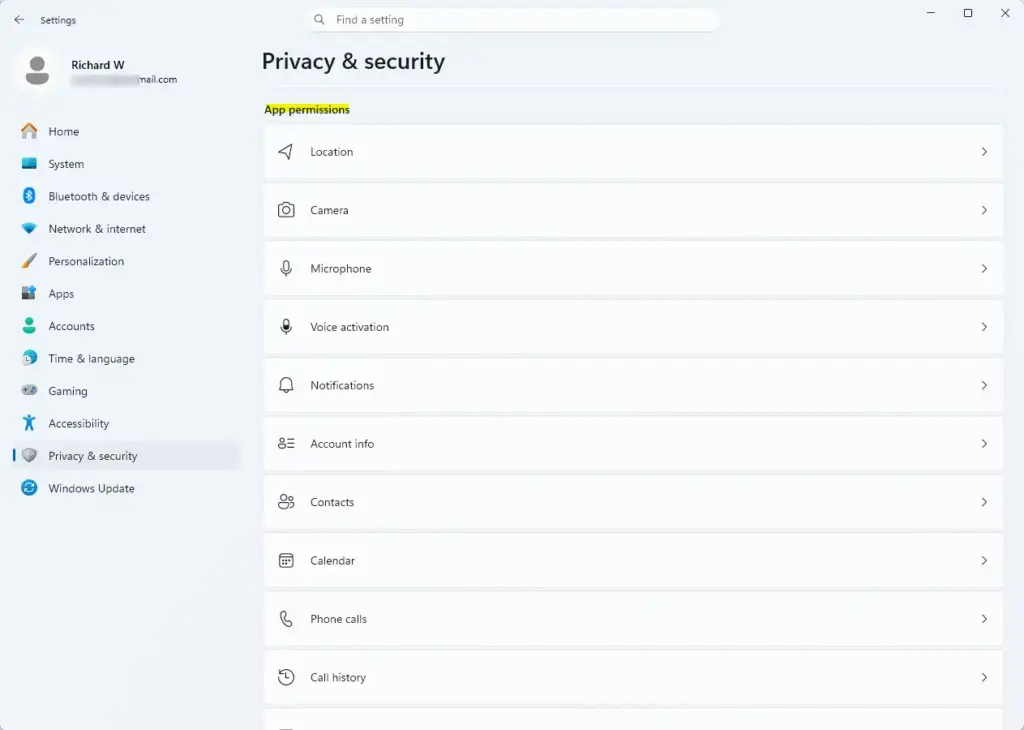
Select Privacy & security in the left-hand menu. The privacy options appear on the right.
Scroll down the right side and click Camera under the App permissions section. Settings › Privacy & security › App permissions The camera permissions page opens.
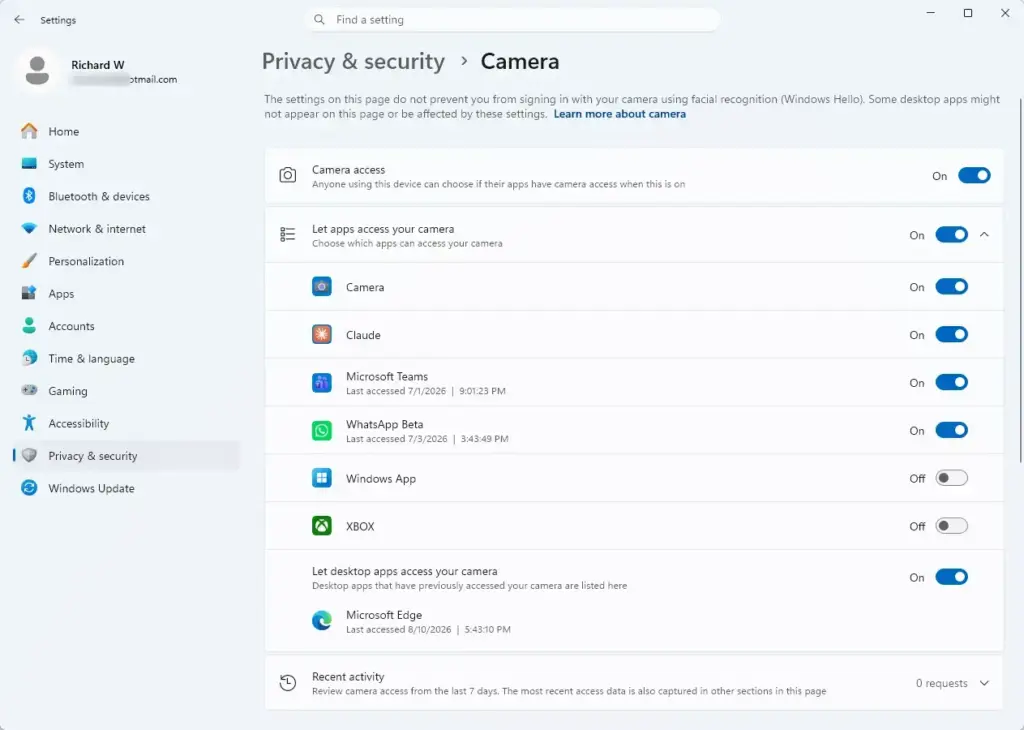
Find the master toggle at the top. Depending on your build it is labelled Camera access or Let apps access your camera. Leave it On if you want Windows Hello and video calling apps to keep working.
Scroll down to the list of apps, and to the Let desktop apps access your camera setting. Settings › Privacy & security › Camera Each app has its own toggle.
Find the app you want to block and switch its toggle to Off. The app loses camera access, but everything else keeps working.
To undo this, return to the same page and switch the app’s toggle back to On. Close and reopen the app afterward so it picks up the change. You do not need to restart Windows.
With this method the camera stays available for system features and trusted video apps, while unwanted programs are locked out one by one.
Summary
Disabling camera access system-wide in Windows 11 blocks unauthorized software, but it also breaks Windows Hello sign-in, stops the Camera app, and ruins video calls in the browser. Managing app permissions individually gives you better privacy without breaking core features.
Instead of a blanket block, manage permissions app by app in Settings, or fit a physical privacy shutter over the lens. A shutter gives you a hard guarantee that nothing can see you, and it leaves the software side of Windows untouched. Either way, your useful features keep working and your personal space stays private.
Take a few minutes today to review your camera settings. Pick the setup that matches your security needs without breaking the tools you use every day.
Frequently asked questions
How to remove 🪟 Windows 11 spying?
Open Settings›Privacy & security. You can disable app access to location, microphone, and camera individually. Turn off Diagnostic data and activity history under Diagnostics & device data. Disable advertising ID under General. Adjust app permissions so only trusted apps can access your system features.
How do I enable my camera permissions?
Open Settings›Privacy & security›Camera. Toggle Camera access on. Then go to Camera (app permissions) and turn on the toggle for individual apps. If an app still can't use the camera, check that both the system switch and the app's individual permission are enabled.
Which F key turns on the camera?
No single F key turns on the camera in Windows. Camera access is controlled through Settings›Privacy & security›Camera. Some laptops have a keyboard shortcut printed on a key—check your manual. Some cameras have a physical shutter or switch on the hardware itself.
Why is my camera on 🪟 Windows 10 not working?
Check Settings›Privacy & security›Camera and enable Camera access. Restart the app trying to use it. Open Device Manager, find Cameras, right-click and select Update driver. If the camera doesn't appear there, the hardware may not be recognized—try unplugging external cameras or restarting your PC.
Still have a question?
Answered by AI from this guide. Good questions may be added to this page — please don't include personal details.
📬 Get new Windows tips in your inbox
One email when we publish something worth your time. We send a link to confirm. No spam, unsubscribe anytime.
Richard is a writer at Geek Rewind who turns complex IT tasks into clear, step-by-step guides. He draws on years of hands-on experience in system administration and enterprise IT operations, focusing on Windows, Linux and WordPress: the problems people actually run into, and the fixes that work.
His server and WordPress guides come from systems he runs himself. Richard builds and maintains the platform behind Geek Rewind, from its Ubuntu servers and Nginx configuration to its custom WordPress plugins.
Many new tutorials start with readers' questions, and he's always glad to answer them in the comments.




No comments yet — be the first to share your thoughts!