Show Encrypted NTFS Files in Color: A Windows 11 Guide

Windows 11 can show the names of encrypted NTFS files in green in File Explorer , so you can spot protected data at a glance. The feature relies on Encrypted File System (EFS), a built-in Windows tool that scrambles your personal files so nobody else can open them. With the display setting on, you don’t have to open each file’s properties to check whether it is encrypted.
EFS only works on NTFS drives. It is also only available in Windows 11 Pro, Enterprise and Education. Windows 11 Home can’t encrypt files with EFS, so on a Home PC you will normally only see the blue color for compressed files.
To show encrypted NTFS files in color in Windows 11, open File Explorer, click the three dots menu, select Options, click the View tab, check “Show encrypted or compressed NTFS files in color,” and click OK. Encrypted files then appear in green.
How to Turn On or Off Colored Encrypted or Compressed Files in 🪟 Windows 11
This is a single view setting in Folder Options. It changes the text color of encrypted files so they stand out, and you can switch it off the same way if you prefer a plain view. No restart or sign-out is needed. The change applies as soon as you click OK.
- Open File Explorer by clicking the folder icon on the taskbar , or press
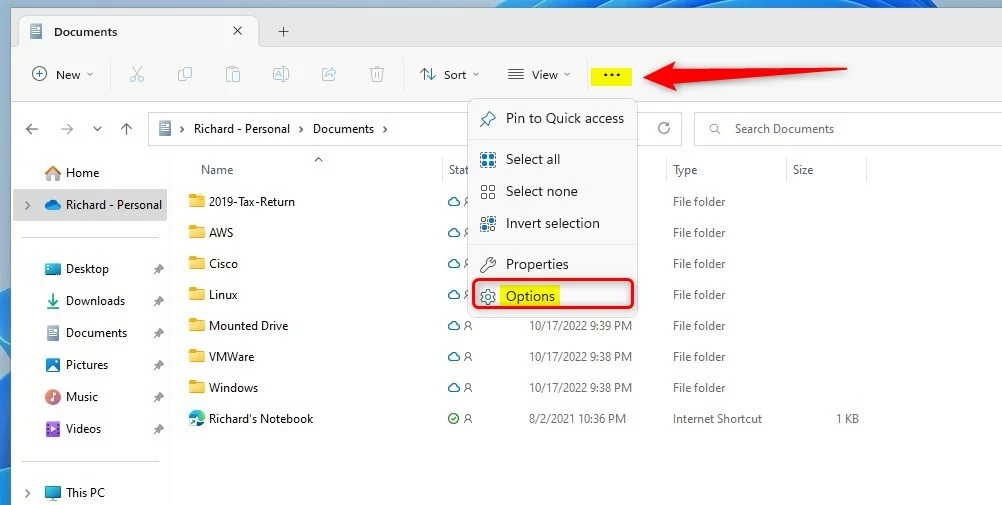
Windows key + Eon your keyboard. A File Explorer window opens. - Click the three dots (•••) on the top menu bar. On some Windows 11 builds this button shows a tooltip reading See more. A dropdown menu appears.
- Select Options from the dropdown. The Folder Options window opens.
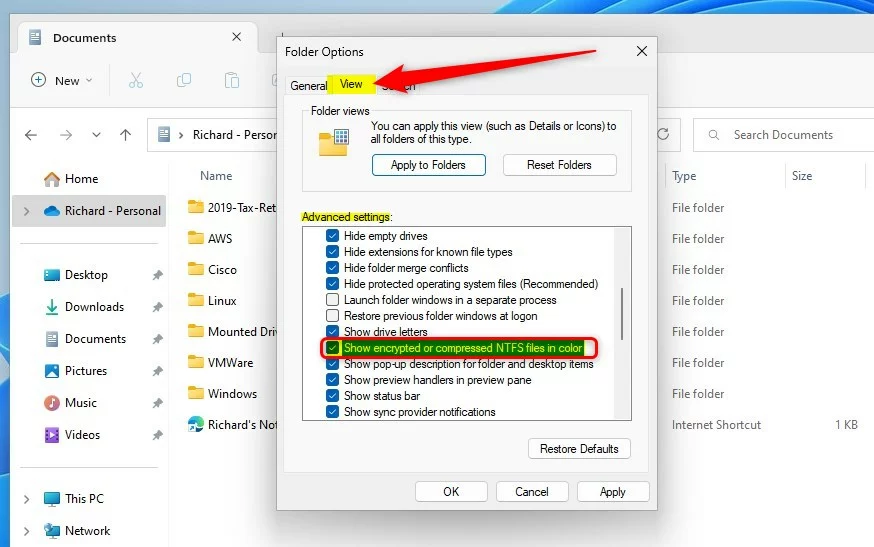
- Click the View tab at the top of the Folder Options window. You will see a list of settings under Advanced settings.
- Scroll down the Advanced settings list until you find “Show encrypted or compressed NTFS files in color.” Check the box next to it. If the box is already checked, the setting is on and you don’t need to change anything.
- Click OK to save your changes and close the window. File Explorer refreshes, and any encrypted files in the current folder now show in color.
This reference screenshot displays the target checkbox:
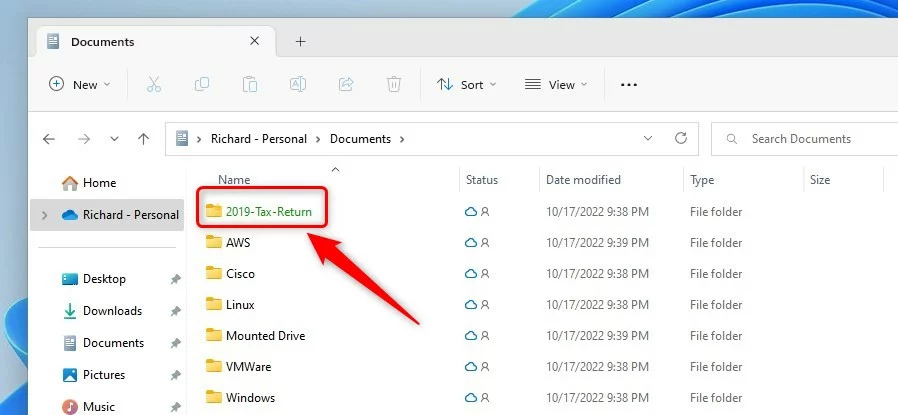
File Explorer renders encrypted files in green and compressed files in blue. Specific system themes, such as high contrast themes, might alter these exact shades. This setting only turns the colors on or off. It does not let you choose different colors.
- The folder must be on an NTFS drive. Drives formatted as FAT32 or exFAT, such as many USB sticks, can't hold EFS-encrypted files.
- The files must actually be encrypted. A password-protected ZIP file or a file protected with BitLocker is not EFS-encrypted, so it won't turn green.
- If your PC runs Windows 11 Home, you can't create EFS-encrypted files, so there will be nothing green to see.
To go back to the standard view, repeat the steps above. Open the same Folder Options window, go to the View tab, clear the checkbox, and click OK. Filenames return to the normal text color straight away.
Summary
- The color makes it easy to spot encrypted or compressed files without opening their properties.
- You can turn it off at any time if you prefer a plain, all-one-color look.
- It helps you keep track of which files are encrypted or compressed on your PC.
Showing encrypted NTFS files in color lets you see which items on your computer are protected or compressed without checking each one. The setting stays active until you turn it off, so File Explorer keeps giving you a visual guide to your protected data.
Have a question about this guide?
Answered by AI from this guide. Good questions may be added to this page — please don't include personal details.
Did this guide fix your problem?

About the Author
Richard
Tech Writer, IT Professional
Richard is a writer at Geek Rewind who turns complex IT tasks into clear, step-by-step guides. He draws on years of hands-on experience in system administration and enterprise IT operations, focusing on Windows, Linux and WordPress: the problems people actually run into, and the fixes that work. His server and WordPress guides come from systems he runs himself. Richard builds and maintains the platform behind Geek Rewind, from its Ubuntu servers and Nginx configuration to its custom WordPress plugins. Many new tutorials start with readers' questions, and he's always glad to answer them in the comments.
No comments yet — be the first to share your thoughts!