How to Display Day of the Week on Windows 11 Taskbar


Displaying the day of the week on your Windows 11 taskbar adds the full day name like Monday right next to the clock in the bottom-right corner of your screen. This quick region settings tweak lets you see the current day at a glance without opening the calendar app.
You can make this change by typing `dddd M/d/yyyy` into the short date format box on Windows 11.
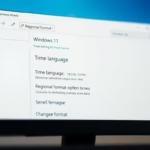
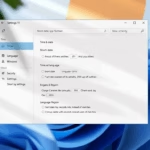
To display the day of the week on your Windows 11 taskbar, open Settings , go to Time & language, then Language & region. Click Administrative language settings, select the Formats tab, and in the Short date field, type dddd M/d/yyyy. Click Apply and OK.
Technical Workarounds and Registry Modifications
While the Region settings method is standard, advanced users sometimes modify the Registry Editor directly. Warning: Always back up your registry before making changes to 🗝️HKEY_CURRENT_USER\
Third-Party Clock Utilities
If you prefer not to change system-wide date formats, you can use third-party tools like ElevenClock or TaskbarXI. These utilities allow you to customize the taskbar clock without affecting other system apps. Always download software from trusted, official developer websites to ensure security.
Summary
Windows 11 hides the day of the week by default, but you can show day of week Windows 11 tasks by changing your regional format settings. Open the Settings app, go to Time & language, and adjust your short date settings to include the day. This quick change adds the day right next to the clock on your taskbar so you always know what day it is at a glance.- Windows 11 does not show the day of the week by default.
- You can change this through the Time & language section in Settings.
- Use the Administrative language settings menu to access custom date formatting.
- Type
dddd M/d/yyyyinto the Short date field to add the day name. - Click Apply and OK to save your new settings.
- Consider third-party tools if you want to avoid changing global system date formats.
Can I see the day of the week by hovering over the clock?
Yes, by default, Windows 11 displays the full date and day of the week when you hover your mouse cursor over the clock in the bottom right corner of the taskbar . This is a built-in feature that does not require any configuration changes to view.
Will changing region settings affect other system apps?
Yes, changing the short date format in the Region settings will update how dates are displayed across your entire system. This includes file explorer timestamps, calendar applications, and some third-party software that pulls date formatting directly from your Windows system settings.
Was this guide helpful?

About the Author
Richard
Tech Writer, IT Professional
Richard, a writer for Geek Rewind, is a tech enthusiast who loves breaking down complex IT topics into simple, easy-to-understand ideas. With years of hands-on experience in system administration and enterprise IT operations, he’s developed a knack for offering practical tips and solutions. Richard aims to make technology more accessible and actionable. He's deeply committed to the Geek Rewind community, always ready to answer questions and engage in discussions.


Thanks so much for this tip which removes one of several Windows 11 annoyances for me.
and to think…I was about to buy a wall hanging “DAYSCLOCK”
Neat little tweak, Thanks a LOT!
Thanks for this. Additional point – to customize the taskbar date format to include the day of the week you need to *type in* dddd into the *short date* field.
Is there any way to make this a 3 line system eg time / DOW / Date on separate lines? That is how it displays on W10 and I would like to continue that.
PERFECT!! thanks alot
Thank you, you made it easy. for me anyway.