Should You Disable Windows 11 Animations to Speed Up an Older PC

- 2 ways to do it
- Includes a restart or sign-out
Disabling Windows 11 animations turns off the built-in fade, slide, and zoom effects that play when you open apps, minimize windows, or open menus. On an older PC, this can make everyday tasks feel snappier, because Windows no longer waits for each effect to finish before showing you the next thing.
Windows 11 uses a lot of modern graphics, and they add some load to your processor and graphics chip. You can switch off the transparency and motion effects in Settings in a few clicks, and you can undo it just as quickly. So should you disable them on an older PC? In most cases, yes. It costs nothing, and it is easy to reverse if you miss the effects.
Yes, disabling Windows 11 animations can speed up an older PC. Animations consume processor and graphics resources, and turning them off in Settings frees up power for your apps and makes windows and menus respond faster. The change is most noticeable when opening folders or switching programs, though it won’t fix slowness from a full drive or low RAM.
Understanding 🪟 Windows 11 Visual Effects and Animations
Windows 11 visual effects and animations are the sliding, fading, and see-through details that make menus and windows glide across your screen. Microsoft added them to give the operating system a modern look. Your computer has to do a little extra work every time you open, close, or move a window.
Common examples are a window shrinking into the taskbar when you minimize it, a menu fading in when you open it, and the Start menu sliding up from the taskbar. None of these effects changes what your PC can do. They only change how it looks while it does it.
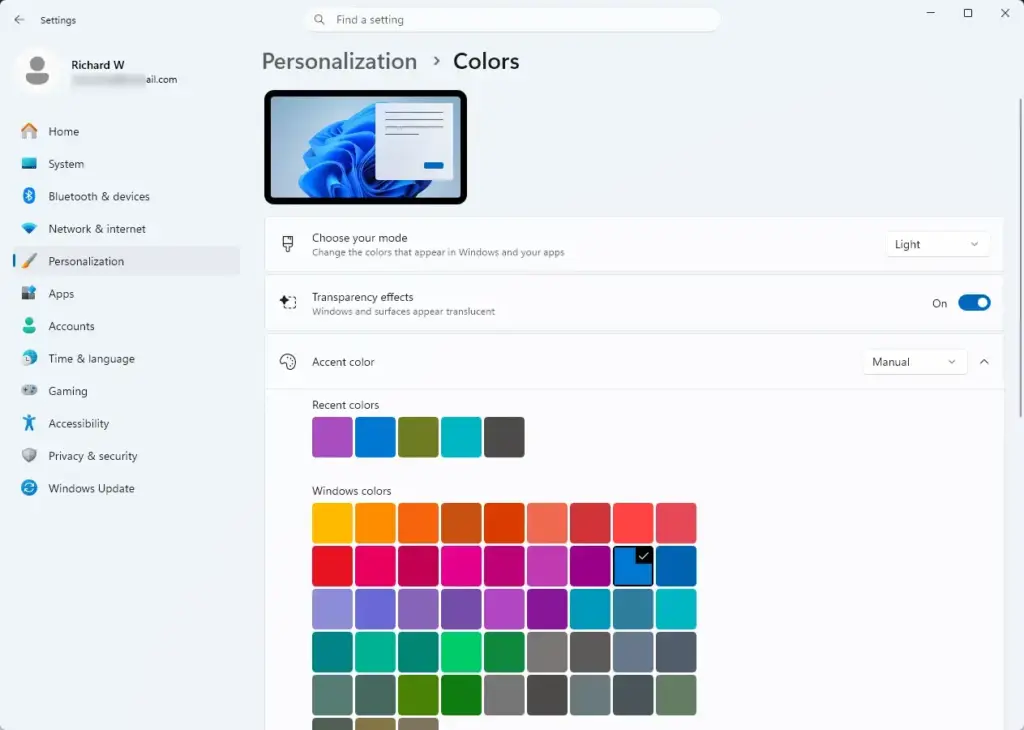
Apart from animations, Windows 11 also uses transparency effects on menus and the taskbar, plus shadows under windows. They look pleasant, but they take computer resources. Your processor and graphics chip must redraw them whenever you move a window or click a button.
Transparency is the see-through, frosted-glass look on surfaces such as the Start menu and Settings. Each of these surfaces has to be blended with whatever sits behind it. That is cheap on a modern machine, but it adds up on a weak one, especially one that relies on basic integrated graphics.
If you own a new computer with high-end parts, your system handles Windows 11 animations easily, and you will probably never notice them. An average or older machine is different. It has less memory and a weaker graphics chip, so those extra graphic tasks take up system power that your apps and browser could use.
As a rule of thumb, if your PC feels slow when you open folders, switch windows, or open the Start menu, turning off effects is worth trying. If the slowness comes from somewhere else, such as a full hard drive, too many startup programs, or very little RAM, turning off effects will help only a little.
How Visual Effects Impact System Performance
Visual effects use memory and graphics processor resources just to make menus fade and glide. On older computers, this constant graphic work slows down everyday tasks like opening folders and switching programs. The hardware has less power left for your actual work.
Part of the delay is also plain waiting. An animation takes a fraction of a second to play. When you do that many times an hour, the pauses add up, and the PC feels slower than it really is.
When your computer spends memory and graphics power on smooth window fades, it has less left to open your web browser or load your documents. On older systems, window animations can cause stuttering, lag, and short delays. Turning them off frees up some resources, so the PC can put more of its effort into running your programs and feels quicker.
Be realistic about the result. You will see the biggest change in how fast windows and menus respond. You will not see a big change in how long a large program takes to load or how fast a web page renders.
How to Turn Off Animations and Visual Effects in 🪟 Windows 11
You do not need to be a computer expert to turn off these effects. Windows gives you two main ways to adjust them. The Settings app is the quickest and changes only animations and transparency. The classic Performance Options window removes more effects at once. Both work the same way on Windows 11 Home and Pro, and neither needs a restart.
Method 1Using the Settings App for Basic Animation Control
Turning off animations in the Settings app takes just a few clicks and takes effect right away. You can disable both animation effects and see-through menus from the Accessibility page, so your PC stops spending graphics power on window movements and blur.
- Click the Start button and open the Settings app (the gear icon). The Settings window opens.

Settings - Click Accessibility in the left-hand menu. The accessibility options appear on the right.
- Select Visual effects from the options on the right. You will see two switches, Transparency effects and Animation effects.
- Find the switch labeled Animation effects and turn it Off. From now on, windows and menus appear and disappear without the fade or slide.
- If you also want to remove see-through menus, turn off the switch labeled Transparency effects. The taskbar, Start menu, and Settings will now have solid backgrounds.
Method 2Using the Advanced System Settings for Maximum Performance
The advanced system settings panel lets you turn off nearly all visual effects at once. It gives you the biggest speed gain on an older computer, and it lets you pick which individual effects stay.
- Click the Start button, type View advanced system settings into the search bar, and click the matching result. The System Properties window opens.
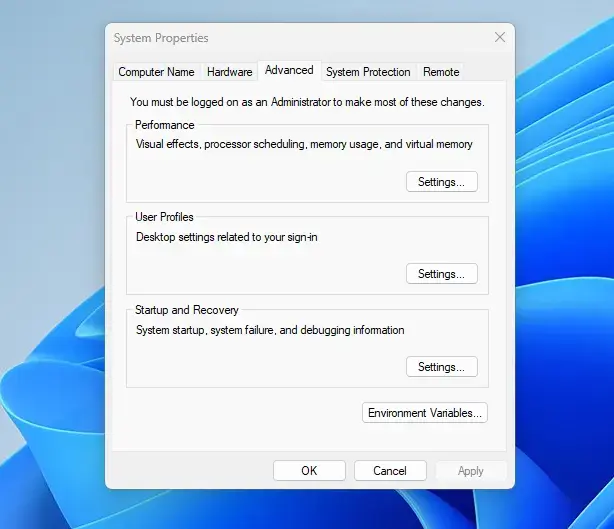
System Properties - In the window that opens, make sure you are on the Advanced tab.
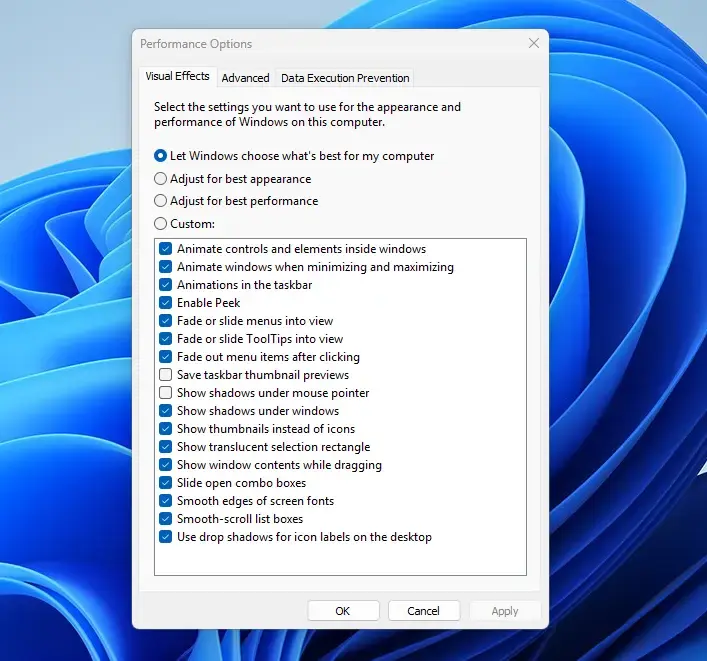
- Under the Performance section, click the Settings button. The Performance Options window opens on the Visual Effects tab.
- You will see a list of visual options. Select the radio button that says Adjust for best performance. This unchecks all the heavy visual effects in the list.
- If you want to keep your text looking smooth and easy to read, find the option called Smooth edges of screen fonts and check that box again. Many people also re-check Show thumbnails instead of icons, so image and video files still show previews in File Explorer.
- Click Apply and then click OK to save your changes. The screen may flicker for a moment as the effects change.
Keep in mind that this window and the Accessibility page in Settings overlap, but they are not identical. The Settings switch controls animation and transparency. The Performance Options list also controls shadows, window contents while dragging, and other details.
What to Expect After Disabling Animations
Disabling animations makes the PC feel faster and more responsive right away. Windows stops spending time on fade-ins and slide effects, so folders and apps appear the moment you click them.
On older or budget computers, the change is noticeable in everyday use. File Explorer folders open faster, minimizing windows happens instantly, and switching between open programs feels more responsive. Turning off animations will not turn an old computer into a high-end gaming machine. It removes unnecessary visual delay and makes daily tasks feel smoother.
If the PC is still slow afterward, look at other causes. Check how much of your drive is free, review the programs that start with Windows, and see how much memory you have. Those usually matter more than animations.
Summary
Turning off Windows 11 animations and visual effects is a simple, low-risk way to speed up an older or budget computer. It helps your PC open files and run programs a bit faster without any new hardware, and you can reverse it at any time.
Start with the Settings app, since it changes the least. If you want more speed, move to the Performance Options window and re-enable only the effects you actually like, such as smooth font edges.
Have a question about this guide?
Answered by AI from this guide. Good questions may be added to this page — please don't include personal details.
Did this guide fix your problem?

About the Author
Richard
Tech Writer, IT Professional
Richard is a writer at Geek Rewind who turns complex IT tasks into clear, step-by-step guides. He draws on years of hands-on experience in system administration and enterprise IT operations, focusing on Windows, Linux and WordPress: the problems people actually run into, and the fixes that work. His server and WordPress guides come from systems he runs himself. Richard builds and maintains the platform behind Geek Rewind, from its Ubuntu servers and Nginx configuration to its custom WordPress plugins. Many new tutorials start with readers' questions, and he's always glad to answer them in the comments.
No comments yet — be the first to share your thoughts!