Setup PHP Timezone in Apache on Ubuntu 24.04

Setting the PHP timezone in Apache on Ubuntu 24.04 fixes wrong timestamps by editing the php.ini file that Apache’s PHP module reads. It tells your scripts the correct local time, so your logs, scheduled tasks and displayed dates match real life. The file sits in a folder named after your PHP version, for example /etc/php/8.3/apache2/php.ini. Ubuntu 24.04 ships PHP 8.3 by default, but the number in the path must match whatever version you have installed.
Edit the php.ini file, typically found at /etc/php/[version]/apache2/php.ini. Uncomment or add the date.timezone line under the [Date] section and set it to your desired timezone, like America/Chicago. Restart Apache to apply the changes.
Set up Ubuntu timezone
Start with the server’s own timezone, because it is the easiest thing to compare against. The timedatectl command shows the local time, the universal time and the time zone name. The system timezone and the PHP timezone are two separate settings. If date.timezone is empty in php.ini, PHP falls back to UTC no matter what the system uses. Setting both to the same zone keeps system logs and application logs consistent.
Open a terminal and run the command below to see which timezone the server is configured for.
timedatectl
Look at the Time zone line in the output. It should look similar to the result below. A fresh Ubuntu server is often set to UTC.
               Local time: Tue 2025-02-18 14:51:49 CST
           Universal time: Tue 2025-02-18 20:51:49 UTC
                 RTC time: Tue 2025-02-18 20:51:50
                Time zone: America/Chicago (CST, -0600)
System clock synchronized: yes
              NTP service: active
          RTC in local TZ: no
If the zone shown is the one you want, you don’t need to change the server’s timezone. Skip ahead to the PHP part of this guide.
If the zone is wrong, use the steps below to change it. You need a user with sudo rights for these commands.
First, list every time zone available on your server by running the command below. Zone names follow the Continent/City pattern, such as Europe/Paris.
sudo timedatectl list-timezones
The command prints a long list of time zones. If the output opens in a pager, press the Space key to move down a page and Q to quit. Note the exact name of the zone you want, including capital letters and the underscore in names like America/New_York.
Africa/Abidjan
Africa/Accra
Africa/Addis_Ababa
Africa/Algiers
Africa/Asmara
Africa/Asmera
Africa/Bamako
Africa/Bangui
.....
Once you have found your zone, run the command below to set it on the server.
sudo timedatectl set-timezone America/Chicago
Replace the highlighted Continent or Country/City in the command with your own zone name. If the command reports that the zone is invalid, the name is usually misspelled. Copy it again from the list.
If you would rather pick from a menu than type the name, run the command below to select the time zone interactively.
sudo dpkg-reconfigure tzdata
Use the Up and Down arrow keys to highlight the correct entry, then press Enter. The menu may ask you to choose a geographic area first and a city or region second. You should see the chosen zone confirmed when the menu closes.
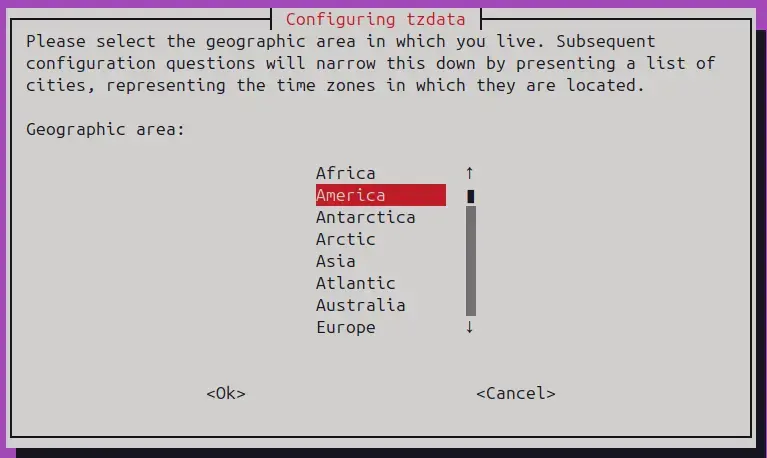
The server’s time zone should now be updated. Run the timedatectl check from earlier again to confirm that the Time zone line shows your new zone. No restart is needed for this change. To undo it, run the same command again with the old zone name.
Set PHP timezone
Now set the PHP timezone so your web applications record the right times. To open the php.ini file for your PHP version, run sudo nano /etc/php/YOUR_PHP_VERSION/apache2/php.ini in your terminal. Scroll down to the date.timezone setting, remove the semicolon in front of it, and type your timezone name. A semicolon at the start of a line comments it out, so PHP ignores the line until you remove it.
To change or update the PHP timezone, run the command below to open the php.ini file at each location it lists. The apache2 folder holds the file used by Apache. If the block also lists a cli folder, that file is used by PHP run from the command line, so edit it too if you want both to agree.
Replace the highlighted version number (8.3) with the PHP version installed on your server. If the editor opens an empty file, the version number in the path is wrong. Close it and correct the path.
sudo nano /etc/php/8.3/apache2/php.ini
sudo nano /etc/php/8.3/cli/php.ini
Find the section shown below and update it in the file. In nano, press Ctrl+W to search for it.
[Date]Inside that section, the date.timezone line is set to your zone as shown in the next block. Use the exact name from the time zone list, for example Europe/Paris, and make sure the line does not start with a semicolon.
[Date]
; Defines the default timezone used by the date functions
; https://php.net/date.timezone
date.timezone = America/Chicago
Save the file and exit. In nano, press Ctrl+O, then Enter to save, and Ctrl+X to exit.
As an alternative, run the command below to update the timezone in one step instead of digging through the php.ini file. Open the file afterwards and check that the date.timezone line shows the value you expect.
sudo sed -i "s|;date.timezone.*|date.timezone = America/Chicago|" /etc/php/8.3/apache2/php.inisudo sed -i "s|;date.timezone.*|date.timezone = America/Chicago|" /etc/php/8.3/cli/php.ini
Restart the service so PHP reads the new settings. PHP only reads php.ini when it starts, so the change does nothing until you do this. If a restart is not possible straight away, expect the old timezone to stay in effect until it happens.
sudo systemctl restart apache2
Verify the Configuration
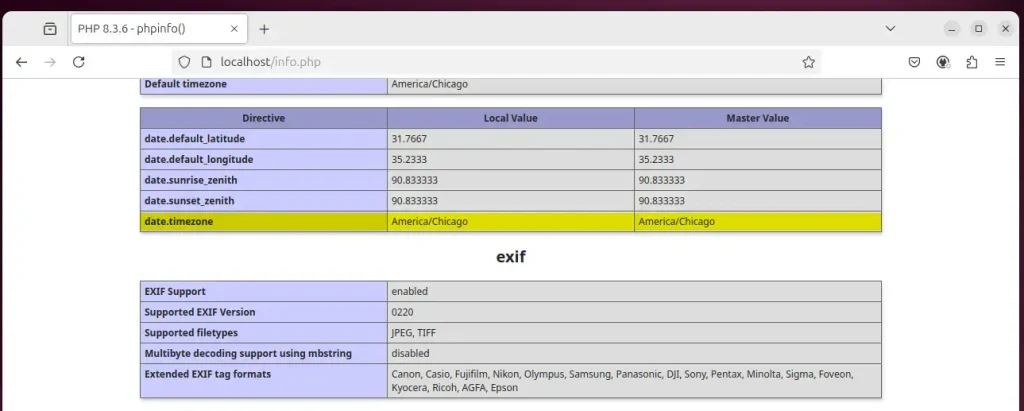
Next, check that Apache's PHP is really using the new timezone. Create a test file named info.php in your web root folder, with the code from the block below inside it. Open that file in your web browser and search the page for the date.timezone entry to check your changes.
   <?php
   phpinfo();
   ?>
Open the file in your web browser (http://localhost/info.php). Press Ctrl+F and search for the date.timezone setting. The Local Value column should show your zone. If it still shows the old value or UTC, check that you edited the apache2 php.ini and that you restarted the service. Delete info.php when you are done, because that page exposes details about your server that you don't want public.
That should do it!
Conclusion:
Setting the correct timezone in PHP with Apache on Ubuntu matters because your applications depend on it for any time-sensitive data, such as logs, schedules and timestamps. By following the steps above, you can:
- Verify the server's current timezone and update it if necessary.
- Make sure the PHP timezone aligns with the server's timezone for consistency.
- Update the php.ini files or use command-line shortcuts for efficiency.
- Restart the Apache server to apply the changes.
- Verify the changes by checking the
date.timezonesetting with a PHP info page.
A correctly set timezone keeps your web applications reliable and their timestamps accurate. If you ever need to change it again, repeat the same steps with the new zone name and restart the service.
Have a question about this guide?
Answered by AI from this guide. Good questions may be added to this page — please don't include personal details.
Did this guide fix your problem?

About the Author
Richard
Tech Writer, IT Professional
Richard is a writer at Geek Rewind who turns complex IT tasks into clear, step-by-step guides. He draws on years of hands-on experience in system administration and enterprise IT operations, focusing on Windows, Linux and WordPress: the problems people actually run into, and the fixes that work. His server and WordPress guides come from systems he runs himself. Richard builds and maintains the platform behind Geek Rewind, from its Ubuntu servers and Nginx configuration to its custom WordPress plugins. Many new tutorials start with readers' questions, and he's always glad to answer them in the comments.
No comments yet — be the first to share your thoughts!