How to Rename Files in Windows 11


Renaming files in Windows 11 lets you turn messy names like “Picture_001.jpg” into clear labels like “Family_Vacation_2024.jpg” so you can find what you need in seconds. You have at least 4 different built-in ways to change a file name, depending on whether you prefer using a mouse, keyboard shortcuts, or menus.
The fastest method takes just 2 clicks or a single key press once you select the item. Every method works across File Explorer without needing extra software.
You can rename files in Windows 11 by selecting the file and pressing F2, or by right-clicking the file and choosing “Rename.” Another option is to click the file name once to make it editable.
Why Rename Files?
Here are some common reasons to rename files in Windows:
- To make the file name more descriptive
- To organize files better
- To avoid naming conflicts
- To make files easier to find
When renaming files, the new name cannot contain these characters: / : * ? ” < > |
Methods to Rename a File in Windows
Method 1Use the F2 Keyboard Shortcut
This is a fast way to rename a file.
- Select the file you want to rename
- Press the F2 key
- Type the new name in the file name field
- Press Enter
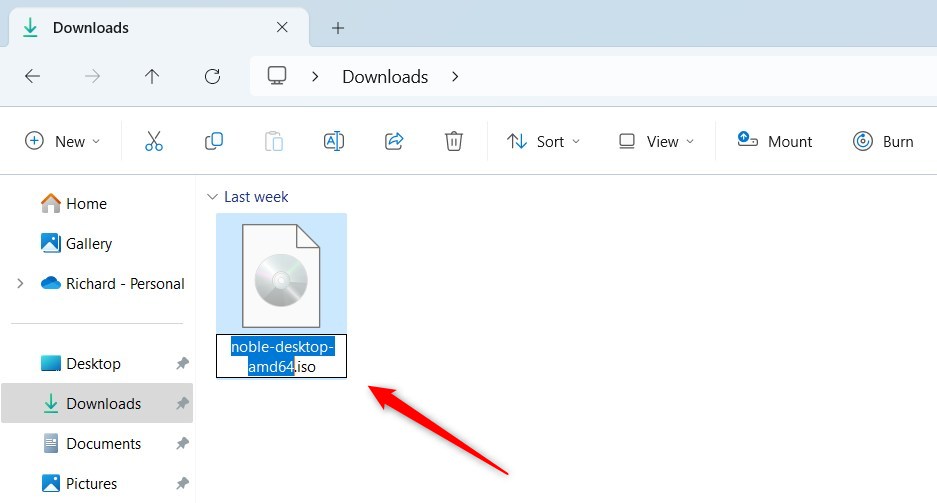
Method 2Use a Single Click
Clicking directly on an item provides another path to a new title.
- Select the file you want to rename
- Click once with the mouse on the file name
- Type the new name when the text is highlighted
Open File Explorer
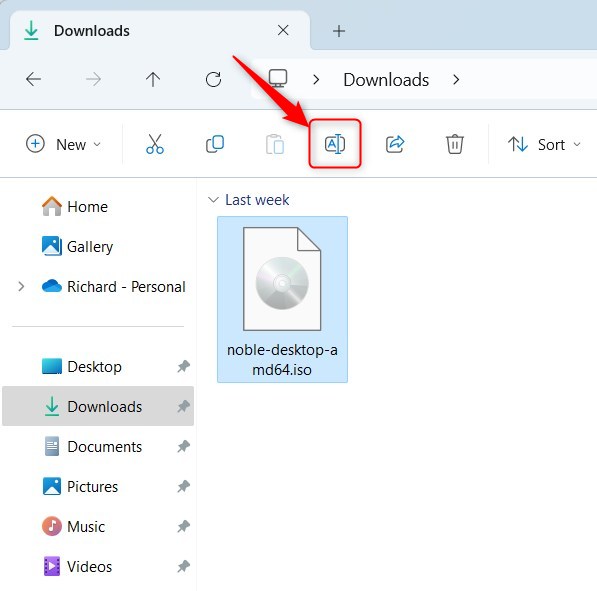
Method 3Use the File Explorer Command Bar
The File Explorer command bar makes renaming efficient.
- Select the file you want to rename
- Click the Rename button on the command bar
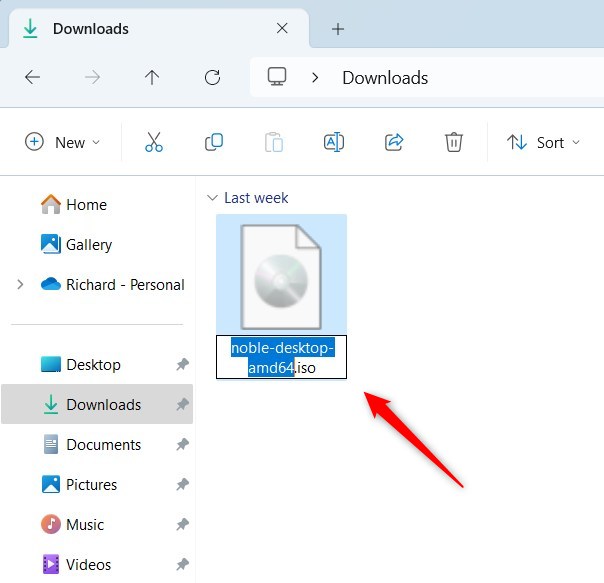
- Type a new name in the file name field
- Press Enter
Open File Explorer
Method 4Use the File Explorer Context Menu
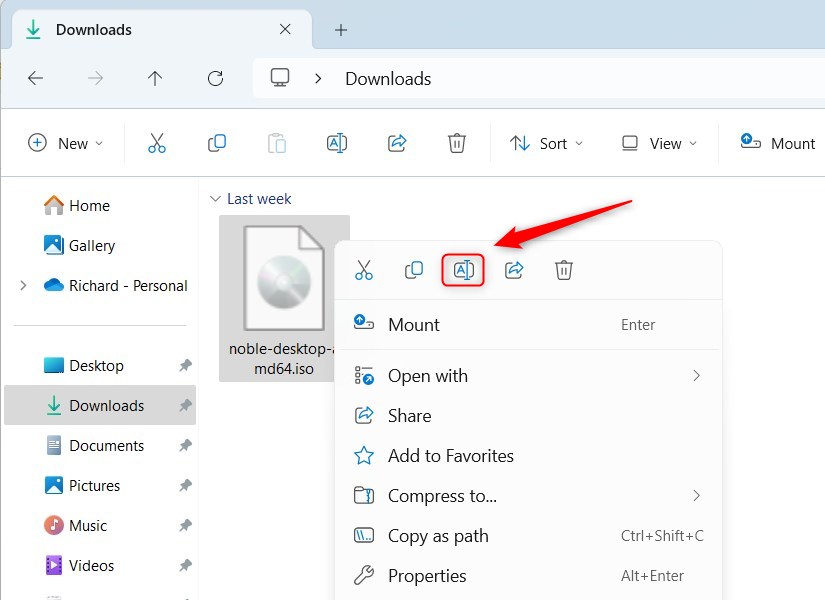
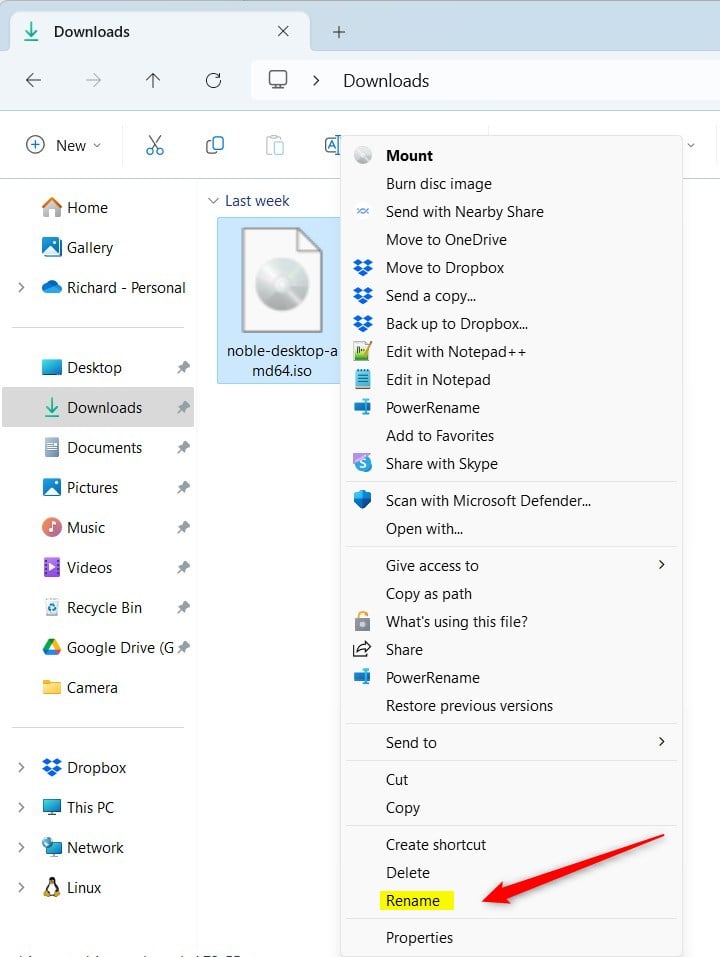
The context menu offers a fast way to rename files in Windows 11 using your mouse. Open File Explorer, right-click the file you want to change, and select the Rename option from the menu. Type your new file name and press Enter on your keyboard to save the change.
- Open File Explorer
- Right-click the file you want to rename
- Select the Rename option from the menu
- Type a new name
- Press Enter
Holding the SHIFT key while right-clicking skips this intermediate step and displays the complete menu immediately.
Method 5Use PowerShell
PowerShell (a command-line shell for running system tasks) lets you rename files in Windows 11 using text commands. Open Windows Terminal and select the PowerShell tab, then use the Rename-Item command with your file path and new name to update the item instantly.
PowerShell processes multiple items at once through text commands.
- Open Windows Terminal and select the PowerShell tab
- Specify the full path of the file you want to rename
- Use the command format below to rename the file
Rename-Item -Path "FullPathToFile.txt" -NewName "FileNewName.txt" -Force
Example:
Rename-Item -Path "C:\Users\UserAccount\Downloads\MyFile.txt" -NewName "FileNewName.txt" -Force
Method 6Use Command Prompt
Command Prompt (a text-based window for entering system commands) gives you another way to rename files in Windows 11 using traditional shell syntax. Open Windows Terminal with the Command Prompt tab, type the ren command followed by the old file path and the new name, and press Enter.
Command Prompt executes renaming operations using traditional shell syntax.
- Open Windows Terminal with the Command Prompt tab
- Specify the full path of the file you want to rename
- Use the command format below to rename the file
ren "FullPathToMyFile.txt" "FileNewName.txt"
Example:
ren "C:\Users\UserAccount\Downloads\MyFile.txt" "FileNewName.txt"
Summary
Keeping a computer tidy starts with proper file management. Multiple paths exist for updating titles, ranging from keyboard shortcuts to command-line utilities. Selecting the right approach depends entirely on personal workflow.
Was this guide helpful?

About the Author
Richard
Tech Writer, IT Professional
Richard is a writer at Geek Rewind who turns complex IT tasks into clear, step-by-step guides. He draws on years of hands-on experience in system administration and enterprise IT operations, focusing on Windows, Linux and WordPress: the problems people actually run into, and the fixes that work. His server and WordPress guides come from systems he runs himself. Richard builds and maintains the platform behind Geek Rewind, from its Ubuntu servers and Nginx configuration to its custom WordPress plugins. Many new tutorials start with readers' questions, and he's always glad to answer them in the comments.


[…] you can always rename the file and change its extension if you need to create a different file […]
[…] Want to learn how to change the file name or type? Check out this simple guide to renaming files in Windows 11. […]
[…] is a file manager app that comes with Microsoft Windows. It lets you view, copy, move, delete, and rename files files and folders. You can organize them in a way that makes sense to […]